Learn how to create viral faceless AI-generated finance videos using free tools, optimized for high RPM USA-based YouTube channels.
Key Takeaways
- Faceless finance videos made 100% with free AI tools can go viral and generate significant income.
- Proper channel setup with SEO-friendly names, descriptions, and tags is crucial for discoverability and growth.
- Targeting USA-based viewers and selecting the education category boosts RPM and advertiser quality.
- Using AI for scripting, image generation, and video creation drastically reduces production time to under 20 minutes per video.
- Consistent branding and character use help build channel identity and viewer engagement.
What the video covers
- The video reveals a step-by-step workflow to create viral faceless finance videos using only free AI tools.
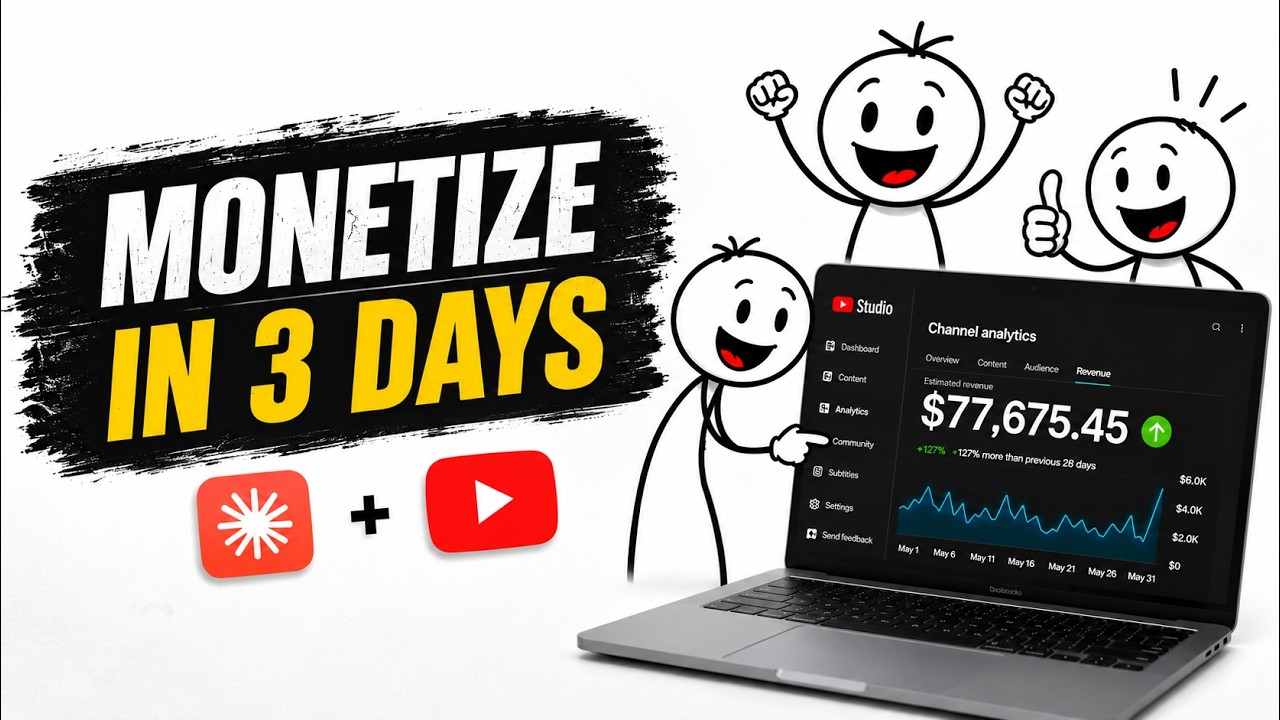
- It highlights a successful YouTube channel that gained 71,000+ subscribers and $8,000+ monthly revenue in 4 months with AI-made videos.
- The tutorial covers channel setup including name generation, branding, description, tags, and critical YouTube settings for maximum RPM.
- It explains how to generate viral video topics and scripts using ChatGPT prompts tailored for the finance and inspiration niche.
- The video demonstrates how to create video scenes with AI-generated images and text-to-video tools without manual editing.
- It provides tips on video editing, adding sound effects, and optimizing upload timing for USA, UK, and Canada audiences.
- The importance of SEO-optimized titles, descriptions, and channel metadata to improve discoverability is emphasized.
- The video encourages consistent character use across videos to build channel identity and viewer retention.
- It stresses the power of targeting a high RPM niche with USA-based settings to maximize earnings and growth potential.
- The tutorial promises that following all steps will enable viewers to replicate the viral success without spending money.
Chapters
- 00:00Introduction to Faceless Finance Videos
- 01:05Success Story of Viral AI Finance Channel
- 02:13Generating Viral Channel Name Ideas
- 03:19Creating Logo and Channel Description with AI
- 04:24Channel Branding: Banner and Tags Setup
- 05:31Critical YouTube Settings for USA-Based Channel
- 06:53Choosing Viral Topics and Video Ideas
- 08:00Script Generation Using ChatGPT
- 09:14Character Creation for Consistent Branding
- 10:24Scene-by-Scene Video Creation Workflow
Full Transcript — Download SRT & Markdown
Speaker A
Um, what you're seeing on the screen right now is a faceless finance video style that is absolutely exploding. And no, this is not theory, not motivation.
Speaker A
This is 100% real. I created this entire 14-minute video using free AI tools only. Uh, let's quickly preview the final result. How many times have you said this exact sentence in your head?
Speaker A
Tomorrow, I'll finally fix my routine. You've said it after a bad day. You've said it before exams. You've said it on Sunday night lying in bed, phone in your hand.
Speaker A
Now, let me show you why this works. While scrolling YouTube, I accidentally discovered a channel that instantly caught my attention. So, I did what most people don't. I dug deep, and what I found completely shocked me. This channel was created just 4 months ago,
Speaker A
has uploaded only 31 videos. Yet, it already has 71,000 plus subscribers, over 3 million total views, and is conservatively earning $8,000 plus dollars per month. But here's where it gets insane. Every single video on this channel is crossing hundreds of
Speaker A
thousands of views. Their top video alone has crossed 1.7 million views. And now listen to this very carefully. Every video on this channel is made 100% with AI, no face, no voice recording, no editing skills, and each video takes
Speaker A
less than 20 minutes to create. This is the power of a high RPM finance niche combined with USA-based targeting. If you do this correctly, the earning potential is not capped. There is no ceiling. The sky is literally the limit.
Speaker A
Now, I know what you're thinking. How exactly are they doing this? What tools are they using? Can I really replicate this without spending money? And the answer is yes. In this video, I'm going to show you the exact step-by-step
Speaker A
workflow to build a USA-based high RPM faceless channel and create these viral finance videos using free AI tools only.
Speaker A
After watching this tutorial, you won't need to watch any other video on this topic. But if you skip even one part, you'll miss something important. So, let's start with the absolute foundation. Um, generating viral channel name ideas. Just use this prompt in Chat
Speaker A
GPT. You can change the number of channel name ideas you want to generate and it will instantly generate 10 high authority channel names which are easy to remember with SEO-friendly positioning and have perfect alignment with finance plus inspiration niche. You can simply
Speaker A
pick the one you like. For this video, I'm going to continue with this channel name: Growth Starts Now. Once you finalize your channel name, simply go to YouTube and create a new channel.
Speaker A
Enter your channel name. Set up your channel handle, also known as your username. That's it. Your channel is now live. Um, next comes branding. And this is where AI saves you hours of work.
Speaker A
Simply paste this prompt into Chat GPT. Replace the channel name placeholder with your own channel name. Within a few seconds, Chat GPT will generate a clean, professional finance style channel logo for you. I tested the exact same prompt
Speaker A
inside Gemini as well. And as you can see on screen, Gemini generated a solid logo, too. So, you're not limited to one tool. You can use Chat GPT or Gemini.
Speaker A
Both work perfectly. Once your logo is finalized, we move to the next critical step, uh, the channel description.
Speaker A
Again, you'll use a simple prompt in Chat GPT. Just replace the channel name and Chat GPT will generate a viral SEO optimized channel description. Now, this part is extremely important. This description does three powerful things.
Speaker A
First, it clearly explains who this channel is for. Second, it explains what problem this channel solves. And third, it explains why this matters right now.
Speaker A
This exact structure is what the YouTube algorithm prefers. It helps YouTube understand your niche faster. It improves discoverability and it positions your channel correctly from day one. After adding the channel description, the next important step is the channel banner. And again, we're not
Speaker A
doing anything manually. Simply use this prompt in Chat GPT. Replace the channel name placeholder with your own channel name. And within seconds, Chat GPT will generate a clean, attractive finance style channel banner. As you can see on screen, I've completed the full setup
Speaker A
for my channel. Growth Starts Now. Channel handle is set, logo is added, banner is live, and the channel description is fully optimized. Now comes a step where most beginners get confused. Channel tags. Most people either skip this or add random keywords
Speaker A
that do nothing for discoverability. So remember this clearly. Your channel tags must define who the channel is. Four, define what the channel is about.
Speaker A
Support your first video topic. Stay broad but intentional. If you do this wrong, YouTube struggles to understand your channel. If you do it right, discovery becomes much easier. To make this simple, I've created a perfect prompt for you. Just paste it into Chat
Speaker A
GPT. Replace the channel name and Chat GPT will generate the most relevant, well-structured channel tags for your niche. These tags help position your channel correctly from day one. As you can see, I've already added these tags to my channel. Now, because we're
Speaker A
building a USA-based YouTube channel with maximum earning potential, there are a few critical settings you cannot afford to miss. First, change your country of residence to United States.
Speaker A
Second, change your currency to US dollars. Next, go to upload defaults, then open advanced settings. Set your video language to English, United States, and also set your title and description language to English, United States. Now comes one of the most
Speaker A
important settings, channel category. You must select education. This is extremely important for a finance and inspiration channel. It directly impacts RPM and advertiser quality. Next, go to community moderation. Scroll down and enable hold comments with hashtags and URLs for review. This protects your
Speaker A
channel from spam and keeps your comment section clean. Finally, go to your channel settings, open feature eligibility, and make sure all three options are enabled. Advanced features are critical for reach and trust. You can enable them by submitting documents
Speaker A
or with a simple 10-second video verification. Once this is done, you have officially created a viral ready SEO optimized USA-based inspirational plus finance high RPM YouTube channel.
Speaker A
This channel is now positioned to start getting attention from day one. And now it's time to create these simple but highly engaging videos that actually go viral. Now, let's talk about the single most important factor behind any viral
Speaker A
video, a viral topic. If the topic doesn't stop people from scrolling, nothing else matters. After analyzing all the viral videos on this channel, I identified the exact patterns that are driving their views. Based on that analysis, I created a perfect prompt for
Speaker A
you. You can simply paste this prompt into Chat GPT and it will instantly generate 20 unique high potential inspirational finance and money video ideas. These topics are designed to trigger curiosity, feel relatable, and keep viewers watching. You can choose
Speaker A
any one of them to start with, and trust me, if you execute it correctly, you can start getting views from your very first video. For this example, I'm going to go with the first topic. Most students follow the wrong daily routine. Do this
Speaker A
instead. Once your topic is finalized, the next step is scripting. And again, we're not writing anything manually.
Speaker A
Simply use the script generation prompt in Chat GPT. You can adjust the duration based on the video length you want and make sure you replace the character name Zach with your own unique character name for your channel. This is extremely
Speaker A
important because the same character name will be used throughout your videos. When you run this prompt, Chat GPT will generate a complete script that includes a strong opening hook, a clear video introduction, the core problem section, a mid-video retention spike, a
Speaker A
powerful closing message, an
Speaker A
And we're going to generate a high quality AI voice, completely free. For this, go to 11 Labs and sign up. On the free plan, 11 Labs gives you 10,000 AI credits every month. No payment required. After signing up, select the
Speaker A
model 11 multilingual V2. Then choose a deep storytelling style voice. My personal favorite is Adam uh deep storytelling. Once selected, simply copy your script from chat GPT, paste it into 11 Labs, generate the voice over, and download the audio file. Now that your
Speaker A
voice over is ready, the next step is visuals. But before generating scenes, we need to create our main character.
Speaker A
This character will appear consistently across all videos. Use this character generation prompt. And once again, replace the name Zach with the same character name you used in your script.
Speaker A
If the names don't match, your scene images won't be consistent. Copy the full prompt and paste it into Gemini using Nano Banana Pro. Gemini will generate a clean, highquality character image for you. If you don't have free access to Nano Banana Pro, I've shared a
Speaker A
separate video where I explain a secret method to use it 100% free without paying anything. Once your character is generated, we move to the most important step, creating images and videos for every scene in your script. For this
Speaker A
step, you'll use this single prompt. All you need to do is add your script into the script placeholder provided at the end of this prompt. Simply copy the full prompt. Go to chat GPT, paste it. Now, before you copy your script, there's one
Speaker A
important rule you must follow. Never paste the entire script at once. For best results, copy only 30 to 40 lines of script at a time. Once the first 30 to 40 lines are done, come back and copy the next 30 to 40 lines. This keeps the
Speaker A
output clean, detailed, and scene accurate. So, I'm copying the first 40 lines of my script, uh, pasting them into the script placeholder, um, and hitting send. Within seconds, chat GPT generates a complete scene by scene breakdown. For every scene, it gives you
Speaker A
the exact script line, a detailed image prompt, and a matching video prompt. This script makes the editing process incredibly easy because you always know which visual belongs to which voice over line. Now that we have the prompts, let's generate visuals. Take the image
Speaker A
prompt for scene one. Um, go back to the same Gemini chat uh where you created your character. Paste the prompt and hit generate. And just like that, your first scene image is ready featuring your main character. Now, let's turn this image
Speaker A
into a video completely free. For this, visit Grock Imagine. The link is in the description. Grock allows free imagetovideo generation. There is a daily limit, but that's not a problem.
Speaker A
Once you hit the limit, you can simply use a temporary email service to create another account and continue generating videos for free. Upload the image for scene one. Copy the video prompt for scene one. Paste it into Grock and hit
Speaker A
send. Within a few seconds, your video clip for scene one is [music] ready. You repeat the exact same workflow for every scene. Copy the next image prompt, generate the image in Gemini, upload it to Grog, paste the video prompt,
Speaker A
generate the video clip. [music] Using this exact process, I've generated video clips for all the scenes in this video.
Speaker A
And now we move to the final step, editing. Now before we move into editing, there's one small issue you might face. After generating many images, your Gemini chat may become heavy and start lagging. If that happens, don't worry. Simply download
Speaker A
your generated character image, open a new Gemini chat, upload your character image, then paste this prompt, and make sure you replace Zach with your own character name. This resets the context and allows you to continue generating images and videos smoothly. This simple
Speaker A
trick will save you a lot of time. Now, let's move to editing. Open your favorite video editor. First, import the voice over file. Drag it onto the timeline. Next, we need to remove silent spaces from the voice over. You can do
Speaker A
this manually, but if you're using Fil Mora, there's a much faster way. Simply click on this option. Use the exact settings you're seeing on the screen.
Speaker A
Click analyze. Then click finish and replace. And just like that, all silent gaps are removed. Now your voice over will be clean and professional. Next, import all your video clips. Place them on the timeline in the correct order.
Speaker A
Adjust each clip so it syncs perfectly with the voice over. Now, you'll notice something. These video clips already contain background sound and noise. We don't need that. Select all video clips at once and reduce their volume to minus20 dB. Now let's add transitions.
Speaker A
For most clips, use the push right transition. Drag it between clips. Set the duration to 13 frames if you're using Fil Mora. 0.5 seconds if you're using Cap Cut. I've added push transitions to all the larger clips. Now
Speaker A
transitions need sound, otherwise they feel dead. Whenever you use push right, add a click sound effect with it. Next, for longer clips, use the flash transition and keep the same duration as before. With flash transitions, use the short whoosh sound effect and increase
Speaker A
its speed to 1.4 times. Once all transitions and sound effects are placed, select all sound effects on the timeline and reduce their volume to minus 8 dB. In some scenes, you'll see chat bubbles like this. For those moments, add the bubble pop sound
Speaker A
effect. You can also add automatic captions if you want. Go to titles, then AI captions, then dynamic captions. For this video, I'm skipping captions. Using these exact editing steps, you can edit the full video smoothly and efficiently.
Speaker A
Once everything looks good, export the video and bingo, your video is ready. Let's preview it.
Speaker A
How many times have you said this exact sentence in your head? Tomorrow, I'll finally fix my routine. You've said it after a bad day. You've said it before exams. You've said it on Sunday night, lying in bed, phone in your hand,
Speaker A
staring at the ceiling. And when you say it, you really mean it. You imagine it clearly. Tomorrow you'll wake up early.
Speaker A
Tomorrow you won't waste time. Tomorrow you'll study properly. Tomorrow you'll finally feel in I've shared the full 14-minute final video link in the description below. Now that the video is ready, the next critical step is uploading it correctly.
Speaker A
But before we move into the correct upload method, if you've watched till here, please support this video by hitting the like button and subscribe to the channel if you haven't already. Now, let's move to the uploading secrets. The
Speaker A
first and most important thing during upload is the thumbnail. For that, you don't need design skills. Simply use this magical prompt in Chat GPT. Replace the topic placeholder with your video topic and bingo. ChatGpt will generate a viral thumbnail concept with a clean
Speaker A
three panel vertical structure. This structure visually tells a story. Problem confusion solution didn't. It's extremely easy to understand at a quick scroll uh which is critical for mobile first click-through rate. The bold wrong routine text contrast uh red versus
Speaker A
white sketch style visuals and bottom placement creates a strong emotional triggers without clutter. This drives curiosity and fast clicks. Next comes the video title. It's another critical element. Again, simply use this prompt in chat GPT. Replace the topic
Speaker A
placeholder and chat GPT will generate a viral yet SEO optimized title designed to help even your very first video get views. Next is the video description.
Speaker A
Use this prompt. Replace the topic with your video topic and chat GPT will generate a viral SEO optimized description with the exact structure YouTube's algorithm prefers. It also includes optimized hashtags, a readytouse pinned comment, and even a caption for your community post. Now,
Speaker A
let's talk about video tags. Tags are especially important for a new channel. They help YouTube understand who this video should be recommended to. I've created a magical prompt template for this as well. Just replace the topic placeholder and chat GPT will generate
Speaker A
the best possible tags to help your video reach the right audience. Once everything is ready for upload, here are two bonus tips you should not skip.
Speaker A
First, use your exact video title as the final video file name. And do the same for your thumbnail file name. YouTube reads file names and this helps it better understand what your video is about. Second, upload timing. If you're
Speaker A
targeting USA, UK, and Canada traffic, you should upload between 8:30 p.m. Eastern Standard Time and 1000 p.m.
Speaker A
Eastern Standard Time. And this is the sweet spot for USA based channels. And the best days to upload are Sunday and Monday. If you've watched till here, hit the like button if you haven't already.
Speaker A
Subscribe to the channel. Uh, leave your feedback in the comments below and share this video with someone you truly care about because this one video can genuinely change their life. All the steps and prompt workflows are currently exclusive to members, but once this
Speaker A
video reaches just 200 likes in the next 6 hours, I'll make everything public for everyone. That's a very small target.
Speaker A
And if you want to learn how to create long AI cartoon videos using free AI tools, you cannot afford to miss the video linked above. See you inside that tutorial.
Topics:faceless finance videosAI video creationfree AI toolsviral YouTube videosfinance inspirationhigh RPM nicheYouTube SEOChatGPT promptsUSA YouTube channelvideo monetization