Skip to content

Same Wi-Fi Name and Password? It’s Easier Than You Think!

Learn how to seamlessly switch to a new Wi-Fi system using the same network name and password, plus tips on security and device management.

Key Takeaways

  • Reusing the same Wi-Fi name and password can simplify device reconnection but may not always be ideal.
  • Upgrading to a strong passphrase and the latest encryption (WPA3) improves network security significantly.
  • Guest networks help manage access and protect your main network from unknown or temporary devices.
  • Regularly reviewing and purging old or unknown devices from your network is important for security.
  • Testing your new Wi-Fi setup before fully switching ensures a smoother transition with minimal device disruption.

What the video covers

  • The video explores whether using the same Wi-Fi name and password on a new system allows all devices to connect automatically.
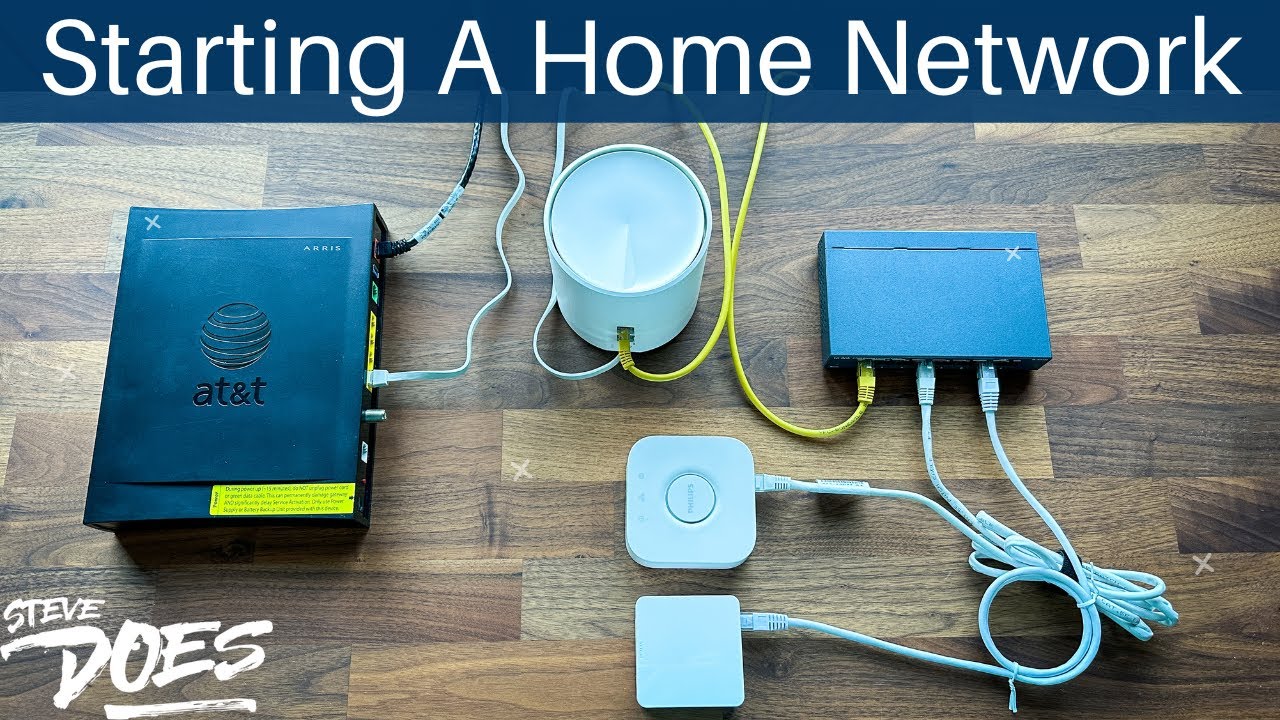
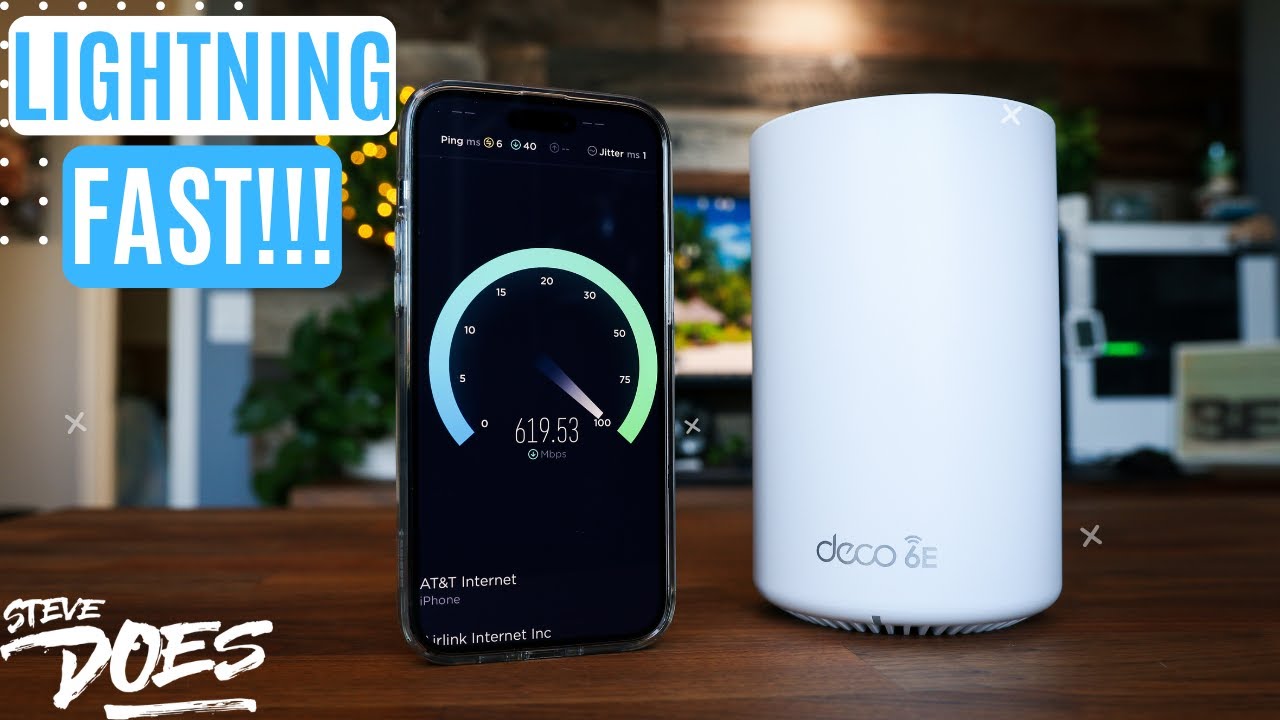
  • Steve tests switching from Nest Wi-Fi to a TP-Link Deco X20 using the same credentials to see how many devices reconnect without manual input.
  • He demonstrates that many devices do reconnect automatically, but some considerations must be made.
  • Reasons not to reuse the same network name and password include weak or common credentials that should be updated for security.
  • Steve recommends using strong passphrases instead of simple passwords to enhance network security.
  • The video explains the importance of upgrading Wi-Fi encryption protocols from older standards like WEP or WPA2 to WPA3.
  • Using a new network name can help avoid conflicts caused by differing encryption standards between old and new systems.
  • Guest Wi-Fi is highlighted as a useful feature to isolate visitors and reduce security risks from numerous connected devices.
  • Steve reviews the large number of connected and previously connected devices on his old network, emphasizing the need to purge unused devices.
  • The video is part of a Networking for Beginners series and encourages viewers to check out previous videos for foundational knowledge.

Answers

Questions about this video

Can I use the same Wi-Fi name and password when upgrading to a new router?

Yes, using the same Wi-Fi name and password can allow many devices to reconnect automatically, but it depends on matching encryption protocols and device compatibility.

Why should I consider changing my Wi-Fi password when upgrading my system?

Upgrading is a good opportunity to replace weak or common passwords with strong passphrases, enhancing your network's security and protecting against unauthorized access.

What is the benefit of enabling a guest Wi-Fi network?

Guest Wi-Fi isolates visitors from your main network, reducing security risks and preventing unknown devices from accessing your personal devices and data.

Full Transcript — Download SRT & Markdown

00:03
Speaker A
Upgrading your tech at home is always a fun thing to do, but it can cause some growing pains. I just picked up this massive new Wi-Fi system here from Netgear, and I want to integrate it into my house, but I've got 60 different devices connected to my old network. Can I just rename this new system with my old name so that way it's using the same name and the same password, and everything should just port over, right? Well, that is what we're going to be taking a look at in today's video, guys. Thank you for joining me here on this Networking for Beginners series. This is video three out of this series. If you guys haven't seen the earlier stuff, I recommend you guys check that out or check out the playlist, which I will link down below. But it makes sense, right? Just take your new network, give it the same name, the same password, and everything should just automatically connect. Well, in this video, I'm gonna do just that. I'm gonna take a new network, give it the same name and password, and we're gonna see how well it actually works. I'm also going to go over some reasons on why you actually might not want to do this. Now, before we get started, if you guys can give this video a thumbs up, I would greatly appreciate that. It helps with the YouTube algorithm and spreads it out to more people. So by you clicking on that thumbs up button, it will truly help out this video. So thank you guys in advance for that, and with that said, let's go ahead and get started. Now, years ago, we didn't have a lot of devices connecting to our Wi-Fi. You know, maybe a laptop, a cell phone, a few other things around the house. So we bought a new Wi-Fi home system, you just had to update the credentials on those, and you were off and running. But nowadays, there are so many devices in the house. We have got smart TVs, smart fridges, washers and dryers, security systems, cameras, all of our smart home gear. Now, I know my house is flooded with the stuff, so it just makes sense when you're going to be upgrading to a new Wi-Fi system to just use the same Wi-Fi name and password to get everything converted over to the new system. Now, in theory, this should work just fine. Use the exact same name, use the exact same password, and use the same encryption protocol that you used on the previous device. All of this should easily port over. But is it as easy in reality as it is on paper? That's where we're going to be taking a look at. In fact, let's actually do that right now. I'm going to bring up my phone here, and I'm going to load up the Google app. So if we take a look at my Google app here, this is the old network that I've been using for years. I've had Nest Wi-Fi, so I'm gonna go ahead and tap on the Wi-Fi right here. I've got two access points. If we look just off to the side right there in green, it says I have 34 devices still connected to that old network. Now, what I want to do is we're going to take my other Wi-Fi system. We are going to set it up using the same Wi-Fi name and password, and we're also going to turn this Nest Wi-Fi off and see if we can get all 34 devices converted over to the new system. So let's go ahead and test that out right now. Okay, so I know in the beginning of this video I talked about replacing it with this giant monstrosity right here from Netgear, but I decided because of what we used in the previous videos in this series, I'm gonna go ahead and just use the TP-Link Deco X20. So I have renamed the Wi-Fi name and password that was with the Nest Wi-Fi right here, so I'm gonna go ahead. We're gonna get this guy unplugged. All right, so that one is now unplugged. So now this one is up with the same network name and password, so everything should start porting over to this one. But let's go ahead and check the app and see what it looks like. All right, so here we go. First look, I have the app loaded up right now. We can see main bedroom that we have hooked up. We have no devices connected to it as of right now. It's got the same username. It's got the same password. I'm gonna give this some time for all of my devices to kind of ping to it and try to connect to it, and I'm hoping, hoping we can get all 34 devices on this new network without me having to put in any username or password. But time will tell. I'll see you guys in a bit. Actually, look at that before we even sign off. Look right here, adjusted an update, and we've already got 23 clients already online. 23 of my devices have already jumped over to the new Wi-Fi system here. It makes it so many. Okay, there we go, 24, 26. Oh, the number is still going up. But while we wait for all 34 devices to connect, let's talk about a few other things and reasons why you might not want to do this. Now, reusing the same network name and password is by far the easiest way to convert over to a new system, but there are some things that you're going to want to consider before you actually make that change. First thing is going to be, was your old username and password a common phrase? Did you have, say, Linksys as your name or maybe a T Wi-Fi? Was your password one, two, three, four, five, six, seven, eight? If so, upgrading to a new Wi-Fi system is going to be a good time to update your credentials. So, are you using a weak password? Is your password "Wireless" or "password"? If anything is under 12 characters, it is typically considered a weak password, and something that I would recommend you doing is actually not using a password at all, but instead using a passphrase. This is going to be a full sentence as a password because your password can be up to 63 characters long. So stop using one, two, three, four, five, six, seven, eight, and maybe use the phrase "You can't handle the truth," all with spaces and even add some punctuation into that. Now, another thing to keep in mind when you're upgrading to a new Wi-Fi system is the encryption. Years ago, we used WEP encryption, and then it went to WPA encryption, and we got WPA2, and now we are on to WPA3. So if your new system supports the newest encryption, which is WPA3, I would recommend using that. Most likely, your old system is still going to be using WPA2 or something older, and if you have conflicting encryption between the device and the new device, a lot of your devices might not connect to your new system. So now might be a good time to future-proof your new system, get a new network name, upgrade your password to something really strong, and upgrade your encryption. Now, guest Wi-Fi might be a feature on your new Wi-Fi setup that you didn't have on your old one, or maybe you didn't utilize it on your old one. I know that I didn't. When I used my Nest Wi-Fi, I didn't turn on the guest network that it provided. I just gave people passwords as they would come over, and I got a lot of devices connected to my Wi-Fi, primarily because every year I host a fantasy football league, and I would have 10 plus people come over with their own laptops, their own phones. They'd want to connect to my Wi-Fi, and I would just hand out the password. But if I take a look at my network, let's go ahead and load that up right now. Here is the old Nest Wi-Fi that I have, and I got a bunch of different devices on here, things that have actual names, things like here that says None Amazon. Let's see what else we have here. There were some other ones I'm looking at. So here, unnamed device, unnamed device. Look at all these unnamed devices, and let me scroll down even further. So now I'm looking at devices that are offline. So these are devices that had connected in the past, are not connected anymore, and scroll down. Look at this. Look at all of these unnamed devices that potentially still have access to my network. If they're going back, look at all these. There are so many of these. Keep scrolling down. I mean, that is just incredible, all these devices on here. This is now a great time for you to turn on guest Wi-Fi on your new system and purge all of these devices that have been connecting to your network over the years that maybe you don't want to have access anymore. So this is also a good reason to maybe get a new Wi-Fi name and password. Another thing that I li...
00:17
Speaker A
devices connected to my old Network can I just rename this new system with my old name so that way it's using the same name and the same password and everything should just Port over right well that is we're going to be taking a
00:31
Speaker A
look at in today's video guys thank you for joining me here on this networking for beginners Series this is video three out of this series if you guys haven't seen it earlier stuff I recommend you guys checking that out or checking out
00:43
Speaker A
the playlist which I will link down below but it makes sense right just take your new network give it the same name the same password everything should just automatically connect well in this video I'm gonna do just that I'm gonna take a
00:56
Speaker A
new network give it the same name and password we're gonna see how well it actually works I'm also going to go over some reasons on why you actually might not want to do this now before we get started if you guys can give this video
01:06
Speaker A
a thumbs up I would greatly appreciate that it helps with the YouTube algorithm and spreads it out to more people so by you clicking on that thumbs up button it will truly help out this video so thank you guys in advance for that and with
01:18
Speaker A
that said let's go ahead and get started now years ago we didn't have a lot of devices connecting to our Wi-Fi you know maybe a laptop a cell phone a few other things around the house so we bought a
01:29
Speaker A
new Wi-Fi home system you just had to update the credentials on those and you were off and running but nowadays there are so many devices in the house we have got smart TVs smart fridges washers and dryers security systems cameras all of
01:44
Speaker A
our smart home gear now I know my house is flooded with the stuff so it just makes sense when you're going to be upgrading to a no Wi-fi system to just use the same Wi-Fi name and password to
01:56
Speaker A
get everything converted over to the new system now in theory this should work just fine use the exact same name use the exact same password and use the same encryption protocol that you used on the previous device all of this should
02:08
Speaker A
easily Port over but is it as easy in reality as it is on paper that's where we're going to be taking a look at in fact let's actually do that right now I'm going to bring up my phone here and
02:17
Speaker A
I'm going to load up the Google app so if we take a look at my Google app here this is the old Network that I've been using for years I've had Nest Wi-Fi so I'm gonna go ahead and tap on the Wi-Fi
02:27
Speaker A
right here I've got two access points if we look just off to the side right there in green it says I have 34 devices still connected to that old Network now what I want to do is we're going to take my
02:39
Speaker A
other wi-fi system we are going to set it up using the same Wi-Fi name and password and we're also going to turn this Nest Wi-Fi off and see if we can get all 34 devices converted over to the
02:52
Speaker A
new system so let's go ahead and test that out right now okay so I know in the beginning of this video I talked about replacing it with this giant monstrosity right here from Netgear but I decided because of what we used in the previous
03:03
Speaker A
videos in this series I'm gonna go ahead and just use the tp-link Deco X20 so I have renamed the Wi-Fi name and password that was with the nest Wi-Fi right here so I'm gonna go ahead we're gonna get
03:15
Speaker A
this guy unplugged all right so that one is now unplugged so now this one is up with the same network name and password so everything should start porting over to this one but let's go ahead and check the app and see what it looks like all
03:27
Speaker A
right so here we go first look I have the app loaded up right now we can see main bedroom that we have hooked up we have no devices connected to it as of right now it's got the same username
03:37
Speaker A
it's got the same password I'm gonna give this some time for all on my devices to kind of ping to it and try to connect to it and I'm hoping hoping we can get all 34 devices on this new
03:48
Speaker A
network without me having to put in any username or password but time will tell I'll see you guys in a bit [Music] actually look at that before we even sign off look right here adjusted an update and we've already got 23 clients
04:03
Speaker A
already online 23 of my devices have already jumped over to the new wi-fi system here it makes it so many okay there we go 24 26 oh number is still going up but while we wait for all 34
04:16
Speaker A
devices to connect let's talk about a few other things and reasons why you might not want to do this now reusing the same network name and password is by far the easiest way to convert over to a new system but there are some things
04:30
Speaker A
that you're going to want to consider before you actually make that change first thing is going to be was your old username and password a common phrase did you have say Linksys as your name or maybe a t Wi-Fi what's your password one
04:45
Speaker A
two three four five six seven eight if so upgrading to a new wi-fi system is going to be a good time to update your credentials so are you using a weak password is your password word Wireless or password if anything is under 12
05:00
Speaker A
characters is typically considered a weak password and something that I would recommend you doing is actually not using a password at all but instead using a pass phrase this is going to be a full sentence as a password because
05:12
Speaker A
your password can be up to 63 characters long so stop using one two three four five six seven eight and maybe use the phrase you can't handle the truth all with spaces and even add some punctuation into that now another thing
05:26
Speaker A
to keep in mind when you're upgrading to a new wi-fi system is the encryption years ago we used WEP encryption and then it went to WPA encryption and we got WPA2 and now we are on to wpa3 so if
05:41
Speaker A
your new system supports the newest encryption which is wpa3 I would recommend using that most likely your old system is still going to be using WPA2 or something older and if you have conflicting encryption between the device and the new device a lot of your
05:59
Speaker A
devices might not connect to your new system so now might be a good time to Future proof your new system get a new network name upgrade your password to something really strong and upgrade your encryption now guest Wi-Fi might be a
06:12
Speaker A
feature on your new Wi-Fi setup that you didn't have on your old one or maybe you didn't utilize it on your old one I know that I didn't when I used my Nest Wi-Fi I didn't turn on the guest Network that
06:23
Speaker A
it provided I just gave people passwords as they would come over an intern got a lot of devices connected to my Wi-Fi primarily because every year I host a fantasy football league and I would have 10 plus people come over with their own
06:37
Speaker A
laptops their own phones they'd want to connect to my Wi-Fi and I would just hand out the password but if I take a look at my network let's go ahead and load that up right now here is the old
06:47
Speaker A
nest Wi-Fi that I have and I got a bunch of different devices on here things that have actual names things like here that says None Amazon let's see what else we have here there were some other ones I'm
06:57
Speaker A
looking at so here unnamed device unnamed device look at all these unnamed devices and let me scroll down even further so now I'm looking at devices that are offline so these are devices that had connected in the past are not
07:09
Speaker A
connected anymore and scroll down look at this on look at all of these unnamed devices that potentially still have access to my network if they're going back look at all these there are so many of these keep scrolling down I mean that
07:23
Speaker A
is just incredible on all these devices on here this is now a great time for you to turn on guest Wi-Fi on your new system and Purge all of these devices that have been connecting to your network over the years that maybe you
07:36
Speaker A
don't want to have access anymore so this is also a good reason to maybe get a new Wi-Fi name and password another thing that I like to do with a new Fresh network is as I am connecting devices to
07:48
Speaker A
that Network I go in and I properly name everything every time something connects I'll get a notification saying hey this device connected to you or Wi-Fi you can go in there and you can customize the name of what you want that to be so you
08:00
Speaker A
can give it an exact name of what that thing is instead of what we saw there it said none Amazon I don't know what that is but if I would have renamed it right when it connected I could specifically
08:10
Speaker A
know what that device is this is just another reason why it might be worth setting up a brand new network name instead of keeping your old username and password okay so now it's time to check in on our new router did it pick up all
08:23
Speaker A
34 of the devices that we wanted to I'm gonna go ahead and load up the app here we see we've got online we've got 26 of our devices that have connected I'm gonna go ahead and click on that we
08:34
Speaker A
can see the naming for all of this right here and if I scroll down let's see we've got four here that it shows offline it's kind of weird I've been monitoring it and some things will pop offline but then come back on so we got
08:46
Speaker A
four clients offline looks like now up at the top we've got 29 clients that are connecting all right so 29 connecting we've got four Offline that is 33 out of the 34 items so all but one which now
08:58
Speaker A
begs the question which one didn't connect I always hate when that happens because I'm gonna find out when I need it the most that this one didn't connect but there you have it we have talked through the different scenarios for
09:10
Speaker A
updating your password or not if anything that we have talked about doesn't apply to you then by all means use your old username and password for your new Wi-Fi setup if any of it does I would highly recommend just biting the
09:24
Speaker A
bullet and suffering through transferring everything over individually set up a stronger password set up better encryption it will definitely pay off in the long run if you guys have made it this far into the video thank you so much this video here
09:39
Speaker A
was created specifically because of your comments in the previous videos in this series so comment below with any questions that you might have take a look at the video series on home networking 101 for beginners if this video was helpful give it a thumbs up
09:54
Speaker A
and let me know that you liked it as always always don't forget to subscribe for more content like this and I'll see you guys in the next video [Music] [Applause] [Music] [Music]
Topics:Wi-Fi upgradesame Wi-Fi nameWi-Fi passwordnetwork securityWPA3 encryptionguest Wi-Fismart home devicesTP-Link Deco X20Nest Wi-Fidevice management

Get More with the SozAI App

Transcribe recordings, audio files, and YouTube videos — with AI summaries, speaker detection, and unlimited transcriptions.

Or transcribe another YouTube video here →