Skip to content

Fix Your Wi-Fi Signal Instantly – Router Placement Tips!

Learn how to instantly improve your Wi-Fi signal with expert router placement tips for single routers and mesh systems.

Key Takeaways

  • Center your main router for optimal single-router coverage.
  • Keep mesh satellites within 10-15 meters and avoid dead zones.
  • Obstacles such as walls and furniture degrade Wi-Fi signal strength.
  • Use signal strength apps to verify proper satellite placement.
  • Run speed tests to confirm improved network performance after adjustments.

What the video covers

  • This video is part of a beginner-friendly Networking 101 series focusing on Wi-Fi router placement.
  • For single routers, place the device in the most central part of your home to maximize signal coverage.
  • Mesh Wi-Fi systems require strategic placement of the main router and satellites to maintain strong connections.
  • Satellites should be spaced about 10 to 15 meters apart and placed close enough to each other to avoid signal loss.
  • Avoid placing satellites in dead zones where the main router's signal cannot reach.
  • Walls, large furniture, and other obstacles can reduce Wi-Fi signal strength and speed.
  • Use apps like the Deco app to check signal strength between satellites and the main router.
  • After placement, run speed tests using tools like Speedtest by Ookla to verify network performance.
  • The video includes visual diagrams and practical examples to help beginners understand optimal router placement.
  • Additional videos in the series cover topics like mesh Wi-Fi basics and converting coax cable to Ethernet.

Answers

Questions about this video

Where should I place my single Wi-Fi router for best coverage?

Place your single Wi-Fi router in the most central part of your home to ensure the spherical signal covers the maximum area evenly.

How far apart should mesh Wi-Fi satellites be placed?

Satellites in a mesh Wi-Fi system should be spaced about 10 to 15 meters apart to maintain strong connections and ensure good redundancy.

Why shouldn't I place mesh satellites in dead zones?

Placing satellites in dead zones means they won't receive a strong signal from the main router, which reduces overall network performance and speed.

Full Transcript — Download SRT & Markdown

00:03
Speaker A
Welcome back to another video, and joining us for our series in networking for beginners. In today's video, we're going to be talking about Wi-Fi routers, and I'm going to tell you right now, you need to stop putting those Wi-Fi routers in the wrong spot.
00:17
Speaker A
in the wrong spot so in today's video I am going to go through different placement for those Wi-Fi routers what you should do if you have a single router what you should do if you get a mesh system with either two or three
00:29
Speaker A
So, in today's video, I am going to go through different placements for those Wi-Fi routers, what you should do if you have a single router, what you should do if you get a mesh system with either two or three devices in that pack. Hopefully, by the end of this, you will have a stronger Wi-Fi network.
00:44
Speaker A
for beginner so it's not advanced stuff we're not deep diving into too much this is going to be a lot of top level information for beginners so hopefully it won't be too confusing I will put all of these videos in a playlist I will
00:56
Speaker A
Now, this is video number two in the Networking 101 series. Last week, I did a video breaking down setting up a home network. Now, this is for beginners, so it's not advanced stuff. We're not deep diving into too much. This is going to be a lot of top-level information for beginners, so hopefully it won't be too confusing. I will put all of these videos in a playlist. I will link that playlist down below if you guys want to check that out starting your own home network.
01:06
Speaker A
this series so definitely check that out I've also got a couple of bonus videos in that playlist on what is a mess Wi-Fi and then also how to use coax cable to turn into ethernet cable but with that
01:18
Speaker A
Now, we're talking about putting our Wi-Fi routers in the correct spots. There are lots of other videos that are going to be a part of this series, so definitely check that out. I've also got a couple of bonus videos in that playlist on what is a mesh Wi-Fi and then also how to use coax cable to turn into Ethernet cable. But with that said, don't forget to subscribe for more content like this, and let's go ahead and get started with the topics.
01:27
Speaker A
have a single router like this one right here you're going to want to get it to the most center part of your house these routers here shoot out a signal that is going to be sphere shaped so we're going
01:39
Speaker A
All right, the first thing that we're going to want to do is move our main router. Now, if you have a single router like this one right here, you're going to want to get it to the most center part of your house. These routers here shoot out a signal that is going to be sphere-shaped, so we're going to get signal going left, right, up, down, all over the place, and we're going to want to be as center as possible.
01:51
Speaker A
we have the main router here but we also have some satellites to put around the house now depending on the amount of satellites that we got we're gonna need to be a little bit strategic on our place bit with this one right here we
02:02
Speaker A
Now, the Wi-Fi system that we set up in the first video was a mesh system, so not only do we have the main router here, but we also have some satellites to put around the house. Now, depending on the amount of satellites that we got, we're going to need to be a little bit strategic on our placement. But with this one right here, we have a three-pack, so we're going to have this guy with two other satellites to put around the house.
02:12
Speaker A
that you're putting out because the other satellites need to connect to this one to get its strength now if you only have two of these satellites you're going to want to offset these a little bit in the house where you would not put
02:21
Speaker A
Now, ideally, you're going to want to have this one be as center as you can as far as the three that you're putting out because the other satellites need to connect to this one to get its strength. Now, if you only have two of these satellites, you're going to want to offset these a little bit in the house where you would not put one in the center, and you're going to have one a little bit more saved to the right, another one a little bit more to the left. But you don't want them on far extremes of each other. You still want them semi-close to each other because the farther they get from each other, the lower the signal strength is going to be. Also, depending on how many walls they have to pass through, walls, big furniture, different things like that, is all going to lower the signal strength and therefore lower the speed.
02:30
Speaker A
them semi close to each other because the farther they get from each other the lower the signal a strength is going to be also depending on how many walls they have to pass through walls big furniture different things like that is all going
02:41
Speaker A
Okay, so the next thing we need to do is place our satellites around the house. I get a three-pack right here, so I've got two satellites to put out in the house. Now, by default, you might think that you want to spread these as far out as possible, but remember, these connect to each other wirelessly, so we do want to have them in a tighter circle and not spread out so much. If we take a look at the diagram here, this isn't from the Asus website. So, if we take a look, we've got our primary router right here, and then in this one, we've got our two nodes or satellites way off to the side of the house. And if we look at the blue circles around it, neither one is touching the circle of the main router, so we're actually not getting any signal from that main router, which is not transferring internet to the other nodes.
02:52
Speaker A
by default you might think that you want to spread these as far out as possible but remember these connect to each other wirelessly so we do want to have have them in a tighter Circle and not spread out so much if we take a look at the
03:05
Speaker A
If you take a look at the one here to the right, this one is going to be better because it's going to piggyback off of the other one. So, we've got one router, we've got a node in the middle, and another node. If we take a look down below that in the description, it says that you want to space these out about 10 to 15 meters apart. This is going to give us the best redundancy and signal strength throughout the network. Another thing that we want to make sure we're doing is that we are not putting our satellites in a dead zone. So, if we look at the diagram right here, we see that with a single point unit, it's not getting all over the house, so there are going to be some dead areas. Now, you don't want to put a node in a dead spot because the signal strength from that main router is not going to reach there.
03:15
Speaker A
house and if we look at the blue circles around it neither one is touching the circle of the main router so we're actually not getting any signal from that main router which is not transferring Internet to the other nodes
03:27
Speaker A
The last thing that we could do is we detect the signal strength of our nodes to the main router. So, here in my Deco app, I have got my little network set up right here. We've got office, we've got server room, and we have the living room. I'm going to tap on that, and then I can tap on each one of these satellites individually. If I tap on living room up here in the upper half section, we see that we have a strong signal. I'm going to back out of that. Let's also check the office signal. If we take a look, office also has a strong signal too, so now we know that we're getting a good signal amongst all of the devices in our house.
03:36
Speaker A
another note if we take a look down below that in the description it says that you want to space these out about 10 to 15 meters apart this is going to give us the best redundancy and signal strength throughout the network another
03:47
Speaker A
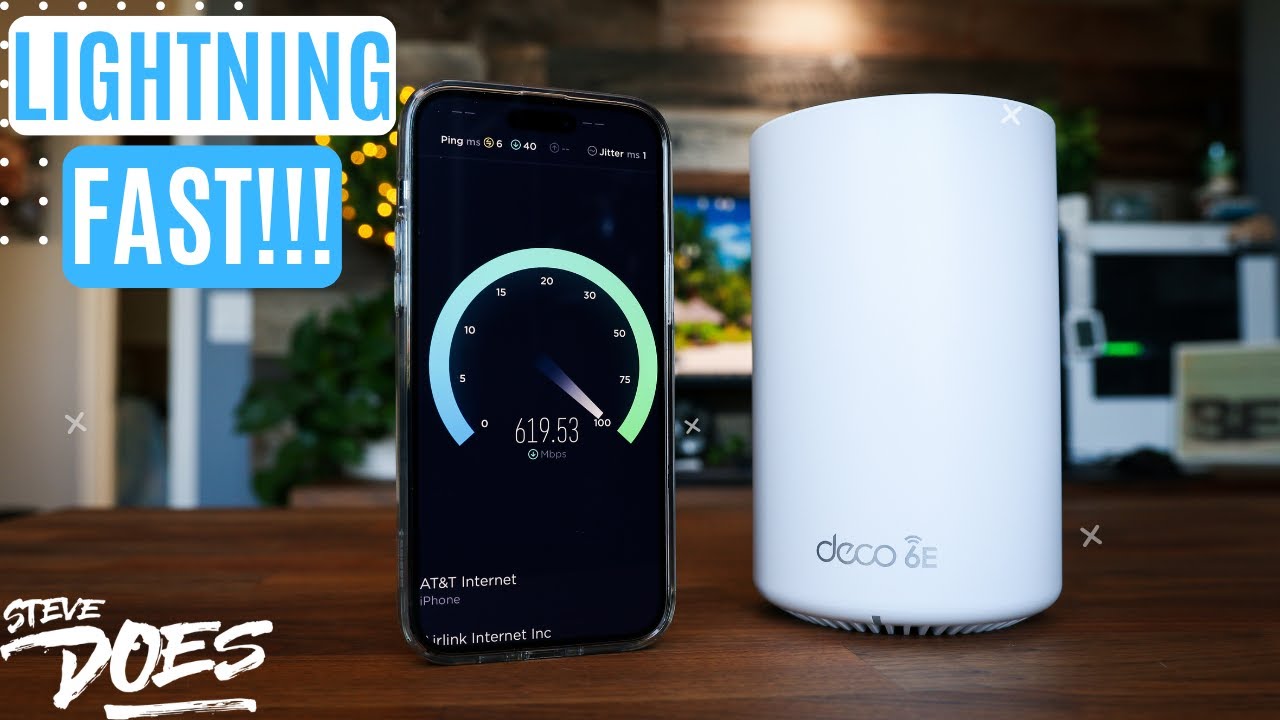
Okay, now that we have got our main router set up, we put out our satellites there, we checked for signal strength, we've avoided those dead zones, now what we want to do is we want to run a speed test. Because what we're going to do, grab our phone, and this is the speed test that I use, Speedtest by Ookla. Go ahead, and I'm going to click on open, and let's run the test and see what kind of signal strength we are getting from our devices. Now, I have a device about 10 feet going through about two walls on this side of me. I've got another device that is down below on the lower floor and maybe about another 10 feet off to the side, so I'm kind of in between two devices right now. I'm hoping for a really good signal strength.
03:57
Speaker A
getting all over the house so there are going to be some dead areas now you don't want to put a node in a dead spot because the signal strength from that main router is not going to reach there
04:07
Speaker A
All right, take a look right here. We're getting about 400 up and about 400 down on this one. I am more than happy with that speed. Now, a couple other things to consider: make sure that you're getting the internet speed that you were paying for from your internet provider. If you're paying for 100 megabits, make sure you are getting 100 megabits. If you're considering an internet bump in speed, ask for a trial. It doesn't hurt to call up your ISP and ask them if you can have a little trial bump to see what the next speed would produce in the speed of your internal network. And then lastly, you can ask your internet provider for a modem upgrade. If you are leasing or renting a modem from them and it has been a while, you can always reach out to them and ask them if they have an upgrade, and they usually will send that out and replace it for free.
04:16
Speaker A
server room and we have the living room I'm going to tap on that and then I can tap on each one of these satellites individually if I tap on living room up here in the upper half section we see
04:26
Speaker A
All right, well, that wraps up placing your mesh Wi-Fi system in the correct position. If you guys like this video, give it a thumbs up and let me know that you liked it. Also, comment below, let me know what you thought of this one. Also, ask any questions, and I will either add videos to the future playlist or try to answer them on my Instagram. You guys can follow me on Instagram here, and I'll be posting shorts and reels over there to answer any questions that I can.
04:36
Speaker A
amongst all of the devices in our house okay now that we have got our main router set up we put out our satellites there we checked for signal strength we've avoided those dead zones now what we want to do is we want to run a speed
04:50
Speaker A
Below as a reminder, don't forget to subscribe if you haven't already, and I will see you guys in the next video.
05:01
Speaker A
of signal strength we are getting from our devices now I have a device about 10 feet going through about two walls on this side of me I've got another device that is Down Below on the lower floor and maybe about another 10 feet off to
05:14
Speaker A
[Music] [Applause] [Music] [Music]
05:26
Speaker A
that speed now a couple other things to consider make sure that you're getting the internet speed that you were paying for from your internet provider if you're paying for 100 megabits make sure you are getting 100 megabits if you're
05:37
Speaker A
considering an internet bump in speed ask for a trial it doesn't hurt to call up your ISP and ask them if you can have a little trial bump to see what the next speed would produce in the speed of your
05:49
Speaker A
internal Network and then lastly you can ask your internet provider for a modem upgrade if you are leasing or renting a modem from them and it has been a while you can always reach out to them and ask
05:59
Speaker A
them if they have an upgrade and they usually will send that out and replace it for free all right well that wraps up placing your mesh wi-fi system in the correct position if you guys like this video give it a thumbs up and let me
06:09
Speaker A
know that you liked it also comment below let me know what you thought of this one also ask any questions and I will either add videos to the Future playlist or try to answer them on my Instagram you guys can follow me on
06:21
Speaker A
Instagram here and I'll be posting shorts and reels over there to answer any questions that I can below as a reminder don't forget to subscribe if you haven't already and I will see you guys in the next video
06:31
Speaker A
[Music] [Applause] [Music] [Music]
Topics:Wi-Fi router placementmesh Wi-Fi setuphome network tipsWi-Fi signal strengthnetworking for beginnersrouter placement tipsmesh satellitesWi-Fi dead zonesspeed testhome Wi-Fi optimization

Get More with the SozAI App

Transcribe recordings, audio files, and YouTube videos — with AI summaries, speaker detection, and unlimited transcriptions.

Or transcribe another YouTube video here →