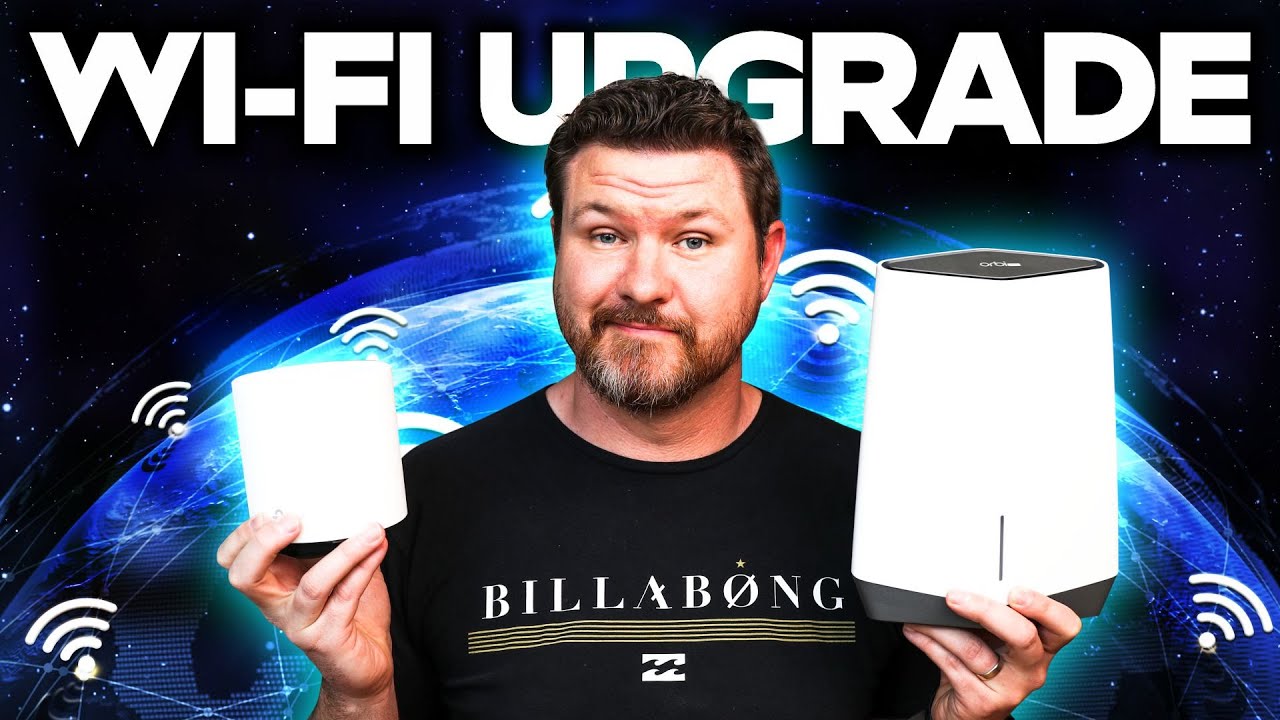
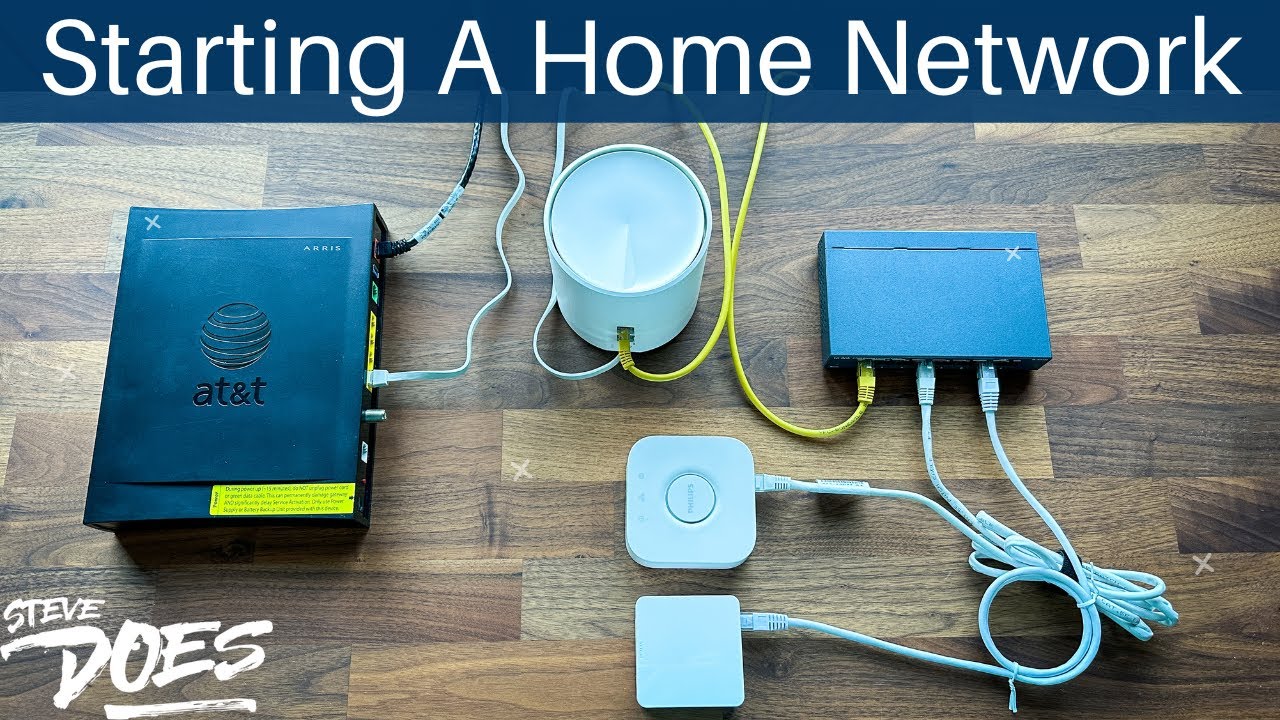
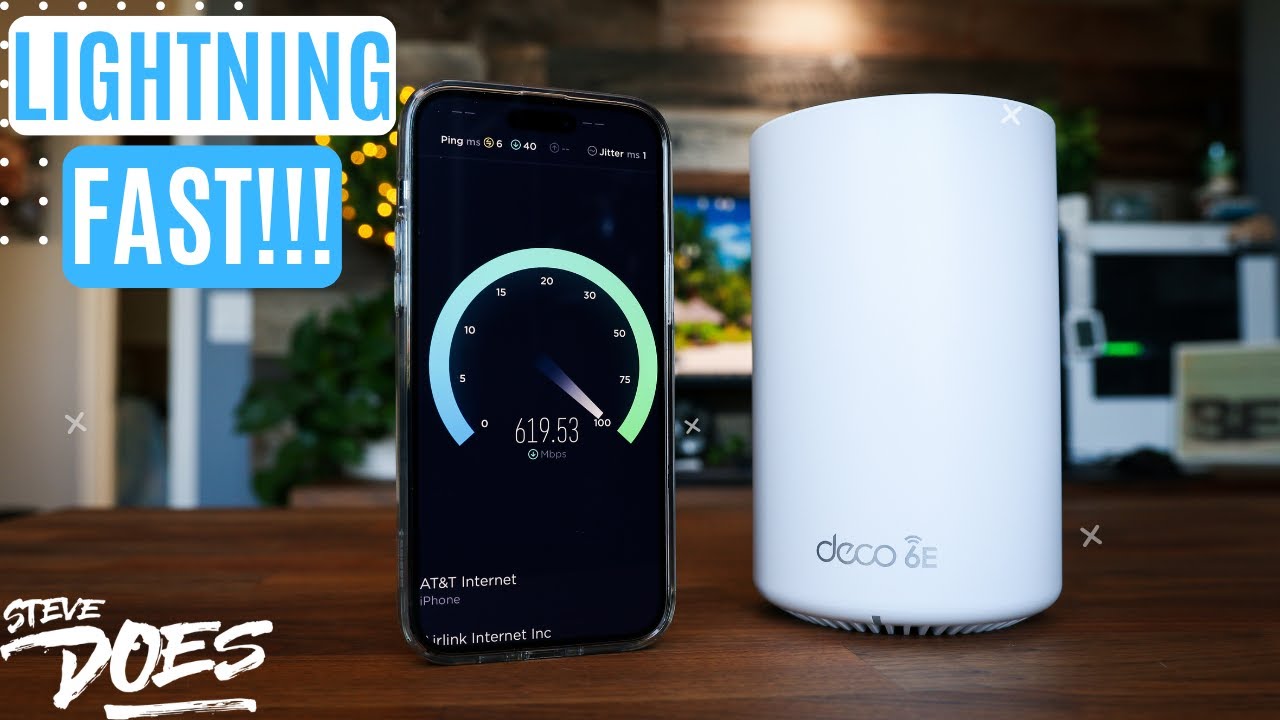
Steve upgrades his home network with Netgear's fiber, Orbi Pro WiFi 6, and PoE switches, improving speed and cable management.
Ask about this video. Answers come from its transcript only — with the timestamp, so you can check them.
Generated from the transcript and can be wrong — check the timestamp.
Key Takeaways
- Proper cable termination is critical for network performance and reliability.
- Netgear's business-grade equipment offers advanced features like PoE and remote management.
- The Orbi Pro WiFi 6 system significantly boosts home wireless speed and coverage.
- Upgrading network hardware can be a DIY project with the right tools and guidance.
- Viewer feedback can lead to meaningful improvements and sponsorship opportunities.
What the video covers
- Steve revisits his home network upgrade after 8 months to fix cable termination issues highlighted by viewers.
- Netgear sponsors the video, providing business-grade networking hardware including switches and Orbi Pro WiFi 6 equipment.
- The upgrade includes an 8-port unmanaged switch (GS308) and a 16-port 180W PoE switch (GS316EP).
- Steve installs the Orbi Pro Y56 AX6000 tri-band mesh WiFi system with speeds up to 6 Gbps and coverage up to 6,000 sq ft.
- A tri-band multi-gig access point (WAX630) is also installed, capable of ceiling or wall mounting.
- Steve re-terminates all network cables properly to eliminate exposed wires and strain, improving network reliability.
- He uses new tools for cable termination and testing, sharing the process and challenges faced.
- The PoE switch is mounted in the network closet, replacing older hardware and cleaning up the setup.
- Steve highlights the Netgear Insight app for remote management of business networking devices.
- Future videos will cover upgrades to his NAS storage and additional network enhancements.
Full Transcript — Download SRT & Markdown
Speaker A
Hey everybody, welcome back to another video. So, eight months ago, I did a video, in case you missed it, where I did a home network upgrade and clean up. Now, I will say that that video did way better than I was expecting, and it's always the biggest fear of mine to do a video that is popular and that there's something wrong with it. And boy, did you guys let me know there was something wrong in that video. The biggest thing being that my network cables were a disaster as far as how bad the cables were terminated and the exposed wire and strain would affect my network. Well, I'm happy to say that we're going to be fixing that in today's video. I also had several comments of people saying, how can I say that I'm doing a network upgrade when I don't even have any Netgear products? Well, guess what? Netgear was paying attention to your comments and they actually reached out to me. They asked if they could sponsor an upgrade video. They would send out some stuff for me to do a proper network upgrade, and that is what they did. So, I want to thank Netgear for sponsoring today's video, and with that said, let's take a look at some of the products that they sent out. Now, Netgear sent out their business branded stuff to me, which I'm super excited about, but the cool thing about the business stuff is that you can use the Netgear Insight app to manage all of your hardware remotely through the app. But with that said, let me go ahead and show you what comes in all of these boxes. All right, so we'll start out with the small stuff, and that is an eight-port unmanaged switch. This is the GS308. If you take a look at the back here, it does have an on/off switch, which is pretty cool, and I do like that it comes in the black color. And in addition to that, we have got this 16-port PoE switch. Yes, I'm finally excited to have a power over Ethernet switch. This one here is also in black. Let's see, it is the GS316EP. This is a 180-watt PoE switch. I'm excited to get this one installed in the closet, and this thing is going to be managing everything and all the ports in the house. Now, Netgear wanted to upgrade my standard home Wi-Fi, so we went with the Orbi Pro. This is the Y56, and this is the AX6000 tri-band. So, this thing is going to be able to do transfer speeds of up to six gigs. I am super excited about this right here to beef up the home wireless network. And then, for icing on the cake, Netgear hooks me up with this tri-band multi-gig access point. This is the WAX630. This thing is just ridiculous. It's also huge, but this is something that you can either mount up on a ceiling if you want an access point there, you can mount it to a wall. It's got all of the tri-band and the lighting right here, and this thing is just a beast. But we're going to go ahead, get all of this stuff installed. I've got to re-terminate all of my wiring right now, so let's go ahead and do that. All right, here are the tools that I'll be using to terminate my cables right here. These all looked like good options on Amazon, so I picked these three up right here to do all of my termination and then testing right there. All right, we're going to head back into the closet here to take a look at the network setup. So, here's the setup right here. If you guys might have seen it in the last video, I pulled out my mesh Wi-Fi because a lot of you said, why would you stick your mesh Wi-Fi into this metal cabinet right here? You're going to have horrible signal. So, I did pull it out, but this is what it looks like, pretty much the same, not too much different. But here are the offenders right here. Here's where so many of you commented about these guys needing to be re-terminated. I've never terminated cables before, but it seems pretty easy, and we'll go ahead and get that done in this video. Next up, we're going to go ahead and replace this with the PoE switch from Netgear and then get all of that set up up here. If you guys remember in the last video, I have got the Tubie NAS as my network storage that I've been using. It's a two-terabyte mirror drive, and I said I wanted to do an upgrade video. Well, boom, check this out right here. This is going to be a future video, so don't forget to subscribe if you guys want to check that one out. We'll be setting that up, doing a lot of fun things with that one too. But with that said, let's go ahead and get these cables terminated. Tada! My first one is finished. I gotta say, doing it at this angle sucks, but first one is done. I'm gonna get the rest of these finished up here and then let's just move on. All right, I finally finished terminating all of these cables. It took way longer than expected. It took me about 10, 15 minutes to do that first one. With that angle up there, it just made it really hard. I then realized that I could actually pull the cables out. There was probably another three feet stuck up in the wall, so I was able to pull them out, get a better angle. Anyway, the rest of them took me about an hour, maybe a little bit more. So, if you see back here, that is what they look like right now. I went ahead and I finished all of these up right here, but I did notice that there was extra going to be strain on this one right here and then also this one coming up here because of other sharp angles. So, after the fact yesterday, I did pick up these boots. I had them delivered one-day shipping and got those shipped to me, so I was able to stick it on the ones that really mattered, which is going to be this one right here and then this guy all the way up here at the end. I didn't have it for these, but I figured those are going to be going straight up in the wall. There's going to be no strain on those. But if you think these are bad, you should see the one on the back of my computer. Let's actually check that out right now. Take a look at this network cable on the back of my computer. You think it could be causing any problems? Yeah. Well, let's go ahead and get it re-terminated. Oh yeah, that is so much better. All right, so I kind of threw everything on the floor in here to get it all set up. We've got the router set up, we've got the access point set up. Now, what I need to do is get everything installed. So, I'm going to go ahead and get the PoE switch. We're gonna go ahead and replace that one right there, get it all installed, clean all this up, get rid of the Google Wi-Fi, get it all set up. One cool thing about the Wi-Fi right here is that it does come with this bracket, so I could, and I'm thinking about maybe putting it on the wall right here, bracketing it up so it's going to be hidden behind the clothes here in the closet so you don't see it, just make it look a little bit cleaner. Not sure if I'm going to do that yet. We will see. But let's go ahead and get pretty much everything out of here and get the new stuff put in. Here is the power supply for this PoE switch. This thing is ridiculous. I hope I can find some room in here to get this thing installed. Okay, everything has now been installed and cleaned up. I did mount it to the wall right here. I just thought it looked a little bit better. Here is what it looks like inside. Not much different than what it initially looked like, but we've got the new hardware in there fully upgraded, cleaned up some of the wiring in there, and just happy with the setup. But now that I've got it all set up, let's go ahead and talk about some of the devices and the features they offer. Okay, so starting off, we've got the Orbi Pro with Wi-Fi 6. This is plugged directly into the cable modem right here, and this is my new wireless router. Now, this router is a tri-band mesh system, and between the router and the satellite, this covers up to 6,000 square feet. You can have 80 devices simultaneously connected to these guys right here. The most impressive thing with this device right here is you can get up to six gigs of transfer speed. On the back of the device, you have five LAN ports for the router. One is going to be used for the cable modem, so you have four additional available ports. On the satellites themselves, they are going to have five available ports. Now lastly, if y...
Speaker A
i was expecting and it's always the biggest fear of mine to do a video that is popular and that there's something wrong with it and boy did you guys let me know there was something wrong in that video the biggest thing being that
Speaker A
my network cables were a disaster as far as how bad the cables were terminated and the exposed wire and strain would affect my network well i'm happy to say that we're going to be fixing that in today's video i also had several
Speaker A
comments of people saying how can i say that i'm doing a network upgrade when i don't even have any netgear products well guess what netgear was paying attention to your comments and they actually reached out to me they asked if
Speaker A
they could sponsor an upgrade video they would send out some stuff for me to do a proper network upgrade and that is what they did so i want to thank netgear for sponsoring today's video and with that said let's take a look at some of the
Speaker A
products that they sent out now netgear sent out their business branded stuff to me which i'm super excited about but the cool thing about the business stuff is that you can use the netgear insight app to manage all of
Speaker A
your hardware remotely through the app but with that said let me go ahead and show you what comes in all of these boxes all right so we'll start out with the small stuff and that is an eight port unmanaged switch this is the gs 308
Speaker A
if you take a look at the back here it does have an on off switch which is pretty cool and i do like that it comes in the black color and in addition to that we have got this
Speaker A
16 port poe switch yes i'm finally excited to have a power over ethernet switch this one here is also in black let's see it is the gs3 1 6 ep this is a 180 watt poe switch i'm excited to get this one installed in
Speaker A
the closet and this thing is going to be managing everything and all the ports in the house now netgear wanted to upgrade my standard home wi-fi so we went with the orbeez pro this is the y56 and this is
Speaker A
the ax 6000 tri-band so this thing is going to be able to do transfer speeds of up to six gigs i am super excited about this right here to beef up the home wireless network and then for icing on the cake netgear hooks
Speaker A
me up with this tri-band multi-gig access point this is the wax 630 this thing is just ridiculous it's also huge but this is something that you can either mount up on a ceiling if you want an access point there you can mount
Speaker A
it to a wall it's got all of the tri-band and the lighting right here and this thing is just a beast but we're going to go ahead get all of this stuff installed i've got to re-terminate all of my wiring right now so let's go ahead
Speaker A
and do that all right here are the tools that i'll be using to terminate my cables right here these all looked like good options on amazon so i picked these three up right here to do all of my termination and then
Speaker A
testing right there all right we're gonna head back into the closet here to take a look at the network setup so here's the setup right here if you guys might have seen it in the last video i pulled out my mesh
Speaker A
wi-fi because a lot of you said why would you stick your mesh wi-fi into this metal cabinet right here you're gonna have horrible signal so i did pull it out but this is what it looks like pretty much the same not too much
Speaker A
different but here are the offenders right here here's where so many of you commented about these guys needing to be reterminated i've never terminated cables before but it seems pretty easy and we'll go ahead and get that done in
Speaker A
this video next up we're going to go ahead and replace this with the poe switch from netgear and then get all of that set up up here if you guys remember in the last video i have got the tubey
Speaker A
nas as my network storage that i've been using it's a two terabyte mirror drive and i said i wanted to do an upgrade video well boom check this out right here this is going to be a future video so don't
Speaker A
forget to subscribe if you guys want to check that one out we'll be setting that up doing a lot of fun things with that one too but with that said let's go ahead and get these cables terminated tada my first one is finished i gotta
Speaker A
say doing it at this angle sucks but first one is done i'm gonna get the rest of these finished up here and then let's just move on all right i finally finished terminating all of these cables it took way longer
Speaker A
than expected it took me about 10 15 15 minutes to do that first one with that angle up there just made it really hard i then realized that i could actually pull the cables out there was probably another
Speaker A
three feet stuck up in the wall so i was able to pull them out get a better angle anyway the rest of them took me about an hour maybe a little bit more so if you see back here that is what they look
Speaker A
like right now i went ahead and i finished all of these up right here but i did notice that there was extra going to be strain on this one right here and then also this one coming up here
Speaker A
because other sharp angles so after the fact yesterday i did pick up these boots i had them delivered one day shipping and got those shipped to me so i was able to stick it on the ones that really
Speaker A
mattered which is going to be this one right here and then this guy all the way up here at the end i didn't have it for these but i figured those are going to be going straight up in the wall there's
Speaker A
going to be no strain that is on those but if you think these are bad you should see the one on the back of my computer let's actually check that out right now take a look at this network cable on the
Speaker A
back of my computer you think it could be causing any problems yeah well let's go ahead and get it reterminated oh yeah that is so much better all right so i kind of threw everything on the floor in here to get it all set
Speaker A
up we've got the router set up we've got the access point set up now what i need to do is get everything installed so i'm going to go ahead and get the poe switch we're gonna go ahead and replace that
Speaker A
one right there get it all installed clean all this up get rid of the google wi-fi get it all set up one cool thing about the wi-fi right here is that it does come with this bracket so i could
Speaker A
and i'm thinking about maybe putting it on the wall right here bracketing it up so it's going to be hidden behind the clothes here in the closet so you don't see it just make a little look a little
Speaker A
bit cleaner not sure if i'm going to do that yet we will see but let's go ahead and get pretty much everything out of here and get the new stuff put in here is the power supply for this poe
Speaker A
switch this thing is ridiculous i hope i can find some room in here to get this thing installed okay everything has now been installed and cleaned up i did mount it to the wall right here i just thought it looked
Speaker A
a little bit better here is what it looks like inside not much different than what it initially looked like but we've got the new hardware in there fully upgraded cleaned up some of the wiring in there and just happy with the
Speaker A
setup but now that i've got it all set up let's go ahead and talk about some of the devices and the features they offer okay so starting off we've got the orbee pro with wi-fi six this is plugged
Speaker A
directly into the cable modem right here and this is my new wireless router now this router is a tri-band mesh system and between the router and the satellite this covers up to 6 000 square feet you can have 80 devices simultaneously
Speaker A
connected to these guys right here the most impressive thing with this device right here is you can get up to six gigs of transfer speed on the back of the device you have five lan ports for the router one is going to be used for the
Speaker A
cable modem so you have four additional available ports on the satellites themselves they are going to have five available ports now lastly if you are going to be using this in a business setting you can have up to seven devices
Speaker A
connected together providing up to 21 000 square feet of coverage with the business grade version right here it supports a wpa wireless security protocols and you can create up to four individual network ssids and vlans so it's really good at separating your
Speaker A
network and keeping it safe all right here is the 16 port poe plus gigabit ethernet plus switch wow that is a mouthful but this thing is all set up you can see that there are only lights indicating the devices that have things
Speaker A
plugged in on the other side so i'm not using a lot of stuff right now but at least everything that is wired throughout the house has a connection to the network here all right so next we're talking about the star of the show
Speaker A
netgear's brand new wax 630 access point this thing is an absolute beast being brand new it is powered with faster and more reliable wi-fi six technology that has 12 streams and up to six gigs of total bandwidth now this
Speaker A
device right here is going to be ideal for small to medium businesses or your home office on the back of the device here we've got a 2.5 gigabit port that is poe plus plus enabled so that way you
Speaker A
don't have to use the power plug if you don't want to right next to that we've also got a gigabit port that's going to allow you to wire this up to either an access point or a switch now this device
Speaker A
is pretty big but it's got increased network capacity instead of the 80 devices that you can do with the wireless router this device right here you can connect up to 200 devices to it it's also improved to be more efficient
Speaker A
improving the battery life of your devices also like the mesh wi-fi system this does support wpa security but an improvement on this one is it supports eight wireless ssids to create eight separate networks another benefit with this device and the wireless mesh
Speaker A
network is that they're both supported by the netgear insight app this app allows you to manage these devices remotely and with this device right here it's going to come with a one year free subscription to that service all right
Speaker A
so in addition to the 16 port poe switch on the closet we've also got this eight port unmanaged switch set up here in the office and it's primarily being used to host all of these hubs so we've got to
Speaker A
help you here from lutron we've got philips hue you've got smart things back there all of these have to be plugged in so that's what we've got the eight port switch in the office to support so with the wi-fi rider upstairs in the closet i
Speaker A
decided to put the satellite down here in the living room that way it can broadcast kind of out to the backyard get coverage in the backyard and the cool thing about having it here which i mentioned before is i can plug all of my
Speaker A
different devices into the back of it so i've got the computer plugged in because obviously i'm a cord cutter and i got rid of cable a long time ago the computer here is what runs the tv up here we've also got the arlo security
Speaker A
camera base station that's plugged into the back and i've actually plugged the tv into the back so if we take a look here and move this out of the way i am utilizing the ports on the back here to get internet service wirelessly
Speaker A
being transformed down right here and then all of these devices the computer the tv the arlo are all plugged into here getting internet service which is awesome lastly i had to find a home for the access point what i did is i
Speaker A
actually put it back here in the closet we've got the eight port switch right here i stuck this back here because it's kind of out of the way and it's closest to the front of my house this is what is
Speaker A
going to be giving me the signal at the front of my house i love it up here it has been working fantastic i love that it's nice and close to the house but that is mounted up on the wall i've got
Speaker A
it plugged in right here and we have got it connected to the eight port switch right here because obviously the a4 switch is not a poe so unfortunately i'm not able to take full effect of the poe switch with this device but at least
Speaker A
it's set up running and being able to connect all of my devices together all right now it is time for a speed test let's see what we're getting out of the new setup here all right so we're getting 900 down
Speaker A
and 934 up i gotta say i am pretty happy with that so what has the experience been like so far i gotta say the most impressive thing that i've had with these devices right here is the distance that i'm able
Speaker A
to go from each of the satellites it used to be that i would just take a few steps out of my house and i really lost signal with the previous version but with this version right here i'm able to
Speaker A
actually go about three four houses down and i'm only losing like one bar so the signal strength is so much better i'm actually really impressed with that in addition to that i like that i have four different vlans so i've got the main
Speaker A
vlan or the main network that i have most of my stuff connected to i've got a vlan for employees which i'm not using that one i've got another vlan for my iot stuff so all of my smart home stuff
Speaker A
i'm able to keep that on a separate vlan so that way i have the extra protection of keeping it kind of separated from there away from where my computer and my laptop and more of the important things are plugged into and then we've also got
Speaker A
a guest vlan so if any guests are going to connect they've got their own separate network to connect to my internet and then lastly controlling all of these devices through the insight app the inside app has been pretty awesome
Speaker A
there are things in there that i don't even know what to do but the good thing is is that it actually walks me through the setup for all of these devices so even there was some stuff that was over
Speaker A
my head it did a good job at walking me through getting me initially set up getting everything configured all of my different ss ids and i loved it it was so easy to use and set up so that is my
Speaker A
network upgrade i'd like to thank netgear for reaching out and teaming up with me to provide all the hardware for this video if you guys want to know any more about any of the stuff that we worked with in this video check out the
Speaker A
description below for links on everything that we used in this video if this video was helpful give it a thumbs up let me know that you liked it as always don't forget to subscribe for more content like this and i will see
Speaker A
you guys in the next video [Music] [Applause] [Music] you
Topics:home network upgradeNetgearOrbi ProWiFi 6PoE switchnetwork cable terminationtri-band mesh WiFinetwork closetnetwork managementSteve DOES