Skip to content

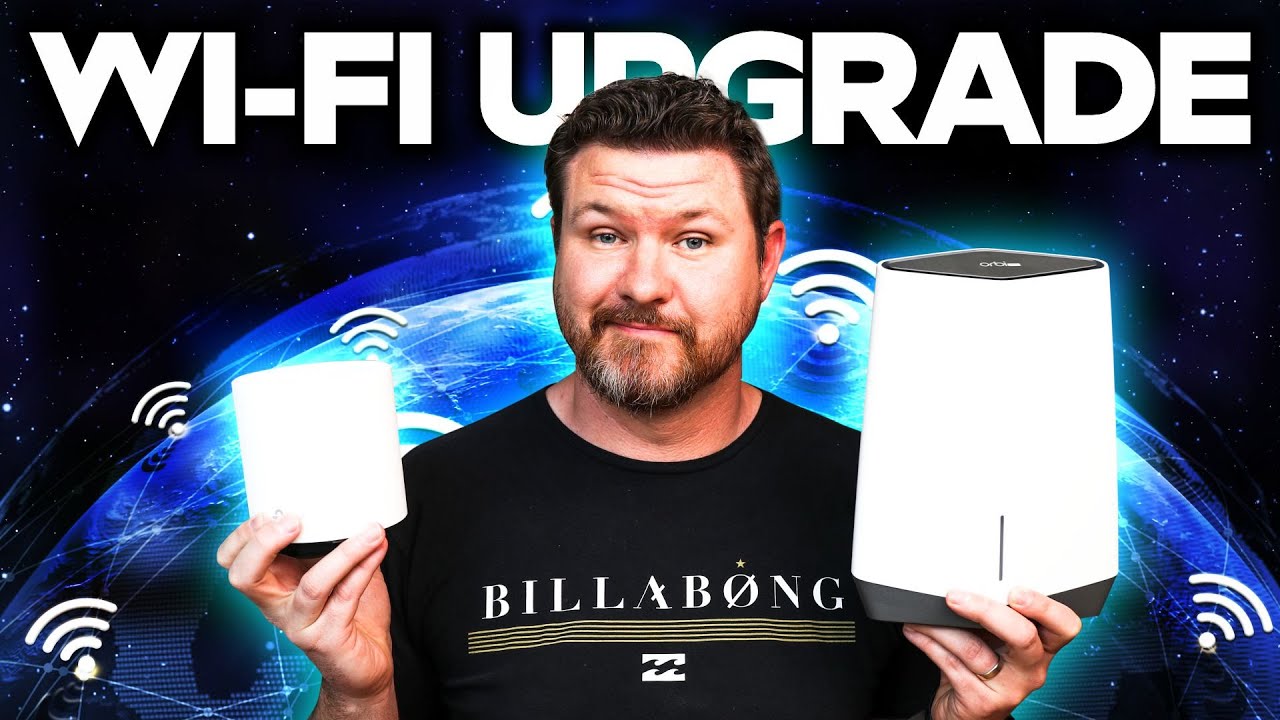
Affordable Mesh WiFi 6: TP-Link Deco X20 | Speed Tests and Features

Review and speed tests of TP-Link Deco X20 Mesh WiFi 6 system, covering setup, features, app controls, and real-world performance.

Ask about this video. Answers come from its transcript only — with the timestamp, so you can check them.

Generated from the transcript and can be wrong — check the timestamp.

Key Takeaways

  • TP-Link Deco X20 offers an affordable Wi-Fi 6 mesh system with strong coverage and easy setup.
  • The Deco app provides robust features for managing devices, network settings, and parental controls.
  • Real-world speed tests show excellent indoor performance and good outdoor coverage up to 40-50 feet.
  • Dual Ethernet ports on each unit add flexibility for wired devices without extra adapters.
  • TP-Link HomeCare adds valuable security and quality of service features to the mesh network.

What the video covers

  • Introduction to TP-Link Deco X20 mesh Wi-Fi 6 system as an affordable and reliable home network solution.
  • Comparison of mesh networks versus Wi-Fi extenders and benefits of Wi-Fi 6 technology.
  • Overview of Deco X20 features including coverage up to 5800 sq ft, support for 150 devices, seamless roaming, and TP-Link HomeCare security suite.
  • Unboxing contents: three Deco units, power supplies, and Ethernet cable.
  • Step-by-step easy setup process using the TP-Link Deco app with automatic device connection and signal strength monitoring.
  • Discussion of dual Ethernet ports on each Deco unit for wired device connections.
  • Speed and range tests conducted inside the house and in the backyard showing strong performance with some signal drop outdoors.
  • Detailed walkthrough of the Deco app features including device management, network speed monitoring, and ability to toggle 2.4 GHz and 5 GHz bands.
  • Guest Wi-Fi sharing via 'Shake to Share' feature and advanced settings like DHCP, port forwarding, and WPS.
  • Parental controls setup with profiles and age-based restrictions using TP-Link HomeCare.

Answers

Questions about this video

How easy is it to set up the TP-Link Deco X20 mesh system?

Setup is very straightforward using the TP-Link Deco app. You connect one unit to your modem, follow on-screen instructions, and the other units automatically connect once plugged in.

What kind of coverage and speed can I expect from the Deco X20?

The system covers up to 5800 square feet and supports up to 150 devices. Speed tests showed about 190 Mbps indoors near the access point and around 80 Mbps at 40-50 feet outdoors with some signal loss.

What features does the TP-Link Deco app offer for managing the network?

The app allows you to monitor connected devices, check signal strength, toggle 2.4 GHz and 5 GHz bands, set up guest Wi-Fi, share network credentials easily, and configure parental controls and advanced network settings.

Full Transcript — Download SRT & Markdown

00:00
Speaker A
Mesh Wi-Fi systems are the way to go when you're setting up your home Wi-Fi network, and in today's video, we're going to be taking a look at TP-Link's Deco X20. So stay tuned. Hey everyone, welcome back to another
00:18
Speaker A
video. So setting up a mesh network is going to be such a better experience than setting up Wi-Fi extenders, and with technology progressing, we're starting to see more and more Wi-Fi 6 become available and more affordable. So in this video,
00:31
Speaker A
we're taking a look at TP-Link's Deco X20, and I want to thank TP-Link for sending this unit out for me to review. Now, for the most part, Wi-Fi routers from all of the big companies out there like TP-Link, Linksys,
00:44
Speaker A
Eero, Google, all of those names are going to be good reliable devices that have good speed and good range. But what's really going to set them apart are going to be their apps and the features built into those apps.
00:56
Speaker A
So those are some of the features we're going to be covering in today's video, in addition to checking the speed and also the range, because not only do I want good coverage inside of my house, but I also want some
01:05
Speaker A
good coverage in the yard too. So we will be testing that out. Now, before we get started, don't forget to subscribe and hit that notification bell so you don't miss out on future videos like this one. And with that said,
01:16
Speaker A
let's get started. So I want to start by taking a look at some of the features that are advertised on the box. We can see that this is TP-Link's Deco line of routers. This thing can connect up to 150
01:27
Speaker A
devices, has fast Wi-Fi speeds, seamless roaming, which is what we're looking for in a mesh network, easy to set up. Now, this covers 5,800 square feet, which is ideal for a four to six bedroom house. We can see up in the top corner that
01:43
Speaker A
this is the latest Wi-Fi 6 technology, which is always nice to future-proof your home Wi-Fi network. In addition to those features, we've also got TP-Link's HomeCare. Now, this is going to be things like parental control, antivirus that is built into the router
01:59
Speaker A
itself, and then we've also got the quality of service, so you can choose which devices you want to have faster speeds than others. So we'll be taking a look at those features in the app a little bit later.
02:11
Speaker A
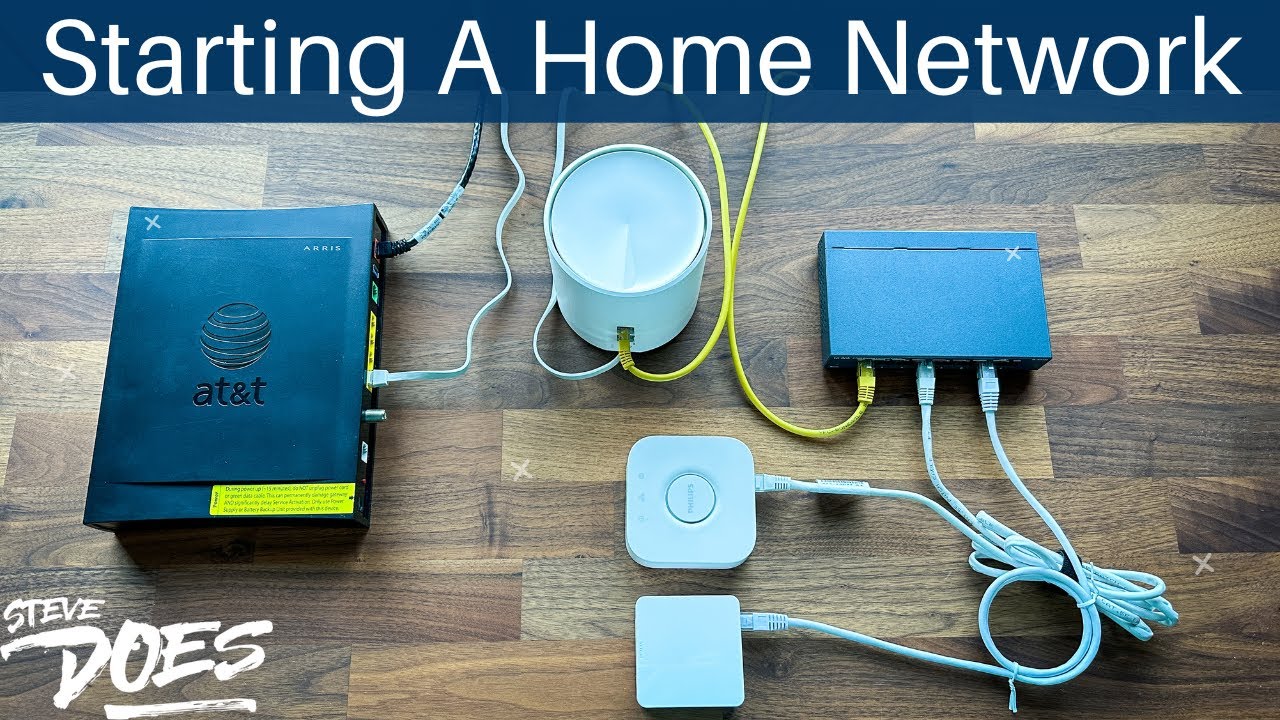
Now, inside the box comes with the three Deco devices. In addition to that, you're also going to get three power supplies and one Ethernet cable. Now, setting this up was really easy to do. You're going to download the TP-Link
02:23
Speaker A
Deco app, get a profile set up, you're then going to plug one of the routers into your cable modem, follow the on-screen instructions to get that one set up and named, and then with the other two points, all
02:34
Speaker A
you have to do is plug them in and they're automatically going to connect to the one access point that you initially set up. So setting up was really easy to do. You can also check signal strength, move the devices around
02:45
Speaker A
where you need to to get the best coverage. Now, one of my favorite things about each of these devices is that each device has two network ports, so you can connect your mesh Wi-Fi network wirelessly, but if you have
02:58
Speaker A
something that needs to be plugged into an Ethernet cable, say a TV or like a PC behind me, you can plug that directly into the access point to simulate a network port. Now, it's not going to be as
03:10
Speaker A
fast if you had it plugged into your actual router, but doing it this way allows me to have this PC here plugged in through an Ethernet cable without having to buy a wireless card for it. And you can do that for other
03:24
Speaker A
devices that need to be plugged in, say like a TV or my Philips Hue Bridge that always has to be plugged in, doesn't have wireless capabilities. Okay, so now let's do a range and speed test. I do have one of the access points
03:37
Speaker A
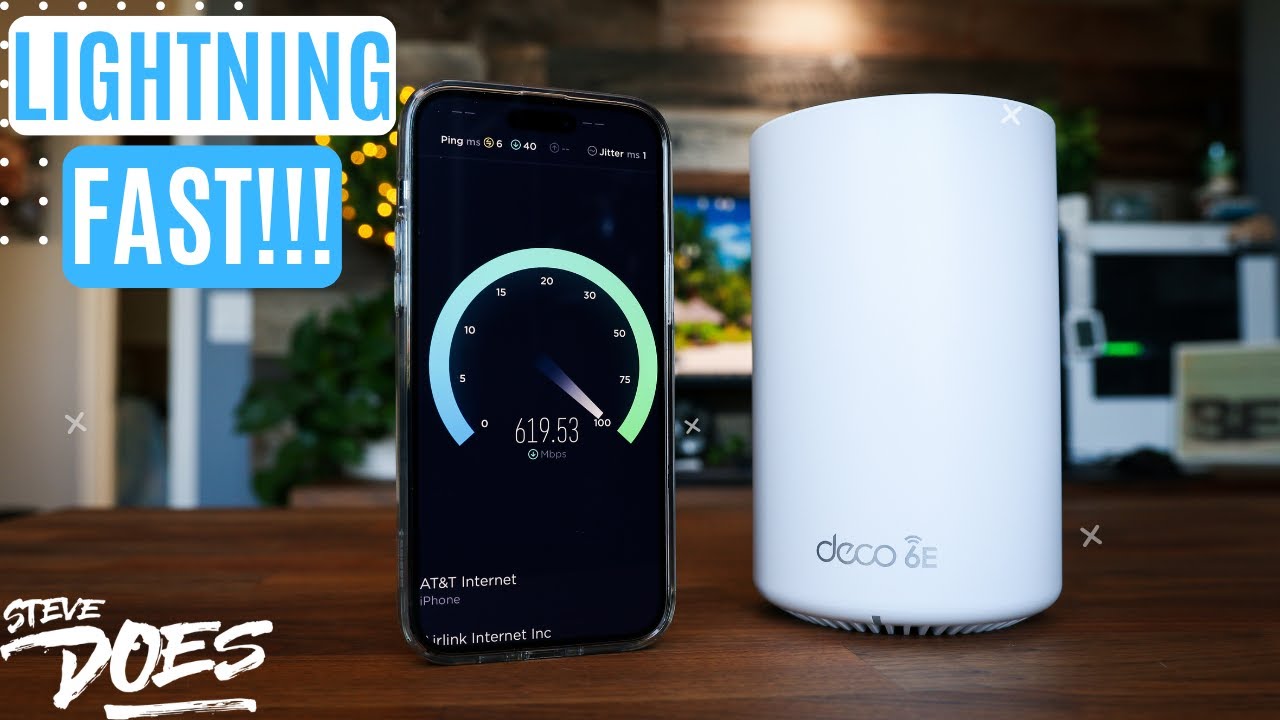
here in the office with me. If you take a look at my TP-Link status, we see that I have full bars with connection to that one right there. So now let's do a speed test, go over to the speed test, and we're
03:48
Speaker A
gonna do an IP speed test to see the speeds that I'm gonna be able to get from that. And that's pretty decent actually. That's really good. I'm happy with that one right there. I mean, that's close to 200.
04:03
Speaker A
Yeah, that's 190 up, about 180 down, so that is great. But like I said, I'm also right next to it here. Let's now go out into the backyard and we're going to do the same thing. I'm going to test the up and download speed,
04:18
Speaker A
and we're also going to see what kind of range I'm getting. So being out in the backyard is going to be about 50 feet from the closest access point, so we're going to see the kind of range and speed I'm going to get
04:26
Speaker A
from there. All right, we're outside recording in the yard. I'm the farthest out that I can get. I wanted to show you guys the signal service that I have, so the router is about 40 feet away. You can
04:38
Speaker A
see that I am down a bar right there. Oh, looks like it's fluctuating between the two, but let's do a speed test to see what kind of speed I am getting from this thing. So we'll bring up our
04:48
Speaker A
speed test here. Let's see what we're getting. All right, so about half, probably what we're getting in the house. In the house, we're getting about 190. Looks like we're getting about 80 here. Like I mentioned, we're about 40 feet
05:05
Speaker A
away from it in the backyard. This is the farthest I can get to it right now. We do have one wall, a stucco wall, in between me and the outside, and that's interesting. Upload speed is only about 22. So
05:18
Speaker A
upload is down, but I mean, this speed is plenty for being outside. 80 down and 21 up is fantastic for me to get in my backyard. Okay, so now let's take a look at some of the features in the app. We've got the
05:31
Speaker A
app loaded up here. It's going to show all of the devices that are connected to the different access points. You can also see the speeds of what is coming up and what's coming down as far as data. We can see that up at the top it
05:44
Speaker A
says internet. If you tap on the internet there, it's going to show all of your access points. From there, you can tap on one. I'm going to tap on the office. It's going to show me the download and upload speed in addition to some of
05:57
Speaker A
the statistics of the device. We see that the 2.4 and 5 gigahertz signal is turned on, and we can see what the signal strength is to the main router, which is in the master bedroom. We've got the mesh turned on, and then
06:11
Speaker A
here are all the devices that are connected to it. So desktop, that one there is connected wirelessly to the access point, and then also the iPhone at the bottom. So I can actually turn those off if I want to
06:22
Speaker A
deny access. With the other two, we've got smart lights. That is actually my Philips Hue Bridge, and that is plugged directly into the back of the access point, and then also the Hub V3. That's going to be my SmartThings hub
06:37
Speaker A
that is also plugged directly into those. So for those, I can't turn off because they do have a dedicated connection. Would be nice if that was turned on, but let's go ahead and back out of there and go through some of the
06:47
Speaker A
other settings. Right here at the very bottom, we've got different tabs. I'm going to go ahead and click on the tab for More. We've got things like our Wi-Fi settings. So here we can turn off the 2.4 or the 5 gigahertz setting, which I
07:00
Speaker A
really like. I like that I can turn one of those on and off because I have had issues in the past where I've tried to connect a smart home device to my network that requires just a 2.4 connection, and for some
07:13
Speaker A
reason, I can't get it to connect. And when I would go into my old system, I didn't have the option of turning one of those off. So it is nice. I like that I can turn off the 5 gigahertz network if I
07:24
Speaker A
have a device that has to connect to 2.4. Well, in addition to that, we've also got guest Wi-Fi network. If you look at the very bottom of the screen, it says Shake to Share. So if I shake my phone like this,
07:37
Speaker A
it's now asking me which network I want to share. I can then click on, let's click on Guest, and from there I can select who I want to share it to, either through a text or an AirDrop. So those are some cool
07:50
Speaker A
features right there. Let's go ahead and back under there. We've got things like an internet speed test. So I'm paying for roughly about a
08:04
Speaker A
what the main device that is plugged into my cable modem is getting so this is not the speed that these points around the house are getting this is going to be the main one that is plugged in through an ethernet
08:15
Speaker A
cable so do keep that in mind you can run a speed test at any time we've also got blacklist update your deco we've got advanced settings here so this is going to be doing all of your more advanced network
08:28
Speaker A
configurations like your dhcp servers setting up port forwarding address reservations different things like that but here are all the different options that you have in advanced settings we've also got the wps if you need to set something up like that
08:43
Speaker A
monthly reporting and then setting up managers now if we go back down to the very bottom tab where it says home care i'm gonna click on that and here are the different settings that they have so we've got antivirus and here are all the
08:55
Speaker A
different anti-virus settings that you can turn on and set up quarantines and filters and different things like that we've also got parental control so in parental control here you're going to create different profiles what you can do is that with that
09:10
Speaker A
profile you can assign devices to it so say i create a profile for my daughter and actually let me show you up so we're going to go ahead and click on add i'm going to enter in my daughter's
09:22
Speaker A
name click on done we're gonna click next and then you're at the top you're gonna select the age group for that kid now my daughter is two years old so if you click on child it's going to have these different
09:32
Speaker A
things right here and we've also got preteen teen and adult and then from there you can go ahead and select things that you want to be blocked for that specific profile so that is cool that you can go
09:46
Speaker A
in and do it different things like that from there you're going to click on next you can set up time controls and certain bed times so say devices turn off at a certain time of the night to go to bed or you
09:57
Speaker A
can do time limits for the week so that's nice you're going to click on next and it's going to bring up the different devices that are connected to these networks you're going to select the ones that apply to that specific
10:09
Speaker A
person and then you can click on done so for me i will say we'll go ahead and click onto this one and click on done at the top and so now that device is associated with that personal profile and then you
10:23
Speaker A
can pause and pause it if you want to and then lastly down here in the home care we've got the quality of service so you can select here if you want standard gaming streaming essentially which category do you want to prioritize
10:36
Speaker A
over other categories you can go into custom here and we can say that we want gaming to be high we want surfing to be low we want chatting to be low and then everything else looks fine and you can save that there too
10:51
Speaker A
a lot of different cool features that you can do in this app to control different profiles family settings there's a lot of things built into here that i really do like well it's going to cover about everything in today's video if you were
11:04
Speaker A
looking for a home mesh wi-fi network that has got a lot of good features built into it a lot of parental controls this is going to be something that you're going to want to consider if this video is helpful give it a thumbs up let
11:14
Speaker A
me know that you liked it as always don't forget to subscribe for more content like this and i'll see you guys in the next video [Applause] [Music] foreign
Topics:TP-Link Deco X20Mesh WiFi 6Home WiFi networkWiFi speed testWiFi range testTP-Link HomeCareParental controlsWiFi app featuresMesh network setupAffordable WiFi 6

Get More with the SozAI App

Transcribe recordings, audio files, and YouTube videos — with AI summaries, speaker detection, and unlimited transcriptions.

Or transcribe another YouTube video here →