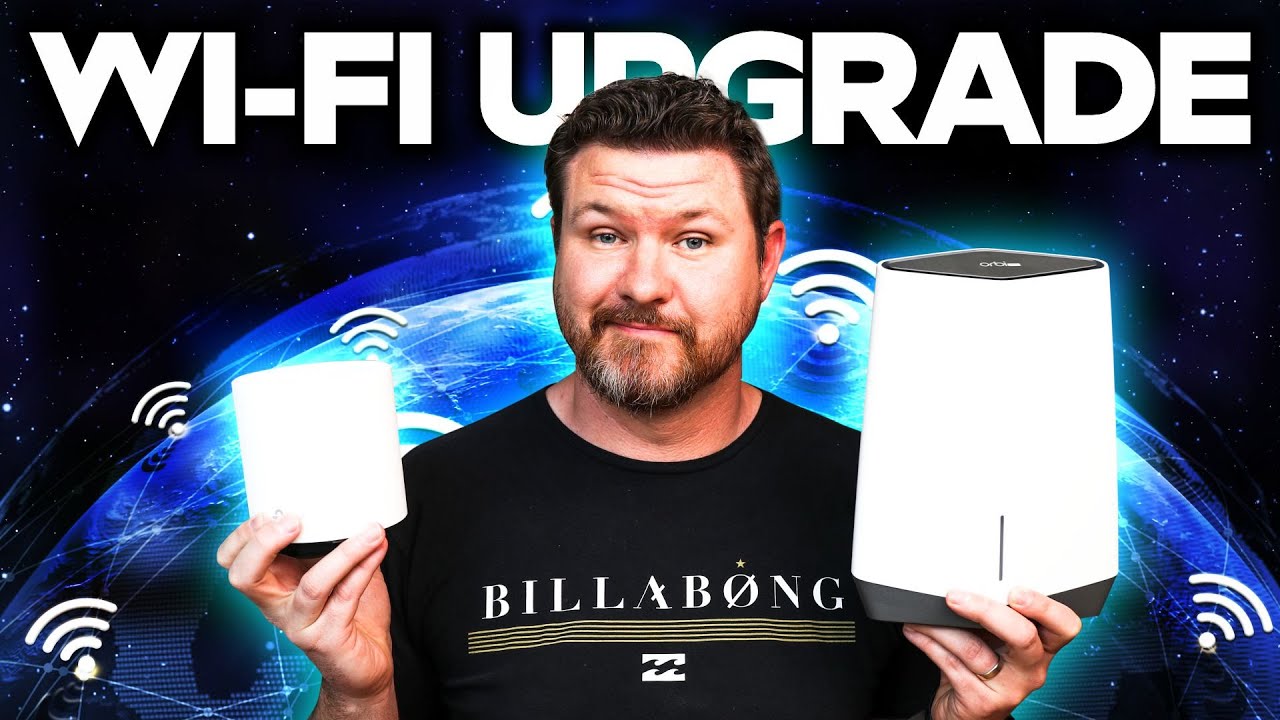
Learn how to convert unused coax cables into powerful Ethernet connections to boost your home network speed and coverage.
Ask about this video. Answers come from its transcript only — with the timestamp, so you can check them.
Generated from the transcript and can be wrong — check the timestamp.
Key Takeaways
- Unused coax cables can be repurposed to create wired Ethernet connections.
- Mesh Wi-Fi systems benefit greatly from wired backhaul for better speed and reliability.
- MoCA 2.5 adapters like ScreenBeam enable high-speed data transfer over coax.
- Bypassing built-in modem Wi-Fi and using dedicated routers improves network flexibility.
- Repurposing coax wiring is a cost-effective way to upgrade home networking.
What the video covers
- Many homes have coax cables left unused after cutting cable TV service.
- This video demonstrates converting coax cables into Ethernet for faster, wired home networking.
- Explains bypassing Wi-Fi built into cable modems to upgrade with mesh Wi-Fi systems.
- Highlights the benefits of mesh Wi-Fi with Ethernet backhaul for improved signal strength.
- Introduces the ScreenBeam MoCA 2.5 adapter kit to convert coax to Ethernet.
- Provides step-by-step installation and setup of the ScreenBeam devices.
- Shows speed test comparisons before and after enabling Ethernet backhaul via coax.
- Demonstrates significant speed improvements using the coax-to-Ethernet conversion.
- Discusses additional use cases like connecting smart home hubs in different rooms.
- Encourages viewers to repurpose existing coax wiring to enhance home network performance.
Chapters
- 00:00Introduction to repurposing coax cables after cord cutting
- 00:41Modernizing coax cables into Ethernet ports
- 01:13Bypassing built-in modem Wi-Fi and upgrading routers
- 01:44Mesh Wi-Fi systems and Ethernet backhaul explained
- 02:24Introducing ScreenBeam MoCA 2.5 adapter kit
- 02:56Installing the ScreenBeam coax to Ethernet adapters
- 03:30Setting up and testing network speeds without backhaul
- 04:47Enabling backhaul feature and speed test results
- 07:09Additional use cases for coax-to-Ethernet conversion
- 07:47Conclusion and final recommendations
Full Transcript — Download SRT & Markdown
Speaker A
If you've got rid of your cable TV provider to help you save money and become a cord cutter, you may have tons of this coax cable running through your walls that is just going completely unused. Well, in today's video, I'm going
Speaker A
to show you how to convert this coax cable into some lightning-fast Ethernet cable to build out your home network, so stay tuned. Welcome back to another video, my fellow cord cutters, and even if you haven't cut the cord yet, this video should be able
Speaker A
to help you out. Now, whether your house came pre-installed with coax cable throughout the whole house or the cable company came out and shoved coax cable through all of your walls to get it through your house, I'm going to show you
Speaker A
how to modernize this coax cable and convert it into Ethernet ports. Now, before we get started, don't forget to subscribe and hit that notification bell so you don't miss out on future videos like this one, and with this said, let's
Speaker A
go ahead and get started. Having a strong home network is pretty vital these days because, let's face it, most of the devices we have have some kind of Wi-Fi shoved into it. If you have something a little bit older, you might have a
Speaker A
wireless Wi-Fi router that looks like one of these, or maybe you're like me and your Wi-Fi router is built into your cable modem. And one thing that I want to point out: if your wireless is built into your cable modem, you can bypass that if
Speaker A
you want to. I had a lot of people comment saying that they weren't able to invest in their own wireless router to boost their signal because their wireless router was built into the modem. You can bypass that. That is what I am
Speaker A
currently doing right now. So if you're looking to upgrade your system, I recommend upgrading it with a mesh Wi-Fi network. Now, this is a network that is going to have multiple devices that you're going to scatter throughout the
Speaker A
house. If you take a look here, I've got this guy from TP-Link. This is their Deco X20. It comes with three devices right here, so three different devices that you can put around your house. One is going
Speaker A
to plug directly into your cable modem. The other two you're going to put anywhere else in your house, which are going to all connect to each other wirelessly and create a nice network. The problem is that as these devices are
Speaker A
trying to connect wirelessly, depending on how many different walls they're going through, they may not be getting the fastest signal possible. That is why these devices right here have something called a backhaul feature, and that is going to allow you to plug in an
Speaker A
Ethernet cable into the separate satellites to boost their signal. So I've got another one here. This is the newest one from TP-Link. This is their Deco XE75 Pro. This is definitely a great system here. I'm actually going to be reviewing
Speaker A
this one in a couple of weeks. This video is not sponsored by TP-Link. I just have a few other things right here because I wanted to talk about that backhaul. So being able to plug a network cable into
Speaker A
the back of these satellite routers is going to help boost up that signal. Now, unfortunately, a lot of people don't have Ethernet cables running to each room of their house, but you do have coax, don't you? Now, there are a bunch of different
Speaker A
devices that you can use to convert your coax to Ethernet. I'll leave a few of those links down below if you guys want to check those out. The one that I'm going to be taking a look at in today's
Speaker A
video is called ScreenBeam. Now, essentially, this one right here has coax on one side, and the other side it's got an Ethernet port and a power port. Now, this is a kit that comes with two devices. One of these you're going to put
Speaker A
into the room that you want to convert this. The other one is going to be obviously on the other side of the coax cable. Now, they do sell some of these right here that will allow you to still
Speaker A
use your cable TV. So if you have not cut the cord and you do still have cable in your house, there are devices out there that do have, I believe, it's two coax on the end, which will allow you to split it
Speaker A
off and still use the TV if you want to. Now, the one I picked up here is a MoCA 2.5 adapter. Now, MoCA stands for Multimedia over Coax Alliance, and that is essentially going to be the speed at
Speaker A
which it is able to transfer. Now, 2.5 is fast, and since I am planning to use this as a backhaul for my mesh network, I wanted to get the fastest available option out there. Now, let's go ahead and
Speaker A
get this installed and test out the network and see what kind of improvements we're going to get. Okay, I do have the two-device starter kits, and each device is going to come with its own coax cable, power cable, Ethernet
Speaker A
cable, and splitter if you need it. Let's go ahead and get this installed. Okay, so I'm a bit embarrassed by the rat's nest of things we have going on here, but hey, all for the sake of testing, right? So I've
Speaker A
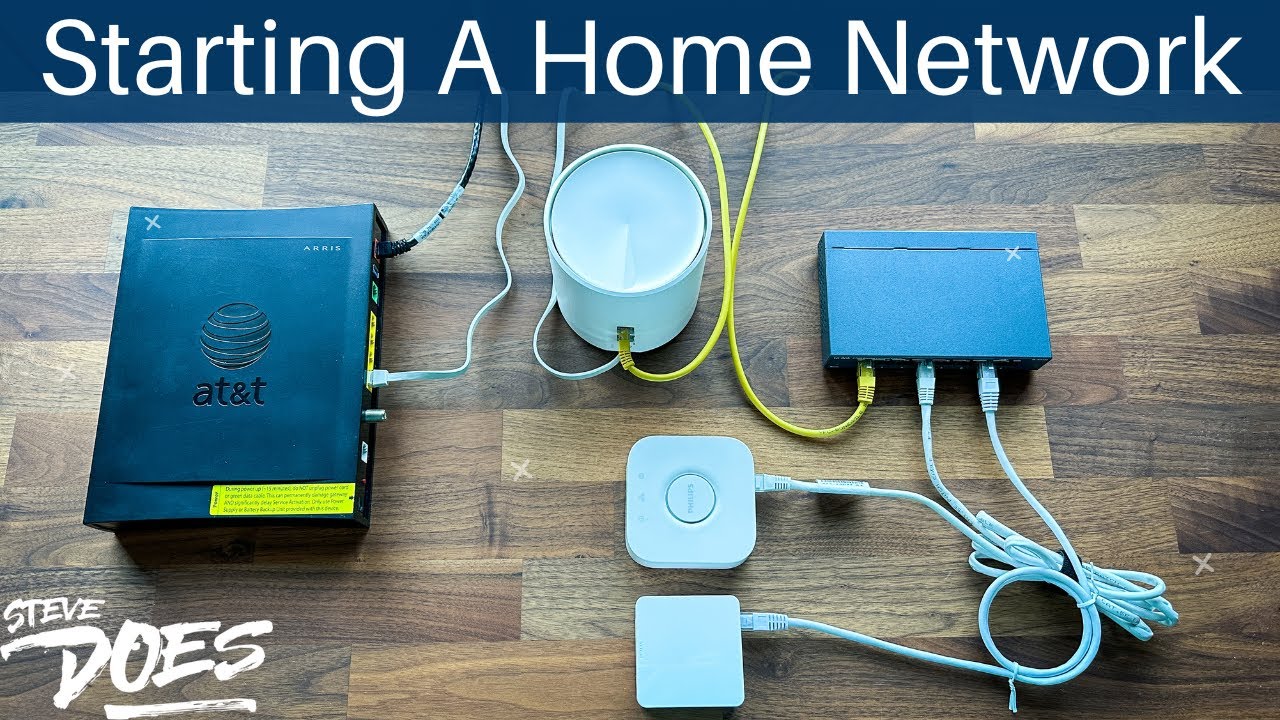
got my cable modem right here. It does have Wi-Fi built into it. I talked to AT&T. They said just don't use the Wi-Fi built-in if you don't want to plug something else in. So right here we have God's or Deco plugged in. That is going
Speaker A
to be this guy right here. This is the Deco XE75 Pro. We've got other devices plugged in right here, so you can see the bottom one kind of right in the middle there. That is going to be plugged into my
Speaker A
cable modem. Then I have got a black cable coming out right there that is actually going up to this switch. So into the switch right here, coming back out of this one right here, and now it's being plugged into our ScreenBeam
Speaker A
right here. So ScreenBeam is plugged into power, plugged into Ethernet. The other side, now I am lucky enough that I have all of my coax cables coming right into the closet here. This one's going to the den, so I have that one plugged in.
Speaker A
Now let's jump into the den, plug the other side of this one, and get that one set up and test out the connection speed. All right, here we are on the other side in the den. The Deco is now installed on
Speaker A
the farthest end of the house, away from its other side, so we're probably going to get the lowest signal. It's jumping between, I think, like five or six walls. What I wanted to do is since this is still wireless, it just has power plugged
Speaker A
into the back, so that's it. It's connecting to the other one. I wanted to see what our speed was. We're going to run a speed test here, see what kind of speed we're going to get on this device.
Speaker A
All right, so we're getting at 252 down, we're getting 158 up. Now, I pay for a thousand up and a thousand down, so these numbers aren't the best, but I kind of expected those numbers, and they're still pretty good considering how far of a
Speaker A
distance it's going and how many walls. But we're going to try that backhaul feature with this device right here. So what we've done is we have plugged in our coax cable right here. We are going to plug it into the back for that back
Speaker A
haul feature and give it a second here to sync up, and then we're going to go ahead and test it out again, see if our speed increases. All right, we've given it a few minutes here. It is now stopped
Speaker A
blinking red. We're back up online. You can see it is plugged into the backhaul now. Let's test it out and see if we get an increase in our speed. That is huge right there. So we're getting over double now what we were
Speaker A
getting before in our downloads. Wow, and a huge upgrade in our uploads. Now, that is just from connecting off of our coax, setting up the backhaul, and being able to just get better speeds from that altogether. That is super
Speaker A
impressive. Okay, so let's talk about another use case. As I'm building out my smart home, I get a lot of these hubs. We've got Philips Hue, we've got Lutron Hub, we've got a SmartThings Hub right here. All of these have to be plugged in
Speaker A
to a network, but I don't want these, you know, in my network closet. It's just too much stuff. I'd like to spread it around the house, so by installing one of these, I can now put all of these on one side
Speaker A
of the house. We're going to go all the way down here, and we're just going to use our coax port right here. So what I've done is we have taken our
Speaker A
Power we've plugged a network cable into one end now I'm going to take the coax we are going to screw it into the wall right here all right now that we have that connected and our ethernet plugged in the ethernet is actually running all
Speaker A
the way up to this switch right here so this switch now is controlling a bunch of different devices Plugged In which are going to be controlling all of my different hubs right here that way I can put these in the best location to get
Speaker A
the best coverage throughout my house instead of maybe having it on just one side well there you have it if you have coax running throughout your house take advantage of it convert it over to ethernet and really get some amazing
Speaker A
ethernet speeds out of your old coax that you are not using anymore if this video is helpful give it a thumbs up let me know that you liked it as always don't forget to subscribe for more content like this and I'll see you guys
Speaker A
in the next video [Music] foreign [Applause] [Music] [Music]
Topics:coax to ethernetMoCA adapterhome network upgrademesh Wi-Fi backhaulScreenBeamcord cuttingwired ethernetsmart home networkingTP-Link Deconetwork speed boost