
Speakers
Speaker identification in transcripts
Every file and recording you transcribe with SozAI comes back split by speaker. Name each voice once, and the transcript and its exports use the names.
The short answer
SozAI labels speakers automatically in every audio or video file and every recording it transcribes, in 99 languages, as Speaker A, Speaker B and so on, each line with its timestamp. On web.sozai.app and in the iPhone and Android app you can rename a speaker everywhere at once, move one fragment to a different person, or merge two labels that turned out to be the same voice. YouTube links are different: there the speaker labels are a guess made by an AI model while it writes the transcript, so check them before you rely on them. The names you set appear in PDF, VTT, JSON and TXT exports; SRT subtitles carry no speaker names. Speaker labels are part of every transcription, including the free 30 minutes.
Where the labels come from
How well the labels match real people depends on how the text was made. Uploads and recordings are split by voice. A YouTube link is not.
| What you transcribe | How speakers are found | Rename them |
|---|---|---|
| An audio or video file you upload (app, web, extension) | Told apart by voice during speech recognition, always on | Web and phone app |
| A recording made in the app or in the browser | Told apart by voice, always on | Web and phone app |
| A YouTube link | An AI model marks speaker changes while it writes the transcript from the link; no voice analysis is run | Web and phone app, when the transcript has timestamps and labels |
| A meeting the Mac app transcribes on the Mac itself | No speaker labels | Not available |
A label is an anonymous voice, not a person. SozAI does not know that Speaker B is your manager until you say so, and the names belong to one recording: your next recording starts again with Speaker A.
How to rename a speaker on the web
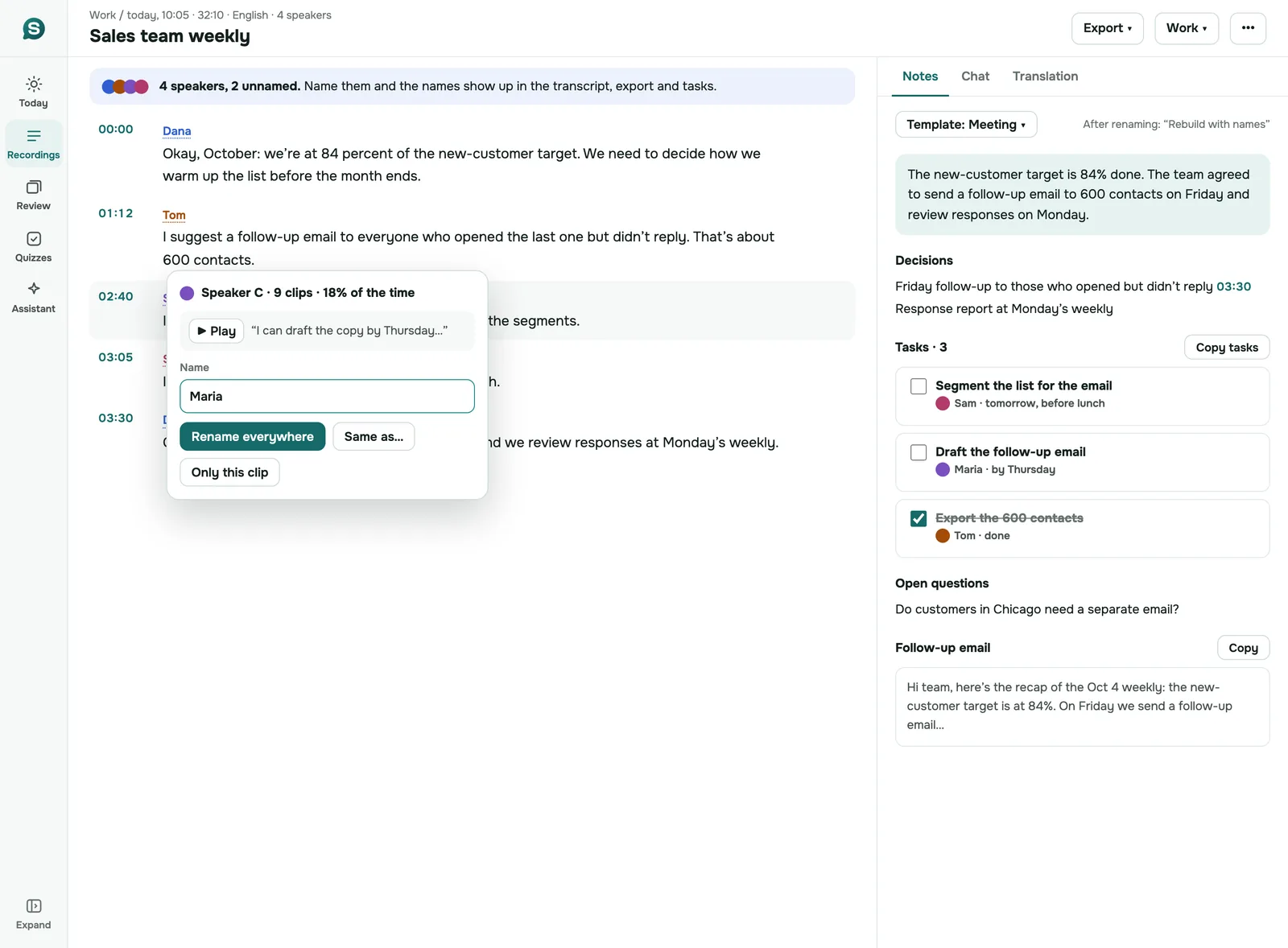
Open a recording on web.sozai.app. If some speakers have no name yet, a line above the text says how many, with the hint that names will show in the text, exports and tasks.
- Click the speaker's name next to any phrase. The speaker menu opens.
- Choose Rename everywhere to name that voice in the whole recording, type the name and save. You'll see "Name saved".
- If one phrase was given to the wrong person, click its label and choose Only this fragment, then pick who said it or add + New speaker.
- If two labels turn out to be one person, choose Same person as… and pick the other label. After you confirm with Merge, every fragment of the first label goes to the second.
- When names change in a recording that already has notes, SozAI asks whether to rebuild the notes with the names. Say yes if you want tasks and decisions to show who owns them.
Not sure who a label is? Voice in the speaker menu plays a short piece of that speaker's audio.
Renaming in the iPhone and Android app
The phone app has the same options under slightly different names. Tap a speaker's label on the Text tab and choose Rename "Speaker A" everywhere, Someone else said this for one fragment, or open All speakers in this recording. The Speakers panel shows how much of the time each voice talks and the first thing it said, which is usually enough to tell who is who. Inside a rename, This is the same person as… merges two labels.
Names are saved to your account, so a speaker you name on the phone is named on the web too.
Which exports keep the names
This is where the formats differ most. The table is what each export contains today.
| Export | Where | Speaker names | Timestamps |
|---|---|---|---|
| Phone app | Yes | Yes | |
| VTT | Phone app | Yes | Yes |
| VTT | Web | Yes, when "With speaker names" is on | Yes |
| JSON | Phone app | Yes | Yes |
| TXT | Phone app | "Name: text" lines, only when speakers have names and no translation is shown | No |
| TXT | Web | Optional ("With speaker names") | Optional ("With timecodes") |
| SRT | All | No | Yes |
The Mac and iPad app exports the same five formats as the phone. If you need subtitles that show who is talking, take VTT: it keeps the names as voice tags. For a document to send around, PDF keeps names and times together. More on every format: exporting a transcript.
Where this helps
Speaker labels matter most when the transcript will be read by someone who was not there. In meeting notes, named speakers turn "we should send the draft" into a task with an owner. In interview transcripts, the questions and answers separate on their own, and a researcher quoting a participant can find every line that person said. A recording of a seminar or a panel becomes readable when each voice has a name.
If the call runs in the browser, you can record it from its tab without adding anyone to the meeting; the web version explains how. The labels arrive with the transcript, with nothing extra to switch on.
When SozAI is not a fit
- You need speaker names on a Mac or an iPad. The Mac and iPad app shows how many speakers a recording has, but renaming them works only on the web and in the phone app for now.
- You want to correct the words as well as the names on a computer. Text editing is in the phone app only. On a computer you can rename speakers on the web, but not change the words.
- You rely on YouTube transcripts for who-said-what. The labels there come from an AI model, not from the voices, and can be wrong.
- You need SRT subtitles with speaker names. SozAI's SRT has none; use VTT.
- You want the app to recognise a known voice in every new recording. SozAI labels voices inside one recording only.
Speaker labels come with every plan. See pricing for the free 30 minutes and Premium, or get the app on the download page.
Answers
Frequently asked questions
Can SozAI tell who is speaking in a recording?
Yes, as separate voices. Every file and recording SozAI transcribes is split into Speaker A, Speaker B and so on, with a timestamp on each line. SozAI does not know the people's names; you add them once on the web or in the phone app, and the whole recording uses them.
Does SozAI identify speakers in YouTube videos?
Partly. For a YouTube link, an AI model marks where the speaker changes while it writes the transcript from the link, without analysing the voices. Treat those labels as a draft and check them against the video before you quote anyone; you can rename or reassign them like any other label.
How do I rename a speaker in a transcript?
Click or tap the speaker's label next to any phrase. On the web choose Rename everywhere; in the phone app choose Rename "Speaker A" everywhere. Type the name and save, and every line from that voice shows the new name, including in tasks once you rebuild the notes.
Can I rename speakers on Mac or iPad?
Not yet. The Mac and iPad app shows how many speakers a recording has, but renaming works on web.sozai.app and in the iPhone and Android app. Names are saved with the recording in your account, so open it on the web or your phone to set them.
Do speaker names show up in exported files?
Yes, in PDF, VTT and JSON from the phone app, and in VTT and TXT from the web when you tick "With speaker names". A TXT from the phone app has "Name: text" lines once speakers have names. SRT subtitles never include speaker names, in any SozAI app.
What if two speakers were merged into one, or one person got two labels?
Two labels for one person are easy to fix: choose "Same person as…" and merge them. One label covering two people takes more work, because you move the fragments one at a time with "Only this fragment" on the web or "Someone else said this" in the phone app.
Is speaker identification included in the free plan?
Yes. Speaker labels are part of every transcription of a file or recording, including the free 30 minutes every account gets once. Renaming speakers and exporting with names are free as well; Premium only adds transcription time.
Turn your next recording into text
Record, upload a file or paste a link. You get the transcript, speakers and a summary back.
Free on iOS and Android. No account required for YouTube transcripts.