Teams recordings
Microsoft Teams transcription, with or without the built-in transcript
Drop the audio of a Teams recording below and read its first 5 minutes as text, free. For the whole meeting, upload the full file in the web version or the app, up to 500 MB.
- Free preview: first 5 minutes
- Deleted after processing
- No signup
Drop your file here
or
Supports MP3, M4A, WAV, OGG/OPUS, AAC, FLAC and WEBM
Transcript
The short answer
Teams does transcribe meetings, but only on work and school accounts (Microsoft 365 business, enterprise and education plans), and only when your organization’s admin policy allows it. Someone from the organizer’s organization starts it during the meeting. The transcript is saved with the recording in the organizer’s OneDrive, or in the channel’s SharePoint site for a channel meeting, and opens from the meeting’s Recap, where the organizer can download it as .docx or .vtt. Personal Teams accounts get live captions and, with a consumer Microsoft 365 subscription, a recording, but Microsoft’s help pages describe no transcript file for them. With no transcript, transcribe the recording itself: the box above reads its first 5 minutes free, and web.sozai.app or the SozAI app takes the whole file, up to 500 MB.
Does Teams transcribe meetings? What you get on each plan
| Teams personal, no subscription | Teams personal with Microsoft 365 Personal, Family or Premium | Work or school account (Microsoft 365 business, enterprise, education) | |
|---|---|---|---|
| Live captions during the call | Yes | Yes | Yes, unless the admin turned them off. Teams doesn’t save captions |
| Recording | No | Any participant with the subscription, one recording at a time | The organizer and people from the organizer’s organization, when the “Meeting recording” policy is on |
| Saved transcript | No | Not described; the help page mentions only captions for playing the recording | Yes, when the “Transcription” policy is on (on by default for new policies). Starting a recording starts the transcript too |
| Spoken languages | Not listed | Not listed; you pick the meeting’s language when you start | 57 language variants (about 44 languages). The spoken language is set at the start and has to match the meeting |
| Where it’s saved | Nothing is saved | The meeting chat | The organizer’s OneDrive, “Recordings” folder; a channel meeting goes to the channel’s SharePoint site. Both show in the meeting’s Recap |
| How long it’s kept | Nothing is saved | The recording expires 30 days after it was saved | 120 days by default for recordings and transcripts; the admin can change it. A1 (education) accounts: 30 days at most |
| Download | Nothing to download | The recording, from the chat | The transcript as .docx or .vtt, by organizers and co-organizers by default |
| AI summary | No | Not described | Intelligent recap, with a Teams Premium or Microsoft 365 Copilot licence |
Checked against Microsoft help pages on 31 October 2026: live transcription in Teams meetings, recording and transcript storage and permissions, recording expiration, recordings in Teams for personal use.
Two places where Microsoft’s pages are vague. The recording article names the licences that can record (Office 365 E1, E3, E5, F3, A1, A3, A5 and the Microsoft 365 Business plans); the transcription articles name no licence at all and leave it to the admin policy. And on downloads they disagree: one page says only the organizer can download a recording, another says organizers and co-organizers can.
Who you are in the meeting matters as much
| You are | Start the transcript | Follow it live | Open it afterwards | Download it |
|---|---|---|---|---|
| Organizer or co-organizer | Yes | Yes | Yes | Yes, .docx or .vtt |
| Attendee from the organizer’s organization | Yes, unless the organizer limited it to presenters or to organizers | Yes | Yes | No, unless the organizer gives access |
| Guest, or someone from another organization | No | Yes | No | No |
| Anonymous (not signed in) | No | No | No | No |
| Joined by phone | No | No | No | No |
How to get the built-in transcript
- During the meeting, select “More actions” in the meeting controls, then “Record and transcribe”. Choose “Transcribe” for text only, or “Record”, which records and transcribes.
- Confirm the spoken language, then “Confirm”. If it doesn’t match what people speak, the text comes out wrong, and changing it later changes it for everyone.
- After the meeting, open the meeting chat, or the meeting in your calendar, and select “Recap”, then “Transcript”.
- To keep a copy, open the list next to “Download” and pick .docx or .vtt.
Microsoft says live transcription runs in Teams for desktop; the mobile app shows the transcript once the meeting is over. Live captions are a separate thing: subtitles during the call that leave no file behind. The long version, with every role, is on Microsoft’s transcription page.
When there is no Teams transcript, and what to do
The meeting was recorded with transcription off
An admin can allow recording and block transcription, and then the recording has no transcript next to it. Microsoft has a fix of its own: whoever owns the video or can edit it opens its player page in OneDrive or SharePoint and selects “Video settings”, then “Generate”. That works in 28 language variants, for videos under 4 hours and 4 GB, and gives a WebVTT file. Hebrew and Turkish, for example, are not on that list. If your language is missing or you can’t edit the video, upload the recording to SozAI instead.
You joined as a guest, from another company, or by phone
People from another organization can read the live transcript during the call, but they can’t open or download it afterwards. Anonymous participants and phone callers can’t view it at all. The recording isn’t yours by default either: external attendees see it only if the organizer shares it. Ask the organizer for the recording and transcribe it, or record your own side of the next call, with everyone’s agreement.
You were in the meeting but can’t download it
Colleagues from the organizer’s organization can read the transcript in Recap, yet the download is off for them by default. Ask the organizer for the .docx, or for the recording itself.
Recording or transcription was switched off
The button’s tooltip says why: the organization’s policy, an organizer who set “Who can record and transcribe” to “No one”, or Copilot turned off for the meeting, which turns off recording and transcription with it. Then there is nothing to recover. If the organizer turned it off on purpose, ask before recording the meeting any other way.
You used a personal Teams account
Without a Microsoft 365 subscription nobody can record, so only the live captions existed. With one, the recording sits in the meeting chat for 30 days. Download it before then and upload the file.
The meeting language wasn’t supported, or it switched
Teams transcribes the one language set at the start. Languages such as Bengali or Swahili are not on its list. For meetings in several languages, Microsoft’s multilingual speech recognition lets each person set their own language, but it covers nine languages and needs an organizer with Teams Premium or Microsoft 365 Copilot. SozAI detects the language of a file among 99 by itself. It transcribes each file in one language, so split a recording that changes language halfway.
The recording expired
After 120 days by default (30 for A1 accounts) the recording and its transcript move to the recycle bin of the OneDrive or SharePoint site that held them. For work and school accounts the bin keeps files for 93 days unless the admin changed that, and the owner can restore them there. Restore it and download a copy; a downloaded file has no expiry date.
Transcribe a Teams recording after the meeting
This works whatever happened during the call, as long as a recording exists.
- Find the file. A scheduled or “Meet now” meeting saves to the organizer’s OneDrive, in “Recordings”, even if the organizer wasn’t there; the link sits in the meeting chat under “Shared” and in “Recap”. A channel meeting saves to the channel’s SharePoint site, under the channel’s “Shared” tab. A 1:1 or group call saves to the OneDrive of whoever pressed Record.
- Download it. The organizer selects the recording, then “More options” and “Download”; everyone else asks the organizer. It is an MP4 video, and Microsoft puts a one-hour recording at about 400 MB.
- Upload it. The free box at the top of this page reads the first 5 minutes of a file up to about 30 MB on a computer, less on a phone, so a full Teams video usually won’t fit there. For the whole meeting, upload the MP4 at web.sozai.app (“Upload”) or in the SozAI app; both take files up to 500 MB.
- Read and export it. You get timestamps and a label for each voice, in any of 99 languages, detected automatically. A one-hour file is usually done 1 to 2 minutes after it has uploaded. Rename the speakers on the web or in the phone app (how), then export: PDF, TXT, SRT, VTT, JSON in the app; TXT, SRT, VTT on the web (what each file holds).
Record the next Teams call without a bot
Nothing joins the meeting. You record on your side, and the right tool depends on where Teams runs.
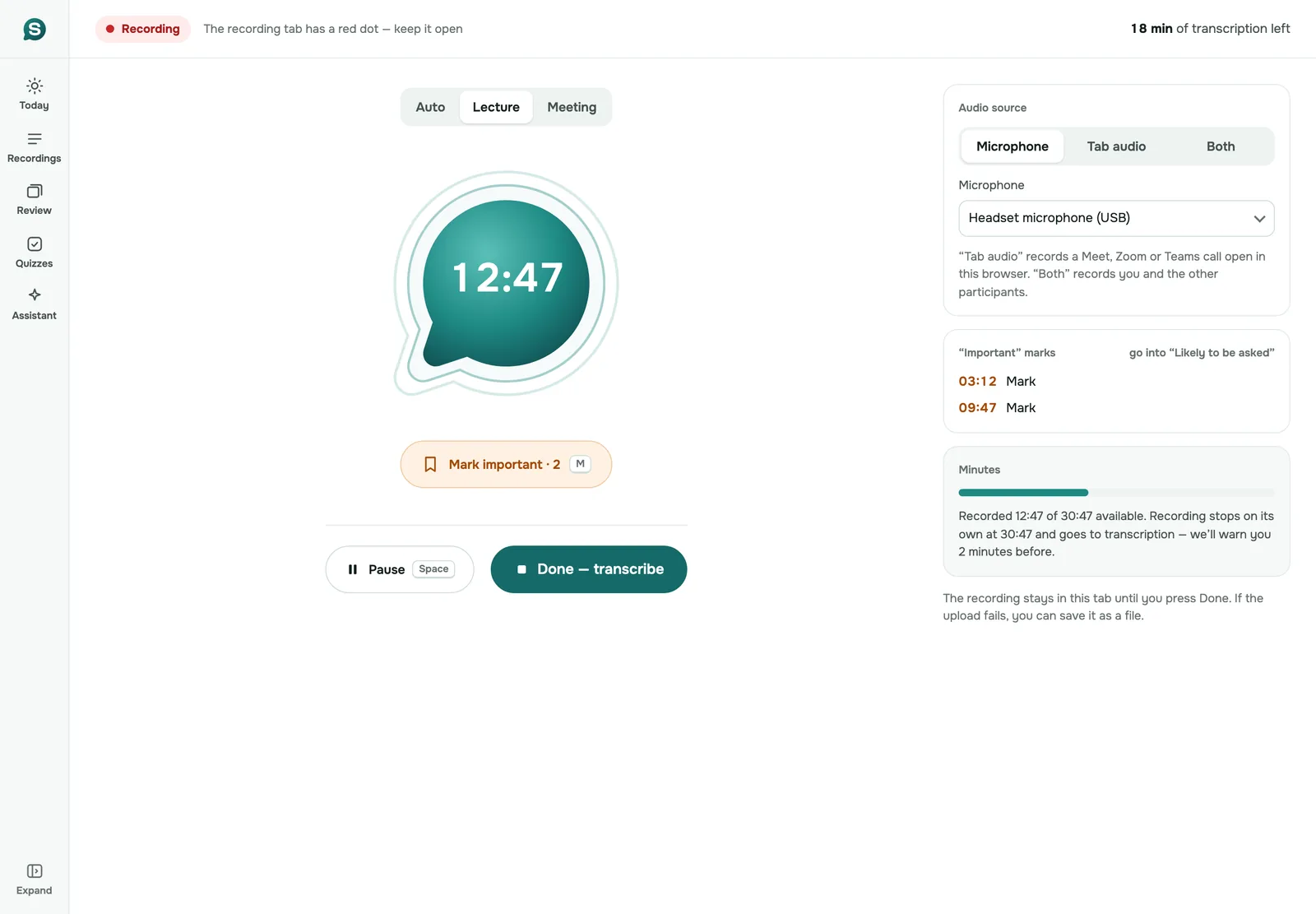
Teams on the web in Chrome or Edge. Open web.sozai.app in another tab, go to Record, choose “Both” under “Audio source”, press “Start recording”, pick the Teams tab and turn on “Also share tab audio”. You get a transcript with speaker labels, then notes.
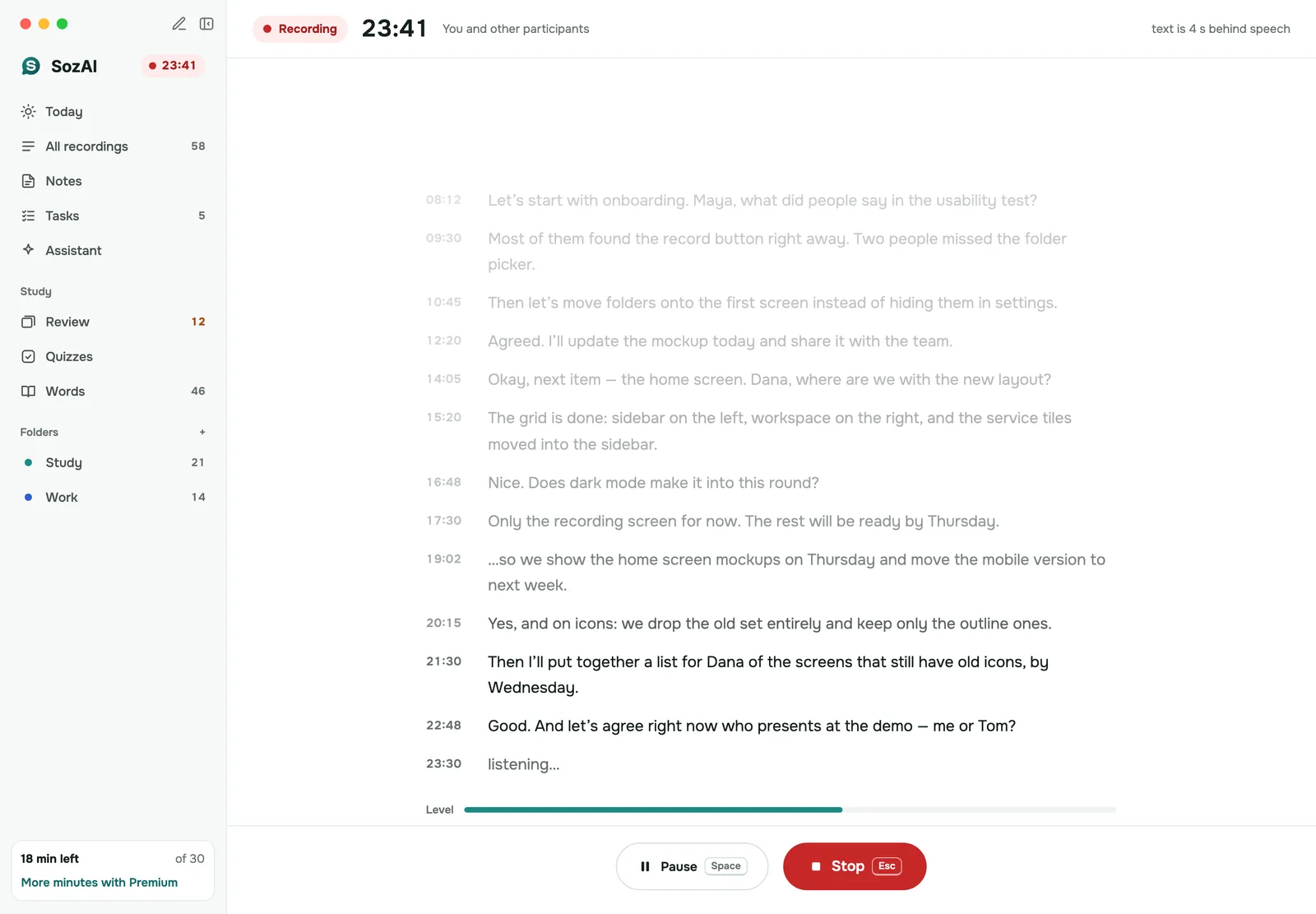
The Teams desktop app on a Mac. A browser can’t hear another program, so use the meeting mode of SozAI for Mac (macOS 14 or later). It records the Mac’s sound and transcribes on the Mac. That transcript has no speaker labels or automatic notes, and these meetings don’t use your transcription minutes.
The Teams desktop app on Windows. There is no Windows app; join the same meeting in Chrome or Edge instead and record the tab as above (details for Windows).
Teams shows everyone a notice when its own recording starts. A SozAI recording shows nothing in the meeting, so say at the start that you are recording and stop if someone objects. Recording rules differ between countries, and the place that counts may be where the other person is. Follow the rules that apply to you and to them; we don’t give legal advice. The full comparison with bot note takers is on meeting notes without a bot.
From transcript to minutes
After an uploaded file or a web recording, SozAI writes meeting notes: a summary, the decisions, tasks with an owner when someone named one, open questions and a draft follow-up email. Notes need your one-time consent to AI processing. For a Mac meeting, press “Make notes” on it. You can also translate the transcript and the notes. Examples: AI meeting notes.
Teams’ own transcript or SozAI
| Teams transcript | SozAI | |
|---|---|---|
| Who can get it | Work or school accounts, when the admin policy allows | Anyone with a recording or a call in a Chrome or Edge tab |
| When | Started during the meeting; afterwards only by “Generate” on a video you can edit | Any time after the meeting, from the file |
| Languages | 57 variants, chosen by hand | 99, detected automatically, one per file |
| Speaker names | The real name of each signed-in participant, with a timestamp | Speaker A, B and so on; you rename them |
| Guests and other companies | Can’t open it after the meeting | Whoever holds the file |
| Formats | .docx, .vtt | PDF, TXT, SRT, VTT, JSON in the app; TXT, SRT, VTT on the web |
| Summary and tasks | Intelligent recap with Teams Premium or Microsoft 365 Copilot, for meetings of 5 minutes or more transcribed in a supported language | Meeting notes after each transcript |
| Where it’s stored | Your organization’s OneDrive or SharePoint, under its policies | Our servers |
If you organized the meeting on a work account and transcription was on, use the Teams transcript. It costs no extra step and carries real names. It also stays inside your company’s storage and retention rules, which your employer may require. SozAI is for the rest: you weren’t the organizer, the account couldn’t transcribe, the language wasn’t covered, or the file is all you have.
About Copilot: according to Microsoft’s Copilot page, Copilot in a Teams meeting can answer questions during the call without a transcript, but afterwards only if the meeting was transcribed. It doesn’t work in meetings hosted by another organization. Intelligent recap, with AI notes, tasks, mentions of your name and a speaker timeline, needs a Teams Premium or Microsoft 365 Copilot licence (meeting recap).
Price and other meeting apps
The first 30 minutes of transcription are free, once, with no card. After that, Premium is from $4.99 a week or $79.99 a year in the apps, with up to 700 hours of transcription (pricing; for a team, SozAI for teams). On Zoom or Google Meet instead? See Zoom transcription and Google Meet transcription, or every kind of meeting on meeting notes.
Where the recordings go
- Recordings travel to us over HTTPS and are stored on our servers.
- Speech recognition and the AI features are run by named partners, every one listed on our subprocessors page.
- You can delete a recording or your whole account yourself, which removes the audio and everything made from it from our servers. More on the security page.
Answers
Frequently asked questions
Does Microsoft Teams have transcription?
Yes, on work and school accounts. Someone from the organizer’s organization starts it during the meeting, if the admin policy allows, and the transcript is saved with the recording and opens from the meeting’s Recap. Personal accounts get live captions, which Teams doesn’t save.
Can I transcribe a Teams meeting if I’m not the organizer?
If you are in the organizer’s organization, usually yes: you can start the transcript and read it afterwards, though by default only organizers and co-organizers can download it. Guests and people from other companies can only follow it live. Otherwise, ask the organizer for the recording and transcribe the file.
Can I transcribe a Teams recording after the meeting?
Yes. Whoever owns the video or can edit it can select “Video settings”, then “Generate” on its OneDrive or SharePoint page, in 28 language variants. Or download the MP4 and upload it to SozAI, which takes files up to 500 MB in 99 languages.
Where is the Teams transcript saved?
With the recording: in the organizer’s OneDrive, in the “Recordings” folder, or in the channel’s SharePoint site for a channel meeting. You open it from the meeting chat or the calendar, under “Recap”, then “Transcript”.
How do I download a Teams transcript?
Open the meeting chat, select “Recap”, then “Transcript”, and open the list next to “Download” to choose .docx or .vtt. By default only the organizer and co-organizers see that option.
Is Teams transcription free?
It comes with the Microsoft 365 work and school plans that include Teams, if the admin allows it. Teams for personal use has live captions; recording there needs a Microsoft 365 Personal, Family or Premium subscription, and Microsoft describes no transcript file for it.
Can guests see the Teams transcript?
During the meeting, people from another organization can read the live transcript, but they can’t start it or open it afterwards. Anonymous participants and people who dialed in by phone can’t view it at all.
What is the difference between live captions and transcription in Teams?
Live captions are subtitles during the call, and Teams doesn’t save them. Transcription writes a record with names and timestamps that stays with the recording after the meeting.
Do I need Copilot for a Teams meeting summary?
Microsoft’s own summary, intelligent recap, needs a Microsoft 365 Copilot or Teams Premium licence and a transcribed meeting of at least 5 minutes. SozAI writes meeting notes from any recording you upload, without either.
Turn your next recording into text
Record, upload a file or paste a link. You get the transcript, speakers and a summary back.
Free on iOS and Android. No account required for YouTube transcripts.