Skip to content

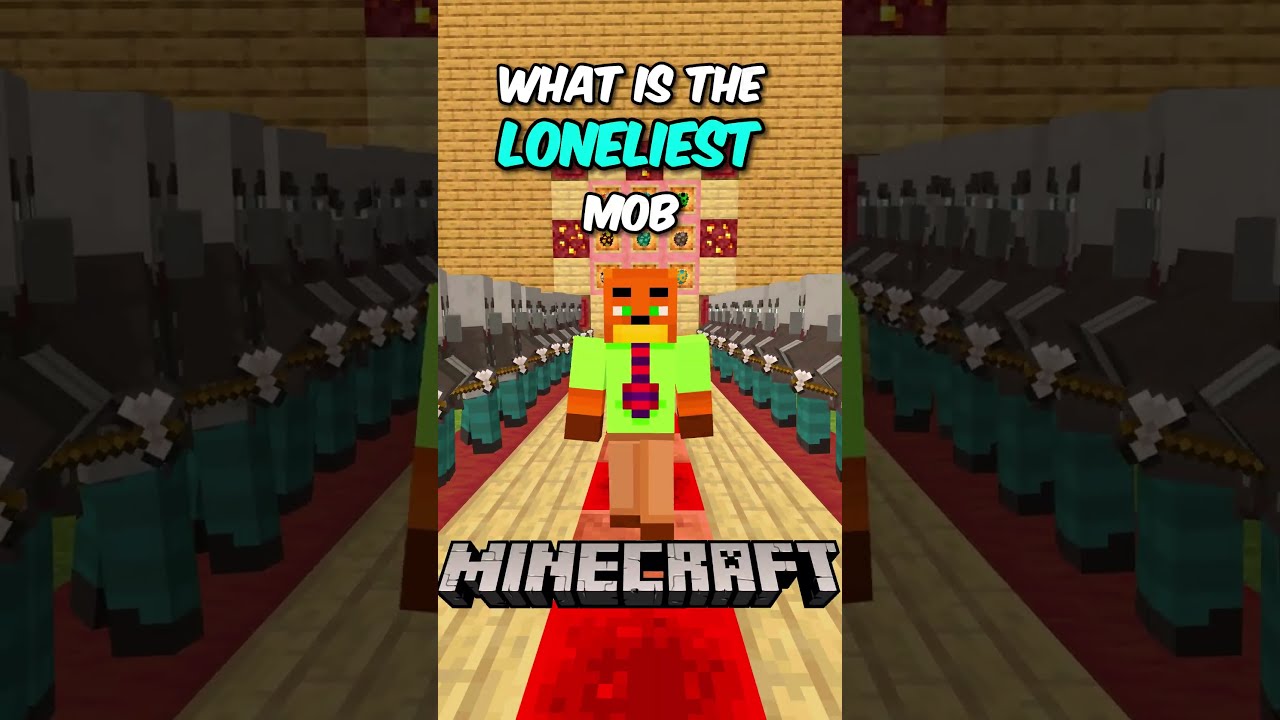
How To Download Mods In Minecraft Nintendo Switch! - Tutorial

Learn how to download free and paid mods on Minecraft Nintendo Switch using the Marketplace and Minecoins.

Ask about this video. Answers come from its transcript only — with the timestamp, so you can check them.

Generated from the transcript and can be wrong — check the timestamp.

Key Takeaways

  • Signing in to a Nintendo Switch account is required to download mods.
  • Minecraft Marketplace offers both free and paid mods for Nintendo Switch.
  • Minecoins are the in-game currency used to purchase paid mods.
  • Downloading and activating mods is straightforward via the Marketplace interface.
  • Players can enjoy enhanced gameplay experiences with mods like the movie DLC.

What the video covers

  • Guide on accessing the Minecraft main menu on Nintendo Switch.
  • Instructions to sign in with a Nintendo Switch account to enable mod downloads.
  • Explanation of the Minecraft Marketplace as the source for mods.
  • Details on free mods available and the option to purchase paid mods using Minecoins.
  • How to purchase Minecoins via the Y button on the controller.
  • Step-by-step process to select, claim, and download a mod.
  • Demonstration of loading a modded Minecraft world after download.
  • Showcase of the Minecraft movie DLC mod with an intro cinematic.
  • Reassurance that free mods are available without mandatory purchases.
  • Encouragement to explore various mod categories within the Marketplace.

Answers

Questions about this video

Do I need to sign in to a Nintendo Switch account to download mods?

Yes, signing in to your Nintendo Switch account is necessary to access the Minecraft Marketplace and download mods.

Are all mods on Minecraft Nintendo Switch free?

No, some mods are paid and require Minecoins to purchase, but there are also many free mods available.

How do I purchase Minecoins to buy paid mods?

You can purchase Minecoins by pressing the Y button on your controller within the Marketplace menu, which allows you to buy the in-game currency.

Full Transcript — Download SRT & Markdown

00:00
Speaker A
In this video, I'm going to show you how to download mods on Minecraft Nintendo Switch. Now, the first thing you want to do is you want to go ahead and load into the Minecraft main menu just like so.
00:09
Speaker A
And the first thing you want to do is you want to make sure that you are currently signed in to a Nintendo Switch account. So, go ahead and sign in really quickly. I already signed in.
00:16
Speaker A
However, on the left side of the menu, you should see a button that says sign in, and you will need to go ahead and sign in with your Nintendo account. So, please make sure to go ahead and do that
00:23
Speaker A
because we will need to sign in in order to start downloading mods. All right, guys. Once you went ahead and signed in, all you want to do from here is you want to go ahead on Marketplace. And this is
00:32
Speaker A
basically the place where we can go ahead and actually get mods inside of Minecraft Nintendo Switch. And honestly, there are a lot of great mods over here.
00:39
Speaker A
Now, some of these mods are actually paid, meaning that you will need to purchase them using Minecoins, which is the Minecraft in-game currency. However, there are still a bunch of free mods as well. So, do not worry, guys. If you
00:50
Speaker A
just want to go ahead and try out some free mods, that is definitely something that you guys could do. So, okay. Here we are, guys. So, we can go ahead and look at all the different categories and stuff like that. But guys, if we just go
00:59
Speaker A
ahead and keep scrolling down, yep, we will be able to find some free add-ons over here. So, we got like the Minecraft movie mod. We also got like the New Zealand mod as well. So, that's honestly pretty cool, guys. And we can go ahead
01:10
Speaker A
and just keep taking a look at all of the other free mods as well.
01:13
Speaker A
So, yeah. And again, if you want to go ahead and purchase some mods, that is definitely something that you guys could do. So, if you want to purchase Minecoins, all you need to do is you need to
01:20
Speaker A
press on the Y button on your controller. And then from this menu, you guys are actually able to purchase Minecoins, which once again is the actual in-game currency. You
01:31
Speaker A
and you guys could use these Minecoins in order to
01:41
Speaker A
actually purchase add-ons and mods and stuff like that. But again, that is completely optional because at the end of the day, you could always go ahead and just get the free mods. Okay. So, for this video, I'm going to go ahead
01:51
Speaker A
and download the movie DLC mod. So, let's go ahead and select it. Okay, then we just need to go ahead and press on purchase, and there you go. It will now say you just claimed a Minecraft movie DLC. So, now just wait for the mod to
02:00
Speaker A
actually load in. All right. So, once you're done with that, go ahead and press on download and then press on download one more time. Now, it'll begin to download your mod on your Nintendo Switch. All right, there you go. It'll
02:10
Speaker A
now say download complete. So, now let's go ahead and actually load into this mod in a Minecraft world. So, let's go ahead and press on create this world really quickly. And now, let's just go ahead and load into it. All right, guys. And
02:20
Speaker A
here we are. So, we can go ahead and now start playing with our mod. And yo, this is honestly so cool. We got like this whole intro cinematic thingamajiggy on our Nintendo Switch, which is honestly pretty cool. And we even get the Warner
Topics:MinecraftNintendo SwitchmodsMinecraft modsMinecraft MarketplaceMinecoinsMinecraft DLCMinecraft tutorialgame modshow to download mods

Get More with the SozAI App

Transcribe recordings, audio files, and YouTube videos — with AI summaries, speaker detection, and unlimited transcriptions.

Or transcribe another YouTube video here →