Skip to content
SozAI

Read WhatsApp voice notes instead of playing them

A Transcribe button appears under every voice message in WhatsApp Web. Press it and the text appears in the chat, with a one-line summary above it. No signup, and it reads whatever language the message is in.

Add to Chrome

Free. No account. Works in WhatsApp Web.

What you need

  • Chrome 116 or later, or a Chromium browser that installs from the Chrome Web Store
  • WhatsApp Web at web.whatsapp.com — not the phone app
  • An internet connection — transcription happens on SozAI servers
  • No account, no signup

What it looks like

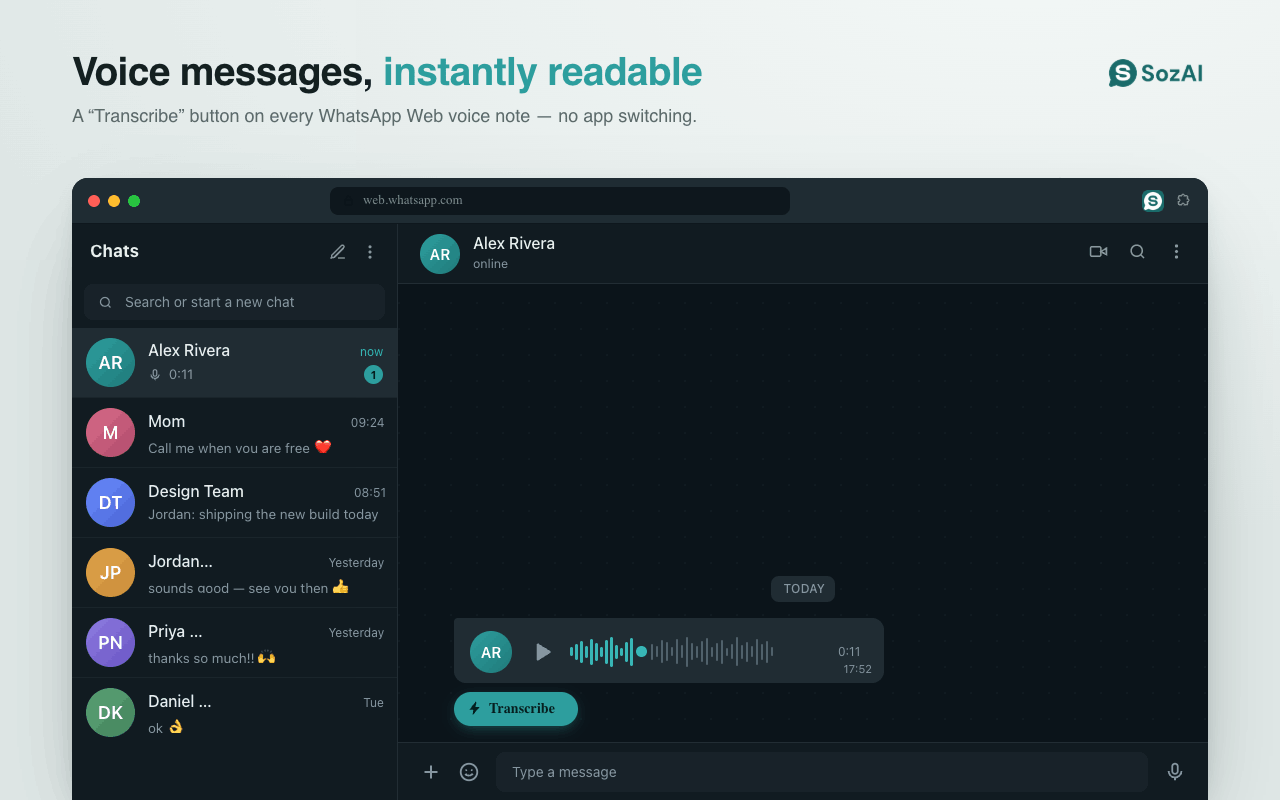
A Transcribe button on every voice note

A Transcribe button on every voice note

The button sits under the voice bubble where the message already is. Nothing to open, nothing to upload, no second tab — the extension adds one control to the chat you were reading anyway.

  • Appears on every voice message in WhatsApp Web
  • No app switching and no copying files around
  • The chat stays where it was
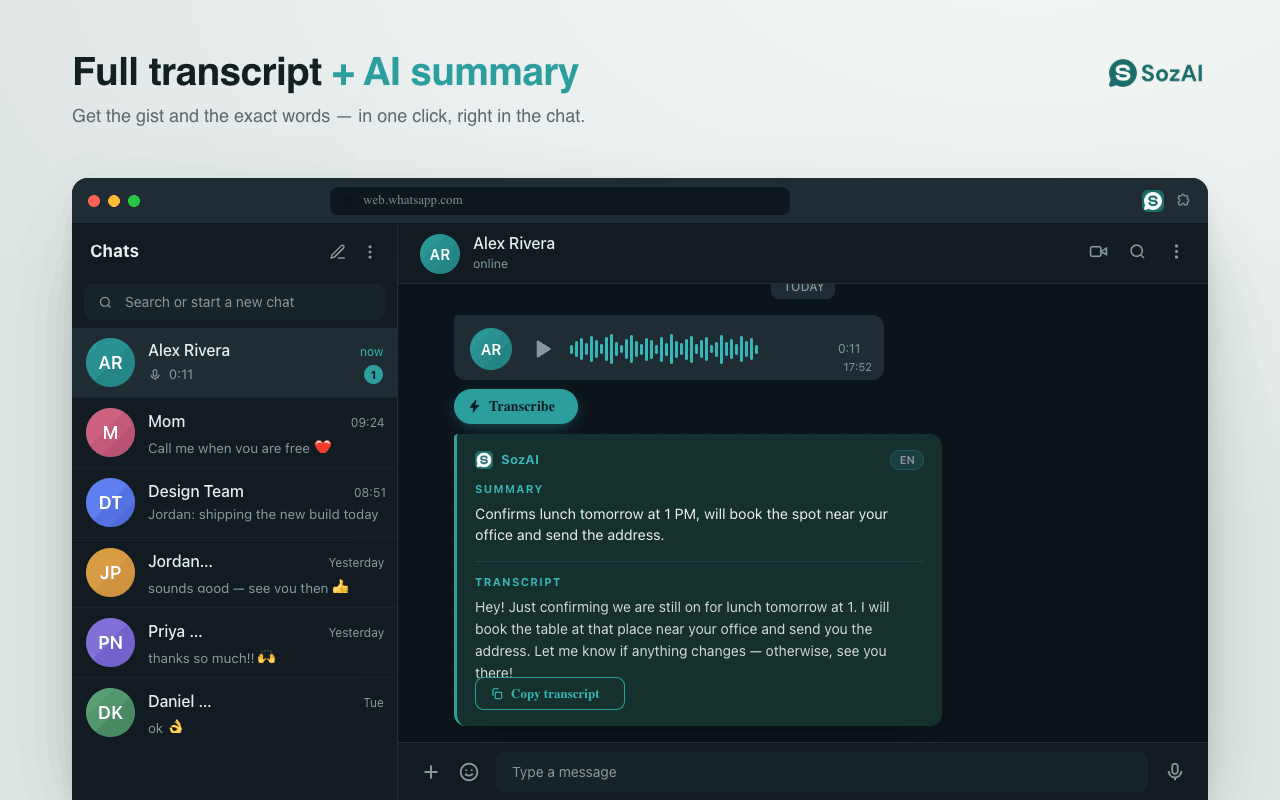
The summary first, then the exact words

The summary first, then the exact words

The result appears as a card in the conversation: a one-line summary of what the message was about, and under it the full transcript. The summary is usually all you need to decide whether to read the rest.

  • One-line summary for triage
  • Full transcript underneath when the summary is not enough
  • The card sits in the chat, not in a popup
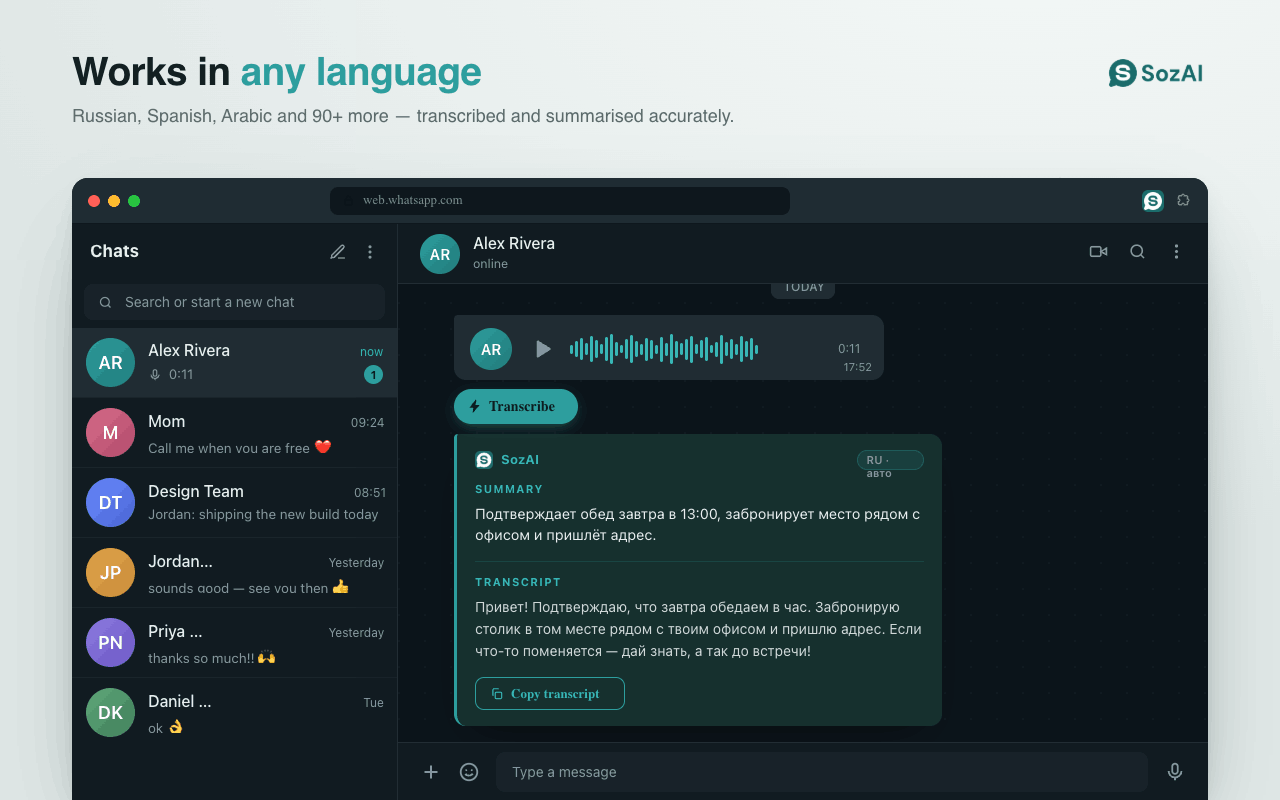
Whatever language the message is in

Whatever language the message is in

The language is detected from the audio rather than set in advance, and the badge on the card tells you what it decided. A Russian voice note comes back as Russian text with a Russian summary.

  • Detected automatically, no setting to change
  • The badge shows the language it decided on
  • Summary is written in the same language as the message
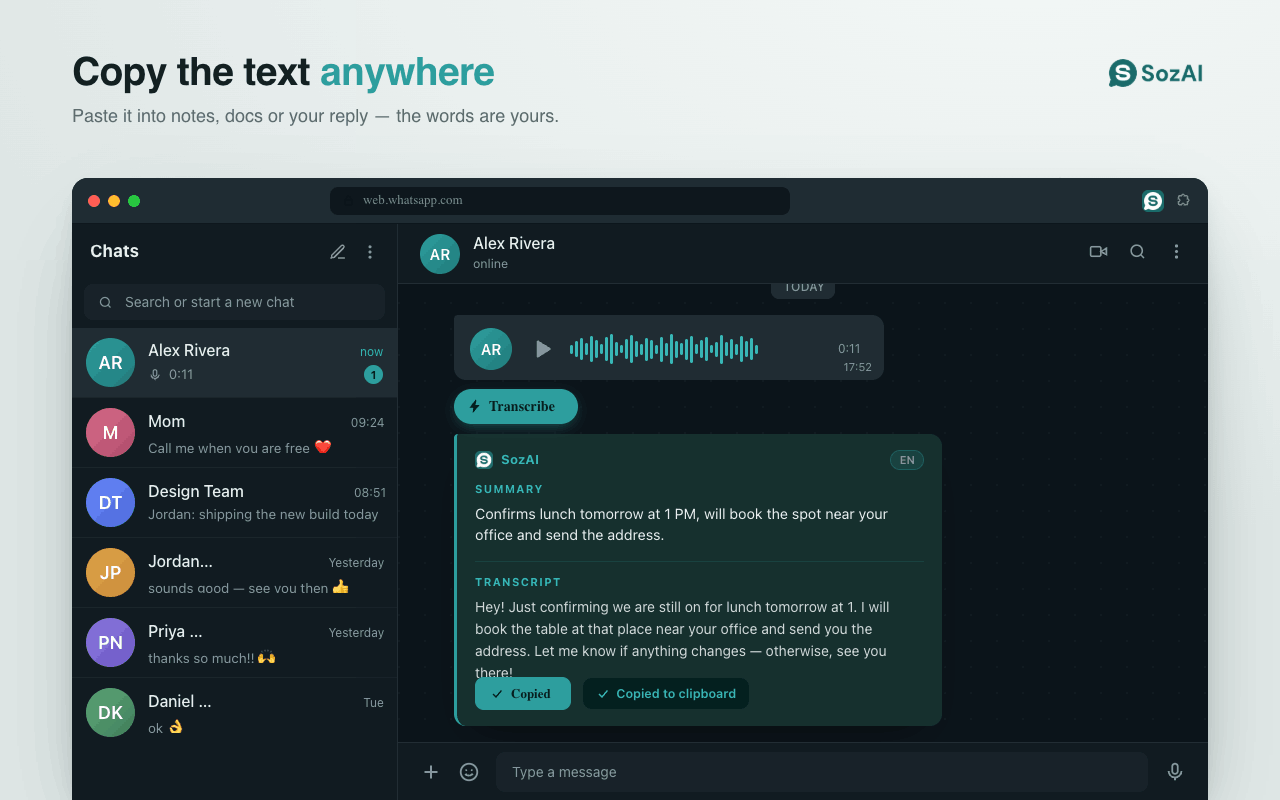
Copy the text out

Copy the text out

One button puts the transcript on the clipboard, so it can go into a note, a document or your own reply. What you got out of the voice message stops being trapped inside it.

  • Copy transcript in one press
  • Paste into notes, docs or the reply box
  • Confirmation shown so you know it landed
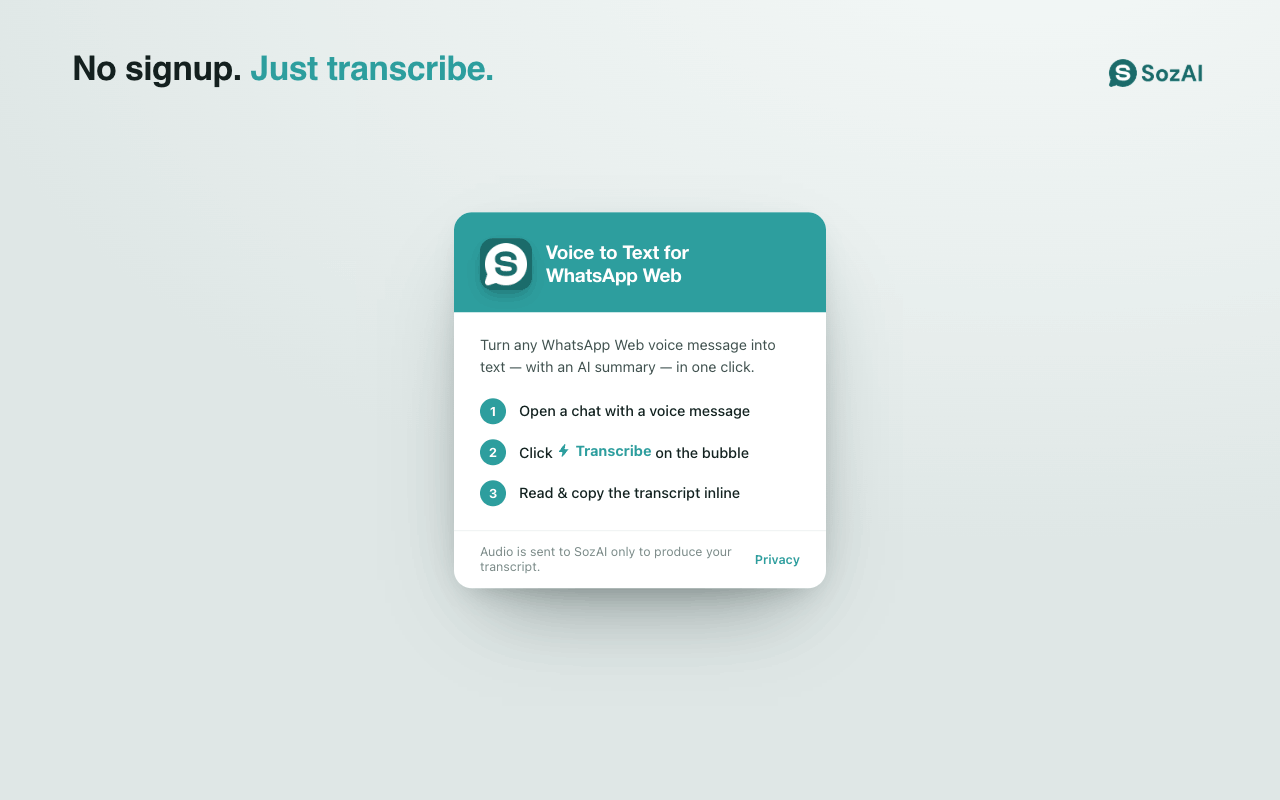
Three steps, no account

Three steps, no account

The popup is a short set of instructions and a plain statement of what happens to the audio: it is sent to SozAI to produce the transcript, and that is what it is used for.

  • No signup and no login
  • Says plainly where the audio goes
  • Works only on WhatsApp Web — it asks for nothing else

How it works

Step 1

Install the extension from the Chrome Web Store.

Step 2

Open WhatsApp Web and go to a chat with a voice message.

Step 3

Press Transcribe under the voice bubble.

Step 4

Read the summary and the transcript in the chat, and copy it if you need it elsewhere.

What it does

One button, in the chat

A Transcribe control under each voice bubble in WhatsApp Web. No uploading, no second window.

Summary above the transcript

A one-line summary of the message, with the full text under it for when the summary is not enough.

Automatic language detection

Reads the language from the audio and writes the summary in that same language.

Copy to clipboard

Take the text into notes, a document, or your reply.

No signup

No account, no login. Install and use.

Only WhatsApp Web

The extension runs on web.whatsapp.com and asks for no access to any other site.

Answers

Frequently asked questions

Does this work in the WhatsApp phone app?

No. It is a Chrome extension, so it works in WhatsApp Web in the browser. Voice messages arrive in both places, so opening web.whatsapp.com on a computer is enough to use it on messages sent to your phone.

Do I need an account?

No signup and no login. Install the extension, open a chat with a voice message and press Transcribe.

What happens to the audio?

The voice message is sent to SozAI to produce the transcript. That is what it is used for, and the extension says so in its own popup. If you would rather nothing left the machine, this is not the right tool for that message.

Which languages does it handle?

The language is detected from the audio rather than chosen in advance, and the summary comes back in that same language. A badge on the card shows what it decided, so you can tell when it has guessed wrong.

Can I transcribe an old voice message, not just a new one?

Yes. The button appears on voice messages in the conversation regardless of when they were sent, so scrolling back to an old one and pressing Transcribe works the same way.

Will the other person know I transcribed their message?

No. The transcript is produced for you and shown in your own browser. Nothing is sent back into the conversation and no message is marked in any way.

Add it to Chrome

Free, no account. Installs in one click from the Chrome Web Store.

Add to Chrome

Free. No account. Works in WhatsApp Web.