Learn 5 easy LinkedIn profile tips to boost your job search and become an All-Star profile that attracts recruiters and hiring managers.
Key Takeaways
- Optimizing your LinkedIn profile with key elements significantly increases recruiter contact and visibility.
- A compelling headline and keyword-rich About section help differentiate you and improve search rankings.
- Endorsements on skills are essential to meet LinkedIn’s All-Star profile criteria and boost credibility.
- Customizing your LinkedIn URL enhances your profile’s SEO and makes sharing easier.
- Small profile settings adjustments can keep your job search discreet.
What the video covers
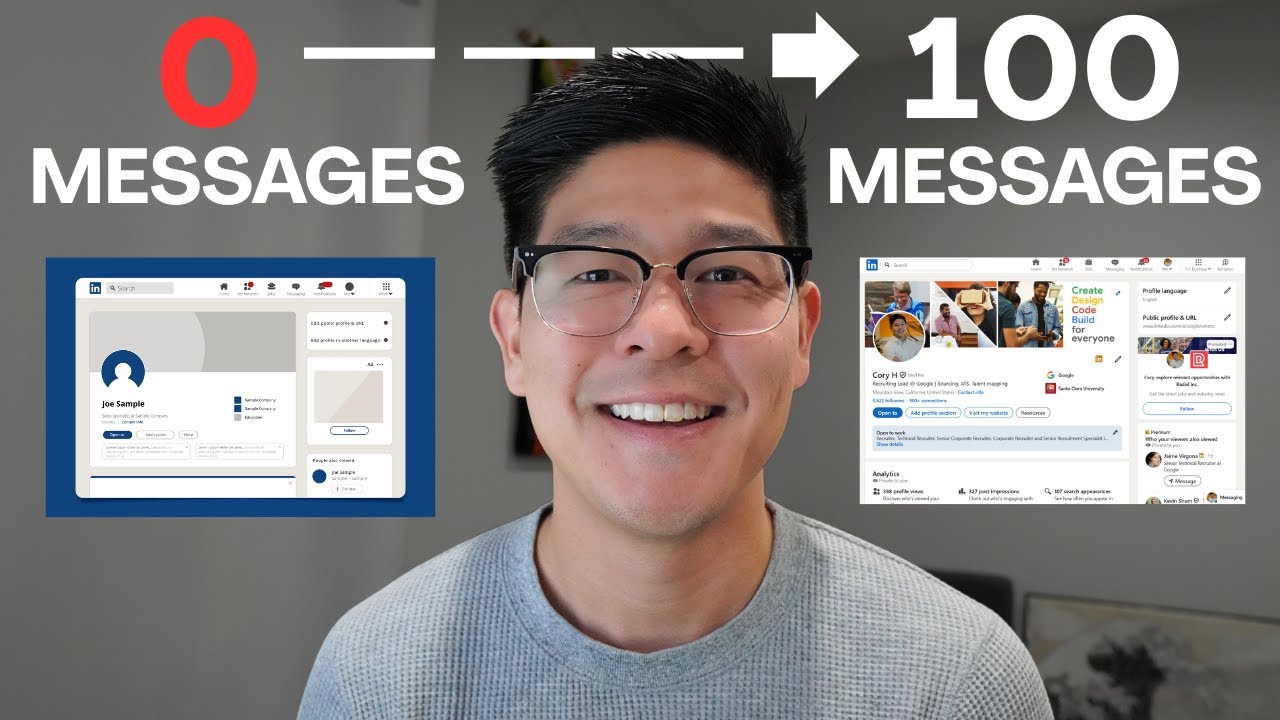
- All-Star LinkedIn profiles are 40x more likely to be contacted by recruiters and 18x more likely to appear in hiring manager searches.
- Tip 1: Use a high-quality profile picture and cover photo, with step-by-step Canva and Remove BG instructions for a professional look.
- Tip 2: Craft a headline that combines your job title with the unique value you bring to stand out from others.
- Tip 3: Add relevant keywords in your About section by analyzing job descriptions and using a word cloud tool to optimize search visibility.
- Tip 4: Add five skills with at least one endorsement each to meet LinkedIn’s All-Star profile requirements.
- Tip 5: Customize your LinkedIn URL to improve SEO and make it easy to share on resumes and email signatures.
- Bonus tip: Turn off profile update notifications to make changes discreetly without alerting your network.
- The video emphasizes the importance of driving relevant traffic to your profile even when you’re not actively job searching.
- Includes practical tools and resources like Canva, Remove BG, and word cloud generators to enhance your profile.
- Encourages following a structured About section format for maximum impact and recruiter engagement.
Chapters
- 00:00Introduction and Importance of All-Star LinkedIn Profiles
- 00:40Tip 1: Creating a High-Quality Profile Picture and Cover Photo
- 03:49Tip 2: Crafting a Headline that Shows Your Value
- 05:13Tip 3: Using Keywords in Your About Section
- 06:39Tip 4: Adding Skills with Endorsements
- 07:26Tip 5: Customizing Your LinkedIn URL
- 08:06Conclusion and Next Steps
Full Transcript — Download SRT & Markdown
Speaker A
So we all kind of know that having a nice LinkedIn profile is useful for job search, but you might not know All-Star profiles are 40 times more likely to be contacted by recruiters and 18 times more likely to show up in hiring managers' search results. To hit All-Star, there are nine items to watch out for, and in this video, we'll cover the five that most people think take a lot of effort but are surprisingly easy to get right. So let's get started. Hi friends,
Speaker A
Welcome back to the channel. If you're new here, my name is Jeff. Come for the CU tips and stay for the unfair advantage you will have with an All-Star LinkedIn profile. Diving right into a sneaky bonus tip for job seekers, you want to click on
Speaker A
Settings and Privacy, navigate to Visibility, Visibility of your LinkedIn activity, share profile updates with the network, and turn this option off. This way, you can follow along and make changes today without alerting your nosy colleagues. I'm not looking for a new job
Speaker A
right now. I love my job. I love my manager, so I really have nothing to hide. So I guess I'll just leave this option, you know, on. All right, first tip: add a high-quality LinkedIn profile picture and
Speaker A
cover photo. First, pick a photo where you're smiling at the camera and your chest is in the frame. Don't worry if the background is a bit messy and disorganized; we'll sort that out later. Then you want to head on over to Remove
Speaker A
BG, a free online tool, and confirm this is a photo you want to use because you only get one chance to download the high-resolution version. Then make a free account on Canva.com. I'll link it down below. Then click Create a Design, custom size
Speaker A
1,600 x 600 pixels, and click Create New Design. Now on your empty page, you want to first duplicate this page so you have two empty pages, and on your first empty page, drag and drop your photo without the background over, and on the second
Speaker A
empty page, drag and drop the original photo with the background over. You'll see why in a little bit. Now you have two options. If you want a nice clean background, you can simply search for Gradient Square under the Elements tab,
Speaker A
select this option, pick two colors that you like, like so, make this expand and fill the entire square like that, position backward. If you want to get fancy, you can also rotate this and then drag the corners again to fill the
Speaker A
entire frame. Option two is for the photo with the background. You want to first click Edit Image, Adjust, See All, move the brightness down by around 10, saturation by around 15, blur—let's add 10 clicks of blur—and boost the vignette up to 50.
Speaker A
And then you want to click the lock icon here. Then you want to actually copy and then paste the photo without the background, then move it down to your second page so it overlays and is on top
Speaker A
of the blurred image like so. Finally, for this top layer, click Edit Image again, Adjust, See All, add 10 to the brightness, another 10 to contrast, 15 to saturation, and another 15 to warmth. This really helps you pop out from the
Speaker A
background. For your LinkedIn cover photo, it's even simpler. On your Canva homepage, create a design, search for LinkedIn banner, and make sure you select the 1500-pixel option because that's the most updated size. And once you're in, on
Speaker A
the left-hand side under the Templates tab, again search for LinkedIn banner, and you can add a filter for the language that you want—English US for me—apply filters, and you can select from one of these prepopulated templates. I like to
Speaker A
keep mine simple, so after selecting one, I can literally just double-click and start editing. Once you're done, click Share, Download, and download again, and now you're ready to upload your new, new sexy improved profile picture and cover
Speaker A
photo. LinkedIn profile tip number two for job seekers: your headline should equal your title plus the value you bring. This is what I currently have: Product Marketing at Google. And if I perform a search for product marketing managers, we literally all have the exact
Speaker A
same headline, which is just our title. A trick I learned from Awesome Bellack, a thought leader in this area, is to add one sentence that shows the value you bring to future employers. For me, an oversimplification of what I do is that
Speaker A
I explain complex features within Google Ads in a way that small and medium business owners understand. Sexy, right? I know. I get all the ladies. Cutting that down, I might be left with something like, I bring boring ad products to life, and
Speaker A
you'll be surprised at how hard it is to summarize your entire job in one coherent sentence. But when you do, you get to stand out among your peers. By the way, an amazing point Awesome makes is that although different types of people
Speaker A
use LinkedIn for different purposes, the objective of your profile stays the same: to drive relevant traffic to you even when you're sleeping. And for job seekers, this traffic is messages and connection requests from recruiters and hiring managers. I'll link his full article down
Speaker A
below. Best practice number three for job seekers: include relevant keywords in your LinkedIn About section. I've made an entire video about this, so check that out afterwards. But essentially, three things you need to know: first, LinkedIn search works just like Google Search.
Speaker A
Keywords play a big role in how often you show up in recruiters' and hiring managers' search results, and your LinkedIn About section is a great place to add relevant keywords. Second, where do you find these keywords? Well, go to at least
Speaker A
10 job descriptions and copy and paste all of them into a Google Doc like so. Then select all the text within the doc and paste it into a word cloud generator. I'll link a free one down below and
Speaker A
click Generate Cloud. Now you can easily see which of these keywords show up the most. In this example, if I sort by frequency, I can immediately see they want someone who is customer-centric,
Speaker A
focus on growth, and has to work well with sellers, which is a shorthand for the sales team. So you have to work well cross-functionally. And third, follow this LinkedIn About section structure from Awesome Bellack and include your keywords: an intro line with your years of experience and specific value you
Speaker A
bring, followed by three specific examples with quantifiable metrics, and close with the types of opportunities you're looking for. To prove this works for anyone, I've added an example here for a student looking for their first full-time job. Note that I've
Speaker A
intentionally sprinkled in keywords throughout this summary. LinkedIn profile tip number four for job seekers: add five skills correctly to your profile. But Jeff, you might say, skills are so easy to add. I can probably add 50 in two minutes.
Speaker A
Well, yes, but actually no, because according to LinkedIn, only skills with at least one endorsement will count, and you need five of those skills to satisfy the All-Star requirement. So go back to Word Cloud, pick five skills, and add them
Speaker A
to your LinkedIn profile. Then get endorsements from friends, families, and colleagues. Pro tip: according to Austin, endorsements from people with those same skills carry more weight. Tip number five: use a custom LinkedIn URL. Two reasons for this: first, if you watch my resume
Speaker A
video, you know that resumes that include a link to your LinkedIn profile have a 71% better chance of hearing back from employers, so you want that URL to make sense. Second, your URL actually plays a role in the SEO or search engine
Speaker A
optimization of your profile, helping it rank better when someone Googles your name. And small bonus: your email signature is a great place to add the URL as well. Changing this is super easy. On your profile, click Edit Public
Speaker A
Profile and URL and click the pencil icon here. Now that you have an All-Star LinkedIn profile optimized for job search, make sure to check out this video next on best practices for messaging recruiters on LinkedIn. See you on the
Speaker A
next video. In the meantime, have a great one.
Speaker A
next video in the meantime have a great one
Topics:LinkedIn profile tipsjob seekersAll-Star LinkedIn profileLinkedIn headlineLinkedIn About sectionLinkedIn skills endorsementscustom LinkedIn URLjob search optimizationLinkedIn profile pictureLinkedIn cover photo