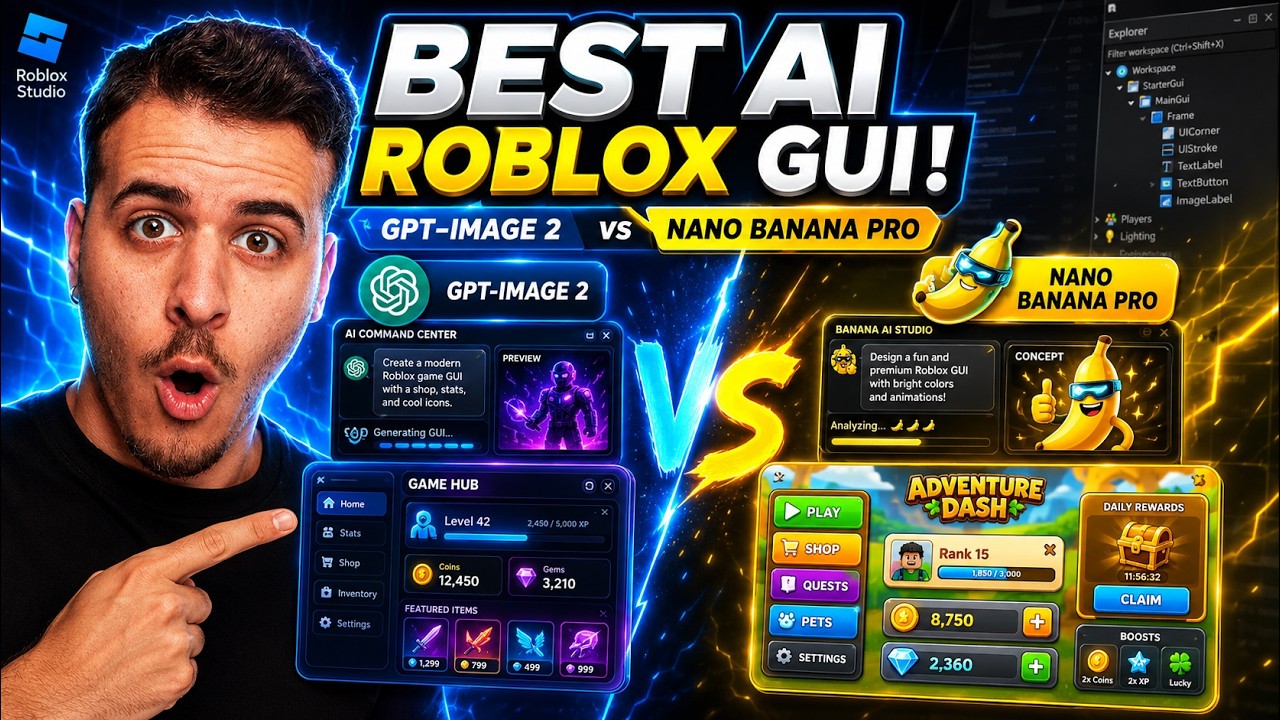
Aero shows a full AI workflow for Roblox UI design: generate a design with ChatGPT, split it into parts, and export individual assets with a free local app.
Key Takeaways
- AI image generators can produce complete UI mockups that serve as a blueprint for Roblox GUIs
- A free local tool can automatically detect and export individual UI components from a design image
- Background removal works best on assets with clear, non-white outlines; white-background elements are problematic
What the video covers
- Builds on a previous video comparing Nano Banana and ChatGPT Images 2.0 for design generation
- Uses ChatGPT to create a UI design, then iterate on it, and ask it to break the design into individual component assets
- Introduces a free, open-source local application shared on GitHub, with one-click install scripts for macOS, Linux, and Windows
- The app runs in the browser at a localhost link (typically port 5173) and has a canvas on the left and settings on the right
- Users load the component image with 'Choose Image', set box padding, and run 'Auto Detect' to draw rectangles around each component
- An output folder can be selected, and 'Export PNGs' saves each asset as an individual image file
- The built-in background remover struggles with white-background assets like menus, but works well on assets with clear non-white outlines such as coins or bar charts
- Exported assets can be further processed with an external background remover tool
- The tool is acknowledged as imperfect but useful for turning AI-generated UI mockups into usable Roblox GUI assets
Chapters
- 00:00Introduction and workflow overview
- 00:16Context from the previous comparison video
- 00:57Generating and breaking down the design with ChatGPT
- 01:29Introducing the free GitHub application and installation
- 03:03Launching the app and interface overview
- 04:43Loading images and background removal limitations
- 06:30Auto Detect, exporting PNGs, and background removal
- 07:20Reviewing the exported asset folder
Full Transcript — Download SRT & Markdown
Speaker A
Today, you are going to see a whole workflow of how to create beautiful UIs using AI.
Speaker A
This video builds on top of the previous one where we compared Nano Banana with ChatGPT Images 2.0.
Speaker A
So, if you've seen that video, you know that we use ChatGPT to create beautiful designs like the one you see on screen.
Speaker A
We can use that image to adjust this design and then tap with something like the one you see on screen right now.
Speaker A
Really, really beautiful.
Speaker A
And then, what we do is we ask it to break down this image into individual parts.
Speaker A
So, we get this kind of image with all of the components and the assets we need to recreate this kind of design, right?
Speaker A
So, what I want you to know is I've coded an application just for you guys, completely free.
Speaker A
I've posted it on GitHub, and you can actually download the code, experiment with it, and also run the application.
Speaker A
It's fully free and runs locally on your system.
Speaker A
I've got all of the prerequisites you will need to install it.
Speaker A
I've also created one-click installation scripts for macOS, Linux, and Windows just for you guys.
Speaker A
Like, I've made everything for you.
Speaker A
I've shown you how to start it and where to find the application after you run it.
Speaker A
And yeah, here it shows you how to use it.
Speaker A
And I'm going to show you the application.
Speaker A
So, after you used ChatGPT to create your design and break it down into individual components, you are going to end up with an image of the individual components.
Speaker A
So, after you run the application, it will open up the command terminal and show you this kind of link.
Speaker A
It will end in 5173 in most cases.
Speaker A
So, if you open it up, you are going to find the application.
Speaker A
And this is the application.
Speaker A
On the left side, you see the canvas.
Speaker A
On the right side, you see settings and options.
Speaker A
So, if you click "Choose Image," you can add the image you want it to work on.
Speaker A
Of course, this is not yet perfect, but it still does a very good job.
Speaker A
What I was not able to create yet is the background remover working properly, because for this kind of asset, for example these menus, it doesn't work well.
Speaker A
The color matches a lot of the background color of white, so it makes a lot of mistakes.
Speaker A
However, without removal, you can try with removal if you've got assets like coins here or bar charts that have a very clear outline that is not white and they don't have white inside them, then it will work quite perfectly.
Speaker A
Here, you add the image with individual parts, you can set the padding of the boxes, and you can click "Auto Detect."
Speaker A
What this is going to do is find the individual components and create a small rectangle around them.
Speaker A
Then, by clicking on the output folder, you can set where you want to save them, and then you can click "Export PNGs," and it will export all of these assets into individual image files.
Speaker A
So, what you can do then is go into a background remover and remove the background, okay?
Speaker A
So, what you get here is this kind of folder with the individual assets.
Speaker A
Let me show you a small preview of how they look.
Speaker A
So, you see here the individual assets.
Topics:RobloxGUI designAI UI designChatGPT Imagesasset extractiongame UIbackground removeropen source toolPNG exportRoblox development