Skip to content
Get App

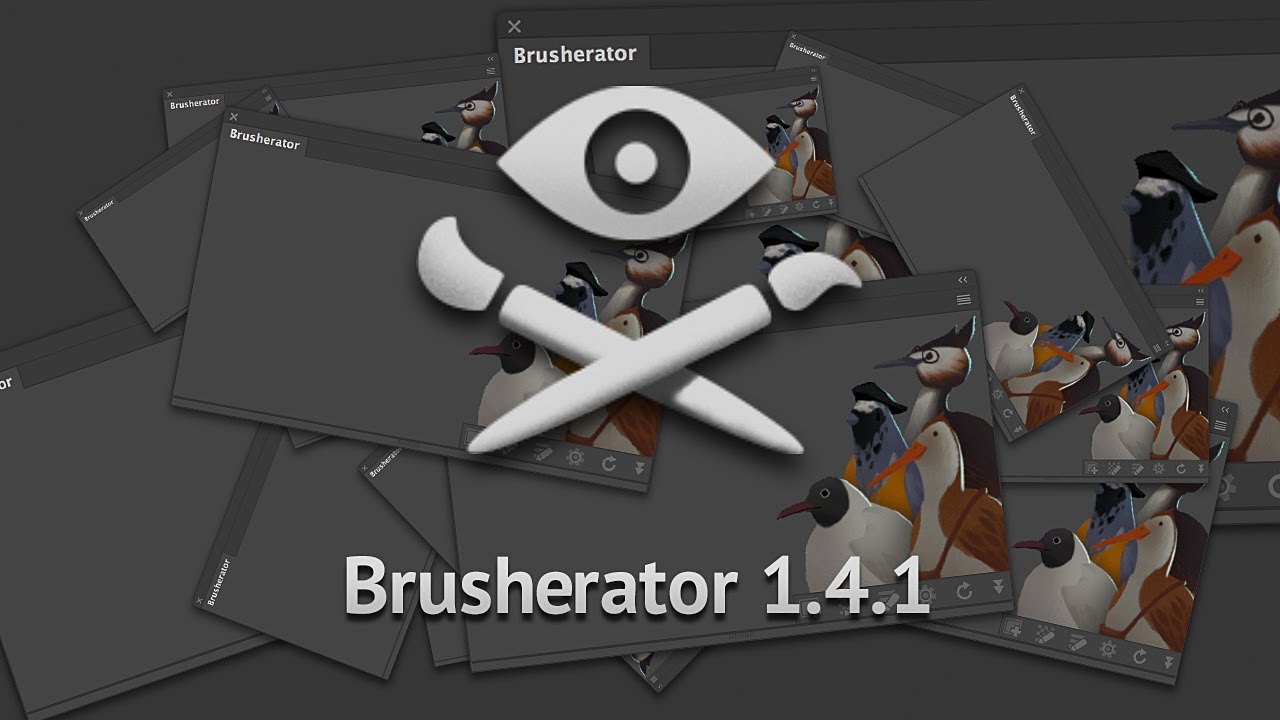
Brusherator 1.4: what's new

Brush Mother 1.4 update introduces speed improvements, text labels, customizable menu items, and a new history panel for better brush management.

Key Takeaways

  • Brush Mother 1.4 significantly enhances speed and responsiveness.
  • New text labels and customizable menu items improve organization.
  • The history panel and hotkey slots streamline brush and tool management.
  • Customizable button sizes and images increase user interface flexibility.
  • The update caters well to both mouse and touch device workflows.

What the video covers

  • Significant speed improvements in switching charts, buttons, and loading large icon sets.
  • Introduction of text labels to group items with customizable colors and names.
  • Ability to add almost any Photoshop menu item to the panel for quick access.
  • Support for custom images on buttons, such as for New Layer commands.
  • Text buttons can now be resized for better precision and usability.
  • New 'Mother History' panel shows history of last selected tools and brush presets.
  • Users can assign hotkeys to five slots in the history panel for quick tool selection.
  • Shift-click feature creates new buttons with last used settings for brushes.
  • Brushes can be favorited and grouped for easier access and organization.
  • The update improves workflow efficiency, especially for touch device users.

Answers

Questions about this video

What are the main speed improvements in Brush Mother 1.4?

Brush Mother 1.4 improves the speed of switching between charts, adding and removing buttons, and loading large icon sets, making the system much faster and more responsive.

How can I add Photoshop menu items to the Brush Mother panel?

You can add almost any Photoshop menu item by searching for it manually or typing its name in the add menu, allowing quick access to functions not assigned to hotkeys or actions.

What is the purpose of the new Mother History panel?

The Mother History panel shows the history of the last selected tools and brush presets, allowing users to easily return to recently used brushes and assign hotkeys to five slots for quick selection.

Full Transcript — Download SRT & Markdown

00:01
Speaker A
Hello everyone. I'd like to talk about Brush Mother 1.4, and in this video, I'm going to demonstrate all the new features and improvements. The most noticeable thing is probably the speed improvements, like switching between charts, new buttons, removing buttons, and the system works much faster now. Before, switching transferred hotkeys worked almost instantly, and even this job, for example, that has almost 200 icons, it loads very fast.
00:22
Speaker A
removing buttons and a system works much faster now before switching transferred hotkeys works almost instantly and like even this job for example that has almost 200 icons it loads very fast the first thing feature one that was requested quite a lot is text labels
00:52
Speaker A
The first feature that was requested quite a lot is text labels. Simple text labels to group items together, things like that. So you can add them. I'm going to edit from the add menu. There are not many options here. You can just specify color and label name. So I'm going to call this one "My Brushes."
01:17
Speaker A
I'm going to make it right got to be sharks [Music] and user to edit settings of the label you use the same edit button menu so I can set it to yellow and I'm going to add several more labels okay there is
01:55
Speaker A
I'm going to make it right. Got to be sharks. [Music] And to edit settings of the label, you use the same edit button menu. So I can set it to yellow, and I'm going to add several more labels. Okay, there is not much really to say about them. Those are just labels, that's all.
02:13
Speaker A
menus like from file from way adjustment layers even tools sometimes there are some particular functions that I use quite often but not often enough to put them on a hotkey or record in action with them the to it to add a new item I
02:32
Speaker A
So the next new addition is a menu item. This one I actually found very useful because it allows you to put on the panel almost every item from Photoshop menus, like from File, from Way, adjustment layers, even tools sometimes. There are some particular functions that I use quite often but not often enough to put them on a hotkey or record an action with them.
02:51
Speaker A
you can see I have it now here and if I use it going to pull everything with clouds [Music] maybe cause wasn't the best idea maybe noise will work better so let me just quickly change it to noise in here
03:13
Speaker A
To add a new item, I can choose, I can search it manually from the menu and find the menu item, or I can just start typing the item I want. I would really like to add a Clouds filter to the panel because why not, and this—
03:36
Speaker A
now I have this huge button so for example if I would you if I would if I was using two types to touch device I could have several buttons like from several menu items from Photoshop to use them with fingers they would be always
03:56
Speaker A
You can see I have it now here, and if I use it, it's going to pull everything with Clouds. [Music] Maybe Clouds wasn't the best idea. Maybe Noise will work better. So let me just quickly change it to Noise in here.
04:21
Speaker A
this take on taking on they can they can all be the same width or if you want you can just make them larger like this this looks much more precise and also obviously I can use on my image and our interactions with them
04:45
Speaker A
And here, for example, I have an icon that I want to use for a New Layer command. So I do the same. I'm going to add the menu item with a New Layer, and I'm going to use a custom image with my New Layer.
05:17
Speaker A
history it does exactly what it stands for shows the history of all last selected tools from above from brush rather or from just regular Photoshop tools for example I click on brush rattle you can see that the buttons are
05:35
Speaker A
So now I have this huge button. So, for example, if I was using a touch device, I could have several buttons like from several menu items from Photoshop to use them with fingers. They would be always in close proximity. But because I'm not using a touch device, I'm going to make it slightly smaller.
05:57
Speaker A
whatever and you can see like a list like this and I want to add several brushes myself I usually go and try them one by one like this and this in life is not like a table and what I can do is them if I
06:21
Speaker A
And so, the next thing I want to talk about is text buttons. This update finally can be resized, so no more like bricks like this or like this. They can all be the same width, or if you want, you can just make them larger like this. This looks much more precise, and also obviously I can use my image and our interactions with them.
06:40
Speaker A
very much this one's beautiful [Music] so now for example I found this four brushes that if you like and what I'm going to do is just click it click it once then I'm going to add a new button
07:07
Speaker A
[Music] Everything's in order, shelves in this list. They can be sorted. I can grab and reorder them the way I want.
07:37
Speaker A
so I'm going to select this one go into shift-click from active tool now I'm going to select this guy shift click [Music] this guy shift click what shift-click does is it creates a new button with last used settings in this case those
08:09
Speaker A
And last but not least, a new panel. This little guy, this panel is called Mother History. It does exactly what it stands for: shows the history of all last selected tools from above, from Brush Rattle, or from just regular Photoshop tools. For example, I click on Brush Rattle, you can see that the buttons are clicked, they appear on the panel, and the same will be with all the brushes like brush presets, tool presets.
08:31
Speaker A
return to them and another use for this panel is those five icons here if I cover you can see that it says that click to assign hawky so you can assign five hotkeys to these slots the important thing is you not
08:50
Speaker A
So how is it useful? Like the most simple one probably is when I have downloaded someone else's presets, like brushes, so whatever, and you can see like a list like this, and I want to add several brushes myself. I usually go and try them one by one like this and this. In life, it's not like a table, and what I can do is, if I find the brush that I like, like this one, I can mark this favorite. The whole next brushes I'm going to select will be added under this favorited group.
09:06
Speaker A
half of this my goodness this rectangular guy have this flat guy cutter for a guy and maybe some texture thing going to make this for you guys favorites like here's my let's chuck and I'm going to assign some four keys so I
09:30
Speaker A
So now I want to—it was like this one very much. This one's beautiful. [Music] So now, for example, I found these four brushes that I like, and what I'm going to do is just click it once, then I'm going to add a new button from active tool. Last text your brush is automatically this guy I used, and I'm going to make a stroke out of it green, for example, custom green, yes.
09:50
Speaker A
this guy so on okay so now you see the seconds now highlighted and if I recovered I can see what the hotkey is assigned to what slot so now I have my I know my around text fill that was
10:12
Speaker A
So I don't get this one anymore. So I'm going to select this one, go into shift-click from active tool. Now I'm going to select this guy, shift-click. [Music] This guy, shift-click. What shift-click does is it creates a new button with last used settings. In this case, those were green pale green background stroke.
10:42
Speaker A
to press comment five this guy is going to be selected comment of six this guy's going to be selected and so on so let's solve for this update I hope you're going to like it yes I do I will enjoy
10:57
Speaker A
So basically, what I do sometimes if I use several particular brushes, like I know, painting foliage, for example, or something like that, I may lock several brushes I use the most and just return to them.
11:16
Speaker A
several things I want to add to a shredder for example ability to change font size because I agree the text button says maybe it's too small some people for some displace this is the first time I'm making a video with all
11:34
Speaker A
Another use for this panel is those five icons here. If I hover, you can see that it says "Click to assign hotkey." So you can assign five hotkeys to these slots. The important thing is you do not assign a hotkey to a brush; you assign what is called a slot, which means that whatever brush is at the moment its attention to this slot, this brush is going to be selected.
Topics:Brush MotherBrush Mother 1.4Photoshop brushesPhotoshop panelbrush managementcustom buttonshotkeysspeed improvementshistory panelbrush presets

Get More with the SozAI App

Transcribe recordings, audio files, and YouTube videos — with AI summaries and speaker detection. 30 minutes free.

Or transcribe another YouTube video here →