Skip to content
Transcribe Audio to Text: Voice & Meetings

Drop a recording, read it as text

A workspace tab in Chrome: drop an audio or video file, or record from the microphone, and get a transcript with speaker labels and timestamps, plus an AI summary if you want one. 30 minutes free, no signup.

Add to Chrome

30 minutes free. No signup. Installs in one click.

Requirements

  • Google Chrome 116 or newer (also Edge, Brave, Arc)
  • No account needed to start; Google sign-in is optional
  • Audio or video files up to 50 MB

What it looks like

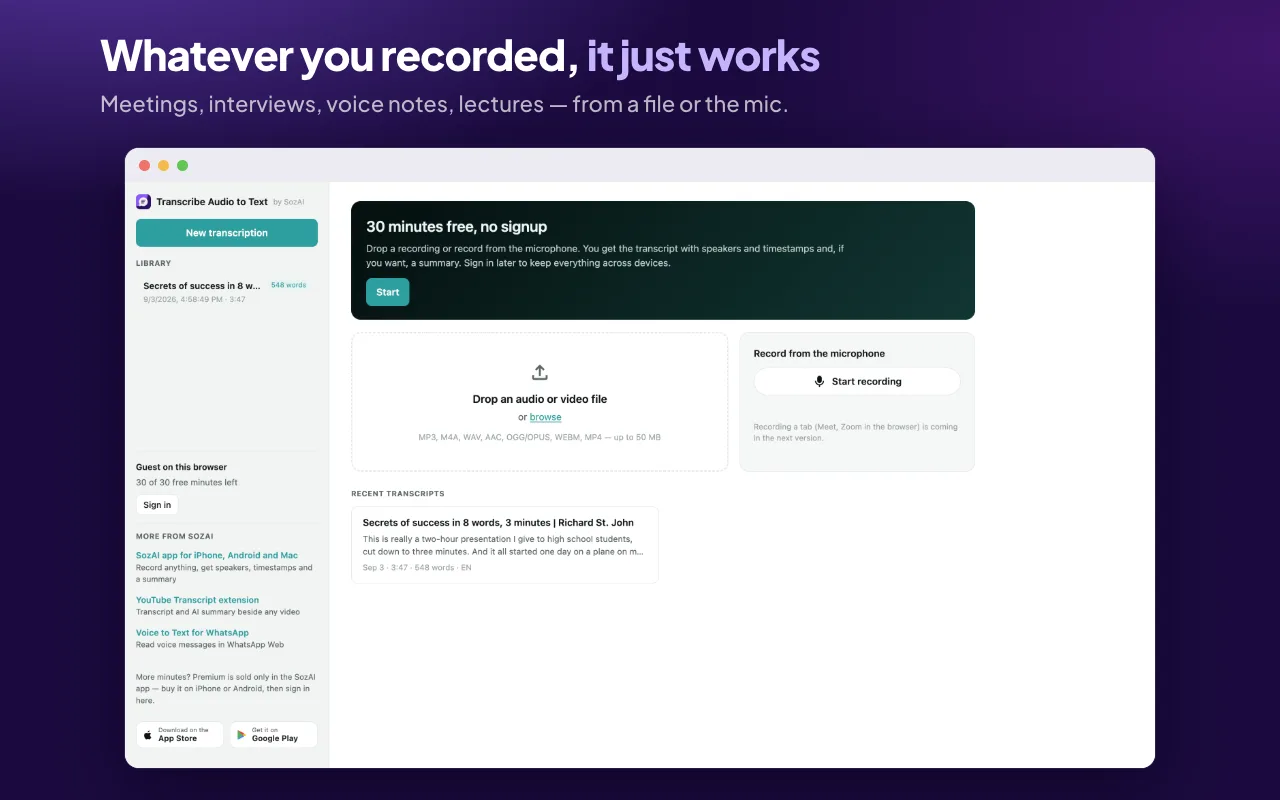
A file or the microphone, in a tab of its own

A file or the microphone, in a tab of its own

Click the icon and the workspace opens in a tab. Drop an audio or video file onto it, or press Start recording to capture the microphone. Files up to 50 MB in MP3, M4A, WAV, AAC, OGG/OPUS, WEBM or MP4.

  • Drag and drop, or browse for the file
  • Record straight from the microphone
  • The sidebar shows how many free minutes are left
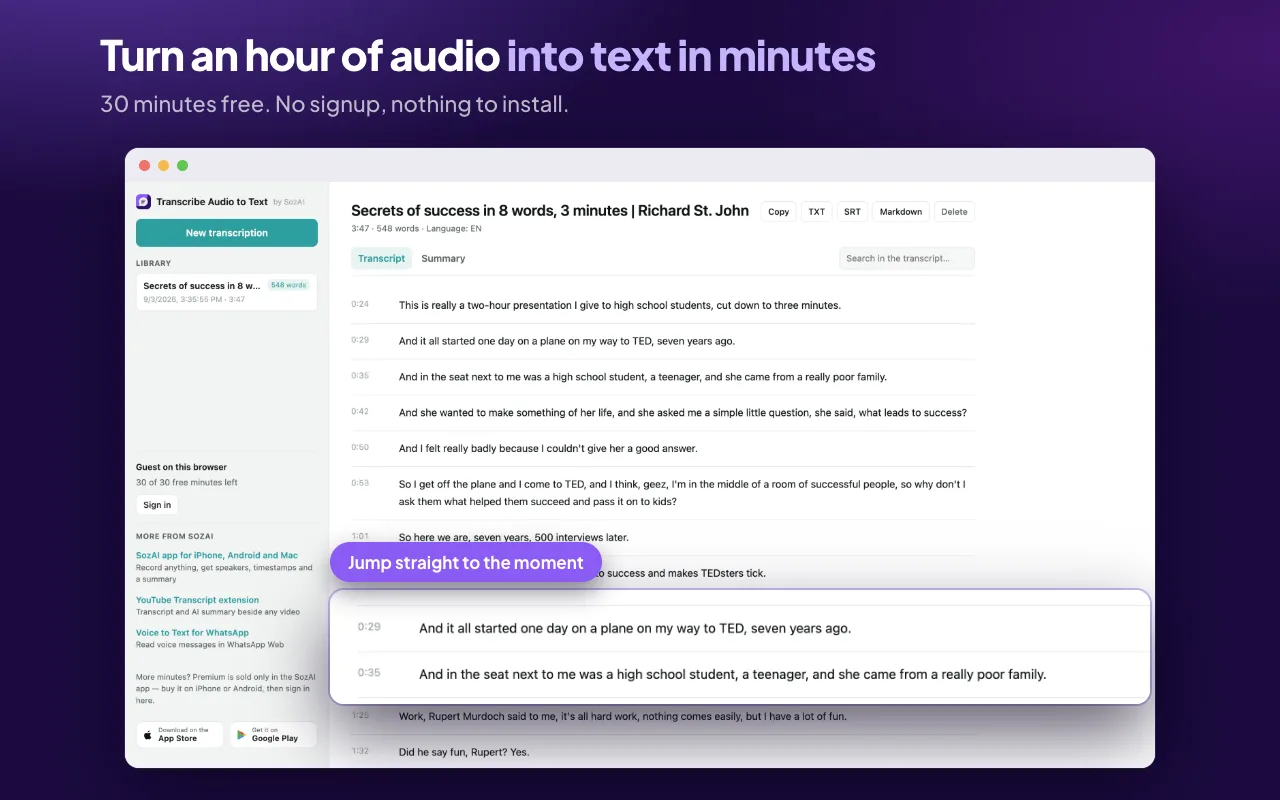
A transcript with a timestamp on every line

A transcript with a timestamp on every line

The text comes back split into short blocks, each with the position it came from. Title, duration, word count and detected language sit above it, and a search box filters the blocks down to the ones containing a word.

  • Timestamps on every block
  • Search inside the transcript
  • Language detected automatically, 99 of them
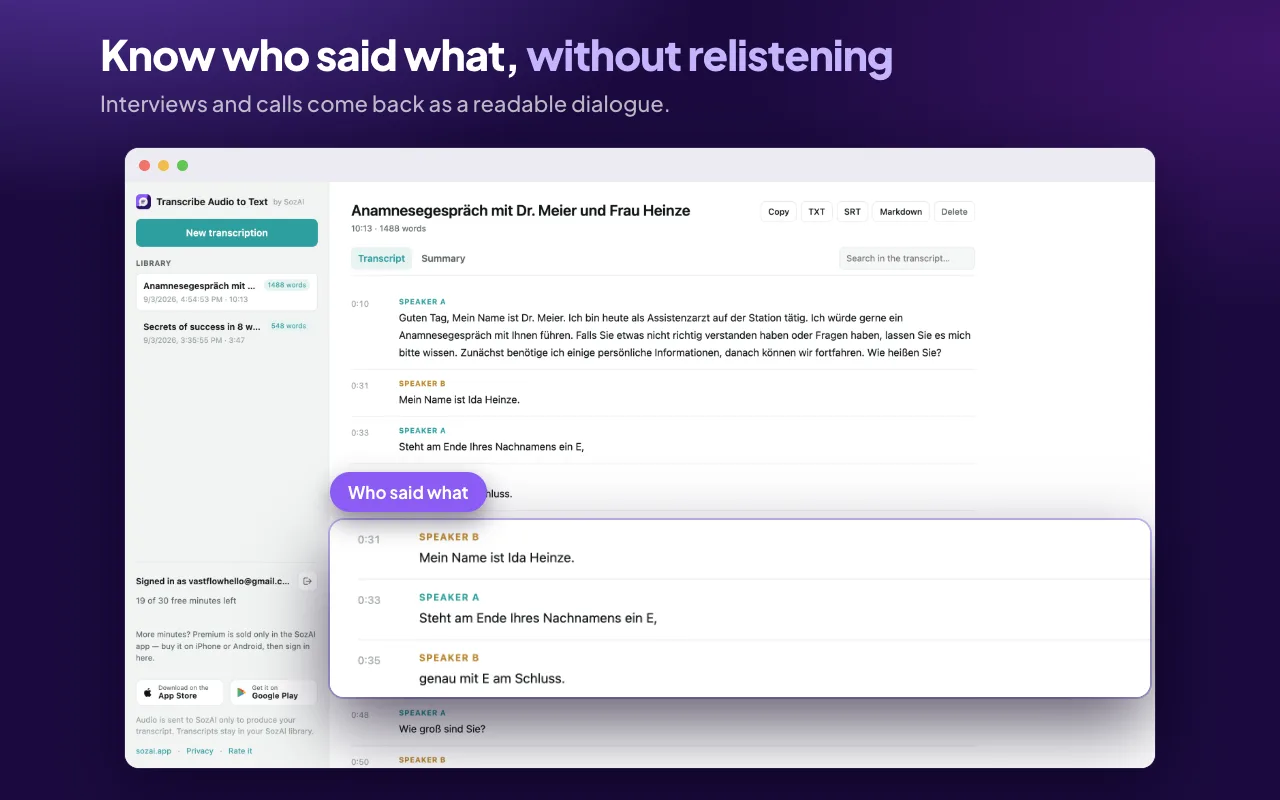
Speaker labels, so a call reads as a dialogue

Speaker labels, so a call reads as a dialogue

Tick Label speakers before you transcribe and every block is attributed to Speaker A, Speaker B and so on, each in its own colour. An interview or a meeting comes back as a conversation you can follow rather than a wall of text.

  • Each speaker gets a label and a colour
  • Made for interviews, calls and meetings
  • Leave it off for a single-voice memo
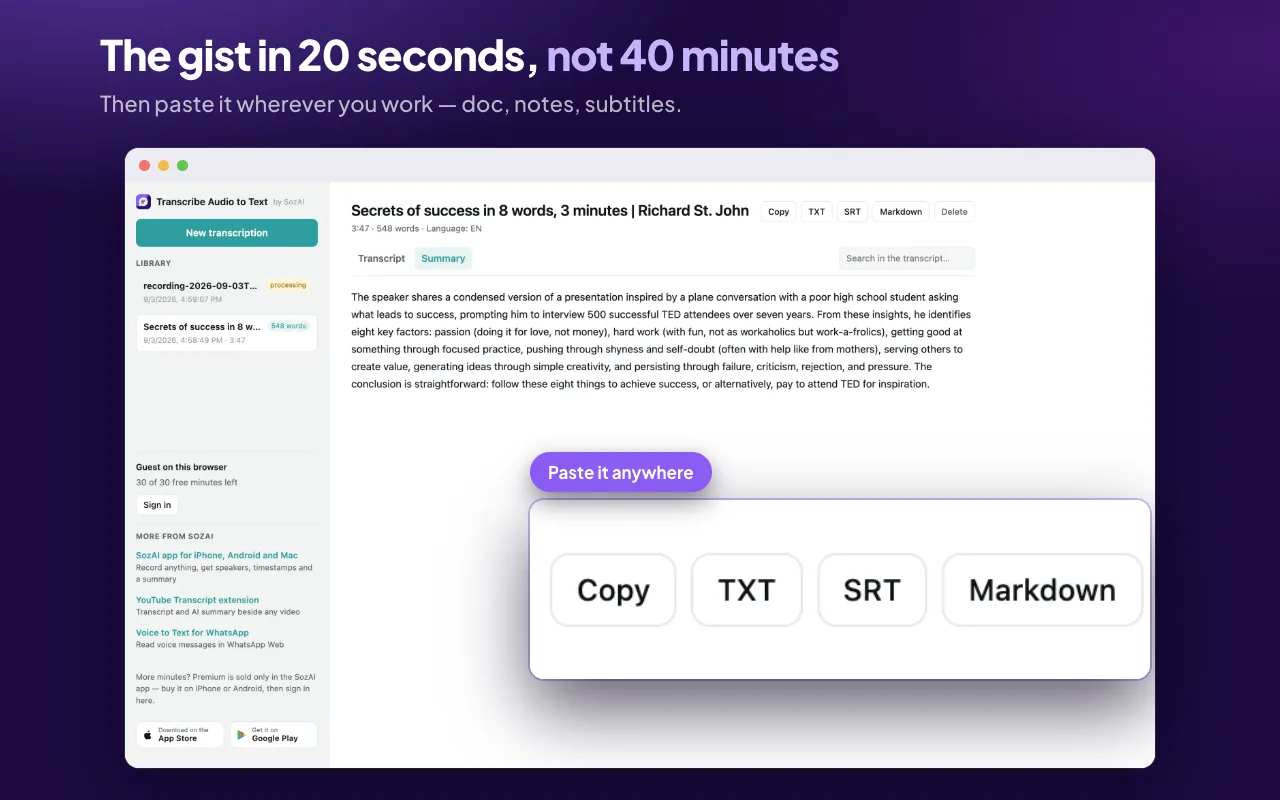
A summary, then copy or export

A summary, then copy or export

With Add an AI summary ticked, the Summary tab holds a short paragraph of what the recording was about. Copy puts the transcript on the clipboard; TXT, SRT and Markdown save it as a file, with the timings kept where the format has room for them.

  • The summary is optional and written from the transcript
  • SRT keeps the timings — a working subtitle file
  • Markdown pastes cleanly into notes and docs

How it works

Step 1

Install the extension from the Chrome Web Store and click its icon. The workspace opens in a tab.

Step 2

Drop an audio or video file, or press Start recording to capture the microphone.

Step 3

Choose whether you want speaker labels and a summary, then press Transcribe.

Step 4

Read, search, copy or export the text. It stays in your library until you delete it.

What it does

Files and the microphone

Drop MP3, M4A, WAV, AAC, OGG, WEBM or MP4 up to 50 MB, or record straight from the microphone in the tab.

Speaker labels and timestamps

Every block carries who said it and when, so interviews and meetings read as dialogue.

AI summary

An optional short summary of the recording, written from the transcript rather than from its title.

Search, copy, export

Filter the transcript by a word, copy it, or save TXT, SRT or Markdown.

30 minutes free, no signup

Start as a guest on this browser. Sign in with Google later to keep your minutes and transcripts across devices.

A library that stays

Everything you transcribe is kept in your SozAI account until you delete it. Sign in and it is the same library as the phone and Mac apps.

Answers

Frequently asked questions

Do I need an account?

Not to start. The extension works as a guest on this browser with 30 free minutes. Signing in with Google is optional: it keeps your minutes and transcripts across devices and lets SozAI Premium bought in the app apply here too.

How long can a recording be?

The file limit is 50 MB, which is about an hour of MP3 at 128 kbps. Longer recordings go through the SozAI app on iPhone, Android or Mac, which takes much larger files.

Which formats does it take?

MP3, M4A, WAV, AAC, OGG and OPUS, WEBM and MP4. Anything else is refused before the upload starts, with a hint to convert it. FLAC, for example, is not accepted yet.

What happens to my audio?

It is sent over an encrypted connection to SozAI to produce the transcript, then kept alongside the transcript in your library until you delete that transcript; deleting removes the recording with it. The extension has no access to the pages you browse. Its only network permission is api.sozai.app.

What happens when the free minutes run out?

Every account starts with 30 minutes, the same allowance as the SozAI app. After that, Premium is bought inside the app on iPhone, Android or Mac. The extension itself sells nothing. Sign in here with the same account, press refresh, and the plan applies.

Can it record a Google Meet or Zoom tab?

Not yet. It records the microphone, so it hears your side and whatever your speakers play into it; capturing a tab’s own audio is planned for a later version. For calls on a Mac, the SozAI Mac app records system audio directly.

More from SozAI

Already using it? A short review on the Chrome Web Store helps other people find the extension, and tells us what to build next.

Write a review

Add it to Chrome

30 minutes free, no signup. Installs in one click from the Chrome Web Store.

Add to Chrome

30 minutes free. No signup. Installs in one click.