Digital note-taking has transformed from a simple convenience into an essential component of modern productivity workflows. Whether you’re managing complex projects, conducting research, or simply organizing daily thoughts, the right note taking apps windows can dramatically enhance your efficiency and information retention. Windows users are particularly fortunate to have access to a diverse ecosystem of powerful solutions, ranging from Microsoft’s deeply integrated native tools to innovative third-party platforms that push the boundaries of what digital notes can accomplish.
The landscape of microsoft note taking solutions extends far beyond basic text editors, encompassing everything from AI-powered transcription tools to sophisticated knowledge management systems. While some users seek the familiarity of traditional notebook-style apps, others gravitate toward all-in-one workspaces that blur the lines between note-taking, project management, and collaboration. Even popular mobile-first solutions like goodnotes for windows and notability for windows are finding their way onto desktop platforms through various methods.
This comprehensive guide examines the leading note-taking applications available to Windows users, comparing their unique strengths, integration capabilities, and ideal use cases. You’ll discover both free notes app for windows options and premium solutions, helping you identify the perfect tool to match your specific workflow requirements and productivity goals.
Microsoft OneNote: The Native Windows Solution
Microsoft OneNote stands as the premier microsoft note taking solution for Windows users, offering seamless integration with the operating system and Microsoft’s broader ecosystem. As a native Windows application, OneNote provides the deep system-level functionality that many users seek when searching for alternatives to popular iPad apps like GoodNotes or Notability on their Windows devices.
Unlike third-party applications that must work around Windows limitations, OneNote leverages direct access to system resources, resulting in faster performance and more reliable operation. The application feels like a natural extension of Windows itself, with consistent design language and intuitive navigation that Windows users will immediately recognize.
Core Features and Integration
OneNote’s strength lies in its comprehensive feature set designed specifically for Windows environments. The application supports unlimited notebooks organized into sections and pages, creating a digital filing system that mirrors traditional paper organization. Users can insert text, images, audio recordings, and even file attachments directly into their notes, making it a versatile workspace for any project.
The handwriting recognition capabilities set OneNote apart as a compelling option for users seeking goodnotes for windows functionality. With a compatible stylus or touch-enabled device, users can write naturally on their screens, and OneNote will convert handwritten text into searchable, editable content. This feature bridges the gap between digital and analog note-taking methods.
Integration with Windows Search means that content within OneNote notebooks becomes instantly discoverable through the system-wide search function. Users can locate specific notes, even handwritten ones, without opening the application first. This deep integration extends to Windows Hello authentication, allowing secure access through biometric login methods.
The application also connects seamlessly with other Microsoft Office applications. Users can embed Excel spreadsheets, insert PowerPoint slides, or link to Word documents directly within their notes. This interconnectedness creates a unified productivity environment that many free notes app for windows alternatives cannot match.
Collaboration and Sync Capabilities
OneNote excels in collaborative environments, allowing multiple users to work simultaneously on shared notebooks. Real-time editing capabilities ensure that team members can see changes as they happen, with clear attribution showing who made specific contributions. Version history tracking prevents data loss and allows users to review previous iterations of their work.
The synchronization system operates across all major platforms, ensuring that notes remain accessible whether users are working on Windows, Mac, iOS, or Android devices. This cross-platform compatibility addresses the needs of users who might be comparing notability for windows options but require access from multiple device types.
Cloud storage through OneDrive provides automatic backup and sync functionality, with offline access ensuring productivity continues even without internet connectivity. When connectivity returns, OneNote automatically reconciles any changes made across different devices, maintaining data integrity throughout the synchronization process.
Sharing options include both view-only and edit permissions, allowing users to control collaboration levels based on project requirements. Email integration enables users to send pages or entire sections directly from within the application, streamlining communication workflows.
Pricing and Accessibility
OneNote operates on a freemium model that provides substantial value without cost barriers. The free tier includes core note-taking functionality, basic collaboration features, and 5GB of OneDrive storage, making it an attractive free notes app for windows option for individual users and small teams.
Microsoft 365 subscribers gain access to enhanced features including unlimited cloud storage, advanced collaboration tools, and priority customer support. Educational institutions often provide free access to the full Microsoft 365 suite, making OneNote particularly valuable for students and educators.
Accessibility features include screen reader support, high contrast modes, and keyboard navigation options, ensuring the application remains usable for individuals with varying abilities. These built-in accommodations reflect Microsoft’s commitment to inclusive design principles.
The combination of robust features, seamless Windows integration, and flexible pricing makes OneNote a compelling choice among note taking apps windows users should consider, particularly for those already invested in the Microsoft ecosystem.
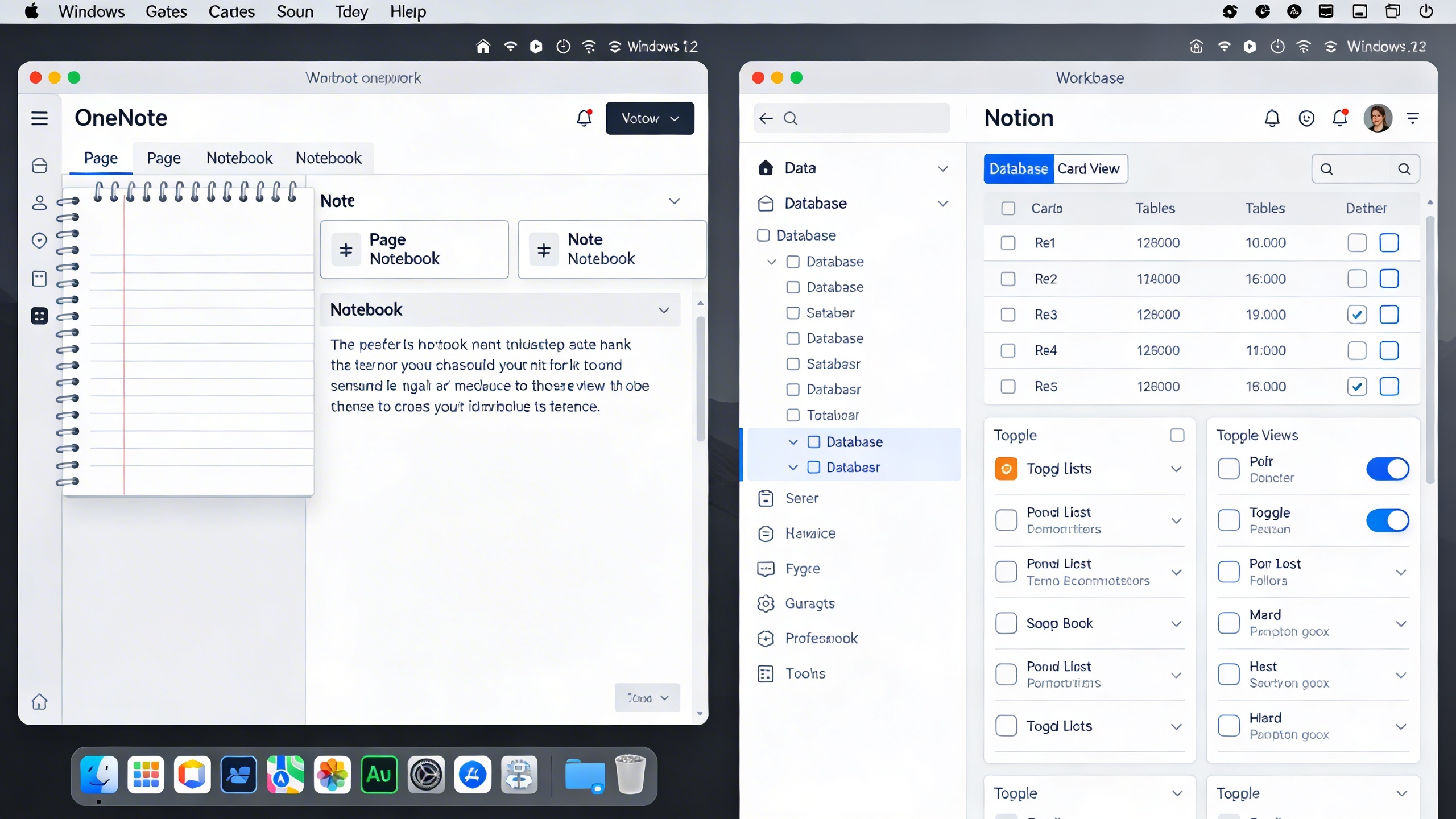
Notion: The All-in-One Workspace
While many users search for goodnotes for windows or notability for windows alternatives, Notion has emerged as a powerful solution that transcends traditional note-taking boundaries. This block-based platform transforms how Windows users approach digital organization, offering a comprehensive workspace that combines note-taking, project management, and database functionality in one unified environment.
Notion’s block-based editing system sets it apart from conventional microsoft note taking applications. Every element—text, images, tables, or embedded content—exists as an individual block that can be moved, nested, or transformed instantly. This flexibility allows users to create dynamic documents that evolve with their needs, whether drafting meeting notes or building complex project documentation.
Database and Template System
The database functionality represents Notion’s most distinctive feature, elevating it beyond typical free notes app for windows offerings. Users can create relational databases that link notes, tasks, and projects seamlessly. For instance, a marketing team might connect campaign notes to client databases, budget trackers, and timeline views within a single workspace.
Notion’s template marketplace provides immediate value for new users, offering pre-built structures for common workflows. Popular templates include:
- Academic planners with integrated assignment tracking
- Project management dashboards with Kanban boards
- Personal knowledge bases with tagging systems
- Meeting note templates with action item automation
These templates demonstrate practical applications while teaching users to leverage Notion’s advanced features effectively. The ability to duplicate and modify templates means teams can standardize their documentation processes without starting from scratch.
Team Collaboration Features
Notion excels in collaborative environments where traditional note taking apps windows solutions often fall short. Real-time editing allows multiple team members to contribute simultaneously, while granular permission controls ensure sensitive information remains protected. Comments and @mentions create threaded discussions directly within documents, eliminating the need for separate communication tools.
The workspace hierarchy enables organizations to structure information logically, with departments, projects, and individual pages clearly organized. This systematic approach helps teams maintain consistency across documentation while ensuring everyone accesses the most current information.
Learning Curve and Customization
Notion’s extensive customization options come with a steeper learning curve compared to simpler note-taking applications. New users often feel overwhelmed by the platform’s capabilities, requiring dedicated time to understand database relationships, formula functions, and automation features.
However, this investment pays dividends for users who need sophisticated organizational tools. The platform’s formula system enables automatic calculations, status updates, and content generation based on database entries. Advanced users can create complex workflows that rival dedicated project management software.
For Windows users seeking maximum flexibility, Notion’s API integrations extend functionality further. Popular integrations include calendar syncing, task management tools, and communication platforms, creating a centralized hub for all work-related activities.
The offline capabilities remain limited compared to native Windows applications, making Notion less suitable for users who frequently work without internet access. Additionally, the web-based interface may feel less responsive than dedicated desktop applications, particularly when handling large databases or media-rich content.
Despite these considerations, Notion represents an excellent choice for teams and individuals who prioritize flexibility and integration over simplicity. Its unique approach to combining notes, databases, and collaboration tools creates possibilities that traditional note-taking applications simply cannot match.
Obsidian: Knowledge Management and Linking
Obsidian represents a paradigm shift in how we approach digital note-taking, transforming the traditional linear note structure into an interconnected web of knowledge. Unlike conventional note taking apps windows users might be familiar with, Obsidian treats your notes as a living network of ideas that grow more valuable as connections multiply. This markdown-based application excels at creating relationships between concepts, making it particularly powerful for researchers, students, and knowledge workers who need to synthesize information across multiple domains.
The platform’s strength lies in its ability to mirror how our minds naturally work—through associations and connections rather than rigid hierarchies. While users searching for goodnotes for windows or notability for windows alternatives often focus on handwriting capabilities, Obsidian offers something different: a sophisticated system for building and navigating complex knowledge structures that evolve over time.
Graph View and Backlinking
Obsidian’s graph view transforms your note collection into a visual constellation of interconnected ideas. Each note appears as a node, with lines representing the bidirectional links between related concepts. This visualization reveals patterns in your thinking that might otherwise remain hidden, helping you discover unexpected connections between disparate topics.
The backlinking system works automatically—when you reference one note within another using double brackets [[like this]], Obsidian creates a two-way connection. The referenced note automatically displays a “backlinks” section showing all notes that mention it. This creates a self-organizing knowledge base where information becomes increasingly accessible as your note collection grows. The system proves particularly valuable for academic research, project planning, and any scenario where understanding relationships between ideas matters more than simple information storage.
Plugin Ecosystem
The community-driven plugin ecosystem sets Obsidian apart from other free notes app for windows options. With hundreds of plugins available, users can customize their experience extensively without compromising the application’s core simplicity. Popular plugins include calendar integration for daily notes, advanced table editing capabilities, and citation management for academic work.
The plugin architecture allows Obsidian to adapt to virtually any workflow. Writers might install plugins for manuscript management, while project managers could add kanban boards and task tracking. This flexibility means Obsidian can replace multiple specialized applications while maintaining a unified knowledge base. The active development community ensures new plugins regularly emerge to address evolving user needs.
Local Storage and Privacy
Unlike cloud-dependent microsoft note taking solutions, Obsidian stores all data locally on your device as plain text markdown files. This approach offers several advantages: complete data ownership, offline accessibility, and the ability to use any text editor if needed. Your notes remain readable even if Obsidian becomes unavailable, providing long-term data security that proprietary formats cannot match.
The local storage model also enables seamless integration with version control systems like Git, making it possible to track changes and collaborate on shared knowledge bases. For users concerned about data privacy, this architecture ensures sensitive information never leaves their control. Optional sync services are available for those who want cross-device access while maintaining the security benefits of local storage.
Obsidian’s combination of powerful linking capabilities, extensibility, and data ownership creates a note-taking environment that grows more valuable over time, making it an excellent choice for users who view their notes as long-term intellectual assets rather than temporary storage.
Evernote: Traditional Digital Notebooks
Evernote remains a cornerstone among note taking apps windows users have relied on for over a decade. While newer alternatives like Notion and Obsidian offer modern features, Evernote’s mature ecosystem provides reliable functionality that many professionals still prefer for traditional note-taking workflows.
The platform excels at capturing information from multiple sources and transforming it into searchable, organized content. Unlike specialized apps that focus on specific use cases, Evernote functions as a comprehensive digital filing cabinet that handles everything from meeting notes to research materials with consistent reliability.
Web Clipping and Document Scanning
Evernote’s web clipper extension stands out as one of the most robust content capture tools available. The extension intelligently extracts article text, preserves formatting, and saves complete web pages without advertisements or navigation elements. Users can clip simplified articles, full pages, bookmarks, or screenshots directly to specific notebooks.
The mobile app’s document scanning feature uses advanced OCR technology to convert handwritten notes and printed documents into searchable text. This capability makes Evernote particularly valuable for users who need to digitize physical documents regularly. The scanning quality rivals dedicated scanner apps, automatically detecting document edges and enhancing readability.
For professionals transitioning from apps like goodnotes for windows or seeking notability for windows alternatives, Evernote’s scanning capabilities bridge the gap between handwritten and digital note-taking workflows effectively.
Organization and Search
Evernote employs a hierarchical organization system using notebooks and tags. Users create notebooks for broad categories and apply multiple tags to individual notes for cross-referencing. The search functionality indexes all text content, including text within images and PDFs, making information retrieval remarkably efficient.
The platform’s strength lies in its ability to surface relevant information quickly. Advanced search operators allow users to filter by creation date, note location, attachment types, and specific tags. This makes Evernote particularly effective for researchers and professionals who accumulate large volumes of reference material over time.
Subscription Tiers and Limitations
Evernote offers a free notes app for windows option, but with significant restrictions. The free tier limits users to two devices and 60MB of monthly uploads. The Personal plan removes device limits and increases upload capacity to 10GB monthly, while Professional adds advanced features like PDF annotation and offline access.
Recent pricing increases have made Evernote less competitive compared to microsoft note taking solutions and newer platforms. The free tier’s device limitation is particularly restrictive for users who need cross-platform access. However, for teams already invested in Evernote’s ecosystem, the collaborative features and reliable sync make it worth considering despite the cost.
Alternative Solutions: GoodNotes and Notability on Windows
While GoodNotes and Notability remain exclusively iPad applications, Windows users seeking similar functionality have several compelling alternatives. Understanding these options helps bridge the gap between iOS-exclusive apps and the robust note taking apps windows environment offers.
Browser-Based Access Options
The most direct approach to accessing iPad-style note-taking on Windows involves cloud-based solutions. Microsoft note taking applications like OneNote offer cross-platform synchronization, allowing users to create handwritten notes on touch-enabled Windows devices and access them across all platforms. Web-based alternatives such as Concept and Milanote provide browser access to advanced drawing and annotation tools, eliminating the need for dedicated software installation.
Cloud storage integration becomes crucial when transitioning between devices. Users can maintain workflow continuity by storing notes in OneDrive, Google Drive, or Dropbox, ensuring seamless access whether working on Windows, iPad, or mobile devices. This approach particularly benefits professionals who frequently switch between different operating systems throughout their workday.
Windows Alternatives with Similar Features
Several native Windows applications deliver comparable functionality to GoodNotes and Notability. Nebo stands out as a premium handwriting recognition solution, converting natural handwriting into editable text with remarkable accuracy. The application supports mathematical equations, diagrams, and mixed content formats that rival iPad-exclusive offerings.
For users seeking a free notes app for windows, Windows Journal provides basic handwriting capabilities, though with limited organizational features. More advanced alternatives include Xournal++ and Rnote, both offering extensive customization options for digital note-taking. These applications support pressure-sensitive stylus input and provide layered drawing capabilities similar to professional iPad apps.
Drawboard PDF serves as an excellent alternative for annotation-focused workflows, particularly for professionals reviewing documents and technical drawings. The application integrates seamlessly with Windows Ink and supports advanced markup tools that exceed many iPad alternatives in functionality.
Handwriting and Stylus Support
Windows Ink compatibility represents a significant advantage for users seeking goodnotes for windows alternatives. Modern Windows devices with active stylus support provide palm rejection, pressure sensitivity, and tilt recognition that matches or exceeds iPad Pro capabilities. Surface Pen integration with compatible applications delivers natural writing experiences across multiple software platforms.
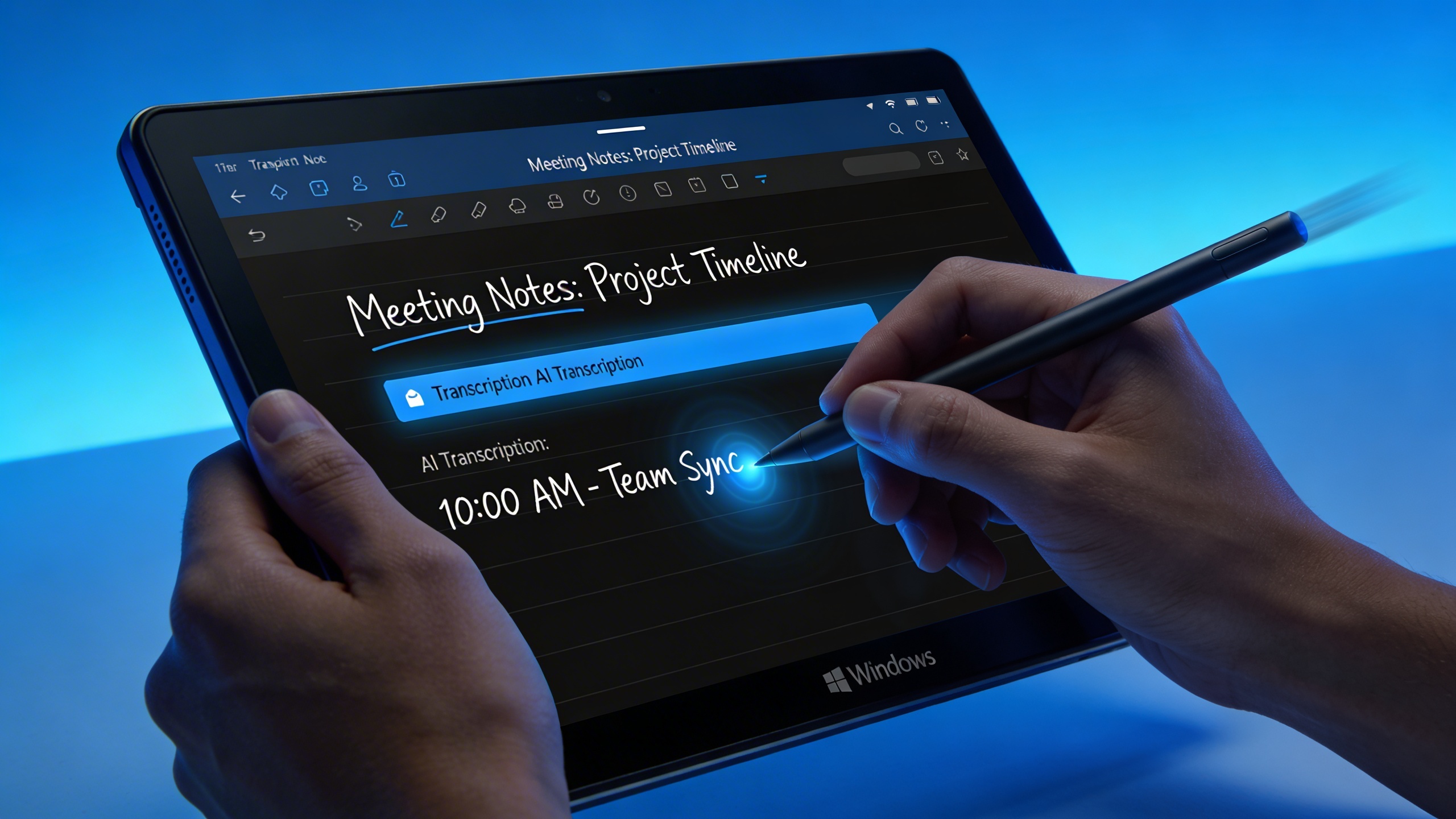
Handwriting recognition technology in Windows applications has advanced considerably, with many solutions offering real-time conversion between handwritten and typed text. Microsoft’s handwriting engine powers multiple applications, providing consistent recognition accuracy across different note-taking platforms. Users can leverage these capabilities for meeting transcription, lecture notes, and creative brainstorming sessions.
Stylus optimization varies significantly between applications, making device compatibility research essential. High-end Windows tablets and 2-in-1 devices support advanced pen features including programmable buttons, eraser functionality, and customizable pressure curves. These hardware capabilities, combined with optimized software, create note-taking experiences that rival dedicated iPad solutions.
The Windows ecosystem’s flexibility allows users to combine multiple applications for comprehensive workflows. Users might employ specialized handwriting apps for creative work while maintaining traditional keyboard-based applications for text-heavy documentation, creating hybrid approaches that leverage the best aspects of both input methods.
AI-Powered Note-Taking with Voice Transcription
Modern note-taking has evolved beyond typing and handwriting, with AI-powered voice transcription transforming how professionals capture and process information. Voice-to-text technology now enables users to convert spoken words into searchable, editable text with remarkable accuracy, making it an essential feature for busy professionals who need to document meetings, lectures, and brainstorming sessions efficiently.
Unlike traditional microsoft note taking solutions that rely solely on manual input, AI-powered transcription apps leverage machine learning algorithms to understand context, punctuation, and speaker identification. This technology proves particularly valuable for users transitioning from mobile solutions like goodnotes for windows or notability for windows, where voice features may be limited compared to dedicated transcription platforms.
Automated Transcription Features
Advanced transcription software offers real-time voice-to-text conversion that adapts to individual speaking patterns and vocabulary. These systems learn from user corrections, improving accuracy over time through personalized language models. Key features include automatic punctuation insertion, custom vocabulary recognition for technical terms, and multi-language support for international teams.
The most effective transcription tools integrate seamlessly with existing workflows, allowing users to export transcribed content directly to their preferred note taking apps windows environment. Smart formatting features automatically organize content into paragraphs, bullet points, and headers based on speech patterns and verbal cues, reducing the manual editing required after transcription.
Meeting Notes and Audio Processing
Professional meeting transcription goes beyond simple voice-to-text conversion, incorporating speaker identification, timestamp insertion, and action item extraction. Advanced AI systems can distinguish between different speakers in group discussions, creating organized transcripts that maintain conversational flow and attribution.
Audio processing capabilities include background noise reduction, volume normalization, and echo cancellation to ensure clear transcription even in challenging acoustic environments. Many platforms offer batch processing for recorded meetings, allowing users to upload audio files and receive comprehensive transcripts with searchable keywords and topic summaries.
Modern transcription solutions also provide AI-powered summarization that extracts key decisions, action items, and important discussion points from lengthy meetings. This feature proves invaluable for creating concise meeting minutes and follow-up documentation without manual review of entire transcripts.
Integration with Sozai.app
For users seeking a comprehensive transcription solution that works across multiple platforms, Sozai offers advanced AI-powered voice transcription capabilities designed specifically for professional note-taking workflows. The platform provides real-time transcription with high accuracy rates, making it an excellent complement to traditional free notes app for windows solutions.
Sozai’s integration capabilities allow users to seamlessly transfer transcribed content to their preferred note-taking applications, whether they’re using cloud-based platforms or local Windows software. The app’s AI summarization features automatically generate concise overviews of lengthy audio content, helping users quickly identify key information without reviewing entire transcripts.
The platform’s cross-device synchronization ensures that transcribed notes remain accessible across Windows, iOS, and Android devices, providing flexibility for users who work across multiple platforms. Advanced features include custom vocabulary training for industry-specific terminology, batch audio processing for recorded content, and integration with popular productivity suites for streamlined workflow management.
These AI-powered transcription capabilities represent the future of digital note-taking, offering efficiency gains that traditional typing or handwriting cannot match while maintaining the accuracy and organization that professionals require.
Choosing the Right Note-Taking App for Your Needs
Selecting the perfect note taking apps windows solution requires careful consideration of your specific workflow, technical requirements, and long-term productivity goals. The decision process becomes more manageable when you establish clear priorities and understand how each application aligns with your daily tasks.
Feature Comparison Matrix
When evaluating microsoft note taking solutions and third-party alternatives, focus on the features that directly impact your productivity. Consider handwriting support if you frequently use a stylus, cross-platform synchronization for multi-device workflows, and offline accessibility for consistent access to your notes.
| Feature | OneNote | Notion | Obsidian | Evernote |
|---|---|---|---|---|
| Handwriting Support | Excellent | Limited | Plugin-based | Good |
| Offline Access | Full | Limited | Full | Premium only |
| Collaboration | Strong | Excellent | Basic | Good |
| Template Library | Good | Extensive | Community-driven | Limited |
The availability of goodnotes for windows and notability for windows through emulation or web versions expands your options, though these solutions may lack the seamless integration of native applications. Many users find that a free notes app for windows like Obsidian or OneNote provides sufficient functionality without subscription costs.
Use Case Scenarios
Academic users benefit most from applications offering robust organization systems and research tools. Students should prioritize apps with strong search capabilities, citation management, and multimedia support for lecture recordings and diagrams.
Business professionals require seamless collaboration features, meeting integration, and professional formatting options. Project managers often prefer database-style organization found in Notion, while sales teams benefit from OneNote’s integration with Microsoft Office suite.
Creative professionals need flexible canvas layouts, drawing tools, and visual organization systems. The choice between structured databases and free-form note layouts significantly impacts creative workflows and idea development processes.
Migration and Setup Tips
Before migrating from your current system, export all existing notes in common formats like PDF or plain text to ensure compatibility. Most modern applications provide import wizards, but manual organization often yields better long-term results.
Start with a clean organizational structure that reflects your actual workflow rather than attempting to recreate complex folder hierarchies from previous systems. Establish consistent naming conventions and tagging systems early to maintain organization as your note collection grows.
Configure synchronization settings carefully, especially when using multiple devices. Test offline functionality thoroughly before relying on your chosen application for critical tasks, and always maintain backup copies of important notes during the transition period.