In our increasingly connected world, language barriers can limit opportunities for meaningful communication, travel, and business relationships. Google Translate voice technology has emerged as a revolutionary solution, transforming how we interact across languages through sophisticated speech recognition and real-time translation capabilities. Whether you’re navigating a foreign city, conducting international business meetings, or simply trying to communicate with someone who speaks a different language, Google Translate voice features offer an intuitive bridge that makes cross-cultural communication accessible to everyone.
The platform’s voice translator functionality extends far beyond basic text translation, incorporating advanced voice-to-text processing and seamless voice to voice translation that works across smartphones, tablets, and computers. From instant conversation mode that facilitates real-time dialogue between two speakers to precise voice-to-text translation that captures spoken words with remarkable accuracy, these tools have fundamentally changed how we approach multilingual communication.
This comprehensive guide will walk you through every aspect of Google Translate’s voice capabilities, from understanding the underlying technology to mastering advanced features, exploring practical applications, and troubleshooting common issues. You’ll also discover alternative tools that complement Google Translate voice translation for specific use cases and professional requirements.
Understanding Google Translate Voice Technology
Google Translate voice technology represents one of the most sophisticated implementations of speech recognition and machine translation available to consumers today. This powerful system combines advanced neural networks with real-time audio processing to deliver instant voice-to-voice translation across dozens of languages, making cross-cultural communication more accessible than ever before.
How Voice Recognition Works in Google Translate
The google translate voice system operates through a multi-stage process that begins the moment you speak into your device. First, the speech recognition engine captures your audio input and converts sound waves into digital data. Advanced algorithms then analyze phonetic patterns, identifying individual words and phrases while accounting for variations in accent, speaking speed, and background noise.
Once your speech is converted to text, Google’s neural machine translation system takes over. This AI-powered engine doesn’t simply match words from a dictionary—it analyzes entire sentences for context, idioms, and grammatical structure. The system then generates the most accurate translation possible before converting the translated text back into speech using natural-sounding voice synthesis.
The entire google translate voice to text and translation process typically completes within 2-3 seconds, making real-time conversations possible. The system continuously learns from millions of translation requests, improving accuracy and expanding its understanding of colloquial expressions and regional dialects.
Supported Languages and Accuracy Levels
Google Translate voice translation currently supports over 100 languages for text translation, with voice input and output available for approximately 70 languages. The most accurate results occur with widely spoken languages like English, Spanish, French, German, and Mandarin Chinese, where accuracy rates often exceed 90% for clear speech in quiet environments.
| Language Category | Voice Input Support | Voice Output Support | Typical Accuracy |
|---|---|---|---|
| Major World Languages | Yes | Yes | 85-95% |
| Regional Languages | Yes | Limited | 70-85% |
| Less Common Languages | Limited | Text Only | 60-75% |
Accuracy varies significantly based on several factors. Technical terminology, proper nouns, and highly specialized vocabulary may produce less reliable results. The voice translator performs best with conversational speech, complete sentences, and standard pronunciation. Background noise, multiple speakers, or heavy accents can impact recognition quality.
Languages with complex grammatical structures or significant regional variations, such as Arabic or Hindi, may show lower accuracy rates for voice to voice translation. However, Google continuously updates its models, and accuracy improvements are released regularly through app updates.
Hardware Requirements and Compatibility
Google Translate voice features work across a wide range of devices, from smartphones to tablets and computers. For optimal performance, your device should have a quality microphone capable of clear audio capture and sufficient processing power to handle real-time speech recognition.
Modern smartphones typically provide the best experience, as they’re equipped with noise-canceling microphones and dedicated audio processing chips. The Google Translate app requires iOS 12.0 or later for Apple devices, and Android 6.0 or higher for Android devices. A stable internet connection is essential, as voice processing occurs on Google’s servers rather than locally on your device.
For users who frequently need voice translation capabilities, dedicated apps like Sozai offer enhanced transcription accuracy and additional features for voice-to-text conversion, which can complement Google Translate’s translation capabilities in professional settings.
Memory requirements are minimal—the app itself is under 50MB—but active voice translation sessions require approximately 1-2MB of data per minute of speech. Battery consumption increases during voice sessions due to continuous microphone usage and network activity, so keeping your device charged is important for extended translation sessions.
Web browser access is available through translate.google.com, though mobile apps generally provide superior voice recognition performance due to optimized audio processing capabilities.

Voice-to-Text Translation Features
Google Translate’s voice-to-text functionality serves as the foundation for all voice-based translation features, converting spoken words into written text before processing them for translation. This powerful capability enables seamless communication across language barriers, whether you’re traveling abroad, conducting international business meetings, or learning a new language.
Setting Up Voice Input for Text Output
Configuring google translate voice to text requires just a few simple steps that unlock powerful multilingual communication capabilities. Start by opening the Google Translate app and selecting your source language from the dropdown menu at the top left. Tap the microphone icon located at the bottom of the text input field to activate voice input mode.
The system will prompt you to grant microphone permissions if this is your first time using the feature. Once enabled, you’ll see a pulsing microphone icon indicating that Google Translate is actively listening for speech input. Speak clearly and at a moderate pace, allowing the google translate voice recognition system to process your words accurately.
For optimal results, position your device 6-12 inches from your mouth and speak in a natural tone. The voice translator will display real-time transcription as you speak, showing both the original text and the translated output simultaneously. You can pause between sentences to allow the system to process longer phrases more effectively.
Advanced users can enable the “Tap to Translate” feature in settings, which allows voice input to work across other applications. This functionality proves invaluable when you need quick translations during video calls or while using messaging apps.
Optimizing Audio Quality for Better Results
Audio quality directly impacts the accuracy of google translate voice translation, making proper setup essential for reliable results. Begin by finding a quiet environment with minimal background noise, as competing sounds can interfere with speech recognition algorithms.
Check your device’s microphone settings and ensure the input volume is set to an appropriate level. Most smartphones automatically adjust microphone sensitivity, but you can manually optimize this in your device’s audio settings. Clean your device’s microphone opening regularly, as dust and debris can muffle sound input and reduce transcription accuracy.
When using external microphones or headsets, test the connection before important conversations. Bluetooth headsets can introduce slight delays that may affect real-time voice to voice translation, so wired options often provide more consistent results for critical communications.
Consider your speaking environment carefully. Hard surfaces like glass and concrete can create echo effects that confuse voice recognition systems. Soft furnishings, carpets, and curtains help absorb sound reflections and improve overall audio clarity.
For users who frequently rely on voice translation features, investing in a dedicated external microphone can significantly improve results. USB microphones designed for smartphones offer superior noise cancellation and directional pickup patterns compared to built-in device microphones.
Handling Different Accents and Dialects
Google Translate’s voice recognition technology has made remarkable strides in accommodating diverse accents and regional dialects, though some variations perform better than others. The system continuously learns from millions of voice samples, improving its ability to understand speakers from different geographic regions and linguistic backgrounds.
To maximize accuracy with non-standard accents, speak slightly slower than your normal pace and enunciate consonants clearly. The google translate voice system performs best when speakers maintain consistent pronunciation patterns throughout their input.
Regional dialect support varies significantly between languages. Major languages like English, Spanish, and Mandarin offer extensive dialect recognition, including American, British, Australian English variants, and Latin American versus Peninsular Spanish differences. However, less common regional variations may require speakers to adjust toward more standardized pronunciation.
If you consistently experience recognition issues with your accent, try switching to a closely related language variant in the source language selection. For example, speakers with strong regional accents might find better results using different English variants (US, UK, Australia) based on their specific pronunciation patterns.
The voice translator also benefits from context learning. Regular use with consistent pronunciation helps the system adapt to individual speech patterns, gradually improving accuracy over time. For users requiring highly accurate voice transcription for professional purposes, dedicated transcription tools like Sozai offer specialized features designed specifically for detailed voice-to-text conversion with advanced accent recognition capabilities.
When troubleshooting persistent accent recognition issues, ensure your device’s language settings match your intended input language, as system-level language preferences can influence voice recognition performance across all applications.

Voice-to-Voice Translation Capabilities
Google Translate’s voice-to-voice translation represents the pinnacle of real-time communication technology, enabling seamless conversations between speakers of different languages. This advanced feature transforms spoken words in one language into natural-sounding speech in another, creating an almost magical bridge across language barriers. Unlike simple voice-to-text translation that requires reading translated text, voice-to-voice translation maintains the conversational flow that makes human interaction natural and engaging.
The technology combines sophisticated speech recognition with neural machine translation and advanced text-to-speech synthesis. When you speak into your device, Google Translate voice processes your words through multiple layers of AI analysis, converting speech to text, translating the content, and then synthesizing natural-sounding speech in the target language. This entire process typically completes within seconds, making real-time conversations possible even across significant language differences.
Real-Time Conversation Mode
Conversation mode stands as Google Translate’s most impressive voice translator feature, designed specifically for face-to-face interactions between two people speaking different languages. When activated, this mode creates a split-screen interface where each participant can speak in their native language and hear responses in the same language, while the other person hears everything in their preferred language.
To initiate conversation mode, tap the conversation icon in the Google Translate app and select the two languages for your discussion. The interface automatically detects which person is speaking and applies the appropriate translation direction. This intelligent detection eliminates the need to manually switch between languages during natural conversation flow.
The system excels in various real-world scenarios, from ordering food in foreign restaurants to conducting business meetings with international colleagues. Travel situations particularly benefit from this technology, as tourists can communicate with locals about directions, recommendations, or emergency situations without language anxiety. The bidirectional nature of conversation mode ensures both parties can express complex thoughts and receive nuanced responses.
For optimal results in conversation mode, speak clearly and pause briefly between sentences. The google translate voice technology performs best when it can process complete thoughts rather than fragmented speech. Background noise can interfere with accuracy, so finding quieter environments when possible improves translation quality significantly.
Pronunciation and Audio Output Settings
Customizing audio output settings allows users to tailor the voice translation experience to their specific needs and preferences. Google Translate offers multiple voice options for most supported languages, including different genders and regional accents that can make translated speech sound more natural to native speakers.
The speech rate adjustment feature proves particularly valuable for language learners who want to hear translations at slower speeds for better comprehension. You can modify playback speed from very slow to normal pace, helping users catch subtle pronunciation details they might miss at full speed. This feature transforms Google Translate into an effective pronunciation tutor alongside its translation capabilities.
Voice quality settings also impact data usage and processing speed. Higher quality audio provides more natural-sounding speech but requires more bandwidth and processing power. Users on limited data plans or older devices might prefer standard quality settings that maintain good intelligibility while conserving resources.
Regional pronunciation variants add another layer of customization. For languages like Spanish or English that have significant regional differences, selecting the appropriate accent variant ensures translations sound more familiar to your conversation partner. This attention to regional nuances can improve communication effectiveness and cultural sensitivity.
Managing Translation Speed and Clarity
Balancing translation speed with accuracy requires understanding how different factors affect google translate voice performance. Speaking at a moderate, steady pace typically produces the most accurate results, as the system can better parse individual words and sentence structures. Rapid speech often leads to missed words or incorrect interpretations, while extremely slow speech can confuse the natural language processing algorithms.
Environmental factors significantly impact both speed and clarity of voice-to-voice translation. Quiet indoor spaces with minimal echo provide optimal conditions for accurate speech recognition. Outdoor environments, crowded spaces, or areas with significant background noise require users to speak more deliberately and potentially repeat phrases for better recognition.
Network connectivity directly affects translation speed, as the google translate voice to text processing occurs on Google’s servers rather than locally on your device. Strong Wi-Fi or cellular connections enable near-instantaneous translations, while weak signals introduce delays that can disrupt conversation flow. For critical conversations, ensuring strong connectivity beforehand prevents frustrating interruptions.
The clarity of translated output depends heavily on the complexity of your input language. Simple, direct sentences translate more accurately and quickly than complex grammatical structures or idiomatic expressions. When precision matters most, using straightforward language patterns helps ensure your intended meaning translates correctly while maintaining natural conversation rhythm.
Advanced Voice Features and Settings
Google Translate’s voice capabilities extend far beyond basic translation, offering sophisticated features that transform how users interact with language barriers. These advanced settings unlock powerful functionality for both casual users and professionals who rely on voice translation daily.
Offline Voice Translation Options
One of Google Translate’s most valuable features is its offline voice translation capability, which ensures you can communicate even without internet connectivity. To enable offline voice translation, download language packs through the app’s settings menu. Once downloaded, these packs support voice to voice translation for over 50 language pairs, making them essential for international travel or areas with unreliable internet.
The offline functionality works by storing compressed language models locally on your device. While the translation accuracy may be slightly reduced compared to online processing, the feature provides reliable voice translator capabilities when you need them most. To optimize performance, regularly update your downloaded language packs, as Google continuously improves the underlying models.
Custom Voice Commands and Shortcuts
Power users can enhance their google translate voice experience through customizable voice commands and shortcuts. Access these options through the app’s accessibility settings, where you can configure specific phrases to trigger translation modes instantly. For example, saying “translate to Spanish” can automatically switch your target language without manual navigation.
The voice command system also supports custom pronunciation training, allowing the app to better recognize your specific accent or speech patterns. This feature significantly improves google translate voice to text accuracy for users with regional dialects or non-native pronunciation. Additionally, you can set up shortcuts for frequently used language pairs, reducing the time needed to initiate voice translation sessions.
For users who frequently work with voice-based content, integrating dedicated transcription tools like Sozai alongside Google Translate can create a powerful workflow for multilingual content creation and documentation.
Integration with Other Google Services
Google Translate voice features seamlessly integrate with the broader Google ecosystem, creating powerful cross-platform workflows. The voice translation data syncs across devices through your Google account, allowing you to access translation history and preferences whether you’re using your phone, tablet, or computer.
Integration with Google Assistant enables hands-free voice translation through smart speakers and Android devices. Simply say “Hey Google, translate” followed by your phrase and target language to initiate google translate voice translation without opening the app. This integration proves particularly useful during video calls or when your hands are occupied.
The service also connects with Google Lens, enabling you to translate text through voice commands after capturing images. This multimodal approach combines visual and audio input for more comprehensive translation scenarios. Additionally, Chrome browser integration allows for seamless voice translation of web content, with results automatically synchronized across your devices.
Advanced users can leverage Google Cloud Translation API integration for custom applications, extending voice translation capabilities to specialized workflows. This enterprise-level integration supports bulk processing and custom model training for industry-specific terminology.
To maximize these advanced features, regularly review your Google Translate settings and ensure all relevant permissions are enabled. The voice translator capabilities continue to evolve, with new features and improvements rolling out through automatic app updates.
Practical Applications and Use Cases
Google Translate voice features transform communication barriers into opportunities for connection across diverse scenarios. From navigating foreign countries to conducting international business meetings, these voice translation capabilities serve as essential tools for modern global interaction.
Travel and Tourism Applications
International travel becomes significantly more accessible when travelers can communicate effectively with locals through google translate voice technology. Restaurant ordering transforms from a stressful guessing game into a smooth conversation when you can speak your dietary preferences and hear responses in real-time. Voice to voice translation proves invaluable when asking for directions, with travelers speaking their destination in English and receiving spoken directions in the local language.
Emergency situations particularly benefit from google translate voice to text capabilities. Medical emergencies require clear communication about symptoms and allergies, where voice translator features can literally save lives by ensuring accurate information exchange between patients and healthcare providers. Hotel check-ins, taxi rides, and shopping experiences all become more enjoyable when language barriers dissolve through seamless voice translation.
Cultural exchanges deepen when tourists can engage in meaningful conversations with local artisans, tour guides, and community members. The voice translation feature enables travelers to learn about local customs, historical significance, and personal stories that would otherwise remain inaccessible due to language differences.
Business and Professional Communication
International business meetings gain new dimensions of efficiency through google translate voice translation capabilities. Conference calls with overseas partners become more inclusive when participants can speak in their native languages while others receive real-time translations. Contract negotiations benefit from precise voice-to-text translation, ensuring all parties understand complex terms and conditions accurately.
Customer service departments serving diverse populations rely heavily on voice translator technology to provide support across language barriers. Technical support calls, product inquiries, and complaint resolutions all improve when representatives can communicate effectively with customers in their preferred languages.
Professional conferences and networking events become more valuable when attendees can engage with international colleagues through voice to voice translation. Research collaborations expand globally when scientists and academics can discuss complex topics without language limitations constraining their intellectual exchange.
For professionals who frequently work with international documentation, combining voice translation with dedicated transcription tools like Sozai can streamline workflows by converting multilingual audio meetings into accurate text records across different languages.
Educational and Learning Scenarios
Language learning accelerates dramatically when students can practice pronunciation and receive immediate feedback through google translate voice features. Classroom environments become more inclusive when international students can participate fully in discussions using voice translation to bridge communication gaps.
Study abroad programs benefit immensely from voice translator capabilities, allowing students to engage with local academic communities, participate in research projects, and access educational resources that would otherwise remain linguistically inaccessible. University lectures, library research, and peer collaboration all improve when language barriers are minimized.
Online education platforms serving global audiences utilize voice to voice translation to make courses accessible to learners worldwide. Educational content creators can reach broader audiences when their spoken lessons can be translated into multiple languages simultaneously.
Research projects involving international collaboration rely on google translate voice to text functionality for transcribing multilingual interviews, focus groups, and academic discussions. Graduate students conducting cross-cultural research find these tools essential for gathering and analyzing data from diverse linguistic sources.
Special education scenarios particularly benefit when students with different native languages can access curriculum content through voice translation, ensuring equitable learning opportunities regardless of linguistic background. Parent-teacher conferences become more productive when families can communicate effectively about student progress and educational goals.
These practical applications demonstrate how voice translation technology serves as more than a convenience tool—it functions as a bridge connecting people, cultures, and opportunities across the global landscape of human communication.
Troubleshooting Common Voice Translation Issues
Even with Google Translate’s advanced voice technology, users occasionally encounter technical challenges that can disrupt the translation experience. Understanding how to identify and resolve these issues ensures consistent performance when using google translate voice features for personal or professional communication.
Resolving Audio Input Problems
Audio input issues represent the most frequent obstacle when using google translate voice to text functionality. Start by checking your device’s microphone permissions in the Google Translate app settings. Many translation failures stem from restricted microphone access rather than actual hardware problems.
Background noise significantly impacts voice recognition accuracy. Position yourself in a quiet environment and speak directly toward your device’s microphone at a distance of 6-12 inches. If you’re using external microphones or headsets, verify that Google Translate recognizes the correct audio input device in your system settings.
For persistent audio problems, restart the Google Translate app completely and test your microphone with other applications to isolate whether the issue affects only translation features or your entire device. Clear speaking at a moderate pace produces better results than rushed or overly slow speech patterns.
Improving Translation Accuracy
Translation accuracy in voice to voice translation depends heavily on speech clarity and proper language detection. Speak in complete sentences rather than fragmented phrases, as context helps Google Translate understand intended meaning. Avoid mixing languages within single sentences, which can confuse the voice translator algorithms.
Regional accents and dialects can affect recognition quality. If you experience consistent accuracy issues, try adjusting your pronunciation slightly toward standard dialect forms of your source language. The google translate voice translation system performs best with clear articulation of consonants and vowels.
For technical terms or proper names, spell out unfamiliar words slowly or use the keyboard input as a backup method. Consider breaking complex sentences into shorter segments, allowing the system to process each part accurately before continuing with longer passages.
Connectivity and Performance Optimization
Voice translation features require stable internet connectivity for optimal performance. When experiencing delays or failed translations, check your network connection strength and switch between Wi-Fi and mobile data to identify connectivity issues.
Download offline language packs for your most frequently used language pairs to maintain basic translation capabilities during poor connectivity periods. While offline voice translation offers limited functionality compared to online processing, it provides essential communication support in remote areas.
Close unnecessary background applications that consume processing power or bandwidth, as voice translation requires significant computational resources. Regularly update the Google Translate app to access performance improvements and bug fixes that enhance voice feature reliability.
If you frequently work with voice translation for professional purposes, consider dedicated transcription tools like Sozai for critical meetings or interviews where accuracy is paramount. These specialized applications often provide enhanced audio processing capabilities alongside traditional translation services.
Monitor your device’s storage space, as insufficient memory can cause voice translation features to lag or crash during extended usage sessions. Restart your device periodically to clear temporary files and refresh system resources for optimal google translate voice performance.
Alternatives and Complementary Voice Translation Tools
While Google Translate voice features provide excellent accessibility and convenience, understanding the broader landscape of voice translation tools helps you choose the most effective solution for your specific needs. Different platforms excel in various scenarios, and combining multiple tools often yields the best results.
Comparing Voice Translation Platforms
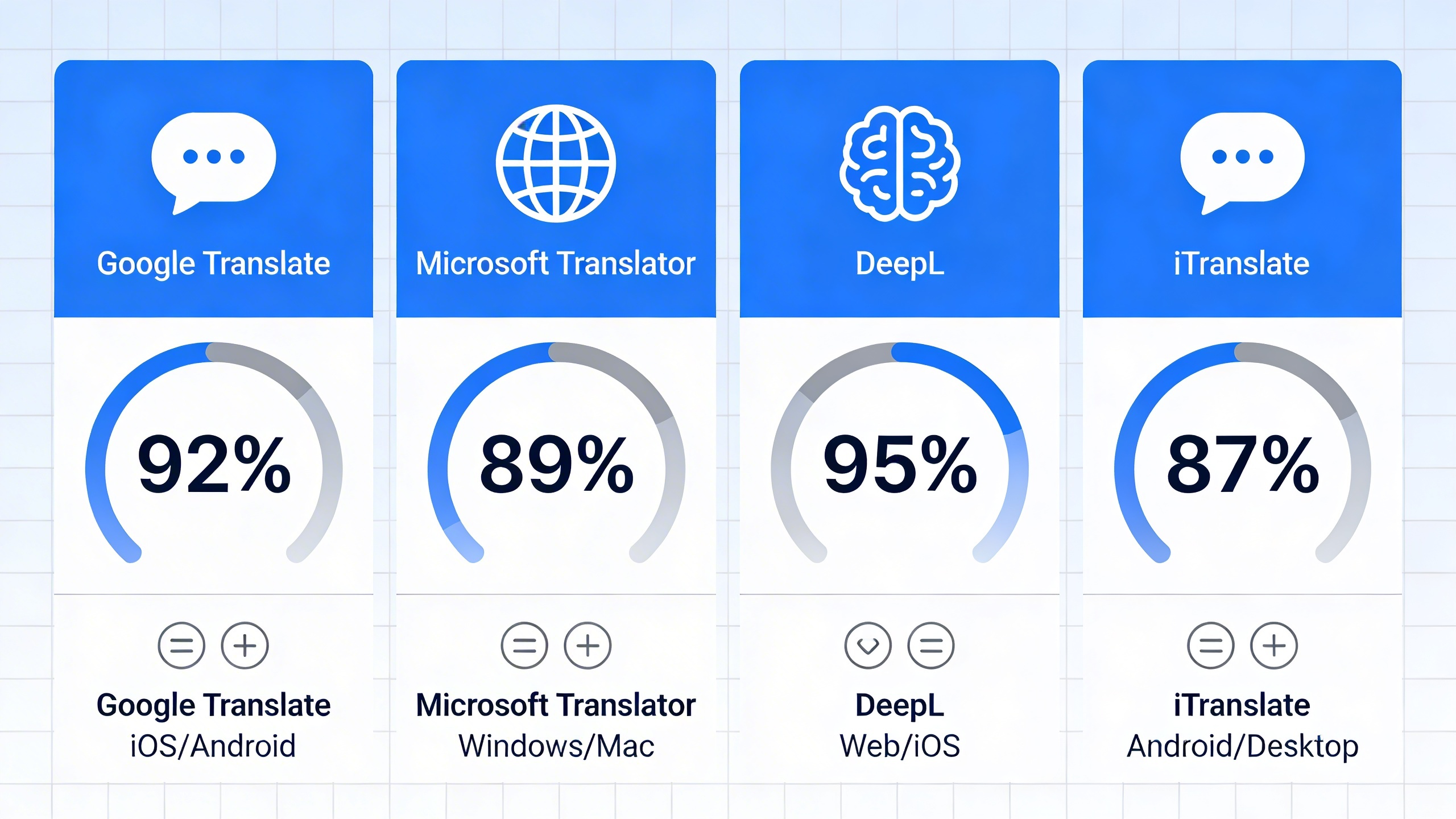
Several alternatives to google translate voice offer unique advantages depending on your use case. Microsoft Translator provides robust offline capabilities and integrates seamlessly with Office applications, making it ideal for business environments. Apple’s built-in translation features work exceptionally well within the iOS ecosystem, offering smooth voice to voice translation for supported languages.
Amazon Translate excels in handling large volumes of text and integrates with other AWS services, while DeepL delivers superior accuracy for European languages. Each voice translator platform has distinct strengths: Google Translate voice to text performs well across diverse accents, Microsoft handles technical terminology effectively, and DeepL provides more nuanced translations for complex sentences.
| Platform | Best For | Offline Support | Voice Features |
|---|---|---|---|
| Google Translate | General use, travel | Limited languages | Voice-to-text, conversation mode |
| Microsoft Translator | Business, presentations | Extensive | Real-time group conversations |
| Apple Translate | iOS users, privacy-focused | Full offline mode | On-device processing |
When to Use Professional Transcription Services
Professional transcription services become essential when accuracy and context matter more than speed. Legal proceedings, medical consultations, and academic research require precision that automated google translate voice translation cannot guarantee. Human transcribers understand cultural nuances, technical jargon, and context-dependent meanings that AI systems may miss.
For high-stakes business meetings or interviews where every word counts, professional services provide quality assurance and accountability. Tools like Sozai bridge this gap by offering AI-powered transcription with enhanced accuracy for note-taking and documentation, particularly useful when you need reliable voice-to-text conversion before translation.
Integrating Multiple Translation Tools
The most effective approach often involves combining different voice translation tools strategically. Use Google Translate voice features for quick conversations and travel scenarios, while employing specialized platforms for domain-specific content. Create a workflow where you capture audio with one tool, transcribe with another, and translate with a third based on each platform’s strengths.
Consider using voice translation apps for initial communication, then switching to text-based tools for detailed discussions. This hybrid approach maximizes accuracy while maintaining conversational flow. Many professionals keep multiple voice translator apps installed, selecting the most appropriate tool based on the specific language pair, context, and accuracy requirements of each situation.