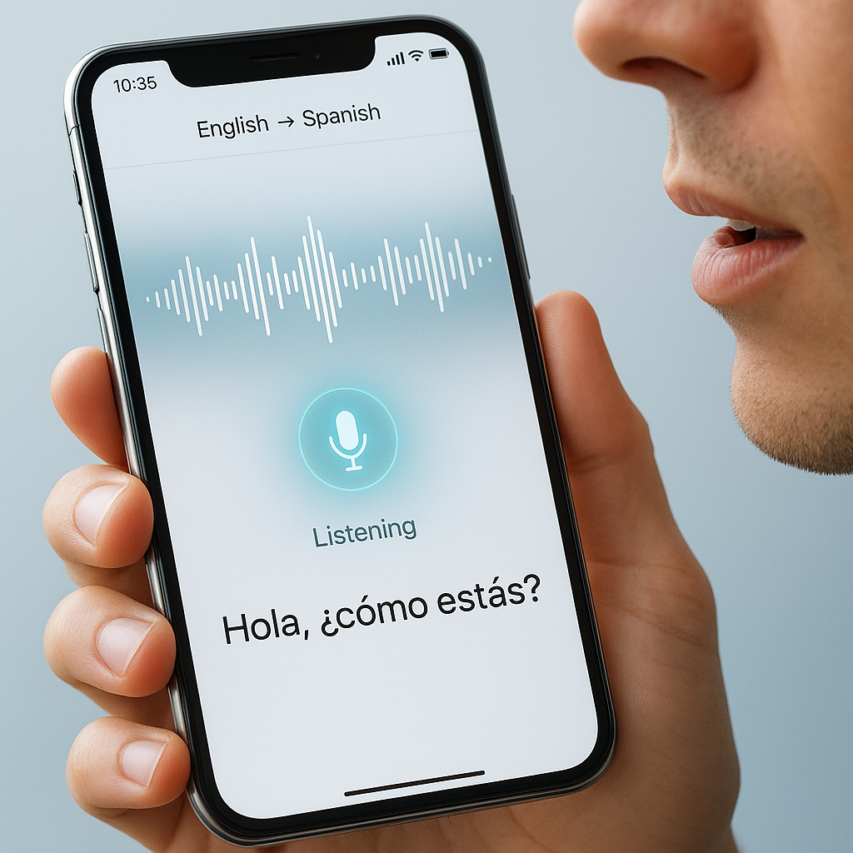
Google Translate’s audio capabilities have transformed how we communicate across language barriers, turning real-time conversations between speakers of different languages into seamless exchanges. Whether you’re traveling abroad, conducting international business meetings, or helping a non-English speaking friend navigate daily tasks, the ability to translate audio to English and dozens of other languages has made cross-cultural communication more accessible than ever before. The platform’s sophisticated voice recognition technology can process spoken words instantly, converting them into accurate translations that bridge communication gaps in seconds.
From basic voice input and text-to-speech output to advanced conversation mode and audio file transcription, Google Translate’s sound processing features offer multiple ways to break down language barriers. This comprehensive guide will walk you through every aspect of google translate audio functionality, including setup procedures across different devices, mastering conversation mode for real-time dialogue, uploading and translating audio files, and leveraging advanced techniques for optimal accuracy. You’ll also discover troubleshooting strategies to resolve common issues and optimization tips to enhance your translation experience, ensuring you can confidently use these powerful voice-powered tools in any situation.
Understanding Google Translate Audio Capabilities
Google Translate has evolved far beyond simple text translation to become a comprehensive audio translation platform that can process spoken language in real-time. The service’s audio capabilities transform how people communicate across language barriers, whether you’re traveling abroad, attending international meetings, or trying to understand foreign media content.
The platform’s audio translation features work by capturing spoken words through your device’s microphone, processing the speech through advanced algorithms, and delivering translations in both text and audio formats. This seamless integration of speech recognition and translation technology makes it possible to have natural conversations with speakers of different languages without the traditional delays associated with manual translation.
Core Audio Translation Features
Google translate audio functionality centers around several key features that work together to provide comprehensive voice-powered translation. The conversation mode allows two people speaking different languages to communicate naturally by taking turns speaking into the device. Each person’s speech is automatically detected, translated, and played back in the other person’s language.
The instant translation feature processes speech as you speak, providing real-time results that appear on screen while simultaneously playing the translated audio. This immediate feedback loop helps users verify translation accuracy and adjust their speech patterns for better recognition results.
Camera integration with audio output represents another powerful capability, where users can point their camera at text and receive both visual translations and audio pronunciation guides. This feature proves invaluable when encountering written material in foreign languages, such as restaurant menus, street signs, or documents.
The offline audio translation capability ensures functionality even without internet connectivity, though with a more limited language selection. Downloaded language packs enable basic google translate sound processing and playback for essential communication needs during travel or in areas with poor connectivity.
Voice Recognition Technology
The voice recognition system behind google translate by audio relies on sophisticated neural networks trained on millions of hours of speech data across different languages, accents, and speaking conditions. These models can distinguish between different speakers, filter out background noise, and adapt to various pronunciation patterns and speech speeds.
The technology employs automatic speech recognition (ASR) that converts spoken words into text before applying translation algorithms. This two-step process allows for more accurate results because the system can analyze the complete context of spoken phrases rather than attempting to translate individual words in isolation.
Machine learning improvements continuously enhance recognition accuracy by analyzing user interactions and feedback. The system learns to better handle regional accents, colloquial expressions, and technical terminology through this ongoing training process.
Noise cancellation algorithms help isolate the primary speaker’s voice from environmental sounds, making the service functional in busy restaurants, airports, or outdoor settings where perfect audio conditions aren’t available.
Supported Languages and Dialects
Google Translate’s audio capabilities support over 100 languages for basic translation, with approximately 40 languages offering full conversation mode functionality. The translate audio to english feature works exceptionally well given English’s extensive training data, while other major languages like Spanish, French, German, and Mandarin Chinese also demonstrate high accuracy rates.
Regional dialect support varies significantly across languages. While the system handles major dialect variations for widely spoken languages, smaller regional variations or indigenous dialects may produce less reliable results. Users should be aware that google translate audio to text accuracy depends heavily on speaking clearly and using standard pronunciation patterns.
Language detection algorithms can automatically identify the source language in many cases, eliminating the need for manual language selection. This feature works most effectively with languages that have distinct phonetic characteristics and sufficient training data.
Some languages offer enhanced features like gender-specific translations or formal versus informal speech patterns, while others provide only basic translation capabilities. Users working with less common languages may find that alternative specialized translation tools or services like Sozai offer better accuracy for specific use cases, particularly when dealing with technical terminology or professional documentation that requires precise transcription alongside translation.
Setting Up Audio Translation on Different Devices
Configuring Google Translate for audio translation requires proper setup across your devices to ensure optimal performance. The process varies depending on your platform, but following these detailed instructions will help you maximize translation accuracy and minimize technical issues.
Mobile App Configuration
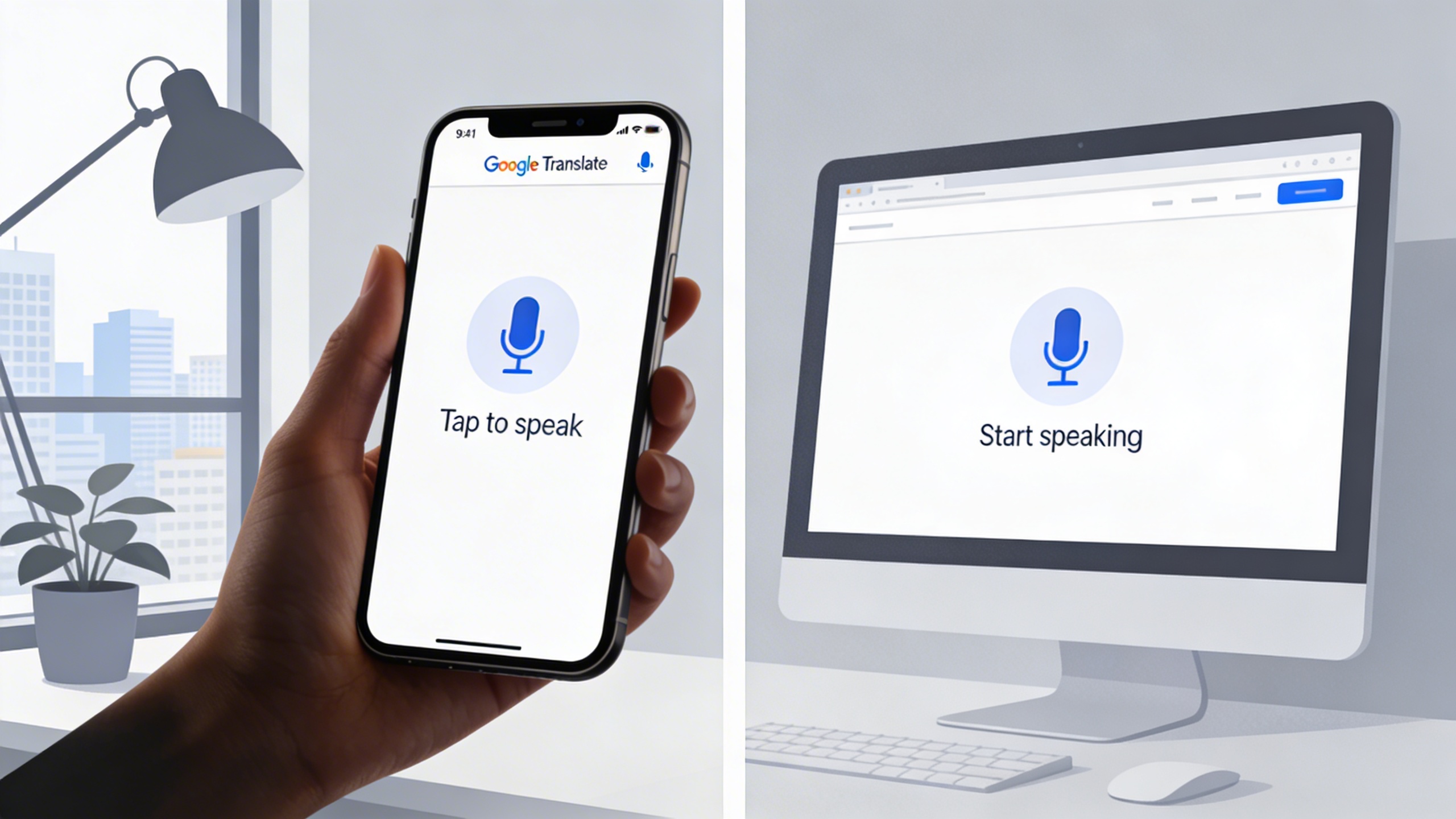
Setting up google translate audio on mobile devices begins with downloading the official Google Translate app from your device’s app store. Once installed, open the app and grant necessary permissions when prompted. Navigate to Settings by tapping the three horizontal lines in the top-left corner, then select “Speech input” to configure your audio preferences.
For optimal performance when you translate audio to english or other languages, ensure your device’s microphone sensitivity is properly calibrated. Test the microphone by speaking clearly into your device while monitoring the audio input indicator. If the indicator doesn’t respond adequately, check your device’s general microphone settings and restart the app. Enable offline language packs for your most frequently used language pairs to maintain functionality without internet connectivity.
Desktop and Web Browser Setup
Accessing google translate audio to text features through web browsers requires specific permission settings. When visiting translate.google.com, your browser will prompt for microphone access—always click “Allow” for full functionality. If you missed this initial prompt, look for the microphone icon in your browser’s address bar and manually enable permissions.
Chrome users should navigate to Settings > Privacy and Security > Site Settings > Microphone to manage permissions globally. Firefox users can access similar settings through Preferences > Privacy & Security > Permissions. For desktop applications, ensure your system’s default microphone is properly configured through your operating system’s sound settings before launching any translation tools.
Browser-based google translate sound processing works best with updated browsers. Clear your browser cache periodically and disable unnecessary extensions that might interfere with microphone access. Consider using Chrome or Edge for the most reliable experience, as these browsers typically offer the best compatibility with Google’s web services.
Microphone and Audio Settings
Audio quality directly impacts translation accuracy when using google translate by audio features. Position your microphone 6-8 inches from your mouth and speak clearly at a moderate pace. Avoid background noise by closing windows, turning off fans, and moving away from electronic devices that might cause interference.
Configure your system’s audio input levels to prevent distortion or overly quiet recordings. On Windows, right-click the speaker icon in the system tray, select “Recording devices,” and adjust your microphone’s levels to around 70-80%. Mac users should access System Preferences > Sound > Input and adjust the input volume accordingly.
For professional transcription needs that require higher accuracy than standard translation tools, consider specialized applications like Sozai, which offers advanced audio processing capabilities for meeting notes and detailed transcriptions.
Test your setup regularly by recording short phrases and checking the translation output quality. If translations seem inaccurate, try adjusting your speaking pace, reducing background noise, or repositioning your microphone. Remember that consistent audio input quality produces more reliable translation results across all supported languages.
Using Text-to-Speech Features
Google Translate’s text-to-speech functionality transforms written translations into natural-sounding audio, making it easier to learn pronunciation and communicate effectively across language barriers. This powerful feature works seamlessly with google translate audio capabilities, allowing you to hear accurate pronunciations of your translated text in dozens of languages.
Converting Written Text to Audio
Activating text-to-speech in Google Translate requires just a simple tap or click. After entering your text and receiving a translation, look for the speaker icon next to the translated text. This icon appears in both the source and target language sections, allowing you to hear pronunciation in either language.
On mobile devices, tap the speaker icon once to hear the translation. On desktop, click the icon to activate google translate sound output. The feature works with typed text, pasted content, and even text captured through your camera using the app’s visual translation feature. For users working with audio content, you can translate audio to english or other target languages, then use text-to-speech to hear the results clearly.
The audio output quality depends on your device’s speakers or headphones, but Google’s neural text-to-speech technology delivers remarkably natural pronunciation across supported languages. This makes it particularly valuable for language learning and real-time communication scenarios.
Voice Selection and Customization
Google Translate offers multiple voice options for many languages, including different regional accents and speaking styles. To access these options, tap the settings icon within the app or navigate to voice settings in the web version. You’ll find choices between male and female voices, along with regional variations that reflect local pronunciation patterns.
For popular languages like English, Spanish, and French, you can select from several accent variations. English options might include American, British, and Australian accents, while Spanish offers choices between Latin American and European pronunciations. These regional differences help you learn the specific pronunciation style most relevant to your needs.
The voice selection feature proves especially useful when you need to match local dialects or when learning a language for travel to specific regions. Some languages also offer different speaking styles, from formal to conversational tones, enhancing the authenticity of the audio output.
Pronunciation and Speed Controls
Controlling playback speed significantly improves your ability to understand and learn from google translate audio output. Most versions of Google Translate include a speed adjustment feature, typically accessed through the audio controls or settings menu. You can slow down pronunciation for detailed learning or increase speed for natural conversation flow.
The slow playback option breaks down syllables and phonetic elements, making it easier to identify specific sounds and pronunciation patterns. This feature works particularly well when combined with google translate audio to text workflows, where you’re analyzing both written and spoken elements of a language.
For optimal pronunciation learning, start with slower speeds to master individual sounds, then gradually increase to normal speed. The repeat function allows you to replay audio multiple times, reinforcing proper pronunciation through repetition.
Best practices for clear audio output include using quality headphones or speakers, ensuring stable internet connectivity for cloud-based voice processing, and selecting the appropriate regional accent for your target audience. When working in noisy environments, consider using google translate by audio input combined with text-to-speech output to create a complete audio translation workflow that maintains clarity throughout the process.
Live Audio Translation and Conversation Mode
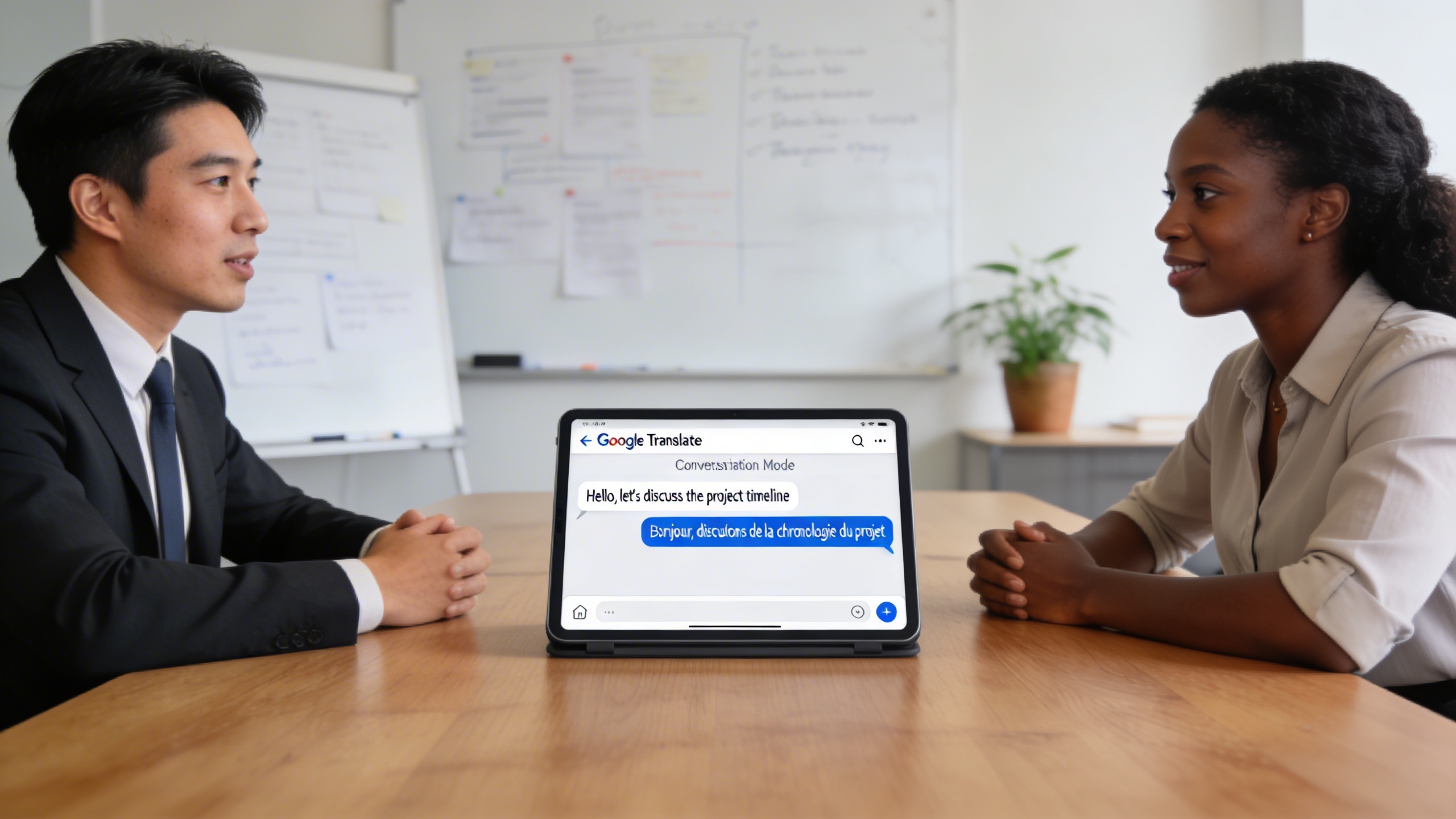
Google Translate’s conversation mode transforms your device into a real-time interpreter, enabling seamless communication across language barriers. This powerful feature combines google translate audio capabilities with instant text display, creating an interactive translation experience that works in both directions simultaneously.
Real-Time Voice Translation
The real-time translation feature processes spoken language as you speak, displaying translations almost instantaneously. To activate this mode, open Google Translate and tap the conversation icon (two microphones facing each other). Select your source and target languages, then tap the microphone corresponding to the language being spoken.
When someone speaks into your device, Google Translate processes the google translate sound input and displays both the original text and translation on screen. The system automatically detects when speech begins and ends, eliminating the need to manually start and stop recording. This seamless operation makes it ideal for quick exchanges, asking for directions, or ordering food in foreign restaurants.
The translate audio to english functionality works particularly well for common language pairs, with accuracy rates exceeding 90% in quiet environments. The system continuously improves its recognition patterns based on your usage, adapting to your speaking style and commonly used phrases over time.
Two-Way Conversation Features
Conversation mode excels in facilitating natural dialogue between speakers of different languages. Each person can speak in their native language while viewing translations in real-time. The interface splits the screen, showing each language clearly separated and color-coded for easy identification.
To optimize two-way conversations, position your device between speakers at roughly equal distances. Speak clearly and at a moderate pace, allowing the google translate by audio system to process each statement fully before the next person responds. The app maintains conversation history, letting participants scroll back through previous exchanges if clarification is needed.
For longer conversations, the pause feature proves invaluable. Tap anywhere on the screen to temporarily halt translation, useful when switching topics or when external interruptions occur. This prevents the system from attempting to translate background conversations or ambient noise that might interfere with your primary dialogue.
The conversation mode also includes a slow playback option for pronunciation learning. Tap any translated phrase to hear it spoken at reduced speed, helping users understand proper pronunciation and intonation patterns. This feature transforms translation sessions into impromptu language learning opportunities.
Managing Background Noise
Environmental factors significantly impact translation accuracy, making noise management crucial for optimal performance. Google Translate’s audio processing algorithms work best in controlled acoustic environments, but several strategies can improve results in challenging conditions.
Position yourself and your conversation partner away from high-traffic areas, air conditioning units, or other consistent noise sources. The google translate audio to text conversion relies on clear speech patterns, which background noise can obscure. In restaurants or cafes, request seating away from kitchen areas or busy walkways when possible.
For outdoor use, consider wind direction and traffic patterns. Hold your device closer to the speaker’s mouth in windy conditions, but avoid covering the microphone completely. The app includes automatic gain control, but extreme volume variations can still cause processing delays or errors.
When background noise is unavoidable, use the manual microphone activation feature instead of automatic detection. This prevents the system from picking up irrelevant sounds between conversation turns. Tap and hold the appropriate language microphone only when someone is actively speaking, releasing it immediately when they finish.
For users requiring more advanced transcription capabilities in noisy environments, dedicated tools like Sozai offer enhanced noise cancellation and speaker identification features that complement Google Translate’s conversation mode for professional or extended use scenarios.
Indoor spaces with hard surfaces create echo effects that can confuse voice recognition systems. In conference rooms or hallways, speak slightly slower than normal and maintain consistent distance from your device throughout the conversation.
Audio File Translation and Transcription
While Google Translate excels at real-time audio translation, many users need to translate pre-recorded audio files. Understanding the platform’s capabilities and limitations for file-based translation helps you choose the right approach for your specific needs.
Uploading and Processing Audio Files
Google Translate’s mobile apps offer limited direct audio file upload functionality. The primary method involves playing your audio file through your device’s speakers while using the microphone feature to capture and translate the sound. This indirect approach works best in quiet environments where background noise won’t interfere with the google translate audio processing.
For more reliable results when you need to translate audio to english or other languages, consider converting longer audio files into shorter segments. Google Translate performs better with clips under two minutes, as extended recordings may experience processing delays or incomplete translations.
The web version of Google Translate doesn’t support direct audio file uploads, limiting users to real-time microphone input. This constraint means desktop users must rely on alternative methods or third-party tools for comprehensive audio file translation workflows.
Transcription Accuracy Tips
Maximizing accuracy when using google translate audio to text requires attention to several factors. Clear speech patterns significantly improve recognition rates, so audio files with minimal background noise, consistent volume levels, and distinct pronunciation yield better results.
Speaker positioning affects translation quality considerably. When playing audio files for translation, position your device’s speaker close to the microphone input while avoiding echo or distortion. Testing different volume levels helps find the optimal balance between audibility and clarity.
Language-specific considerations also impact accuracy. Some languages process more reliably through google translate by audio than others, with widely spoken languages like English, Spanish, and Mandarin typically showing higher accuracy rates than less common dialects.
For professional transcription needs requiring higher accuracy and support for various audio formats, specialized tools like Sozai offer dedicated audio file processing capabilities with advanced noise reduction and speaker identification features.
Supported File Formats
Google Translate doesn’t directly accept audio file formats through upload interfaces. The platform processes audio exclusively through real-time microphone input, which means users must work around this limitation creatively.
Common audio formats like MP3, WAV, and M4A can be played through your device’s media player while simultaneously using Google Translate’s microphone feature. This workaround method supports any format your device can play, though quality may vary depending on speaker and microphone capabilities.
| Method | Pros | Cons |
|---|---|---|
| Speaker playback | Works with any playable format | Quality depends on hardware |
| Direct microphone | Real-time processing | No file upload support |
| Third-party tools | Better accuracy and format support | Additional software required |
Understanding these limitations helps set realistic expectations for google translate sound processing. While the platform excels at conversational translation, users requiring batch processing of audio files or professional-grade transcription accuracy should consider dedicated transcription services that offer native file format support and enhanced processing capabilities.
Advanced Audio Translation Techniques
Mastering advanced audio translation features unlocks powerful capabilities that extend far beyond basic voice translation. These sophisticated techniques enable seamless multilingual communication in professional environments and complex scenarios where standard translation methods fall short.
Offline Audio Translation
Google Translate’s offline audio capabilities provide essential translation services when internet connectivity is limited or unavailable. To enable offline functionality, download language packs in advance through the app settings. Once installed, you can translate audio to English and other supported languages without requiring an active internet connection.
The offline mode supports real-time conversation translation for downloaded language pairs, though with some limitations. Audio quality recognition may be reduced compared to online processing, and the vocabulary database is more constrained. Voice synthesis for text-to-speech output also uses simplified audio models, resulting in less natural-sounding pronunciation.
For optimal offline performance, ensure your device has sufficient storage space for multiple language packs. Each pack typically requires 35-45 MB of storage, and maintaining updated versions improves translation accuracy. The google translate sound quality remains consistent across offline sessions, though processing speed may vary depending on device specifications.
Integration with Other Apps
Modern workflow integration transforms google translate audio functionality into a powerful component of broader productivity systems. The Google Translate API enables seamless integration with note-taking applications, video conferencing platforms, and content management systems.
Popular integration scenarios include connecting translation services with meeting recording software, where spoken content gets automatically translated and transcribed. Many professionals combine Google Translate with dedicated transcription tools like Sozai to create comprehensive multilingual documentation workflows that capture, translate, and organize audio content efficiently.
Voice assistants and smart home devices can leverage translation capabilities through custom shortcuts and automation rules. This enables hands-free translation requests using voice commands, particularly useful in kitchen environments, workshops, or other situations where manual device interaction is impractical.
Professional Use Cases
Enterprise environments demand sophisticated audio translation solutions that handle complex terminology and maintain accuracy across technical domains. Google translate audio to text functionality proves invaluable for international business meetings, where participants can receive real-time transcriptions in their preferred languages.
Healthcare professionals utilize audio translation for patient communication, particularly in emergency situations where language barriers could impact care quality. The google translate by audio feature enables medical staff to quickly understand patient descriptions of symptoms and provide clear instructions in the patient’s native language.
Educational institutions leverage advanced translation techniques for inclusive learning environments. International students benefit from real-time lecture translation, while language learning programs use the bidirectional conversation features to practice pronunciation and comprehension skills.
Legal and compliance scenarios require precise translation accuracy, where professionals use multiple verification methods alongside Google Translate’s audio capabilities. This includes cross-referencing translations with specialized legal dictionaries and maintaining detailed records of translated communications for documentation purposes.
Content creators and media professionals integrate audio translation into their production workflows, enabling rapid localization of podcasts, videos, and other multimedia content. The combination of speech recognition and translation capabilities streamlines the process of creating multilingual content versions without requiring extensive manual transcription work.
Troubleshooting and Optimization Tips
Even with Google Translate’s advanced capabilities, users sometimes encounter challenges with audio translation quality and accuracy. Understanding common issues and implementing optimization strategies can significantly improve your translation experience across all audio features.
Common Audio Issues and Solutions
Poor audio quality represents the most frequent obstacle when using google translate audio features. Background noise, low microphone sensitivity, or poor internet connectivity can cause translation errors or complete failure to recognize speech. To resolve these issues, ensure your device’s microphone has proper permissions and test audio input levels before starting translation sessions.
When google translate sound recognition fails consistently, check your device’s language settings and verify that your target languages are properly downloaded for offline use. Network connectivity problems often affect real-time translation, so switching between Wi-Fi and cellular data can help identify connection-related issues. Additionally, speaking too quickly or with heavy accents may reduce recognition accuracy—practice speaking clearly at a moderate pace for better results.
Device-specific problems require targeted solutions. On mobile devices, restart the Google Translate app and clear its cache if audio features become unresponsive. For desktop users experiencing issues with google translate audio to text functionality, browser permissions for microphone access should be verified and updated if necessary.
Improving Translation Accuracy
Strategic optimization techniques can dramatically enhance translation quality when you translate audio to english or other target languages. Speaking in shorter, complete sentences rather than long, complex phrases allows the system to process meaning more effectively. Avoid filler words, slang, or highly technical terminology that may not exist in translation databases.
Environmental factors play a crucial role in accuracy. Use translation features in quiet environments whenever possible, and position your device’s microphone 6-12 inches from your mouth for optimal pickup. When working with google translate by audio in noisy settings, consider using external microphones or noise-canceling headphones to improve input quality.
Regular app updates ensure access to the latest language models and recognition improvements. Enable automatic updates for Google Translate to benefit from ongoing accuracy enhancements and expanded language support.
Alternative Tools and Platforms
While Google Translate offers comprehensive audio translation capabilities, specific use cases may benefit from specialized alternatives. For professional transcription needs requiring high accuracy and advanced editing features, dedicated tools like Sozai provide superior audio-to-text conversion with powerful editing capabilities across multiple platforms.
Microsoft Translator excels in business environments with its integration into Office applications, while iTranslate Voice offers premium features for frequent travelers. DeepL Translator, though primarily text-based, provides exceptional translation quality that can complement audio workflow when combined with separate transcription tools.
Consider your specific requirements—casual conversation, professional documentation, or specialized terminology—when selecting the most appropriate translation solution for your audio translation needs.