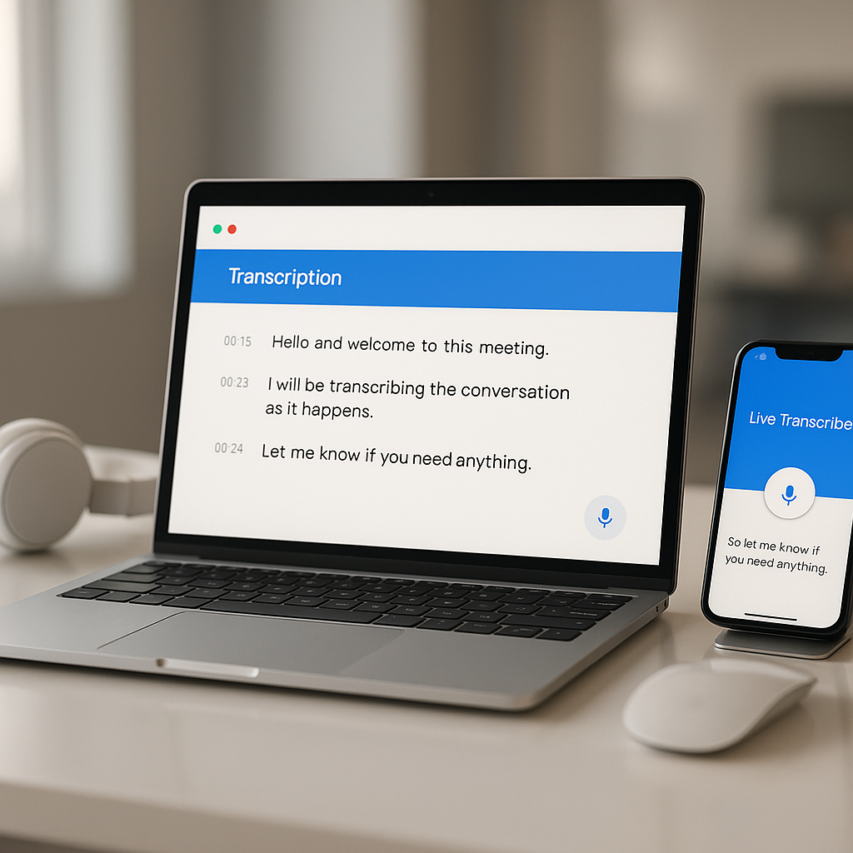
Google’s transcription ecosystem has quietly revolutionized how we convert speech to text, offering a comprehensive suite of free tools that have made voice-to-text technology accessible to millions of users worldwide. From real-time conversation capture with Google Live Transcribe to seamless meeting documentation through Google Meet transcription, these integrated services have transformed everything from accessibility support to professional workflows. What once required expensive specialized software is now available through familiar Google applications that most people already use daily.
Whether you need to transcribe with Google during video conferences, capture voice notes through Google Docs transcribe features, or record and convert audio files, Google’s interconnected transcription tools offer surprising depth and functionality. Each service serves distinct use cases while maintaining the intuitive design and reliability that Google users expect.
This comprehensive guide explores every major Google transcription service, revealing hidden features, sharing practical implementation strategies, and providing troubleshooting solutions for common challenges. You’ll discover how to maximize accuracy across different Google tools, integrate transcription into existing workflows, and understand when professional alternatives might better serve your specific needs.
Overview of Google’s Transcription Ecosystem
Google has built one of the most comprehensive transcription ecosystems in the technology industry, leveraging decades of artificial intelligence research to create speech recognition capabilities that span across multiple platforms and services. This interconnected network of tools makes it possible to transcribe with Google in virtually any context, from casual note-taking to professional meeting documentation.
Google’s AI-Powered Speech Recognition Technology
At the foundation of Google’s transcription capabilities lies a sophisticated neural network architecture that processes speech in real-time with remarkable accuracy. The company’s speech recognition technology utilizes deep learning models trained on millions of hours of audio data across hundreds of languages and dialects. This extensive training enables Google’s systems to understand context, handle background noise, and adapt to different speaking patterns and accents.
The technology continuously improves through machine learning, analyzing patterns in speech recognition requests to enhance accuracy over time. Google’s approach combines acoustic modeling, which interprets sound waves, with language modeling that predicts likely word sequences based on context. This dual approach allows services like Google live transcribe to deliver near real-time results while maintaining high accuracy rates even in challenging audio conditions.
What sets Google’s speech recognition apart is its ability to process natural language nuances, including punctuation prediction, speaker identification, and handling of technical terminology. The system can distinguish between homophones based on context and automatically format common phrases, dates, and numbers appropriately.
Integration Across Google Services
Google’s transcription technology seamlessly integrates across the entire Google Workspace ecosystem, creating a unified experience for users who rely on multiple Google services. When you use Google meet transcription during video conferences, the same underlying technology powers Google docs transcribe features, ensuring consistent quality and functionality across platforms.
This integration extends beyond simple transcription to include intelligent features like automatic meeting summaries, action item extraction, and searchable transcripts. Users can start a recording in Google Meet, have it automatically transcribed, and then access that transcript directly within Google Drive or Google Docs for further editing and collaboration.
| Google Service | Transcription Feature | Primary Use Case |
|---|---|---|
| Google Meet | Live meeting transcription | Video conference documentation |
| Google Docs | Voice typing | Document creation and editing |
| Google Recorder | Audio file transcription | Interview and lecture recording |
| YouTube | Automatic captions | Video accessibility and SEO |
The cross-platform synchronization means that transcripts created on one device automatically become available on others, supporting workflows that span desktop computers, tablets, and smartphones. This ecosystem approach eliminates the need to manually transfer transcripts between applications or worry about compatibility issues.
Accessibility and Universal Design
Google’s commitment to accessibility drives many of the design decisions in their transcription ecosystem. Google live transcribe was specifically developed to support users with hearing impairments, providing real-time captions for conversations and environmental sounds. The service includes features like sound notifications, speaker identification, and the ability to save important conversations for later reference.
The accessibility features extend beyond hearing impairment support to include voice recognition for users with motor disabilities who may have difficulty typing. Google’s voice input technology allows these users to control devices, compose messages, and create documents entirely through speech commands.
Google’s transcription services comply with major accessibility standards, including the Web Content Accessibility Guidelines (WCAG) and Section 508 requirements. This compliance ensures that organizations can confidently deploy Google transcribe solutions in educational institutions, government agencies, and corporate environments where accessibility compliance is mandatory.
The universal design principles also benefit users in various situational contexts, such as hands-free operation while driving, multilingual environments where transcription aids comprehension, and noisy environments where visual text supplements audio communication. These broad applications demonstrate how Google’s transcription ecosystem serves diverse user needs while maintaining the high-quality standards expected from enterprise-grade solutions.
Google Live Transcribe: Real-Time Conversation Transcription
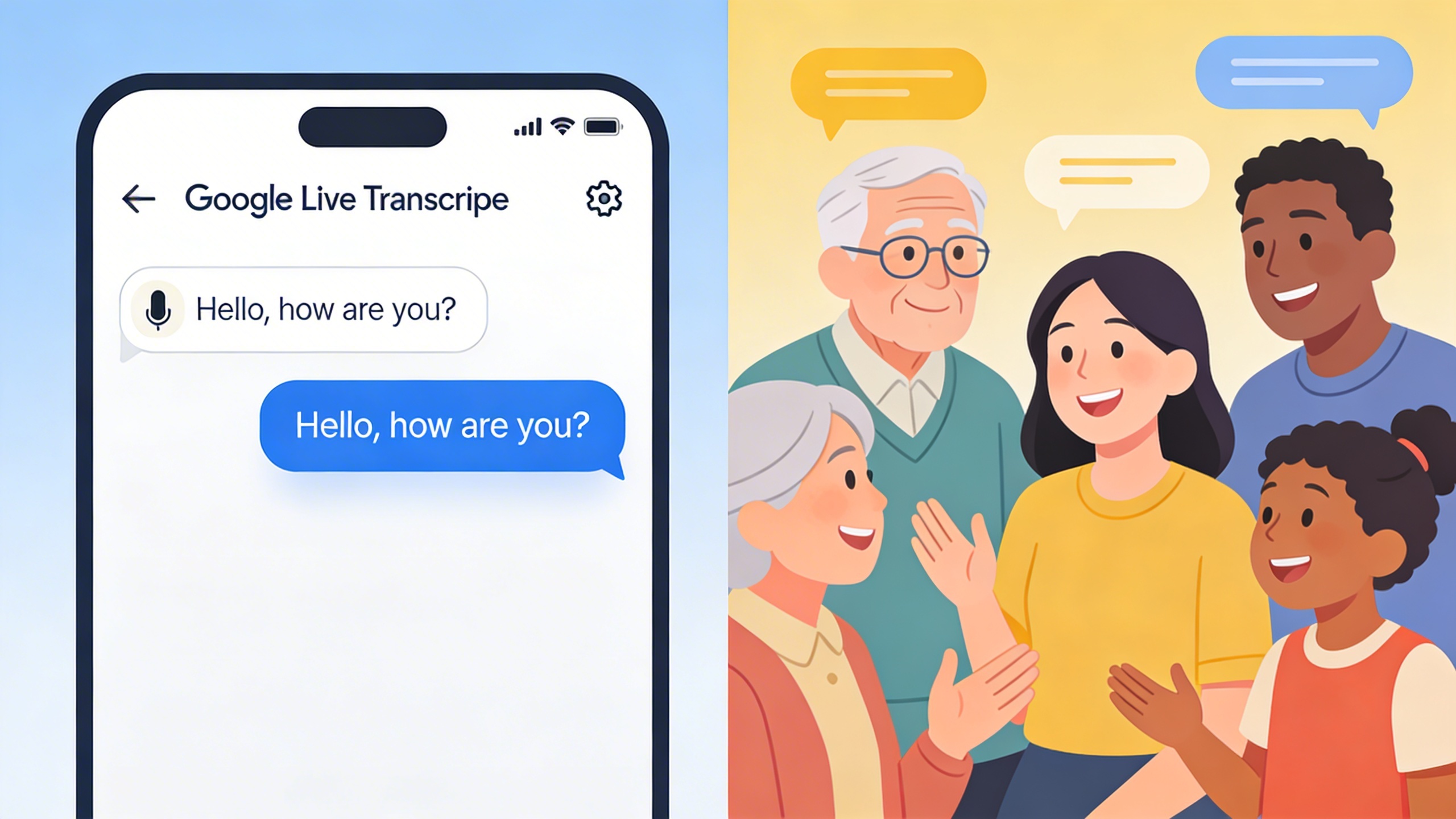
Google Live Transcribe represents one of the most accessible and powerful real-time transcription solutions available today. Originally developed as an accessibility tool for the deaf and hard-of-hearing community, this free Android application has evolved into a comprehensive conversation transcription platform that serves users across various professional and personal scenarios.
Features and Capabilities
The core strength of Google Live Transcribe lies in its ability to convert spoken words into text instantly, with impressive accuracy rates that often exceed 85% in optimal conditions. The application leverages Google’s advanced speech recognition algorithms to process audio in real-time, displaying transcribed text on your device screen with minimal latency.
One of the most significant advantages is the offline transcription capability. Unlike many cloud-based solutions, Live Transcribe can function without an internet connection by downloading language models directly to your device. This feature proves invaluable in environments with poor connectivity or when privacy concerns require local processing of sensitive conversations.
The application supports over 80 languages and dialects, making it a versatile tool for international meetings, travel, and multicultural environments. Users can seamlessly switch between languages mid-conversation, and the system automatically detects language changes in many cases. This multilingual support extends beyond simple transcription to include real-time translation capabilities for select language pairs.
Visual accessibility features enhance the user experience significantly. The interface includes customizable text sizes, high-contrast themes, and vibration alerts for sound detection. These elements make the application particularly valuable for users with hearing impairments, though the features benefit anyone working in noisy environments or situations requiring silent note-taking.
Setup and Configuration
Getting started with Google Live Transcribe requires minimal setup. After downloading the application from the Google Play Store, users simply grant microphone permissions and select their primary language. The initial configuration process takes less than two minutes, making it one of the most user-friendly transcription solutions available.
For optimal performance, position your Android device within three feet of the primary speaker. The application works best in environments with minimal background noise, though recent updates have improved noise filtering capabilities. Users can adjust microphone sensitivity through the settings menu to accommodate different room acoustics and speaking volumes.
Language configuration allows for primary and secondary language selection, enabling automatic switching between languages during bilingual conversations. The offline language download feature requires advance planning, as language packs can be several hundred megabytes in size. Download essential language packs while connected to Wi-Fi to ensure availability during offline use.
Customization options include text size adjustment, theme selection, and notification preferences. Users can enable haptic feedback for sound detection, which proves particularly useful in loud environments or for users with hearing difficulties. The application also offers integration with Android’s accessibility services for enhanced system-wide functionality.
Use Cases and Best Practices
Professional applications of Google Live Transcribe span numerous industries and scenarios. Medical professionals use the tool for patient consultations, allowing them to maintain eye contact while capturing detailed conversation records. Educational settings benefit from real-time lecture transcription, supporting students with hearing impairments and providing study materials for review.
Business meetings represent another prime use case, particularly for quick note-taking and ensuring all participants can follow discussions regardless of hearing ability. While the application doesn’t replace dedicated meeting transcription solutions, it serves as an excellent backup or supplementary tool when primary systems are unavailable.
To maximize transcription accuracy, speak clearly and at a moderate pace. Position the device strategically to capture the primary speaker while minimizing background noise interference. For group conversations, designate a note-taker to manage the device positioning and ensure optimal audio capture from all participants.
Privacy considerations should guide usage decisions, particularly in sensitive business or medical contexts. While offline mode addresses many privacy concerns, users should review their organization’s data handling policies before implementing Live Transcribe in professional settings. For enhanced privacy and advanced features in business environments, dedicated transcription platforms like Sozai offer enterprise-grade security and more sophisticated audio processing capabilities.
Regular application updates improve transcription accuracy and add new language support. Enable automatic updates to ensure access to the latest improvements in Google’s speech recognition technology. Users should also periodically review and adjust microphone permissions and language settings to maintain optimal performance as their usage patterns evolve.
Google Meet Transcription for Video Conferences
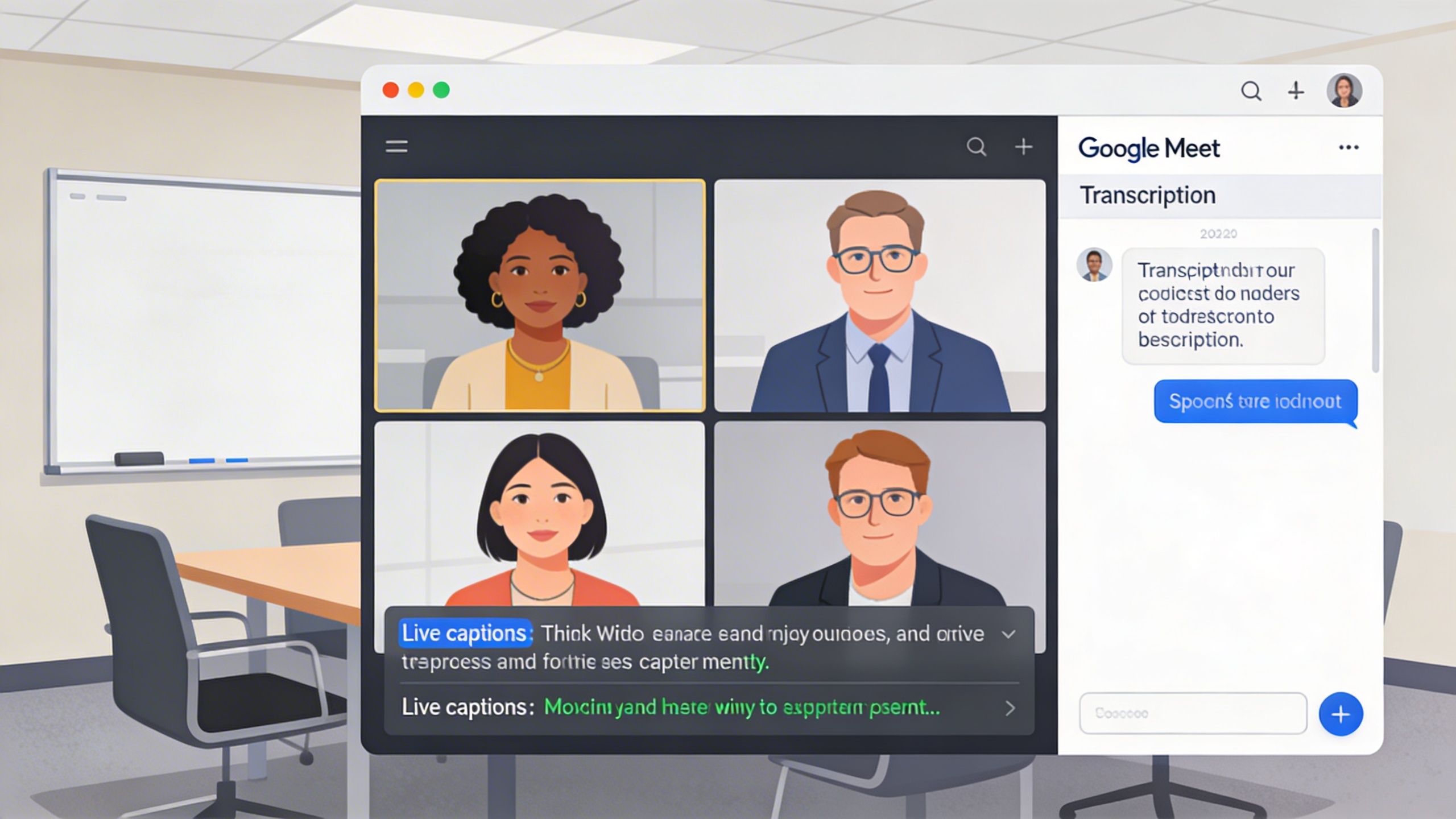
Google Meet’s built-in transcription capabilities transform video conferences into searchable, accessible records that teams can reference long after meetings end. This feature represents a significant advancement in how organizations capture and preserve meeting content, making it easier to track decisions, follow up on action items, and include team members who couldn’t attend live sessions.
The transcription service works seamlessly within Google’s workspace ecosystem, automatically converting spoken words into text while maintaining speaker identification and timestamps. This integration allows teams to focus on meaningful discussions rather than frantically taking notes, knowing that every important detail will be captured accurately.
Enabling Transcription in Meetings
Setting up google meet transcription requires specific administrative permissions and workspace configurations. Meeting organizers with appropriate access can enable transcription by clicking the three-dot menu during a meeting and selecting “Turn on captions.” For automatic transcription recording, administrators must first enable this feature in the Google Admin Console under Apps > Google Workspace > Google Meet settings.
The transcription feature automatically detects the primary language being spoken, though users can manually select from dozens of supported languages before starting the recording. Once activated, the system begins capturing all audio input from participants, creating real-time captions that appear at the bottom of the screen while simultaneously generating a comprehensive transcript file.
Participants will receive notifications when transcription begins, ensuring transparency about recording activities. The feature works best in environments with clear audio quality and minimal background noise, though Google’s advanced speech recognition technology can handle multiple speakers and various accents with impressive accuracy.
Managing and Sharing Transcripts
Google automatically saves meeting transcripts to the organizer’s Google Drive, specifically within a “Meet Recordings” folder that maintains organized access to all captured content. These transcript files integrate directly with Google Docs, allowing users to edit, format, and collaborate on the captured text using familiar document editing tools.
Transcript sharing follows Google’s standard permission model, where organizers can grant access to specific team members or entire domains. Recipients can view, comment, or edit transcripts based on their assigned permission levels, making it easy to highlight key decisions or add clarifying notes after meetings conclude.
The search functionality within Google Drive makes finding specific meeting content remarkably efficient. Users can search for keywords, phrases, or participant names across multiple transcript files, turning months of meeting records into a searchable knowledge base that supports ongoing project work and decision tracking.
For teams managing extensive meeting schedules, tools like Sozai can complement Google’s transcription services by providing additional formatting options and integration capabilities for complex transcription workflows.
Privacy and Security Considerations
Google Meet transcription operates under the same enterprise-grade security framework that protects all Google Workspace data. Transcripts are encrypted both in transit and at rest, with access controlled through the same authentication systems that secure other organizational documents and communications.
Organizations using Google Workspace for Business or Enterprise editions benefit from advanced compliance features, including data loss prevention policies that can automatically scan transcript content for sensitive information. These systems can flag or restrict sharing of transcripts containing confidential data, ensuring that meeting records don’t inadvertently expose protected information.
The retention and deletion policies for transcripts align with organizational data governance requirements. Administrators can set automatic deletion schedules or implement legal hold policies that preserve transcripts for specific time periods, supporting both compliance requirements and storage management needs.
Regional data residency controls ensure that transcript data remains within specified geographic boundaries, addressing regulatory requirements for organizations operating in multiple jurisdictions. These controls work alongside Google’s existing data processing agreements to provide comprehensive privacy protection for meeting content.
Meeting participants should understand that transcripts capture all audio input during sessions, including side conversations and background discussions. Organizations often establish clear policies about transcription use, ensuring that all participants understand when recordings occur and how the resulting transcripts will be used and shared within the organization.
Google Docs Voice Typing and Transcription
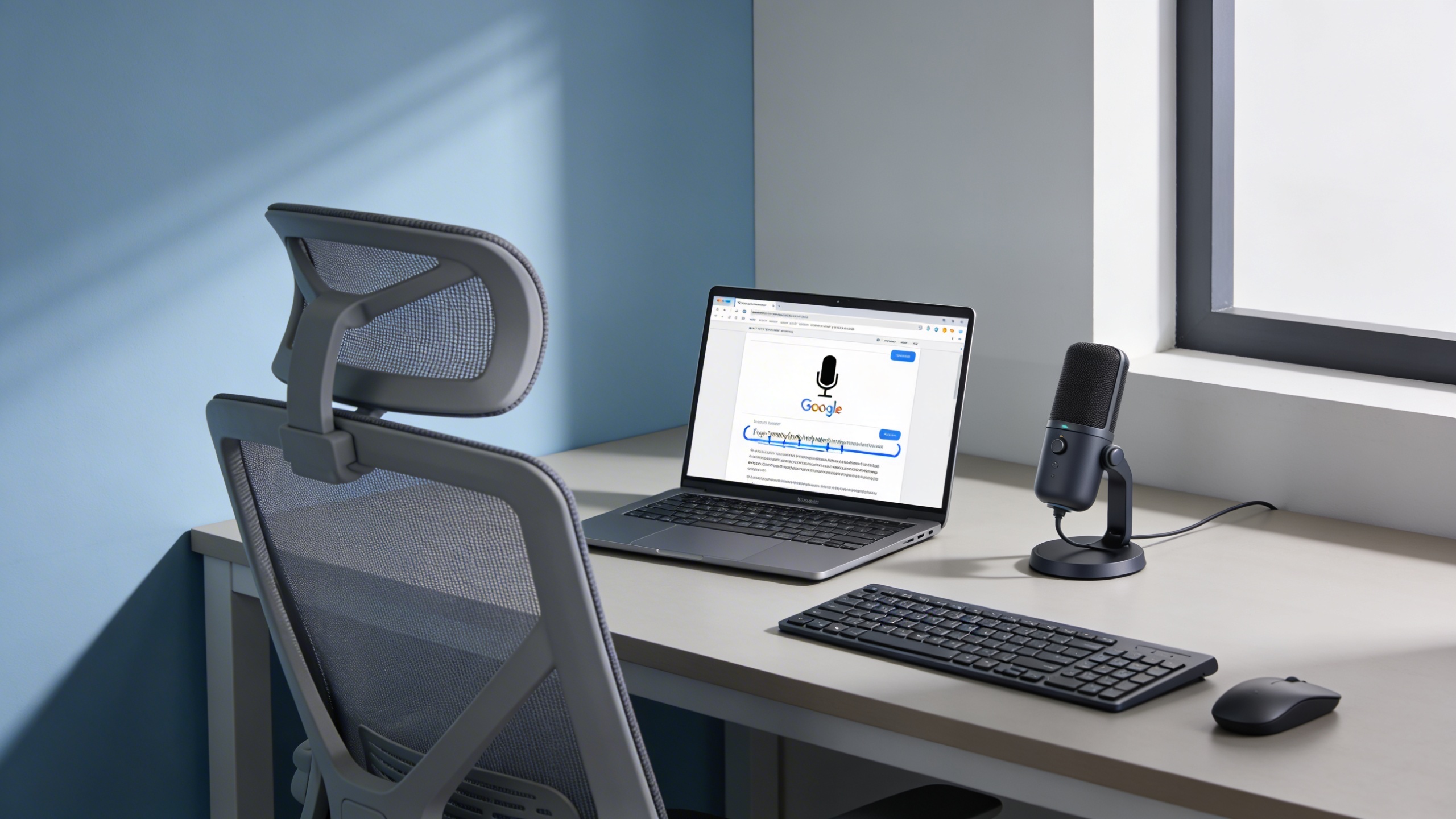
Google Docs voice typing transforms the traditional writing process by enabling users to transcribe with google’s powerful speech recognition directly into documents. This built-in feature eliminates the need for external transcription software while maintaining seamless integration with Google’s productivity ecosystem.
Voice Typing Setup and Commands
Activating voice typing in Google Docs requires just a few clicks. Navigate to the “Tools” menu and select “Voice typing,” or use the keyboard shortcut Ctrl+Shift+S (Cmd+Shift+S on Mac). A microphone icon appears, indicating the system is ready to capture your speech.
The real power of Google Docs voice typing lies in its extensive command vocabulary. Beyond basic dictation, users can control document formatting through voice commands. Say “new paragraph” to create line breaks, “select all” to highlight entire documents, or “bold that” to emphasize recently dictated text. These commands streamline the writing process and reduce reliance on manual formatting.
Punctuation commands enhance transcription accuracy significantly. Dictate “comma,” “period,” “question mark,” or “exclamation point” to insert proper punctuation. For more complex formatting, commands like “increase indent,” “bullet point,” and “numbered list” help structure documents professionally without touching the keyboard.
Transcribing Audio Files
While Google Docs doesn’t directly support audio file uploads for transcription, creative workarounds enable users to google transcribe audio content effectively. The most straightforward method involves playing audio through speakers while using voice typing to capture the content. This technique works best with clear, single-speaker recordings in quiet environments.
For optimal results when transcribing audio files, position your device’s microphone close to the audio source while minimizing background noise. Pause frequently to allow the system to process speech accurately, especially when dealing with technical terminology or proper nouns that may require manual correction.
Professional transcriptionists often combine Google Docs voice typing with dedicated audio playback software that offers speed control and loop functions. Slowing down audio playback to 75-80% of normal speed significantly improves transcription accuracy while maintaining natural speech patterns that Google’s recognition system handles well.
Formatting and Editing Transcribed Text
Post-transcription editing requires systematic attention to common voice recognition errors. Google’s algorithm excels at capturing conversational speech but may struggle with industry-specific jargon, acronyms, or names. Create a personal dictionary of frequently used terms to streamline future corrections.
Effective proofreading workflows begin with reading transcribed content aloud to identify awkward phrasing or missed punctuation. Google Docs’ built-in grammar and spell check tools complement this process, highlighting potential errors that voice recognition may have introduced. The revision history feature proves invaluable for tracking changes and reverting problematic edits.
Formatting consistency becomes crucial when combining voice-typed content with traditional typing. Use Google Docs’ style tools to maintain uniform heading structures, paragraph spacing, and font choices throughout documents. The “Clear formatting” option helps remove inconsistencies that may arise from voice command variations.
For users requiring more sophisticated transcription capabilities, particularly when working with multiple speakers or complex audio content, specialized tools like Sozai offer enhanced accuracy and speaker identification features that complement Google’s ecosystem.
Integration with other Google services amplifies the utility of transcribed content. Documents created through voice typing sync automatically across devices, enabling seamless transitions between desktop and mobile editing. The sharing and collaboration features allow multiple users to refine transcribed content simultaneously, making it ideal for team-based projects requiring quick turnaround times.
Google Recorder and Audio Transcription
Google Recorder represents one of the most sophisticated approaches to audio capture and transcription within Google’s ecosystem. Originally developed for Pixel devices, this application combines high-quality recording capabilities with real-time transcription powered by Google’s advanced speech recognition technology. The app demonstrates how seamlessly integrated transcription can transform the way users capture, organize, and retrieve audio content.
Unlike basic recording apps, Google Recorder processes audio locally on supported devices, ensuring privacy while delivering accurate transcription results. This approach makes it particularly valuable for journalists, students, and professionals who need reliable audio documentation with searchable text conversion.
Recording and Auto-Transcription Features
The core strength of Google Recorder lies in its ability to transcribe with google technology while simultaneously capturing audio. As users record conversations, lectures, or meetings, the app generates live text that appears in real-time on the screen. This dual functionality eliminates the need to choose between audio quality and text accessibility.
The transcription accuracy improves significantly when recording in quiet environments with clear speech patterns. Google’s machine learning algorithms excel at recognizing natural speech rhythms and can distinguish between different speakers in many cases. The app automatically handles punctuation and paragraph breaks, creating readable transcripts without manual formatting.
For users seeking enhanced transcription capabilities across multiple platforms, tools like Sozai offer additional features for processing various audio formats and integrating with different workflow systems.
Google Recorder also supports offline transcription for supported languages, ensuring functionality even without internet connectivity. This feature proves invaluable during field recordings or in locations with unreliable network access.
Search and Organization Tools
The search functionality within Google Recorder transforms how users interact with their recorded content. Rather than scrubbing through lengthy audio files, users can search for specific words or phrases within transcripts. The app highlights matching terms and jumps directly to relevant audio segments, dramatically reducing the time needed to locate specific information.
Organization features include automatic labeling based on content recognition and manual tagging options. Users can create custom categories for different types of recordings, such as interviews, meetings, or personal notes. The app also generates automatic titles based on transcript content, helping users quickly identify recordings without listening to each file.
The timeline view shows visual representations of speech patterns and silence, making it easier to navigate longer recordings. Users can bookmark important moments during recording or add them afterward while reviewing transcripts.
Export and Sharing Options
Google Recorder provides multiple export formats to accommodate different workflow requirements. Users can share audio files in standard formats while simultaneously exporting transcripts as text documents. This flexibility ensures compatibility with various productivity tools and collaboration platforms.
The app integrates with Google Drive for automatic backup and synchronization across devices. Shared recordings maintain their searchable transcript functionality, allowing team members to quickly locate relevant information within shared content.
Export options include timestamped transcripts, which prove particularly useful for creating meeting minutes or interview summaries. Users can also generate subtitle files for video projects or accessibility purposes. The sharing interface allows for selective sharing of either audio, transcript, or both components, giving users control over what information they distribute.
Privacy controls ensure that sensitive recordings remain secure while still enabling necessary collaboration. Users can set expiration dates for shared links and revoke access as needed.
Advanced Tips and Troubleshooting
Mastering Google’s transcription services requires understanding both optimization techniques and common pitfalls. These advanced strategies will help you achieve professional-quality results across all Google transcription platforms.
Improving Transcription Accuracy
Audio quality serves as the foundation for accurate transcription results. When using Google Meet transcription or Google Live Transcribe, position your microphone 6-8 inches from your mouth and minimize background noise. Hard surfaces create echo that confuses speech recognition algorithms, so consider using soft furnishings or acoustic panels in your recording environment.
Speaking patterns significantly impact accuracy across all Google transcription services. Maintain a consistent pace of 140-160 words per minute—slightly slower than normal conversation. Pause briefly between sentences to help the AI distinguish between separate thoughts. When you transcribe with Google, enunciate clearly without over-articulating, which can actually decrease recognition accuracy.
Language settings require precise configuration for optimal results. Google’s speech recognition performs best when you select the specific regional variant of your language. For example, choosing “English (United States)” versus “English (United Kingdom)” can improve accuracy by 15-20% for native speakers. If you’re working with accented speech, experiment with different regional settings to find the best match.
Common Issues and Solutions
Microphone permissions represent the most frequent technical obstacle. If Google Live Transcribe stops working, check your browser’s site permissions and ensure microphone access is enabled. Clear your browser cache and restart the application if transcription services become unresponsive.
When Google Docs transcribe fails to activate, verify that you’re using a supported browser—Chrome provides the most reliable performance. Firefox and Safari may experience intermittent issues with voice typing functionality. Switch to Chrome temporarily if you encounter persistent problems.
Network connectivity affects real-time transcription quality. Google Meet transcription requires stable internet with minimum upload speeds of 1 Mbps per participant. If transcription lags or produces incomplete results, reduce video quality settings to prioritize audio processing bandwidth.
Punctuation and formatting challenges occur frequently with automated transcription. Train yourself to speak punctuation commands like “comma,” “period,” and “new paragraph” when using Google Docs voice typing. For post-processing, maintain consistent formatting rules across your documents to streamline editing workflows.
Integration with Third-Party Tools
Google’s transcription services integrate seamlessly with productivity workflows through API connections and export features. Google Meet transcription automatically saves to Google Drive, where you can share transcripts with collaboration tools like Slack, Asana, or Microsoft Teams.
For users requiring enhanced accuracy or specialized features beyond Google’s offerings, professional transcription tools like Sozai provide advanced editing capabilities and multi-language support that complement Google’s ecosystem. These tools often excel in technical vocabulary recognition and speaker identification scenarios.
Workflow automation becomes possible through Google Workspace APIs. Connect transcription outputs to customer relationship management systems, project management platforms, or content management systems using tools like Zapier or Microsoft Power Automate. This integration eliminates manual copy-paste operations and ensures transcripts reach the right stakeholders automatically.
Export formats vary across Google’s transcription services. While Google Docs provides native document editing, Google Meet transcripts export as plain text files. Plan your downstream processing requirements and choose appropriate tools for formatting, analysis, or archival storage based on your specific workflow needs.
Comparing Google Tools with Professional Alternatives
While Google’s transcription ecosystem offers impressive accessibility and integration, understanding when to use these tools versus specialized alternatives can significantly impact your productivity and transcription quality. Each approach serves different needs, from casual note-taking to professional documentation requirements.
When to Use Google vs. Specialized Tools
Google tools excel in scenarios where convenience and quick access matter most. Google live transcribe works perfectly for casual conversations, classroom lectures, or informal meetings where you need immediate text output. Similarly, when you want to transcribe with google during document creation, Google Docs voice typing provides seamless integration with your existing workflow.
However, professional scenarios often demand higher accuracy, advanced editing features, and specialized formatting options. Legal professionals transcribing depositions, journalists conducting interviews, or researchers analyzing recorded data typically require transcription tools that offer speaker identification, timestamp precision, and industry-specific terminology recognition.
Specialized tools like Sozai bridge this gap by combining AI-powered accuracy with professional features, offering enhanced speaker recognition and editing capabilities that surpass basic Google transcribe functionality.
Feature Limitations and Workarounds
Google’s transcription tools face several inherent limitations that affect professional use. Google meet transcription, while convenient, lacks speaker identification in multi-participant calls and provides limited editing options during live sessions. The service also struggles with technical jargon, accented speech, and overlapping conversations.
| Limitation | Google Workaround | Professional Alternative |
|---|---|---|
| No speaker identification | Manual editing post-transcription | Automatic speaker labeling |
| Limited file format support | Convert files before upload | Native support for multiple formats |
| Basic punctuation handling | Voice commands for punctuation | Advanced punctuation algorithms |
When using Google docs transcribe for longer documents, users often find that breaking content into smaller segments and using clear speech patterns improves accuracy significantly.
Enterprise and Professional Needs
Enterprise environments require transcription solutions that address compliance, security, and scalability concerns. Google’s consumer-focused tools may not meet HIPAA, FERPA, or other regulatory requirements that govern sensitive audio content.
Professional transcription needs often include batch processing capabilities, custom vocabulary training, and integration with existing business systems. While Google tools provide basic functionality, organizations handling large volumes of audio content or requiring specialized accuracy levels typically benefit from dedicated transcription platforms.
Cost considerations also play a crucial role. Google’s free tools work well for occasional use, but heavy users may find that professional alternatives offer better value through enhanced features, time savings, and improved accuracy that reduces post-processing requirements.