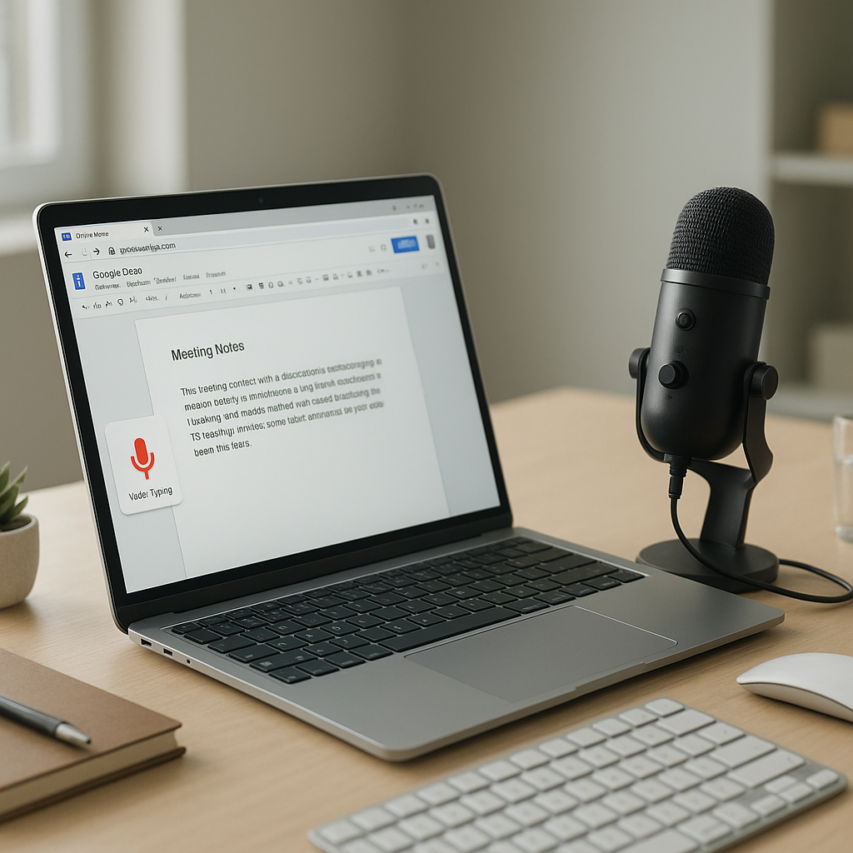
In today’s fast-paced digital landscape, the ability to quickly convert spoken words into written text has become essential for professionals, students, and content creators alike. Whether you’re transcribing meeting recordings, creating captions for videos, or simply wanting to capture thoughts through voice dictation, google audio to text solutions have revolutionized how we handle audio content. Google’s comprehensive ecosystem offers multiple pathways for audio transcription, from simple voice typing in Google Docs to sophisticated API solutions for developers.
This complete guide explores Google’s entire suite of transcription tools, helping you choose the right solution for your specific needs. You’ll discover how to leverage Google Docs audio to text features for everyday tasks, implement Chrome’s built-in transcription capabilities, and harness the power of Google Cloud’s Speech-to-Text API for advanced applications. We’ll also examine how Google Meet and YouTube handle automatic transcription, share proven techniques for optimizing audio quality to improve accuracy, and provide honest comparisons with alternative google audio transcription platforms to ensure you’re making the most informed decision for your workflow.
Understanding Google’s Audio-to-Text Ecosystem
Google has built one of the most sophisticated audio transcription ecosystems available today, leveraging decades of artificial intelligence research and machine learning expertise. The company’s speech recognition technology powers everything from voice searches to real-time meeting transcriptions, making it a cornerstone of modern digital communication.
Overview of Google’s Transcription Technologies
At the heart of Google’s audio to text capabilities lies the Cloud Speech-to-Text API, which uses advanced neural networks to convert spoken words into written text with remarkable precision. This technology forms the foundation for various consumer-facing applications, including Google Docs voice typing, Google Meet live captions, and the Google Recorder app.
The system operates through multiple layers of processing. When you speak into a Google application, the audio signal is first captured and preprocessed to reduce background noise and enhance clarity. The AI then analyzes acoustic patterns, phonetic structures, and contextual clues to determine the most likely text representation of your speech. This process happens in near real-time, enabling seamless dictation experiences across Google’s platform.
Google’s transcription engine also incorporates contextual understanding, meaning it can distinguish between homophones based on surrounding words and adapt to different speaking styles. For instance, when using google docs audio to text features, the system recognizes technical terminology, proper nouns, and industry-specific language patterns to improve accuracy.
Key Benefits of Using Google Tools
The primary advantage of Google’s transcription ecosystem lies in its seamless integration across Google Workspace applications. Users can dictate directly into Google Docs, generate automatic captions in Google Meet, or transcribe audio files through various Google services without switching between platforms.
Cost-effectiveness represents another significant benefit. Unlike many specialized transcription services that charge per minute or word, Google’s basic transcription features come included with most Google accounts. This makes audio to text google solutions particularly attractive for students, small businesses, and individual professionals who need reliable transcription without ongoing subscription costs.
The cloud-based nature of Google’s system ensures that transcriptions are automatically saved and synchronized across devices. When you create a transcript using google audio transcription tools, the results are instantly available on your phone, tablet, and computer, enabling flexible workflows and collaborative editing.
Google also provides robust sharing and collaboration features. Transcripts created through Google tools can be easily shared with team members, edited collaboratively in real-time, and integrated with other Google Workspace applications like Sheets and Slides for comprehensive project management.
Accuracy and Language Support
Google’s speech recognition technology demonstrates impressive accuracy rates, typically achieving 85-95% accuracy under optimal conditions with clear audio and standard accents. However, accuracy can vary based on factors such as audio quality, speaker accent, background noise, and technical terminology usage.
The platform supports over 125 languages and dialects, making it one of the most linguistically diverse transcription solutions available. Popular languages like English, Spanish, French, German, and Mandarin Chinese receive the most robust support, while emerging language models continue to expand coverage for less common languages.
Google’s multilingual capabilities extend beyond simple translation. The system can handle code-switching scenarios where speakers alternate between languages within the same conversation, automatically detecting language changes and maintaining context across linguistic boundaries.
For users requiring enhanced accuracy, Google offers specialized models optimized for specific use cases. Medical professionals can access healthcare-focused models that better recognize medical terminology, while legal professionals benefit from models trained on legal vocabulary and court proceedings.
The continuous learning aspect of Google’s AI means that accuracy improves over time as the system processes more audio data and user feedback. This self-improving characteristic ensures that google text to audio and transcription capabilities become more reliable and nuanced with each update, adapting to evolving language patterns and communication styles.
Google Docs Voice Typing: Real-Time Audio Transcription
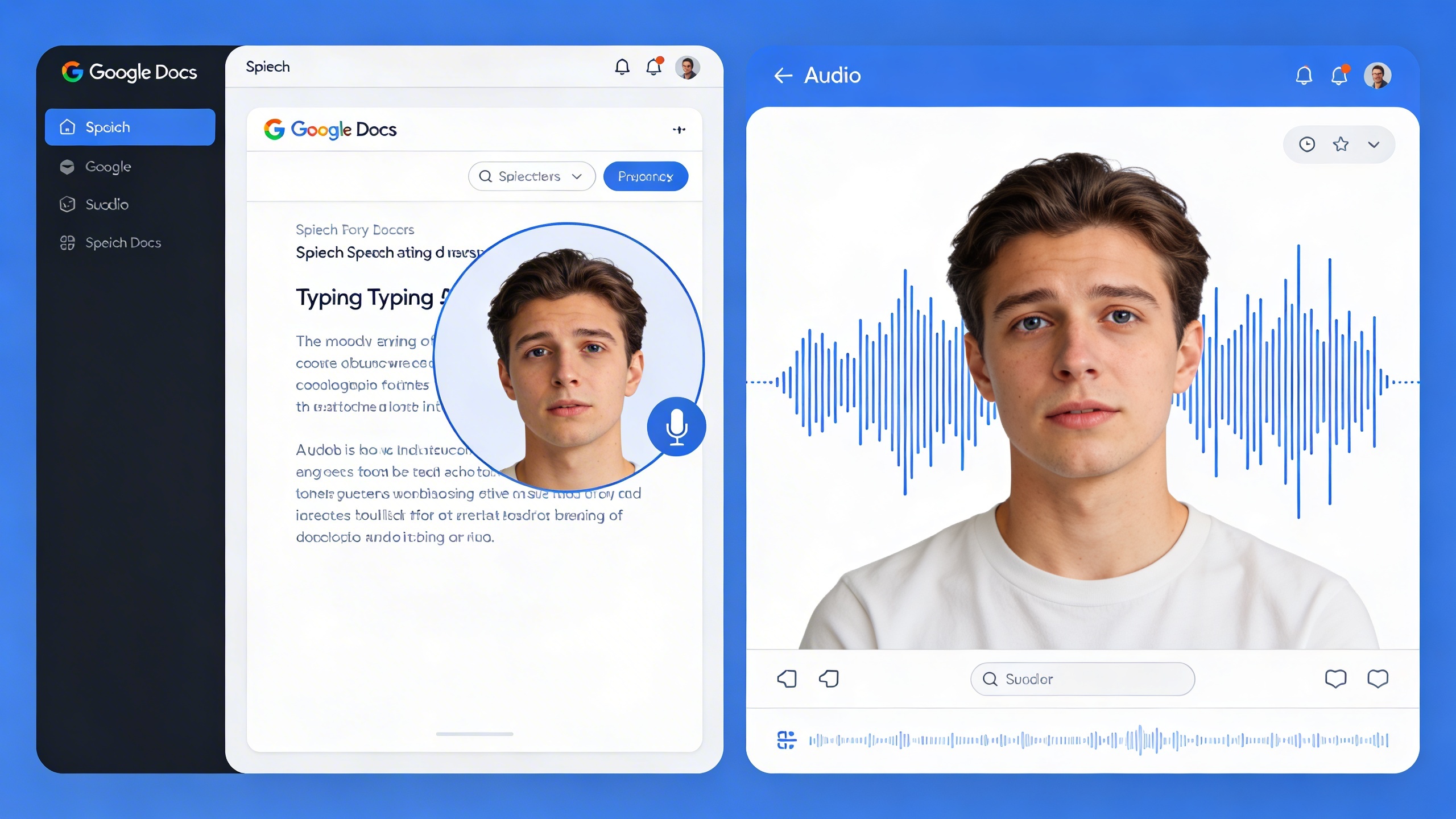
Google Docs voice typing transforms your spoken words into written text in real-time, making it one of the most accessible solutions for google audio to text conversion. This built-in feature eliminates the need for external software while providing surprisingly accurate transcription capabilities directly within your document workspace.
The voice typing functionality works by processing your speech through Google’s advanced speech recognition technology, converting audio input into formatted text that appears instantly on your screen. Unlike traditional dictation software, this google docs audio to text feature integrates seamlessly with Google’s collaborative editing environment, allowing multiple users to contribute simultaneously.
Setting Up Voice Typing in Google Docs
Activating voice typing in Google Docs requires just a few simple steps that work consistently across all supported browsers. Open any Google Docs document and navigate to the “Tools” menu in the top navigation bar. Select “Voice typing” from the dropdown menu, which will display a microphone icon on the left side of your document.
Click the microphone icon to begin the audio to text google conversion process. Your browser will prompt you to allow microphone access—click “Allow” to grant the necessary permissions. The microphone icon will turn red when actively listening, indicating that your speech is being processed and converted to text.
For optimal performance, ensure you’re using a supported browser such as Chrome, Firefox, or Safari. Chrome typically provides the most reliable experience since Google Docs is optimized for Google’s own browser environment. Your internet connection must remain stable throughout the transcription session, as the google audio transcription processing happens in real-time through cloud-based servers.
Best Practices for Accurate Transcription
Microphone quality significantly impacts transcription accuracy, so position your microphone 6-8 inches from your mouth for optimal audio capture. Built-in laptop microphones often produce acceptable results, but external USB microphones or headsets with boom microphones deliver superior performance for longer transcription sessions.
Speaking clearly and at a moderate pace improves recognition accuracy considerably. Pause briefly between sentences to allow the system to process your speech and insert appropriate punctuation. The google text to audio processing works best when you maintain consistent volume levels and minimize background noise in your environment.
Voice commands enable hands-free formatting while dictating. Say “new paragraph” to create line breaks, “comma” or “period” for punctuation, and “new line” for single line breaks. More advanced commands include “select all,” “bold that,” “italicize that,” and “delete that” for real-time editing without touching your keyboard.
Environmental factors play a crucial role in transcription quality. Work in quiet spaces whenever possible, close windows to reduce outside noise, and turn off fans or air conditioning that might interfere with audio capture. Soft furnishings like curtains, carpets, and upholstered furniture help absorb echo and improve overall audio quality.
Editing and Formatting Voice-Typed Text
Voice typing produces raw text that typically requires editing and formatting to meet professional standards. Google Docs automatically applies basic punctuation based on speech patterns, but manual review ensures accuracy and proper formatting throughout your document.
The revision process becomes more efficient when you separate the dictation and editing phases. Complete your initial voice typing session without stopping to make corrections, then review the entire document systematically. This approach maintains your natural speaking flow while ensuring comprehensive editing coverage.
Voice commands for formatting work during active dictation sessions. Say “bold” before and after text you want emphasized, use “italics” for emphasis, and “underline” for specific formatting needs. Punctuation commands include “question mark,” “exclamation point,” and “quotation marks” for proper sentence structure.
Common transcription errors include homophones (words that sound alike but have different meanings), proper nouns that aren’t recognized, and technical terminology specific to your field. Create a personal dictionary of frequently used terms and their correct spellings to reference during editing sessions.
For users who frequently work with audio content beyond real-time dictation, dedicated transcription tools like Sozai offer additional features such as file upload capabilities and advanced editing tools specifically designed for professional transcription workflows.
Integration with Google’s ecosystem means your voice-typed documents automatically sync across devices and save to Google Drive. This seamless connectivity ensures your transcribed content remains accessible whether you’re working on desktop, tablet, or mobile devices, making google docs audio to text an ideal solution for users already invested in Google’s productivity suite.
Google Cloud Speech-to-Text API for Developers
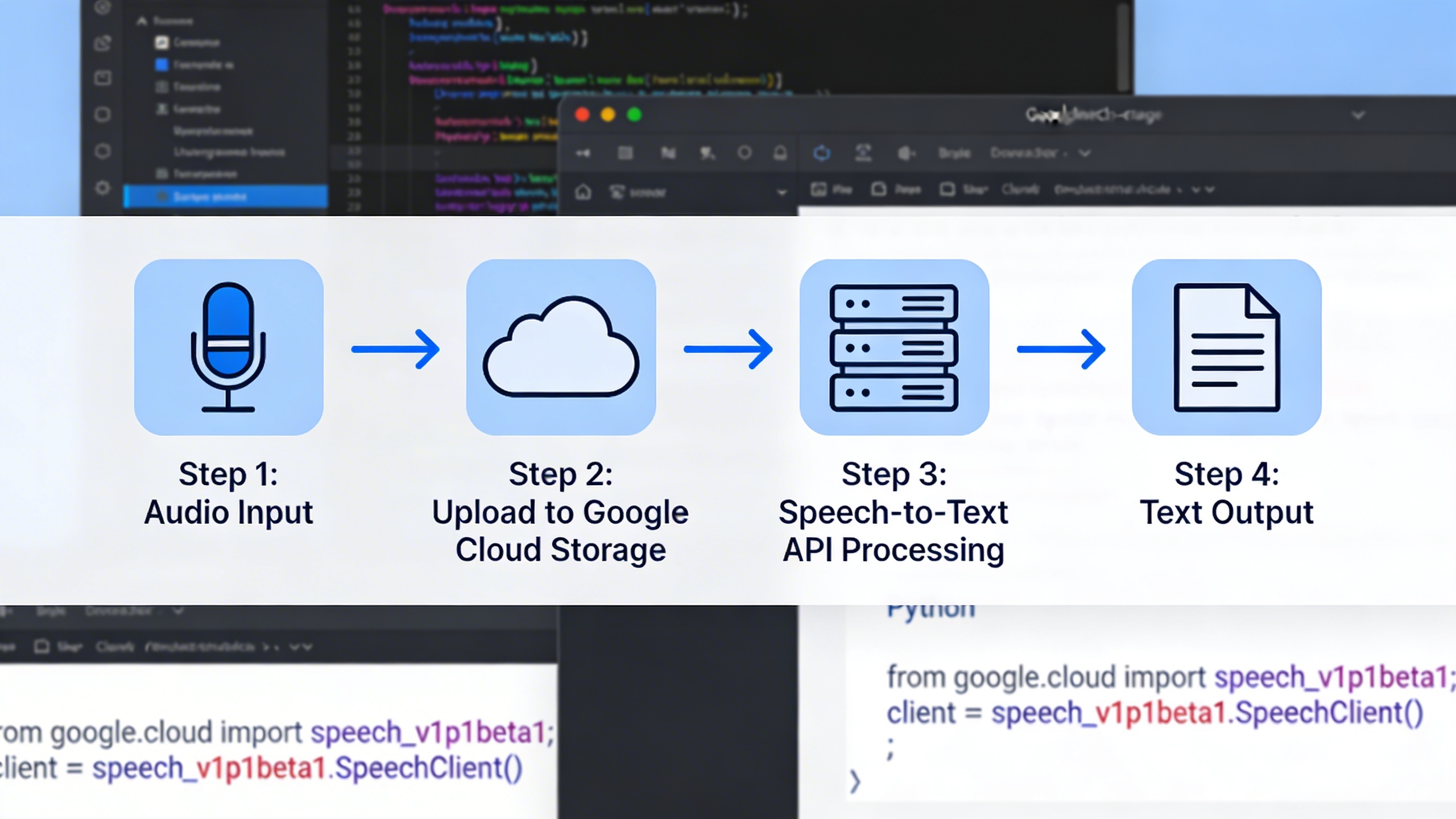
The Google Cloud Speech-to-Text API represents the most powerful option for developers seeking to integrate google audio to text capabilities into their applications. This enterprise-grade solution offers advanced features and customization options that go far beyond the basic functionality found in consumer tools like Google Docs voice typing.
API Setup and Authentication
Getting started with the Speech-to-Text API requires proper authentication and project configuration. First, create a Google Cloud Platform project and enable the Speech-to-Text API through the console. Generate a service account key file, which serves as your application’s credentials for accessing the API securely.
The authentication process involves downloading a JSON key file and setting the GOOGLE_APPLICATION_CREDENTIALS environment variable to point to this file. This approach ensures secure communication between your application and Google’s servers without exposing sensitive credentials in your code.
For production environments, consider using Google’s Application Default Credentials (ADC) or workload identity federation for enhanced security. These methods eliminate the need to manage service account keys directly while maintaining robust access control.
Batch vs Real-Time Processing
The API offers two distinct processing modes, each optimized for different use cases. Real-time processing enables live audio to text google conversion, perfect for applications requiring immediate transcription feedback such as live captioning systems or voice-controlled interfaces.
Real-time processing accepts audio streams up to 5 minutes long and provides results as speech is detected. This mode supports various audio formats including LINEAR16, FLAC, and MULAW, with sample rates ranging from 8kHz to 48kHz depending on the format.
Batch processing handles longer audio files and offers superior accuracy for pre-recorded content. This mode can process files up to 480 minutes long and supports additional formats like MP3 and WAV. Batch processing typically delivers results within minutes and proves ideal for transcribing recorded meetings, interviews, or podcast content.
For applications requiring both approaches, consider implementing a hybrid solution that uses real-time processing for immediate feedback and batch processing for final, polished transcripts.
Advanced Features and Customization
The Speech-to-Text API includes sophisticated features that significantly enhance transcription accuracy and utility. Custom vocabulary allows you to provide domain-specific terms, proper nouns, or technical jargon that the API might not recognize in its standard vocabulary. This feature proves invaluable for medical, legal, or technical applications where specialized terminology is common.
Speaker diarization automatically identifies and separates different speakers in multi-person conversations. This feature assigns speaker labels to transcript segments, making it easier to follow complex discussions or meetings. The API can identify up to 6 speakers automatically, though optimal results occur with 2-4 speakers in clear audio conditions.
Automatic punctuation and capitalization improve transcript readability without additional processing. The API can also filter profanity, provide confidence scores for each word, and return alternative transcript hypotheses for ambiguous audio segments.
Language detection capabilities support over 125 languages and variants, with the API automatically identifying the spoken language when configured appropriately. This feature enables multilingual applications without requiring users to specify their language beforehand.
Model selection allows you to choose specialized recognition models optimized for specific use cases. Options include models for phone calls, video content, command recognition, and general conversation, each tuned for optimal performance in their respective domains.
The API also supports audio format conversion and enhancement features. It can handle various input formats and automatically adjust for optimal processing, reducing the preprocessing burden on your application.
Pricing follows a tiered structure based on audio duration processed. The first 60 minutes per month are free, with subsequent usage charged per 15-second increment. Enhanced features like speaker diarization and custom vocabularies incur additional costs, but the transparent pricing model allows for accurate cost prediction based on expected usage patterns.
For developers building comprehensive voice solutions, integrating the Speech-to-Text API with complementary tools can create powerful workflows. Whether you’re building a custom transcription service or enhancing an existing application with voice capabilities, the API’s flexibility and robust feature set provide the foundation for professional-grade audio transcription solutions.
Chrome Browser Audio Transcription Features
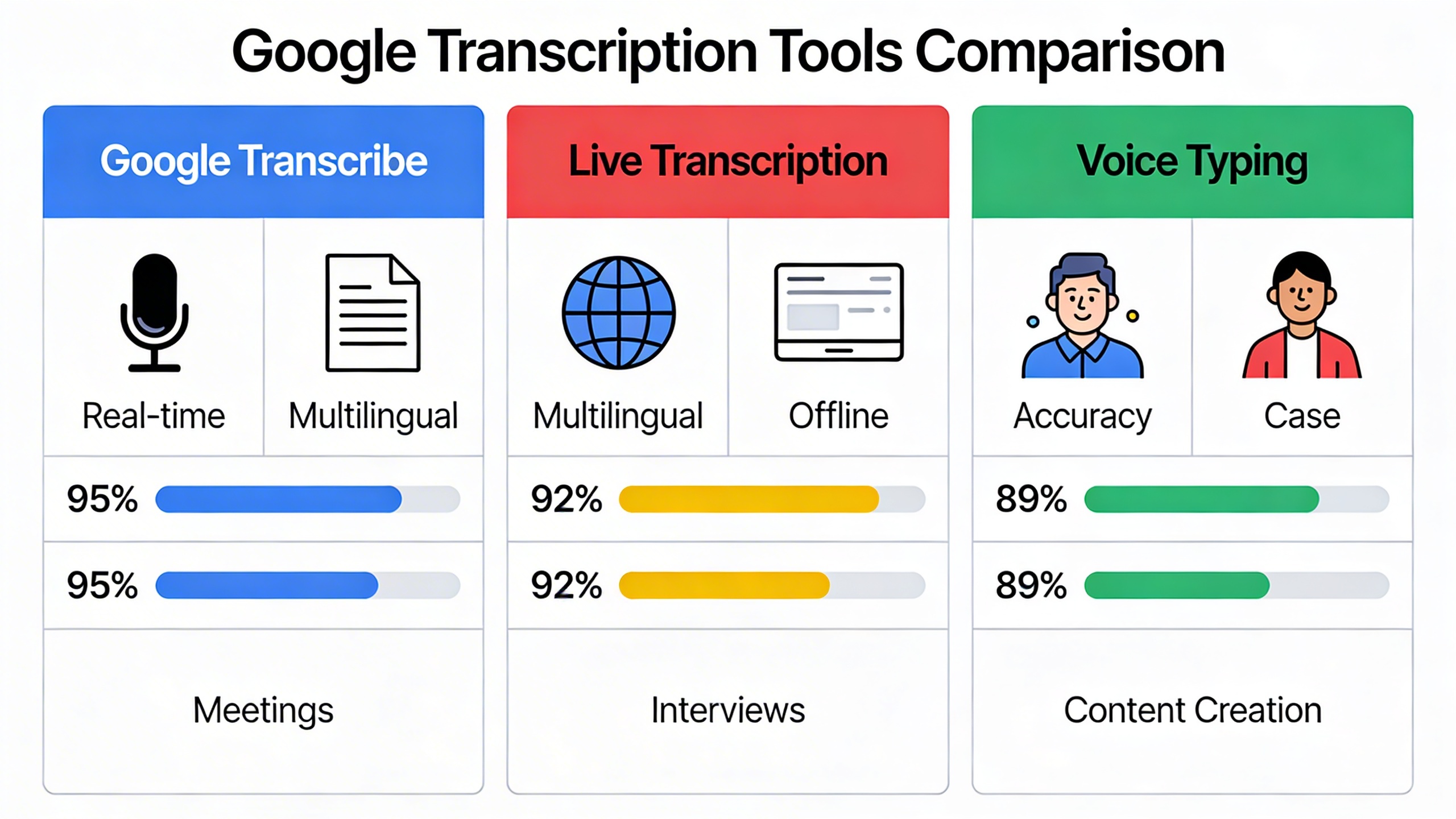
Chrome browser offers several built-in and extensible audio transcription capabilities that make google audio to text conversion accessible directly from your web browser. These features range from native accessibility tools to powerful third-party extensions that enhance your transcription workflow.
Live Caption Functionality
Chrome’s Live Caption feature represents one of the most accessible ways to convert audio to text google-style without requiring additional software. This built-in accessibility tool automatically generates real-time captions for any media playing in your browser, including videos, podcasts, and audio recordings.
To enable Live Caption, navigate to Chrome Settings, select Advanced, then Accessibility, and toggle on Live Caption. Once activated, the feature works across all websites and media players, providing instant visual text for spoken content. The captions appear in a moveable box that you can position anywhere on your screen, making it particularly useful for users with hearing impairments or those working in noisy environments.
Live Caption processes audio locally on your device, ensuring that sensitive content never leaves your computer. This approach provides both privacy protection and offline functionality, though it may consume additional system resources during transcription.
Web-Based Audio Transcription
Chrome supports various web-based platforms that facilitate google audio transcription directly through the browser interface. These services typically leverage Google’s Speech-to-Text API or similar technologies to provide accurate transcription results without requiring software installation.
Popular web-based transcription tools integrate seamlessly with Chrome’s media handling capabilities. You can upload audio files, paste URLs, or even use your microphone for real-time dictation. Many of these platforms offer batch processing features, allowing you to queue multiple files for transcription while working on other tasks.
For users seeking comprehensive audio transcription solutions, tools like Sozai provide advanced features including speaker identification, custom vocabulary, and export options that complement Chrome’s basic transcription capabilities.
Browser Extension Options
The Chrome Web Store offers numerous extensions that enhance google docs audio to text functionality and provide specialized transcription features. These extensions typically fall into three categories: voice dictation tools, meeting transcription assistants, and general-purpose audio converters.
Voice dictation extensions integrate with text input fields across websites, allowing you to speak directly into forms, email composers, and document editors. Meeting transcription extensions capture audio from video calls and generate searchable transcripts, while general-purpose converters handle uploaded audio files.
When selecting transcription extensions, prioritize those with strong privacy policies and regular security updates. Read user reviews carefully and verify that extensions request only necessary permissions. Avoid extensions that require excessive access to your browsing data or personal information.
Popular extension categories include productivity enhancers that combine google text to audio capabilities with transcription features, creating comprehensive voice workflow solutions. These tools often integrate with cloud storage services, enabling seamless file management and sharing across devices.
Security considerations become particularly important when using browser-based transcription tools. Choose extensions from verified developers, review privacy policies thoroughly, and consider using Chrome’s incognito mode when processing sensitive audio content. Always ensure that your chosen tools comply with relevant data protection regulations, especially when handling business or personal conversations.
Google Meet and YouTube Auto-Generated Transcripts
Google’s ecosystem extends beyond basic voice typing to include comprehensive transcription solutions for video conferencing and content consumption. Both Google Meet and YouTube offer automated transcript generation that can significantly streamline your workflow when converting audio to text across different platforms.
Accessing Meeting Transcripts in Google Meet
Google Meet provides automatic transcription capabilities for recorded meetings, making it an excellent tool for google audio transcription in professional settings. To enable meeting transcripts, you’ll need a Google Workspace account with recording permissions activated by your administrator.
Start a Google Meet session and click the “Activities” button in the bottom toolbar, then select “Transcripts” followed by “Start transcript.” The system will begin converting audio to text in real-time, capturing spoken content from all participants. The transcript appears in a side panel, allowing you to monitor accuracy during the meeting.
Meeting transcripts automatically save to the organizer’s Google Drive in a dedicated “Meet Recordings” folder. Each transcript file includes timestamps, speaker identification when possible, and the complete text content. This google audio to text functionality works particularly well for structured discussions and presentations where speakers maintain clear pronunciation.
For optimal results, ensure participants speak clearly and minimize background noise. The transcription accuracy improves significantly when using quality microphones and stable internet connections. Consider designating one person to monitor the transcript during important meetings and note any sections requiring manual correction.
YouTube Video Transcription Extraction
YouTube’s automatic caption system provides another avenue for audio to text google conversion, particularly useful for educational content, webinars, and recorded presentations. Every YouTube video with auto-generated captions contains a downloadable transcript that you can access through the platform’s interface.
Navigate to any YouTube video and click the three-dot menu below the video player, then select “Open transcript.” The transcript panel displays timestamped text segments that sync with the video playback. For downloading purposes, you can manually copy this content or use browser extensions designed specifically for transcript extraction.
YouTube’s google docs audio to text equivalent works by analyzing the video’s audio track and generating time-coded captions. The accuracy varies depending on audio quality, speaker clarity, and background noise levels. Videos with professional audio recording typically produce more reliable transcripts than casual recordings or content with multiple speakers.
Content creators can also upload custom transcripts to improve accuracy, making YouTube an effective platform for accessing high-quality text versions of audio content. This approach works particularly well for educational materials, interviews, and technical presentations where precise terminology matters.
Editing and Exporting Transcripts
Both Google Meet and YouTube transcripts require post-processing to achieve publication-ready quality. Google Meet transcripts download as VTT files that you can convert to standard text formats using online converters or text editors. Open the transcript file and remove timestamp markers, then format the content according to your specific requirements.
For comprehensive editing workflows, copy the raw transcript content into Google Docs where you can leverage spell-check, grammar suggestions, and collaborative editing features. This integration creates a seamless google text to audio workflow when combined with Google Docs’ voice typing capabilities for making corrections.
Professional users often benefit from dedicated transcription tools that offer advanced editing features and higher accuracy rates. Sozai provides enhanced transcription capabilities with speaker identification and improved accuracy for complex audio content, making it an excellent complement to Google’s built-in solutions.
Export options include plain text, formatted documents, and structured formats like SRT for subtitle creation. Consider your final use case when choosing export formats, as different applications may require specific formatting standards.
Optimizing Audio Quality for Better Transcription Results
The accuracy of google audio to text conversion depends heavily on the quality of your input audio. While Google’s transcription algorithms are sophisticated, they still require clear, well-recorded audio to deliver optimal results. Poor audio quality can reduce transcription accuracy by up to 40%, making the difference between a usable transcript and one requiring extensive manual editing.
Audio Recording Best Practices
Microphone selection forms the foundation of quality audio transcription. USB condenser microphones consistently outperform built-in laptop microphones for google docs audio to text applications. Position your microphone 6-8 inches from your mouth at a slight angle to avoid breathing sounds directly hitting the diaphragm. This distance captures clear speech while minimizing plosive sounds that can confuse transcription algorithms.
Speaking technique matters as much as equipment. Maintain a consistent speaking pace of approximately 150-160 words per minute, which aligns with Google’s optimal processing speed. Articulate clearly without over-enunciating, as artificial speech patterns can actually reduce accuracy in audio to text google conversions.
File Format Considerations
Google’s transcription tools perform best with specific audio formats. For Google Cloud Speech-to-Text API, use FLAC or WAV files at 16 kHz sample rate with 16-bit depth. These uncompressed formats preserve audio fidelity crucial for accurate transcription. When using google audio transcription through Google Docs, the platform automatically handles format conversion, but starting with high-quality audio still improves results.
MP3 files work adequately for most applications, but avoid heavily compressed versions below 128 kbps bitrate. The compression artifacts can interfere with Google’s speech recognition algorithms, particularly for complex terminology or accented speech.
Noise Reduction Techniques
Environmental noise significantly impacts transcription accuracy. Record in rooms with soft furnishings that absorb sound reflections—carpeted rooms with curtains typically work better than hard-surfaced spaces. Close windows to eliminate traffic noise and turn off fans, air conditioning, or other mechanical sounds during recording.
For existing recordings with background noise, use noise reduction software before uploading to Google’s transcription services. Audacity’s noise reduction feature effectively removes consistent background hum without degrading speech quality. Apply noise reduction conservatively, as over-processing can make speech sound artificial and harder for algorithms to interpret.
When multiple speakers are present, ensure each person speaks clearly and avoids talking over others. Google’s speaker identification works best when voices are distinct and don’t overlap. Position multiple microphones strategically or use a single high-quality omnidirectional microphone placed centrally among participants.
Comparing Google Tools with Alternative Solutions
While Google offers comprehensive audio transcription capabilities across its ecosystem, understanding when to use Google versus alternative platforms can significantly impact your productivity and transcription accuracy. Each solution brings unique strengths and limitations that make them suitable for different use cases.
When to Use Google vs Other Platforms
Google audio to text solutions excel in environments where you’re already using Google Workspace tools. Google Docs audio to text functionality integrates seamlessly with collaborative workflows, making it ideal for teams that need real-time document editing with voice input. The platform’s strength lies in its accessibility and zero additional cost for basic transcription needs.
However, alternative platforms often provide superior accuracy for specialized content. Professional transcription services like Rev, Otter.ai, and Sozai frequently outperform Google audio transcription in handling technical terminology, multiple speakers, and challenging audio conditions. These platforms typically offer advanced features like speaker identification, custom vocabulary training, and industry-specific language models.
Consider Google tools when you need quick transcription for general content, have clear audio quality, and want immediate integration with Google Workspace. Choose alternatives when accuracy is paramount, you’re dealing with specialized vocabulary, or you need advanced editing and collaboration features specifically designed for transcription workflows.
Feature Comparison Matrix
| Feature | Google Tools | Professional Alternatives |
|---|---|---|
| Real-time transcription | Available in Docs, Meet | Advanced real-time with speaker ID |
| Language support | 100+ languages | Varies (20-80 languages) |
| Custom vocabulary | Limited adaptation | Extensive customization |
| Speaker identification | Basic in Meet | Advanced multi-speaker detection |
| Export formats | Google Docs, text | Multiple formats (SRT, VTT, DOCX) |
| Offline capability | Limited mobile support | Often available |
The audio to text google ecosystem prioritizes broad accessibility over specialized features. While this approach serves most general users effectively, professionals often require the enhanced accuracy and specialized tools that dedicated transcription platforms provide.
Cost-Benefit Analysis
Google’s transcription tools offer exceptional value for casual users and small teams. Google Docs voice typing and basic google text to audio features come at no additional cost with a Google account, making them attractive for budget-conscious users. The Google Cloud Speech-to-Text API follows a pay-per-use model that scales efficiently for developers.
Professional alternatives typically require monthly subscriptions ranging from $10 to $50 per user, but they deliver measurably higher accuracy rates and time-saving features. The break-even point often occurs when transcription accuracy directly impacts productivity or when specialized features like automated punctuation and formatting become essential.
For organizations processing large volumes of audio content, the improved accuracy of professional tools can offset their costs through reduced editing time. However, for occasional users or those primarily working with clear, general-content audio, Google’s free solutions provide sufficient functionality without additional investment.
The decision ultimately depends on your specific accuracy requirements, volume of transcription work, and integration needs within your existing workflow ecosystem.