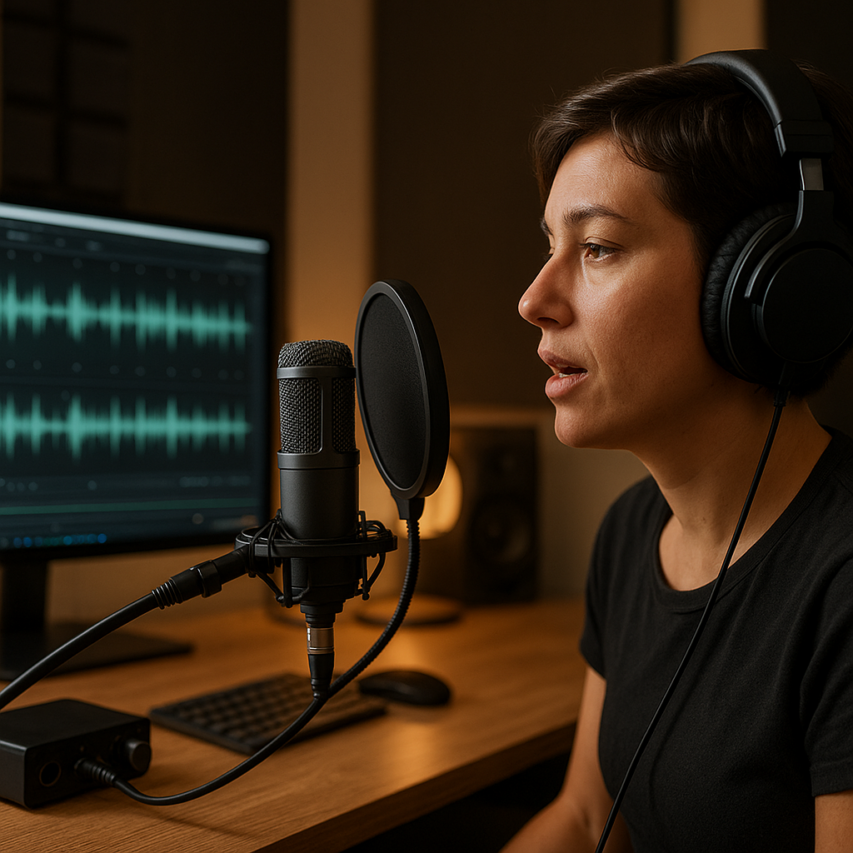
The digital landscape of 2026 has transformed how we capture and share our voices, making it easier than ever to record your voice online with professional-grade quality. Whether you’re a podcaster crafting your next episode, a musician looking to record singing online, an entrepreneur creating video content, or a professional needing to record voice memo online for client presentations, browser-based recording technology has evolved to deliver studio-quality results without expensive equipment or complex software installations.
Modern online voice recording platforms now offer advanced features like real-time noise cancellation, automatic gain control, and high-fidelity audio processing that rival traditional recording studios. From content creators building their personal brands to business professionals conducting remote interviews and voice-over artists delivering client projects, the ability to record my voice online has become an essential skill across countless industries and creative pursuits.
This comprehensive guide will walk you through everything you need to master online voice recording, covering the latest technology, essential equipment recommendations, step-by-step recording techniques, platform comparisons, application-specific strategies, audio enhancement methods, and troubleshooting solutions to ensure your recordings sound polished and professional every time.
Understanding Online Voice Recording Technology
Recording your voice online has become increasingly sophisticated thanks to advances in web-based audio technology. Modern browsers now support high-quality audio capture that rivals traditional desktop recording software, making it possible to record your voice online with professional results directly from your web browser.
How Browser-Based Recording Works
The foundation of online voice recording lies in the Web Audio API, a powerful browser technology that enables real-time audio processing and recording. When you record your voice online through a web application, your browser requests microphone access through the MediaDevices API, which captures audio input and converts it into digital data streams.
This process involves several key steps: the browser accesses your device’s microphone, converts analog audio signals to digital format, applies any necessary processing or filtering, and then saves the recording in your chosen audio format. The Web Audio API provides low-latency audio processing, ensuring that when you record voice memo online or capture longer recordings, the timing remains accurate and synchronized.
Modern browsers handle this process with remarkable efficiency, supporting features like noise cancellation, automatic gain control, and echo reduction. These built-in capabilities mean you can achieve professional-quality results without installing specialized software, whether you’re looking to record singing online or capture spoken content.
Audio Quality Standards and Formats
Understanding audio formats is crucial for achieving optimal results when you record your voice online. Different formats offer varying levels of quality, file size, and compatibility across devices and platforms.
| Format | Quality | File Size | Best Use Case |
|---|---|---|---|
| WAV | Uncompressed, highest quality | Large | Professional recording, editing |
| MP3 | Good quality, compressed | Small | Sharing, streaming, storage |
| OGG | High quality, open source | Medium | Web applications, cross-platform |
| AAC | High quality, efficient compression | Small | Mobile devices, podcasting |
Sample rate and bit depth significantly impact recording quality. For voice recordings, a 44.1 kHz sample rate with 16-bit depth provides excellent quality for most applications. However, if you plan to record singing online or need broadcast-quality audio, consider 48 kHz at 24-bit depth for maximum fidelity.
Most online recording platforms automatically handle format conversion, allowing you to record in high quality and then export in your preferred format. This flexibility ensures your recordings maintain professional standards while remaining compatible with your intended distribution method.
System Requirements and Compatibility
Online voice recording technology works across a wide range of devices and browsers, though performance varies based on your system specifications. Modern browsers including Chrome, Firefox, Safari, and Edge all support the Web Audio API, enabling you to record your voice online regardless of your preferred browser.
For optimal performance, ensure your device meets these minimum requirements: a dual-core processor, 4GB of RAM, and a stable internet connection. While you can record voice memo online with lower specifications, these requirements ensure smooth real-time processing and prevent audio dropouts during longer recording sessions.
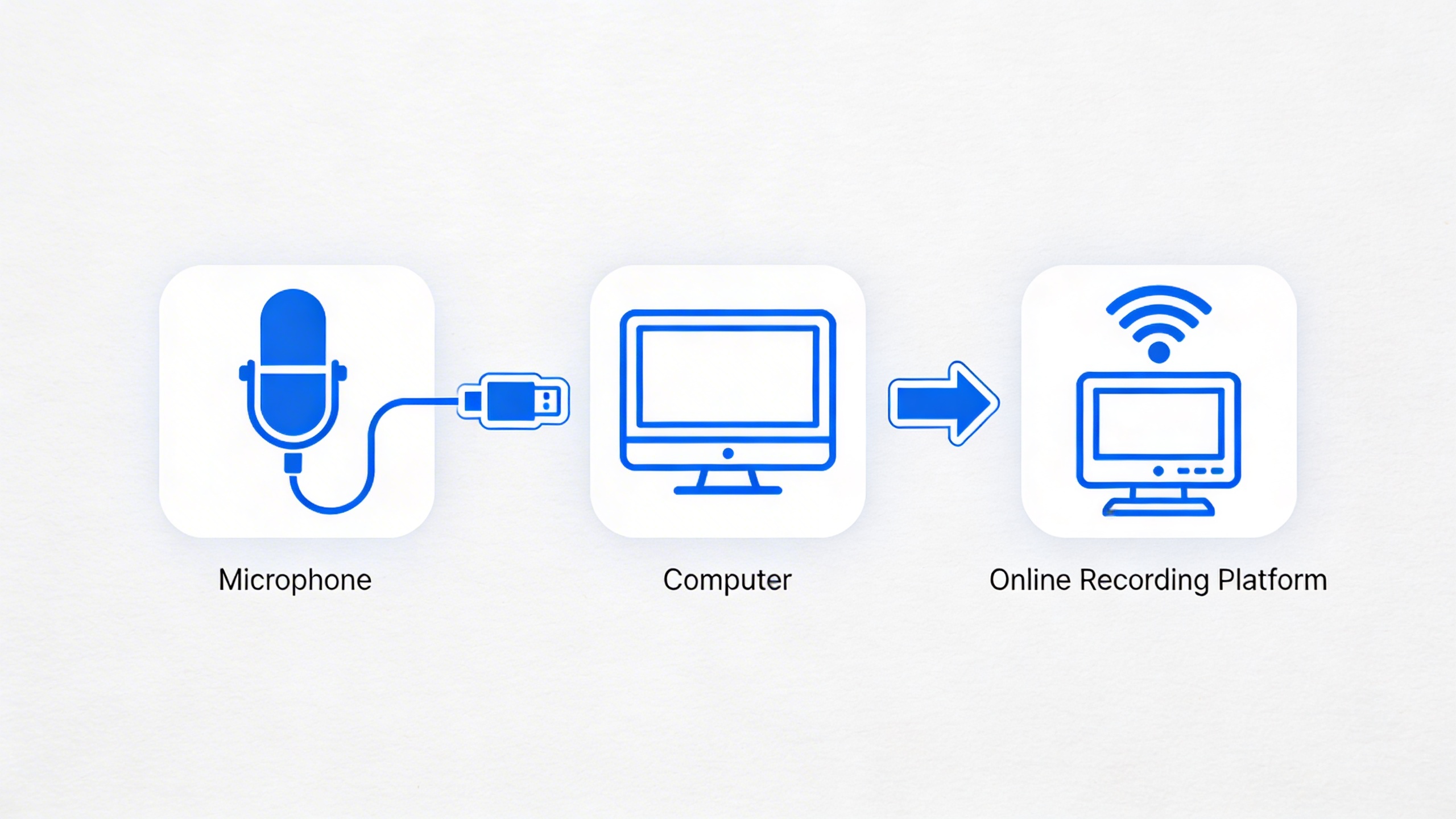
Hardware compatibility extends beyond built-in microphones. Most online recording platforms support external USB microphones, audio interfaces, and even professional XLR setups through compatible interfaces. This flexibility allows you to scale your recording quality from basic voice memos to professional-grade content.
Browser security policies require explicit user permission for microphone access, ensuring your privacy while enabling recording functionality. Once granted, these permissions typically persist for trusted sites, streamlining future recording sessions.
Cross-platform compatibility means you can start a recording on your desktop computer and continue editing on your mobile device, with cloud-based platforms maintaining synchronization across all your devices.
Essential Equipment for Online Voice Recording
Creating professional-quality audio when you record your voice online depends heavily on having the right equipment setup. While modern recording software has made the process more accessible than ever, your hardware choices will ultimately determine the clarity and professionalism of your final recordings. Whether you’re planning to record voice memo online for business purposes or record singing online for creative projects, investing in proper equipment will dramatically improve your results.
Microphone Selection and Setup
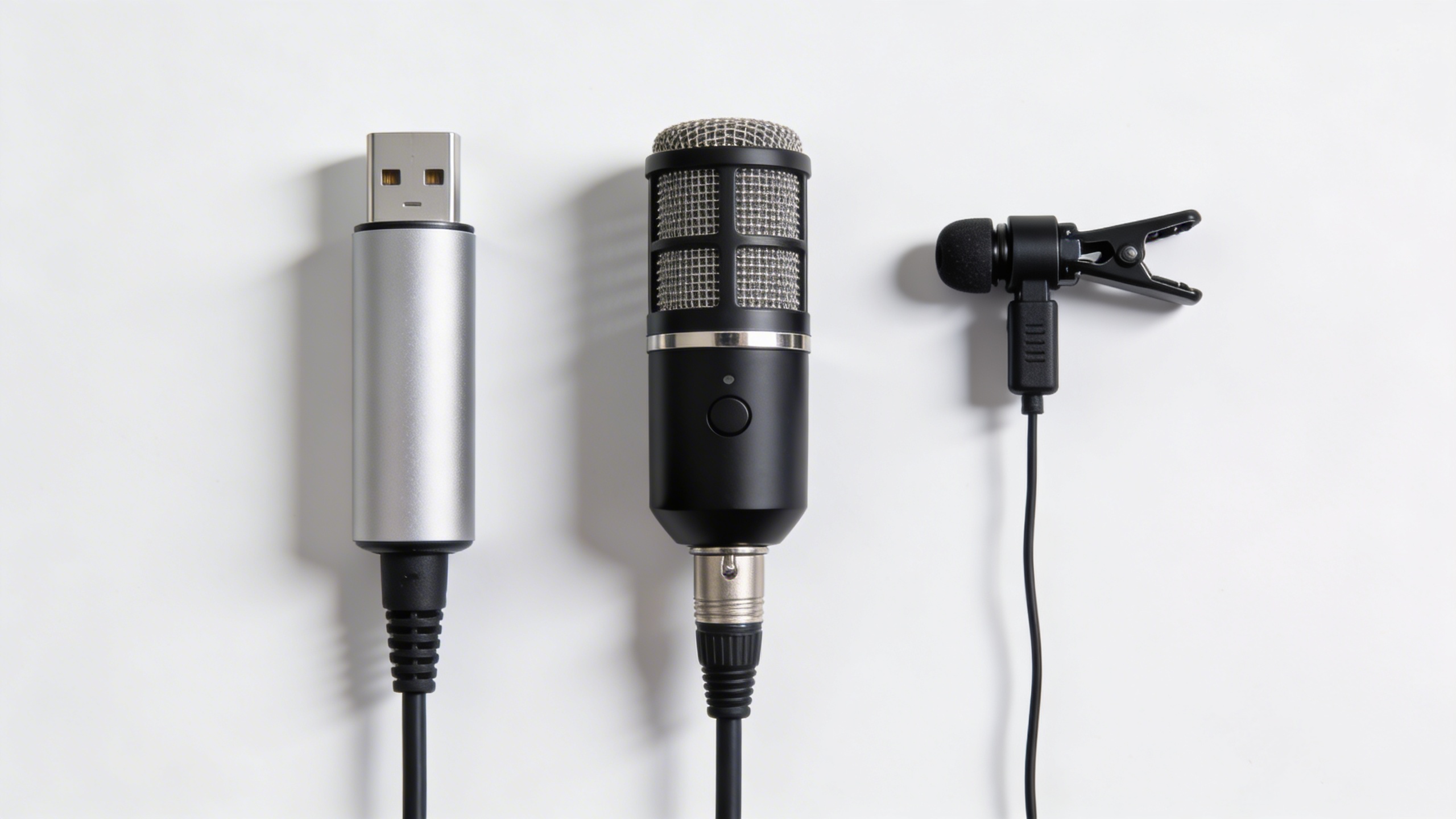
The microphone serves as the foundation of any online voice recording setup. Dynamic microphones excel in untreated rooms and reject background noise effectively, making them ideal for podcasting and voice-over work. The Shure SM7B and Audio-Technica BP40 represent industry standards that deliver broadcast-quality results.
Condenser microphones offer superior sensitivity and frequency response, capturing nuanced vocal details that make them perfect when you need to record singing online or create professional voice-overs. Popular choices include the Audio-Technica AT2020 and Rode PodMic, both offering excellent value for content creators.
USB microphones provide plug-and-play convenience for beginners who want to record their voice online without complex setup requirements. The Blue Yeti and Audio-Technica ATR2100x-USB deliver professional results while maintaining user-friendly operation. Position your microphone 6-8 inches from your mouth and slightly off-axis to minimize breathing sounds and plosive consonants.
Proper microphone placement significantly impacts recording quality. Mount your microphone on a boom arm or desktop stand to reduce handling noise and vibrations. Use a pop filter positioned 4-6 inches from the microphone capsule to eliminate harsh plosive sounds that can ruin otherwise perfect takes.
Audio Interface and Headphone Considerations
Audio interfaces bridge the gap between professional XLR microphones and your computer, providing superior audio quality compared to built-in sound cards. When choosing between USB and XLR setups, consider your long-term recording goals and budget constraints.
USB microphones connect directly to your computer and work immediately with most recording software. This simplicity makes them excellent for content creators who need to record voice memo online quickly and efficiently. However, USB microphones limit your upgrade path and typically offer fewer control options.
XLR interfaces provide professional connectivity and expandability. Entry-level options like the Focusrite Scarlett Solo or PreSonus AudioBox USB 96 offer single-input recording perfect for solo voice work. These interfaces include phantom power for condenser microphones and provide dedicated headphone monitoring with zero-latency direct monitoring capabilities.
| Interface Type | Best For | Price Range | Expandability |
|---|---|---|---|
| USB Microphone | Beginners, quick setup | $50-$200 | Limited |
| Single-input XLR | Solo recording, podcasts | $100-$300 | Moderate |
| Multi-input XLR | Interviews, music recording | $200-$500 | High |
Quality headphones enable accurate monitoring during recording and editing sessions. Closed-back headphones prevent audio bleed that could contaminate your recordings. The Sony MDR-7506 and Audio-Technica ATH-M40x provide accurate frequency response for critical listening and mixing tasks.
Acoustic Environment Optimization
Your recording environment dramatically affects audio quality when you record your voice online. Hard surfaces create reflections and echo that muddy your recordings, while soft materials absorb unwanted reverb and create a more controlled acoustic space.
Transform any room into a suitable recording space using strategic acoustic treatment. Hang heavy blankets or moving blankets on walls behind and beside your recording position. Position yourself away from parallel walls to minimize standing wave reflections that create frequency buildup.
Create a temporary vocal booth using a closet filled with clothes, which naturally absorbs reflections and reduces room tone. Alternatively, record under a heavy comforter or inside a car for surprisingly effective isolation from external noise sources.
Noise reduction techniques extend beyond acoustic treatment. Record during quiet hours when traffic and household activity reach minimum levels. Turn off air conditioning, refrigerators, and other appliances that create background hum. Use thick curtains to block external noise and create additional sound absorption.
Consider your microphone’s polar pattern when positioning yourself in the room. Cardioid microphones reject sound from behind, so position noise sources like computers and air conditioning units behind the microphone rather than in front of it.
For content creators who frequently need to record voice memo online or create professional presentations, tools like Sozai can complement your hardware setup by providing AI-powered transcription and voice enhancement features that streamline your workflow from recording to final output.
Step-by-Step Guide to Recording Your Voice Online
Recording professional-quality audio online requires careful preparation and attention to detail. Whether you’re looking to record singing online or capture a quick voice memo online, following a systematic approach ensures consistent, high-quality results every time.
Setting Up Your Recording Session
Before you begin to record your voice online, complete this essential pre-recording checklist to avoid common pitfalls that can ruin an otherwise perfect take:
- Test your internet connection stability – unstable connections can cause dropouts or sync issues
- Close unnecessary applications to free up system resources and prevent audio interruptions
- Position your microphone 6-8 inches from your mouth at a slight angle to avoid breathing directly into it
- Adjust your recording environment lighting if you’re using video – avoid backlighting that creates shadows
- Set your microphone input levels to peak around -12dB to -6dB, leaving headroom for louder passages
- Perform a 30-second test recording to check for background noise, echo, or technical issues
- Have water nearby to keep your voice hydrated, but avoid ice-cold drinks that can tighten vocal cords
Your recording space plays a crucial role in audio quality. Choose a room with soft furnishings like carpets, curtains, or upholstered furniture to minimize reflections. If you’re in a hard-surfaced room, consider hanging blankets or moving to a smaller space like a walk-in closet for natural sound dampening.
Recording Techniques and Best Practices
Proper microphone technique forms the foundation of professional online voice recording. Maintain consistent distance from your microphone throughout your session – moving closer creates a proximity effect that boosts bass frequencies, while moving away reduces presence and clarity.
When you record voice memo online or work on longer projects, use the “smile technique” where you maintain a slight smile while speaking. This opens your vocal tract and creates a warmer, more engaging tone that translates well through digital recording systems.
For optimal breath control, practice diaphragmatic breathing before recording. Place one hand on your chest and one on your stomach – the stomach hand should move more than the chest hand when breathing correctly. This technique provides better vocal support and reduces audible breathing between phrases.
Consider your speaking pace and articulation carefully. Online recordings often compress dynamic range, so speak slightly slower than normal conversation pace and articulate consonants clearly. This compensates for potential quality loss during encoding and streaming.
When working with scripts or prepared content, mark natural pause points in advance. These breaks serve as edit points and give you opportunities to take breaths without disrupting the flow of your recording.
Monitoring and Quality Control
Real-time monitoring through headphones is essential when you record your voice online. Use closed-back headphones to prevent audio bleed into your microphone, and set monitoring levels comfortable enough to detect issues without causing ear fatigue during longer sessions.
Watch your input levels continuously during recording. Most online recording platforms display real-time level meters – aim for peaks between -12dB and -6dB. If you see red clipping indicators, stop immediately and reduce your input gain or move slightly farther from the microphone.
Implement a systematic take management strategy to maintain organization and efficiency. Number your takes clearly and keep brief notes about each attempt. For example, “Take 3 – good energy, slight stumble at 2:30” helps you identify the best performances during editing.
Listen back to short segments every 10-15 minutes to catch developing issues early. Audio problems like increasing background noise, changing room acoustics, or microphone drift are easier to correct when caught quickly rather than after completing an entire session.
For applications requiring transcription or detailed analysis of your recordings, tools like Sozai can automatically convert your audio to text, making it easier to review content accuracy and identify sections that might need re-recording.
Create backup recordings when possible, especially for important projects. Many online recording platforms offer automatic backup features, but having a local backup provides additional security for irreplaceable content.
Before concluding your session, record 30 seconds of room tone – the natural ambient sound of your recording space. This “silence” proves invaluable during editing for smoothing transitions and maintaining consistent background ambience throughout your final audio.
Online Voice Recording Tools and Platforms
Selecting the right platform to record your voice online can significantly impact your recording quality and workflow efficiency. With numerous options available, from simple browser-based tools to comprehensive recording suites, understanding each platform’s capabilities helps you make an informed decision that aligns with your specific needs and budget.
Browser-Based Recording Solutions
Browser-based recording platforms offer immediate accessibility without requiring software downloads or installations. These solutions work directly through your web browser, making them ideal for quick voice recordings, podcasting, or when you need to record voice memo online from any device.
Modern browser-based tools leverage advanced Web Audio APIs to deliver surprisingly high-quality recordings. Many platforms support real-time audio processing, noise reduction, and automatic gain control. Popular options include Vocaroo for simple voice notes, AudioMass for more advanced editing capabilities, and Rev Voice Recorder for professional transcription integration.
The primary advantage of browser-based solutions lies in their universal compatibility. Whether you’re using Chrome, Firefox, Safari, or Edge, these platforms typically function seamlessly across different operating systems. This cross-platform reliability makes them excellent choices for teams collaborating across various devices and environments.
Feature Comparison and Selection Criteria
When evaluating platforms to record your voice online, several key criteria determine which solution best serves your requirements. Audio quality remains the most critical factor, with platforms offering different sample rates, bit depths, and compression algorithms.
| Feature | Basic Platforms | Professional Platforms | Enterprise Solutions |
|---|---|---|---|
| Maximum Recording Length | 5-10 minutes | Unlimited | Unlimited |
| Audio Quality | 16-bit/44.1kHz | 24-bit/96kHz | 32-bit/192kHz |
| File Formats | MP3, WAV | MP3, WAV, FLAC, OGG | All formats + custom |
| Cloud Storage | Limited | Generous | Unlimited |
| Collaboration Tools | Basic sharing | Comments, versioning | Full workflow management |
Integration capabilities play a crucial role in professional workflows. Platforms that seamlessly connect with cloud storage services, project management tools, and content management systems streamline your recording process. For musicians looking to record singing online, features like metronome integration, multi-track capabilities, and real-time effects processing become essential considerations.
Security and privacy features deserve careful evaluation, especially for sensitive recordings. Look for platforms offering end-to-end encryption, secure file sharing options, and compliance with relevant data protection regulations. Professional users often require audit trails and access controls for team collaboration.
Free vs Premium Options
Free online voice recording platforms typically provide basic functionality suitable for personal use, simple voice memos, and casual content creation. These solutions often include recording limitations, watermarks, or reduced audio quality. However, they serve as excellent starting points for beginners exploring online voice recording capabilities.
Premium platforms justify their cost through enhanced features, superior audio processing, and professional support. Advanced noise reduction algorithms, real-time collaboration tools, and extensive format support characterize these solutions. Many premium platforms offer tiered pricing structures, allowing users to scale features based on their evolving needs.
The cost-benefit analysis depends heavily on your intended use case. Content creators producing regular podcasts or video content benefit from premium features like automated transcription, advanced editing tools, and direct publishing integrations. For occasional voice recordings or basic note-taking, free solutions often provide adequate functionality.
When budget considerations are important, many platforms offer freemium models with upgrade paths. This approach allows you to test platform capabilities before committing to paid subscriptions. Some services provide educational discounts or special pricing for non-profit organizations, making professional tools more accessible.
Consider the total cost of ownership beyond subscription fees. Platforms requiring additional software, training, or technical support may increase overall expenses. Conversely, all-in-one solutions that combine recording, editing, and distribution capabilities often provide better value despite higher upfront costs.
Voice Recording for Specific Applications
Different voice recording applications require tailored approaches to achieve professional results. Whether you’re creating content for podcasts, capturing musical performances, or producing commercial voiceovers, understanding application-specific requirements ensures your recordings meet industry standards and audience expectations.
Podcast and Content Creation
When you record your voice online for podcasting, consistency and clarity take priority over studio-perfect acoustics. Most successful podcasters focus on creating a controlled environment that delivers reliable results episode after episode. Position your microphone 6-8 inches from your mouth and maintain this distance throughout recording to ensure consistent volume levels.
Podcast recording typically requires a frequency response range of 80Hz to 15kHz, which captures the full spectrum of human speech without unnecessary low-end rumble or harsh high frequencies. Record at 44.1kHz sample rate with 16-bit depth for most podcast platforms, though 48kHz/24-bit provides additional headroom for post-production editing.
For interview-style podcasts, consider using separate recording channels for each participant. This approach allows independent volume control and noise reduction during editing. Many podcasters who record voice memo online during preparation sessions find this practice helps refine their delivery and identify potential technical issues before the main recording.
Singing and Musical Performances
Musical voice recording demands the highest audio quality standards, as vocal performances often serve as the centerpiece of musical compositions. When you record singing online, prioritize capturing the full dynamic range and tonal characteristics of your voice. Use a large-diaphragm condenser microphone positioned 8-12 inches away to capture both intimate details and powerful vocal passages.
Professional singing recordings typically require 48kHz/24-bit resolution to preserve the subtle harmonics and overtones that define vocal character. Pay careful attention to room acoustics, as reflections and standing waves can significantly impact the final recording quality. Even modest acoustic treatment using blankets or foam panels can dramatically improve results.
Consider the musical context when setting recording levels. Leave adequate headroom for dynamic vocal passages, typically keeping peak levels between -12dB and -6dB to prevent digital clipping. Many singers benefit from using a pop filter and shock mount to minimize plosive sounds and handling noise that can distract from the musical performance.
Professional Voiceovers and Narration
Commercial voiceover work requires broadcast-quality recordings that meet strict technical specifications. When you record your voice online for professional applications, audio must be virtually noise-free with consistent levels throughout the entire recording. Industry standards typically require a signal-to-noise ratio of at least 60dB, with background noise floors below -50dB.
Professional voiceover recordings use 48kHz/24-bit resolution as the industry standard, providing sufficient quality for broadcast, streaming, and commercial distribution. Maintain peak levels between -12dB and -6dB during recording, allowing room for mastering and loudness normalization required by different broadcast standards.
Develop a consistent workflow that includes pre-recording voice warm-ups, script markup, and multiple take recording. Many voice professionals record multiple versions of challenging passages, providing options during the editing phase. When working with online voice recording platforms, ensure your chosen tool supports punch-and-roll recording, which allows seamless correction of mistakes without stopping the entire session.
For clients requiring immediate delivery, consider platforms that offer real-time transcription capabilities. Tools like Sozai can provide instant text versions of your recordings, helping clients review content quickly and request specific revisions without manually transcribing audio files.
Regardless of your specific application, maintain detailed recording logs that include microphone settings, room conditions, and any processing applied during capture. This documentation ensures consistency across multiple recording sessions and helps troubleshoot issues that may arise during longer projects.
Online Audio Editing and Enhancement
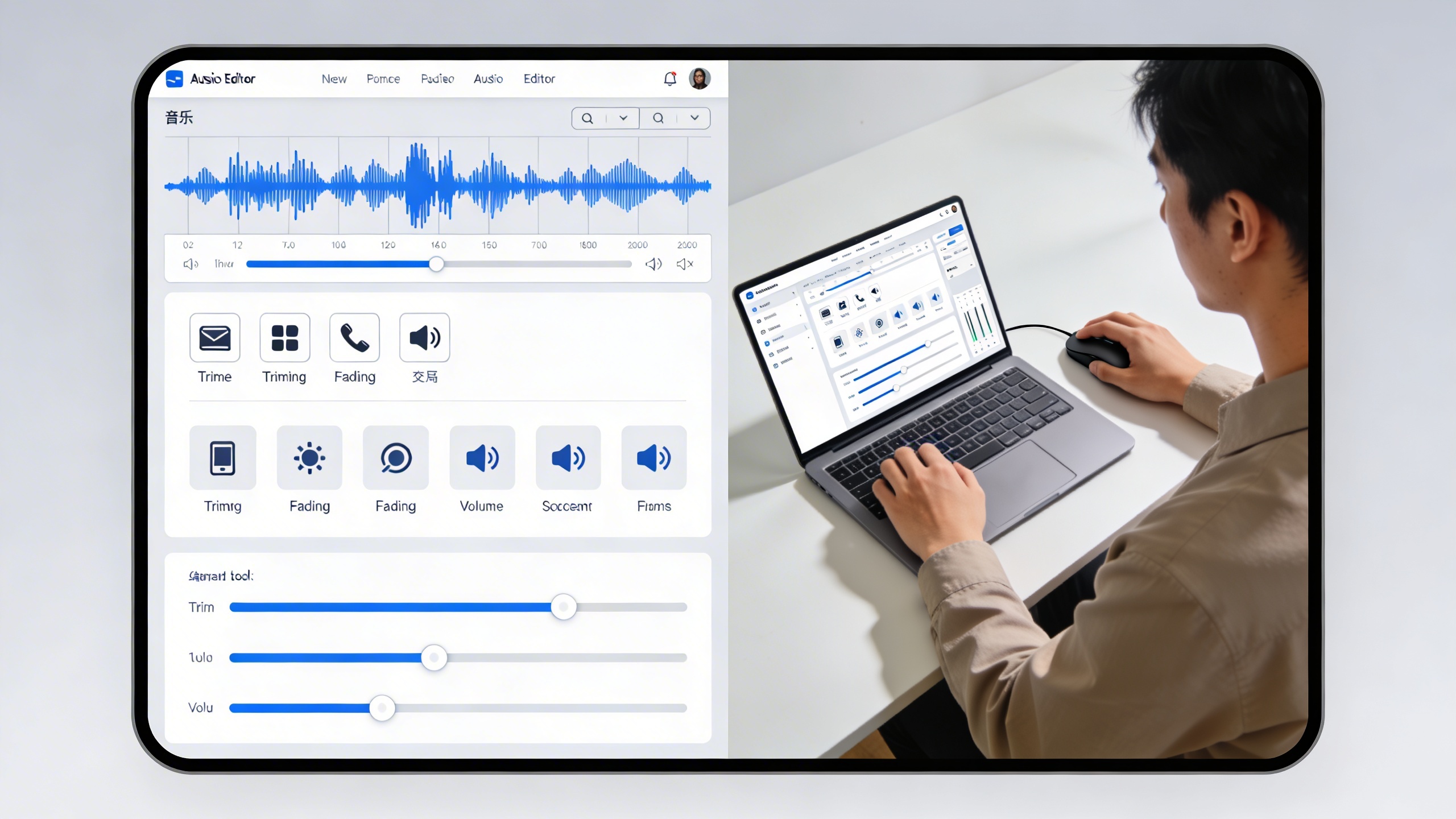
Recording your voice online is just the beginning—proper editing transforms raw recordings into polished, professional audio. Modern web-based editing platforms offer sophisticated tools that rival desktop software, making it easier than ever to enhance your recordings without installing complex programs.
Basic Editing Techniques
Start with fundamental edits that dramatically improve your recordings. Trim silence from the beginning and end of your tracks, removing awkward pauses and background noise. When you record your voice online, you’ll often capture unwanted breathing sounds or mouth clicks—use precise cutting tools to remove these distractions while maintaining natural speech flow.
Adjust volume levels using normalization and compression tools. Normalization ensures consistent loudness throughout your recording, while gentle compression reduces the difference between loud and quiet sections. Most online platforms provide visual waveform displays that make it easy to identify volume inconsistencies and apply corrections selectively.
For longer recordings like podcasts or presentations, create smooth transitions between segments using crossfades. These gradual volume changes eliminate jarring cuts and create professional-sounding continuity between different takes or sections.
Noise Reduction and Audio Cleanup
Background noise is the most common challenge when you record voice memo online or capture audio in less-than-ideal environments. Modern noise reduction algorithms can identify and remove consistent background sounds like air conditioning, computer fans, or traffic noise.
Apply noise reduction in stages rather than aggressive single passes. Start with a light 20-30% reduction, then assess the results. Over-processing can create artificial-sounding artifacts that make voices sound robotic or hollow. For recordings with varying noise levels, use spectral editing tools to target specific frequency ranges where unwanted sounds occur.
Address common audio problems systematically:
- Plosives (harsh “p” and “b” sounds): Use high-pass filters to reduce low-frequency bursts
- Sibilance (harsh “s” sounds): Apply de-essing tools that specifically target problematic frequencies
- Room echo: Use reverb reduction algorithms or record in smaller, more acoustically treated spaces
- Electrical interference: Employ notch filters to remove specific frequency hums (typically 50Hz or 60Hz)
Adding Effects and Processing
Enhancement effects should complement your voice rather than mask it. When you record singing online, subtle reverb can add warmth and space, but avoid overwhelming the natural character of your performance. Start with preset configurations designed for voice recording, then make minor adjustments based on your specific needs.
Equalization (EQ) shapes the tonal character of your recordings. Boost frequencies around 2-5kHz for clarity and presence, while reducing muddy low frequencies below 80Hz unless you specifically need that range for dramatic effect. For online voice recording intended for speech, a gentle high-frequency boost around 10-12kHz can add crispness and intelligibility.
Apply dynamic processing thoughtfully. Light compression with ratios between 2:1 and 4:1 helps control volume variations without sacrificing naturalness. Set attack times around 10-30 milliseconds to preserve the initial impact of consonants while smoothing overall dynamics.
Export your finished recordings in appropriate formats for their intended use. For web distribution, MP3 at 128-192 kbps provides good quality with manageable file sizes. When archiving or preparing for further editing, use lossless formats like WAV or FLAC to preserve maximum audio fidelity.
Troubleshooting and Optimization Tips
Even with proper setup and equipment, online voice recording can present unique challenges that require systematic troubleshooting. Understanding how to identify and resolve common issues will help you maintain consistent recording quality and streamline your workflow.
Common Recording Issues and Solutions
Audio dropouts and crackling sounds often indicate buffer size problems or insufficient system resources. When you record your voice online, increase your audio interface’s buffer size to 512 or 1024 samples if experiencing glitches. Close unnecessary applications and disable real-time antivirus scanning for your recording directory to free up processing power.
Echo and feedback issues typically stem from monitor speakers being too loud or positioned incorrectly. Switch to closed-back headphones when recording to eliminate audio bleed. If you must use speakers, position them behind your microphone and reduce their volume significantly.
Inconsistent input levels can ruin otherwise perfect recordings. Set up proper gain staging by recording a test phrase at your normal speaking volume, then adjusting input gain so peaks hit between -12dB and -6dB. This provides adequate headroom while maintaining strong signal-to-noise ratio.
Performance Optimization
Latency management becomes crucial when you record voice memo online or collaborate with others in real-time. Reduce audio interface latency by lowering buffer sizes to 128 or 256 samples during recording sessions. However, switch back to higher buffer sizes during playback and editing to prevent system overload.
Network stability directly impacts browser-based recording platforms. Use wired ethernet connections instead of Wi-Fi when possible, and close bandwidth-heavy applications like video streaming or cloud syncing. Test your connection speed before important recording sessions to ensure upload capabilities meet platform requirements.
System optimization involves dedicating maximum resources to audio processing. Disable Windows audio enhancements, set your audio application to high priority in Task Manager, and consider using ASIO drivers for professional audio interfaces. These adjustments reduce processing delays and improve overall stability.
Quality Improvement Strategies
Post-recording enhancement can salvage imperfect takes and polish professional content. Apply gentle high-pass filtering around 80Hz to remove low-frequency rumble, and use noise reduction sparingly to avoid artifacts. Compression with 3:1 ratio and slow attack times helps even out dynamic range without destroying natural speech patterns.
Environmental optimization extends beyond initial setup. Record during quieter times of day when ambient noise levels drop naturally. Create consistent acoustic conditions by recording all related content in the same location with identical microphone positioning.
When you record singing online or create musical content, pay special attention to pitch correction and timing alignment. Use reference tracks to maintain consistent tempo, and consider recording multiple takes to comp together the best phrases. Professional applications like Sozai can help streamline the transcription process for spoken content, allowing you to focus on audio quality rather than manual note-taking.
Workflow efficiency improves through template creation and standardized processes. Save optimized recording settings as presets, create folder structures for different project types, and establish naming conventions that make file management effortless. Regular equipment maintenance, including microphone cleaning and cable inspection, prevents technical issues before they impact your recordings.