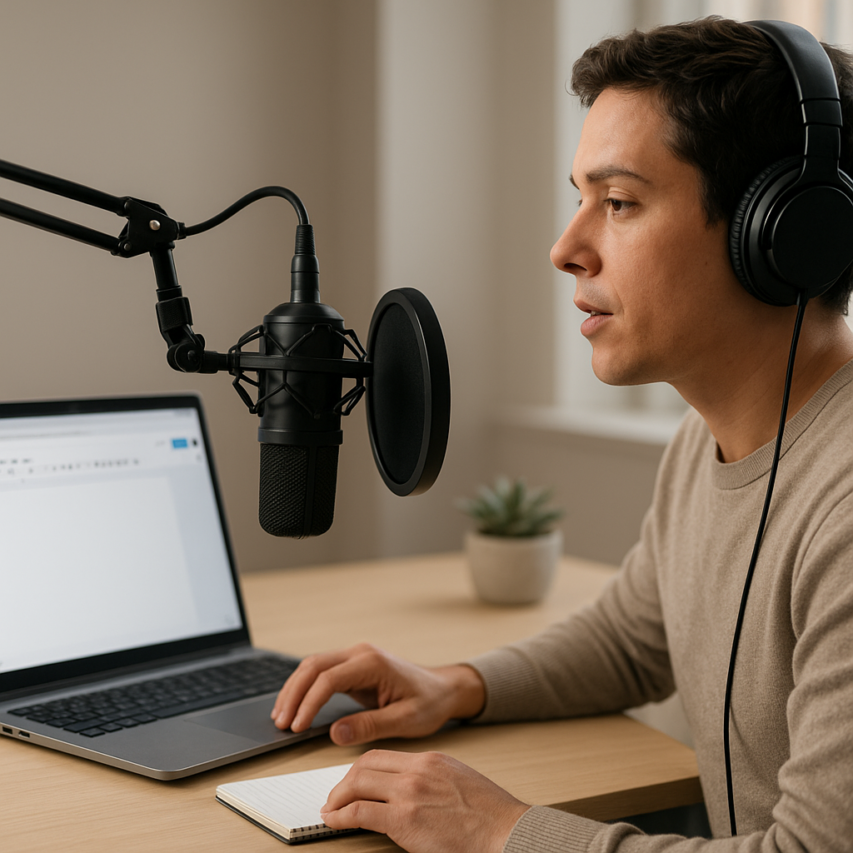
Voice typing in Google Docs has revolutionized how we create documents, transforming the traditional keyboard-and-mouse workflow into a seamless hands-free experience. This powerful voice recognition feature allows you to dictate text naturally while Google’s advanced AI converts your speech into written words in real-time. Whether you’re drafting reports, composing emails, or brainstorming ideas, Google Docs voice typing can significantly boost your productivity while reducing physical strain on your hands and wrists.
The benefits extend far beyond convenience—voice typing serves as an essential accessibility tool for users with mobility challenges, repetitive strain injuries, or visual impairments. It’s also invaluable for capturing thoughts quickly during creative sessions, transcribing interviews, or working on lengthy documents where traditional typing might slow you down. For professionals who need to create content while multitasking or those who simply think faster than they type, voice to text Google Docs functionality opens up entirely new possibilities for efficient document creation.
This comprehensive guide will walk you through everything you need to master Google Docs voice recognition, from basic setup and essential commands to advanced techniques that maximize accuracy and productivity. You’ll discover troubleshooting solutions, device-specific tips, and professional workflows that will transform how you approach document creation forever.
Getting Started with Google Docs Voice Typing
Voice typing in Google Docs transforms how you create documents by allowing you to dictate text naturally instead of typing. This powerful feature converts your spoken words into written text in real-time, making document creation faster and more accessible. Before you can start using voice typing google docs offers, you’ll need to ensure your system meets the basic requirements and complete a simple setup process.
System Requirements and Browser Compatibility
Google docs voice typing works exclusively through web browsers and requires specific technical conditions for optimal performance. The feature functions best on desktop and laptop computers, though it’s also available on tablets with compatible browsers.
Your browser must support Web Speech API technology for voice recognition to work properly. Chrome provides the most reliable experience, as Google designed voice typing in google docs with Chrome’s advanced speech recognition capabilities in mind. Firefox, Safari, and Edge also support the feature, though performance may vary depending on your operating system.
A stable internet connection is essential since voice to text google docs processing happens on Google’s servers. You’ll need a minimum upload speed of 1 Mbps for consistent recognition, though faster connections deliver better accuracy and responsiveness. The feature won’t work offline, so ensure you have reliable connectivity before starting important dictation sessions.
Your computer needs a functioning microphone, whether built-in or external. USB microphones often provide clearer audio input than integrated laptop microphones, resulting in improved transcription accuracy. Headset microphones positioned close to your mouth typically deliver the best results for extended dictation sessions.
Enabling Voice Typing in Your Document
Accessing google docs voice recognition requires a Google account and an open document in your browser. Start by navigating to docs.google.com and either creating a new document or opening an existing one where you want to add dictated content.
Once your document is open, locate the Tools menu in the top navigation bar. Click on Tools, then select “Voice typing” from the dropdown menu. Alternatively, you can use the keyboard shortcut Ctrl+Shift+S (Cmd+Shift+S on Mac) to activate the feature quickly.
A microphone icon will appear on the left side of your document when voice typing becomes active. This icon serves as your control center for starting, stopping, and managing voice input throughout your dictation session.
Initial Setup and Microphone Configuration
When you first activate voice typing google docs provides, your browser will request permission to access your microphone. Click “Allow” in the permission dialog that appears at the top of your browser window. This permission is essential for the feature to function and needs to be granted each time you use a new browser or clear your browser data.
After granting microphone access, test your audio input by clicking the microphone icon and speaking a few words. The icon will display a red recording indicator when actively listening, and you should see your words appear in the document within seconds. If nothing appears, check that your microphone is properly connected and not muted.
Configure your microphone settings through your operating system’s sound preferences if you experience poor recognition accuracy. Adjust input levels so your voice registers clearly without causing distortion. Most systems work well with moderate input levels that capture your natural speaking voice without amplifying background noise.
Select your preferred language from the dropdown menu that appears near the microphone icon. Google docs voice typing supports over 60 languages and dialects, allowing you to dictate in your native language for optimal accuracy. The system automatically detects punctuation and formatting in many languages, though English provides the most comprehensive feature set.
For users who frequently work with voice input across different applications, tools like Sozai offer additional transcription capabilities that complement Google Docs’ built-in features, especially for complex projects requiring advanced voice processing.
Once you’ve completed these setup steps, you’re ready to begin dictating content directly into your Google Docs document using natural speech patterns and voice commands.
Voice Typing Commands and Controls
Mastering voice typing commands transforms Google Docs from a simple dictation tool into a powerful hands-free writing platform. The voice typing google docs feature recognizes dozens of spoken commands that control formatting, navigation, and editing functions. Understanding these commands enables you to create professional documents without touching your keyboard or mouse.
Basic Dictation Commands
Google docs voice typing responds to natural speech patterns and specific command phrases. When dictating, speak clearly at a moderate pace and pause briefly between sentences. The system automatically capitalizes the first word of sentences and applies basic grammar rules.
To control dictation flow, use these essential commands:
- New paragraph – Creates a line break and starts a new paragraph
- New line – Moves to the next line without paragraph spacing
- Stop listening – Pauses voice recognition temporarily
- Resume listening – Reactivates the microphone after pausing
The voice recognition system distinguishes between dictated content and commands through context and specific trigger words. Commands typically begin with action words like “select,” “delete,” or “format,” while regular speech flows naturally into your document text.
Formatting and Punctuation Commands
Voice typing in google docs includes comprehensive punctuation and formatting controls that rival traditional typing methods. These commands enable professional document creation without manual formatting.
Essential punctuation commands include:
| Say This | Result |
|---|---|
| Period | . |
| Comma | , |
| Question mark | ? |
| Exclamation point | ! |
| Semicolon | ; |
| Colon | : |
| Open quote | “ |
| Close quote | “ |
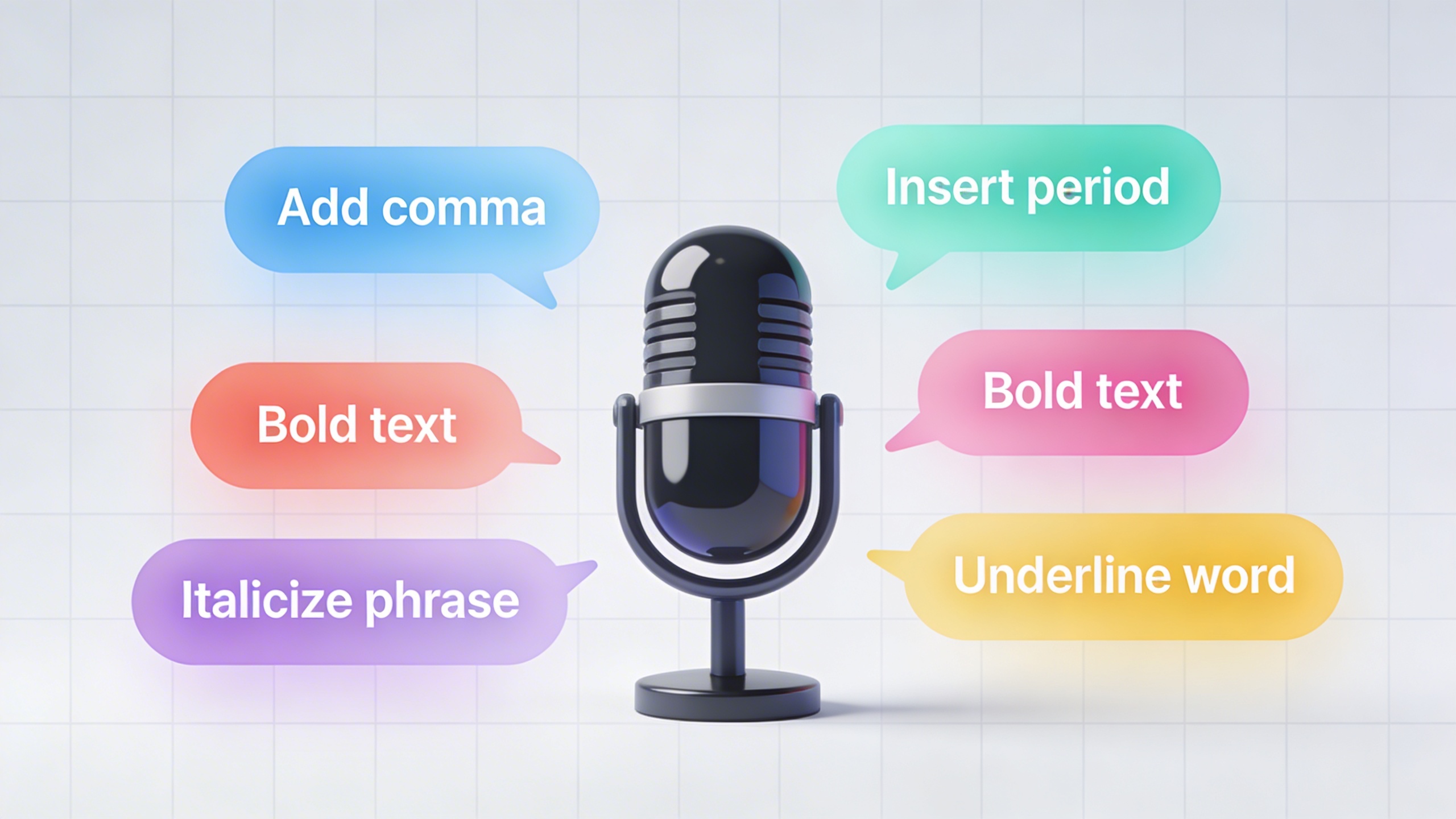
Text formatting commands provide extensive styling options through voice commands. Say “make that bold” to apply bold formatting to previously dictated text, or “italicize that” for italic styling. The google docs voice typing system also recognizes commands like “underline that,” “strikethrough that,” and “remove formatting.”
For advanced formatting, use commands such as:
- “Apply heading 1” – Formats selected text as a main heading
- “Apply heading 2” – Creates a secondary heading style
- “Apply normal text” – Returns text to standard paragraph formatting
- “Increase indent” – Moves text further right
- “Decrease indent” – Moves text back to the left
Navigation and Editing Voice Commands
The voice to text google docs feature includes sophisticated navigation commands that enable precise cursor control and text manipulation. These commands eliminate the need for mouse clicks or keyboard shortcuts during document creation.
Text selection commands provide granular control over document content:
- “Select all” – Highlights the entire document
- “Select paragraph” – Highlights the current paragraph
- “Select [word or phrase]” – Highlights specific text you name
- “Select previous word” – Highlights the word before the cursor
- “Select next three words” – Highlights multiple words ahead of the cursor
Cursor movement commands enable precise positioning without manual navigation. Say “go to beginning of document” to jump to the start, or “go to end of paragraph” for local navigation. The “move to beginning of line” and “move to end of line” commands provide fine-grained cursor control within sentences.
Editing commands streamline content revision through voice control. The “delete” command removes selected text, while “delete previous word” removes the word immediately before the cursor. For larger edits, use “delete previous sentence” or “delete paragraph” to remove entire sections efficiently.
Advanced editing includes replacement commands like “replace [original text] with [new text]” which finds and substitutes specific phrases throughout your document. The “undo that” command reverses the last action, while “redo that” restores previously undone changes.
Google docs voice recognition also supports list creation through commands like “start numbered list” and “start bulleted list.” These commands automatically format subsequent dictated items as list elements, with “next item” creating new bullet points or numbers as you speak.
For users seeking enhanced transcription capabilities beyond basic document creation, tools like Sozai offer advanced voice-to-text features that complement Google Docs’ built-in functionality, particularly for complex audio transcription tasks and meeting documentation.
Advanced Voice Typing Techniques
Once you’ve mastered the basics of voice typing google docs, you can unlock powerful advanced features that transform how you create documents. These sophisticated techniques help you work more efficiently across different languages, document types, and specialized contexts.
Multi-Language Support and Switching
Google docs voice typing supports over 100 languages, making it invaluable for multilingual users and international collaboration. To switch languages during dictation, click the microphone icon and select your desired language from the dropdown menu. The system automatically adjusts its voice recognition algorithms to match the selected language’s phonetics and grammar patterns.
For documents containing multiple languages, establish a consistent switching routine. Pause your dictation, change the language setting, then resume speaking. This prevents the voice to text google docs feature from misinterpreting words from one language as similar-sounding words in another. When working with technical terms or proper nouns from different languages, speak slowly and clearly to improve accuracy.
Professional translators and international business professionals often use this feature to create bilingual documents efficiently. For example, when drafting contracts that require both English and Spanish versions, you can dictate sections in each language sequentially, reducing the time needed for manual translation.
Custom Voice Commands and Shortcuts
Beyond standard formatting commands, you can develop personalized workflows that maximize your productivity with voice typing in google docs. Create verbal shortcuts for frequently used phrases by establishing consistent patterns. For instance, saying “signature block” could remind you to dictate your standard email signature, while “meeting template” triggers your usual meeting notes format.
Develop muscle memory for complex formatting sequences. Instead of saying individual commands, chain them together smoothly. For example, “new line, new line, bold on, heading colon, bold off, new line” creates a properly formatted section header in one fluid sequence. This approach significantly speeds up document creation compared to switching between voice and manual formatting.
Consider creating a personal command reference sheet with your most-used phrases and formatting sequences. This helps maintain consistency across documents and reduces the cognitive load of remembering specific command syntax during dictation sessions.
Voice Typing for Different Document Types
Different document types require tailored approaches to maximize the effectiveness of google docs voice recognition. For academic papers, establish a rhythm that accommodates citations and complex sentence structures. Dictate your main thoughts first, then add “citation needed” or “reference Smith 2023” as verbal placeholders you can complete later.
Business reports benefit from a structured approach where you dictate section headers first, then fill in content. Start with “heading one, executive summary, new line, new line” to establish your document framework. This method helps maintain logical flow and ensures you don’t miss critical sections.
Creative writing requires a different strategy altogether. Focus on maintaining your creative flow rather than perfect formatting. Use voice typing google docs to capture ideas rapidly, speaking in a stream-of-consciousness style. You can always refine grammar and structure during the editing phase, but preserving the initial creative burst is paramount.
For technical documentation, pre-populate your document with specialized terminology and acronyms that the voice recognition system might struggle with. Create a glossary section at the top of your document, then reference it as needed. This approach helps the system learn your specific vocabulary patterns and improves accuracy throughout the document.
Meeting notes and interview transcriptions represent another specialized use case. When capturing live conversations, focus on key points rather than verbatim transcription. Use commands like “new bullet point” to organize information hierarchically, and don’t hesitate to pause dictation when you need to process complex information before continuing.
Legal professionals often combine voice typing with traditional typing for documents requiring extreme precision. Use voice input for drafting initial content and standard clauses, then switch to manual input for specific legal language that demands exact wording.
Optimizing Voice Recognition Accuracy
Achieving reliable accuracy with voice typing google docs requires attention to several technical and environmental factors. The quality of your voice input directly impacts how well Google’s speech recognition engine converts your spoken words into text, making proper optimization essential for productive hands-free document creation.
Microphone Setup and Audio Quality
Your microphone serves as the foundation for successful google docs voice typing sessions. Position your microphone between 6 to 8 inches from your mouth, maintaining this distance consistently throughout your dictation. Built-in laptop microphones often struggle with voice recognition due to their distance from your mouth and tendency to pick up keyboard noise and fan sounds.
External USB microphones or quality headset microphones provide significantly better results for voice typing in google docs. Before starting your dictation session, test your microphone levels in your computer’s audio settings. The input level should register consistently in the green zone without hitting the red peak indicators when you speak at normal volume.
Ensure your microphone drivers are updated and consider using a pop filter if you notice plosive sounds (hard “P” and “B” sounds) causing recognition errors. Room acoustics also matter—hard surfaces like glass windows and bare walls can create echo that interferes with voice recognition accuracy.
Speaking Techniques for Better Recognition
Developing proper speaking techniques dramatically improves google docs voice recognition performance. Speak at a moderate, conversational pace rather than rushing through your content. The speech recognition system needs time to process each word and understand the context of your sentences.
Maintain consistent volume throughout your dictation session. Sudden volume changes can confuse the voice to text google docs algorithm and lead to missed words or incorrect transcriptions. Practice speaking with clear articulation, emphasizing consonants and avoiding mumbling or trailing off at the end of sentences.
When dictating technical terms, proper nouns, or unusual words, speak them slightly slower than your normal pace. Pause briefly between sentences to help the system recognize natural speech boundaries. If you notice frequent errors with specific words, try varying your pronunciation slightly or spelling them out using voice commands.
Avoid filler words like “um,” “uh,” and “like” during dictation, as these can interrupt the flow of recognition and appear in your final text. Instead, pause briefly when you need time to think about your next words.
Training the Voice Recognition System
While Google’s voice recognition system doesn’t offer traditional voice training like some desktop software, you can improve its performance through consistent usage patterns. The system learns from your speech patterns over time, adapting to your accent, speaking style, and vocabulary preferences.
Create a quiet, consistent environment for your voice typing sessions. Background noise from air conditioners, traffic, or conversations can significantly impact recognition accuracy. Use noise-canceling headphones or choose quieter times of day for important dictation work.
For users who frequently work with specialized terminology or multiple languages, consider using dedicated transcription tools like Sozai for complex audio content, then transferring the refined text to Google Docs for final editing and formatting.
Monitor your recognition accuracy over several sessions and note patterns in errors. Common issues often relate to specific words, phrases, or speaking habits that you can consciously adjust to improve overall performance with voice typing google docs functionality.
Troubleshooting Common Voice Typing Issues
Even with proper setup, voice typing in Google Docs can sometimes encounter technical difficulties. Understanding how to diagnose and resolve these issues ensures your voice to text Google Docs experience remains smooth and productive. Most problems fall into three main categories that can be systematically addressed.
Microphone and Audio Problems
Microphone permission issues represent the most frequent barrier to successful voice typing Google Docs sessions. When the browser cannot access your microphone, the voice typing feature simply won’t activate. Navigate to your browser’s site settings and verify that Google Docs has explicit permission to use your microphone. In Chrome, click the lock icon next to the URL and ensure microphone access is set to “Allow.”
Audio input problems often stem from hardware conflicts or incorrect device selection. Check your system’s sound settings to confirm the correct microphone is selected as the default input device. If you’re using an external microphone, ensure it’s properly connected and recognized by your operating system. Background noise can also interfere with recognition accuracy, so test your setup in a quieter environment if you’re experiencing inconsistent results.
Driver issues occasionally cause microphone malfunctions. Update your audio drivers through Device Manager on Windows or System Preferences on Mac. Restart your browser after making these changes, as audio permissions and device recognition often require a fresh browser session to take effect.
Recognition Accuracy Issues
Poor recognition accuracy in Google Docs voice typing typically results from environmental factors or speech patterns that the system struggles to interpret. Speaking too quickly, too softly, or with excessive background noise significantly reduces transcription quality. Maintain a consistent speaking pace and position yourself 6-12 inches from your microphone for optimal pickup.
Language and accent settings can dramatically impact recognition performance. Verify that your Google account’s language preferences match your speaking language and regional accent. Google Docs voice recognition works best when these settings align with your natural speech patterns. Access these settings through your Google Account preferences under “Language and Input Tools.”
Punctuation and formatting commands require precise pronunciation. Practice saying “period,” “comma,” and “new paragraph” clearly and with slight pauses before and after. If the system consistently misinterprets these commands, try speaking them more deliberately or using the manual editing features for complex formatting.
Browser and Connectivity Troubleshooting
Browser compatibility issues can prevent voice typing from functioning entirely. Google Docs voice typing works best in Chrome, though it’s supported in other modern browsers with varying degrees of reliability. Clear your browser cache and cookies, then restart the browser to resolve temporary conflicts that might interfere with the voice recognition service.
Network connectivity problems can cause delays or interruptions in voice processing. Voice typing in Google Docs requires a stable internet connection since the audio processing occurs on Google’s servers. Test your connection speed and stability, particularly if you notice significant delays between speaking and text appearance. A connection speed below 1 Mbps may cause performance issues.
Browser extensions sometimes conflict with Google Docs functionality. Disable ad blockers and privacy extensions temporarily to determine if they’re interfering with microphone access or the voice typing service. Some security extensions block the WebRTC protocols that voice typing requires to function properly.
If problems persist across multiple troubleshooting attempts, try accessing Google Docs in an incognito or private browsing window. This eliminates extension conflicts and cached data issues, helping you identify whether the problem stems from browser configuration or external factors.
Voice Typing on Different Devices
Google Docs voice typing functionality varies significantly across devices, with each platform offering unique advantages for voice to text google docs workflows. Understanding these differences helps you maximize productivity whether you’re working on a smartphone, tablet, or desktop computer.
Voice Typing on Mobile Devices
Mobile devices provide the most intuitive experience for voice typing google docs, leveraging built-in microphones and advanced speech processing. On iOS devices, access voice typing through the microphone icon on your keyboard when editing a Google Docs document. Android users can tap the microphone button or use “Hey Google” voice activation to begin dictation.
Mobile platforms excel at handling background noise and offer superior voice recognition accuracy during movement. The proximity of your mouth to the device microphone creates optimal audio capture conditions. Additionally, mobile voice typing supports multiple languages simultaneously, automatically detecting language switches mid-sentence.
For professionals who frequently dictate on the go, mobile voice typing integrates seamlessly with other productivity apps. You can dictate meeting notes, capture ideas during commutes, or create documents while walking between appointments.
Desktop and Laptop Optimization
Desktop voice typing in google docs requires Chrome browser and proper microphone configuration. Built-in laptop microphones often struggle with ambient noise, making external USB microphones or headsets essential for consistent google docs voice recognition performance. Position your microphone 6-8 inches from your mouth and ensure your workspace minimizes echo and background sounds.
Desktop environments offer advantages for lengthy document creation sessions. Larger screens facilitate easier editing while dictating, and keyboard shortcuts complement voice commands effectively. The combination of voice input and traditional typing creates powerful hybrid workflows for complex documents.
Advanced users benefit from desktop-specific features like multiple monitor setups, where reference materials display on one screen while dictating into Google Docs on another. This configuration proves invaluable for research-heavy writing projects.
Cross-Device Synchronization
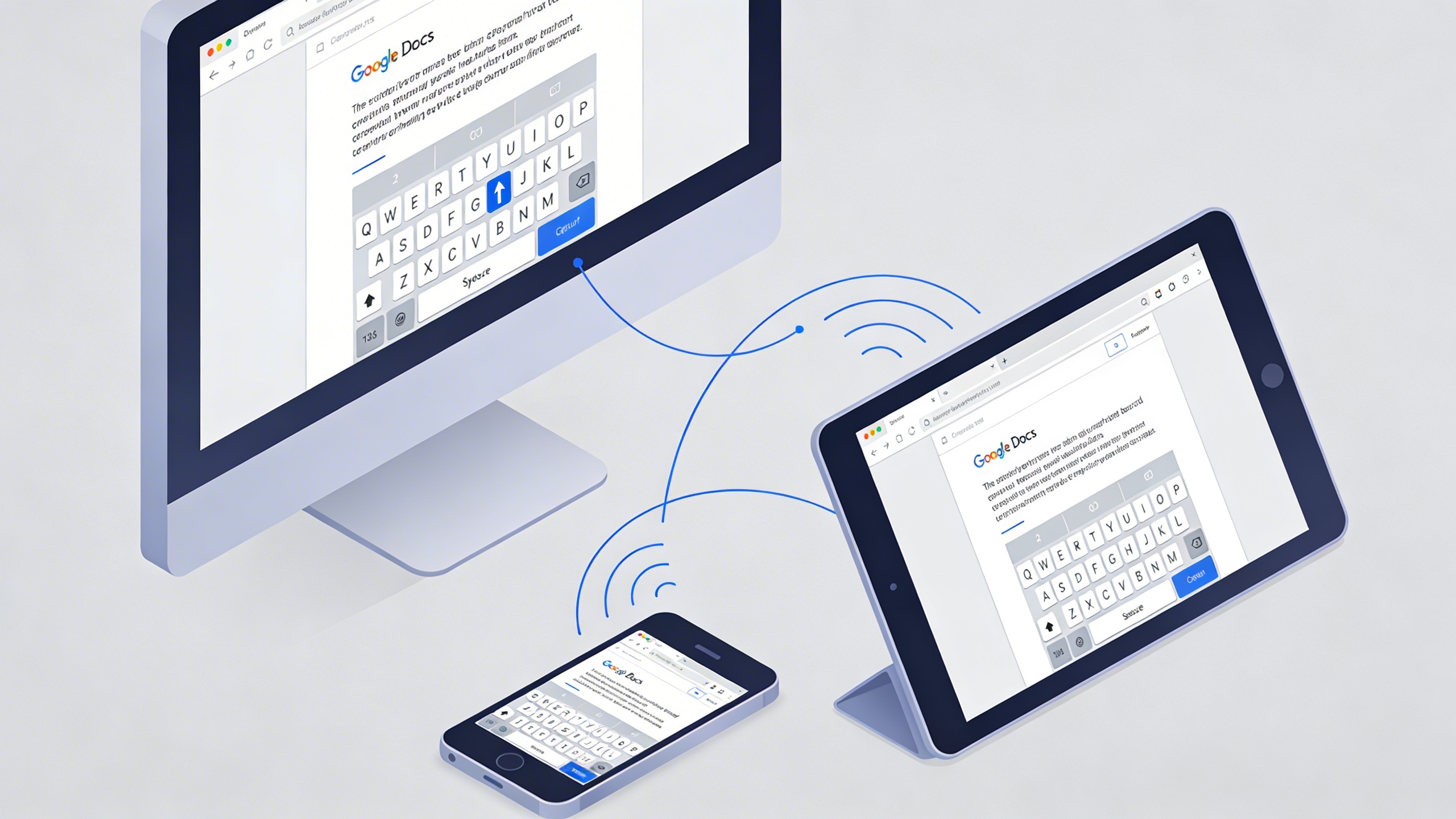
Google Docs automatic synchronization ensures seamless transitions between devices during voice typing sessions. Documents update in real-time, allowing you to begin dictation on your phone during a commute and continue editing on your desktop upon arrival at the office.
The revision history feature preserves all voice-typed content, enabling you to track changes across different devices and sessions. This functionality proves especially valuable when collaborating with team members who contribute via various platforms.
For users requiring more advanced voice recognition capabilities across multiple devices, tools like Sozai offer enhanced cross-platform transcription features that complement Google Docs voice typing functionality.
Synchronization extends beyond document content to include voice typing preferences and custom vocabulary additions. Personal dictionaries and frequently used phrases sync across all connected devices, maintaining consistency in google docs voice typing accuracy regardless of your chosen platform.
Productivity Tips and Best Practices
Maximizing efficiency with voice typing google docs requires strategic workflow planning and understanding how to leverage Google’s ecosystem. These proven techniques will transform your document creation process and significantly reduce the time spent on typing-intensive tasks.
Workflow Integration Strategies
The most productive users develop consistent routines that minimize switching between input methods. Start each session by organizing your thoughts verbally before activating google docs voice typing. This mental preparation reduces hesitation and filler words that require later editing.
Create templates for frequently used document types, then use voice commands to navigate and populate sections quickly. For example, dictate headers first using “Heading 1” commands, then return to fill in content. This top-down approach maintains document structure while leveraging the speed of voice input.
Consider using voice typing in google docs for first drafts, then switching to keyboard editing for refinement. This hybrid approach capitalizes on the rapid content generation that voice input provides while maintaining precision during the revision phase.
Combining Voice Typing with Other Google Workspace Tools
Google docs voice recognition integrates seamlessly with other Workspace applications, creating powerful productivity workflows. Use voice typing to draft emails in Gmail, then copy polished sections into formal documents. The consistency of voice commands across platforms reduces the learning curve.
During Google Meet sessions, participants can use voice to text google docs to capture real-time notes while maintaining eye contact and engagement. Share these documents immediately with attendees, creating instant meeting minutes that require minimal post-processing.
Leverage Google Keep for voice-captured ideas that automatically sync with your Google account. These voice notes can be easily transferred into Google Docs for expansion into full documents, creating a seamless capture-to-creation pipeline.
Accessibility Benefits and Use Cases
Voice typing transforms document creation for users with mobility limitations, repetitive strain injuries, or conditions affecting manual dexterity. The technology enables full participation in academic and professional writing tasks without physical strain.
Students with dyslexia often find voice input reduces the cognitive load associated with spelling and typing, allowing them to focus on content and ideas. The immediate visual feedback helps identify and correct errors in real-time, supporting learning and confidence building.
For users managing multiple languages, voice typing google docs supports seamless switching between languages within the same document. This feature proves invaluable for international correspondence, research documentation, or multilingual content creation.
Remote workers benefit from voice typing during video calls when traditional typing would create distracting keyboard noise. The silent operation maintains professional meeting environments while enabling comprehensive note-taking.
Consider supplementing Google’s built-in voice recognition with specialized transcription tools like Sozai for longer audio recordings or when working with multiple speakers. This combination approach ensures you have the right tool for every voice-to-text scenario.
Professional writers and content creators often establish daily voice typing sessions during peak energy hours when verbal articulation is strongest. This timing strategy maximizes both speed and accuracy, resulting in higher-quality first drafts that require less revision.